




























1. Function Overview
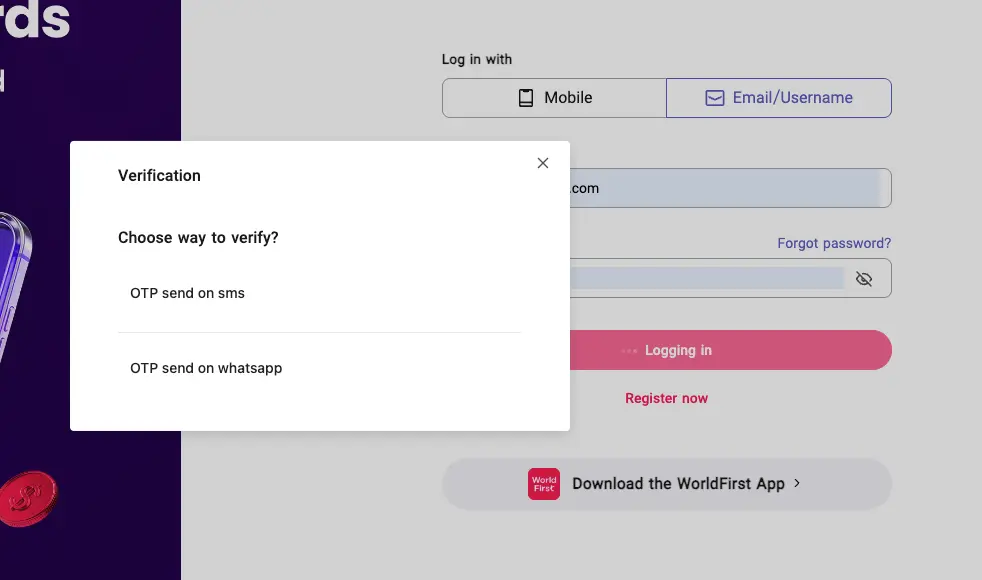
WorldFirst has officially launched its WhatsApp Business account.
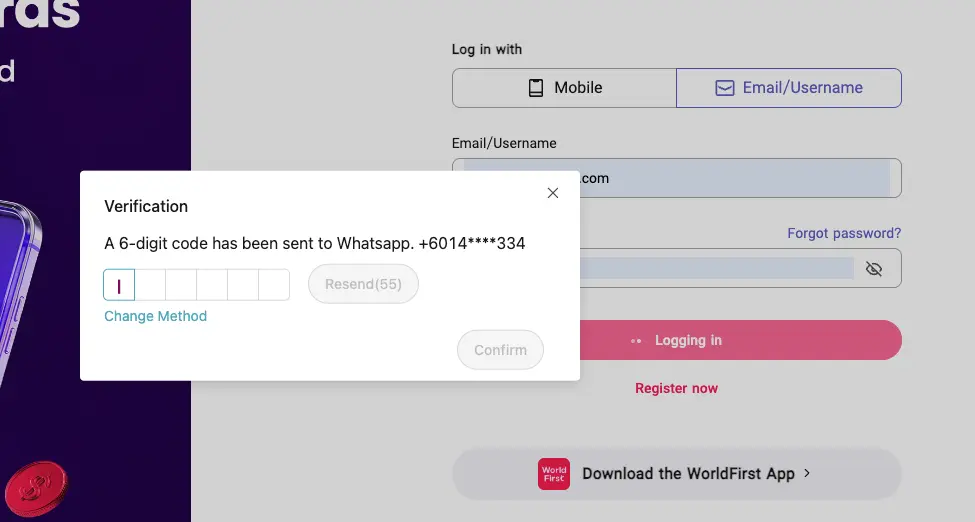
The first service is OTP delivery for online transactions.
- Where SMS OTP is available, a WhatsApp OTP option will also be offered(e.g., login verification, payment verification, email change, sub-operator invitation, approval-rule creation, etc.).
- If the WhatsApp entry does not appear on the transaction page, please continue to use SMS.
2. Pre-use Checklist
| Check item | Requirement |
|---|---|
| Mobile OS | WhatsApp installed and network connected |
| Number format | Must match the admin/operator security mobile number stored in the WorldFirst back-end |
3. How to verify the official WorldFirst account
To protect your transactions and avoid fraud, always remember:
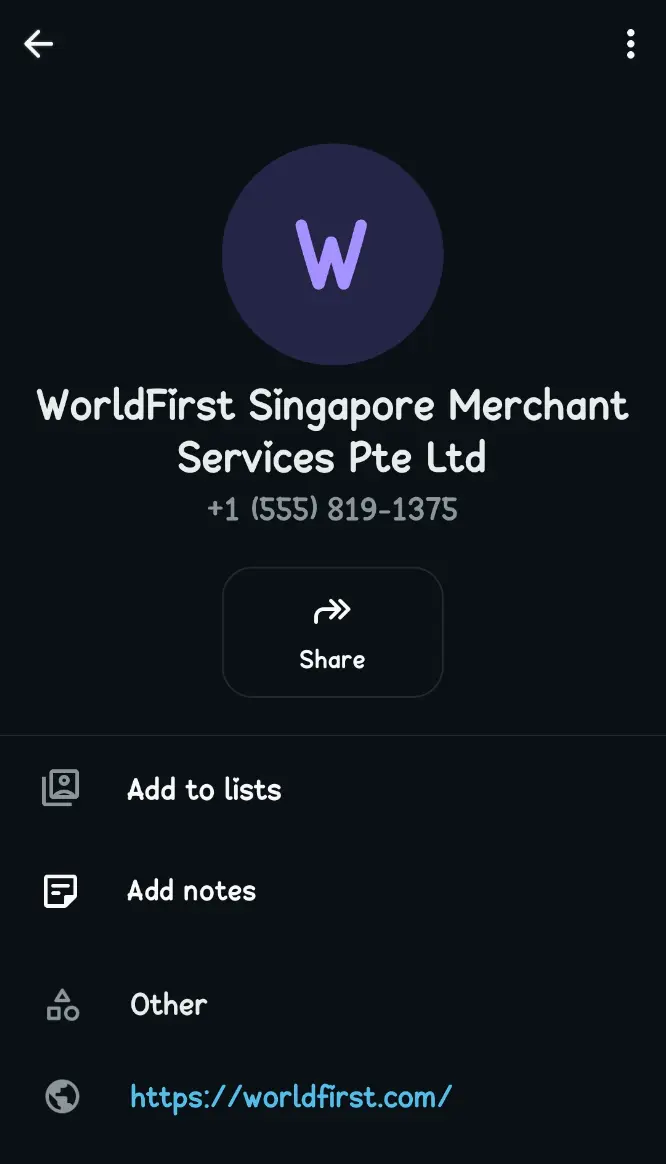
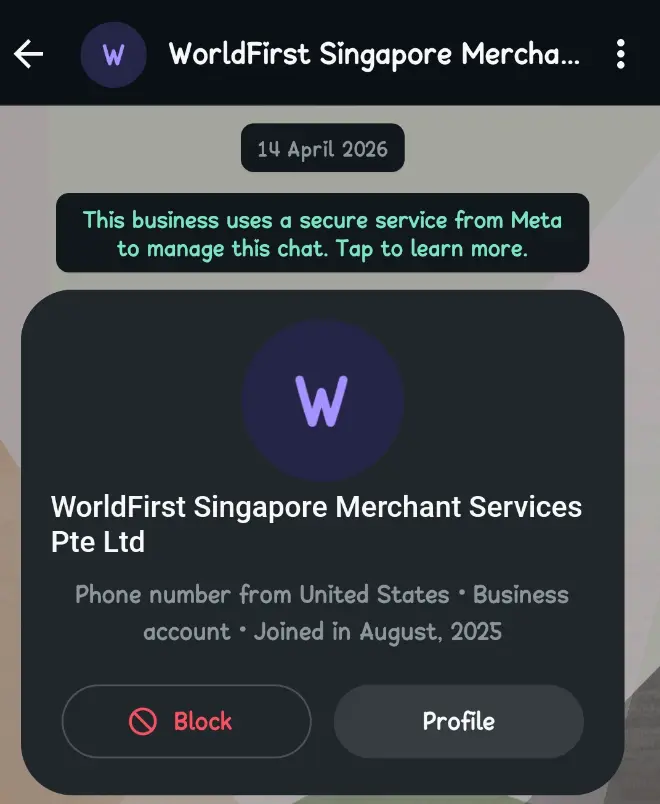
- WorldFirst official WhatsApp business account (see image).
- One-way only: we only send OTPs; the bank will never ask you to reply with account info, passwords or OTPs.
- Always verify: never disclose your OTP to anyone; it expires automatically after the validity period.
4. Daily transaction verification flow
- Initiate a payment, transfer or batch payment that requires OTP.
- On the verification page choose “Receive OTP via WhatsApp” (if not shown, switch to SMS).
- Within ~10 s you will receive a 6-digit OTP from the official WorldFirst account on WhatsApp.
- Enter the code on the web/app → confirm → transaction proceeds.
- The code is valid for 5 min; if it expires, request a new one.
5. FAQ
| Issue | Solution |
|---|---|
| WhatsApp OTP not received | 1) Check network 2) Ensure number matches back-end 3) Wait 60 s and tap “Resend” 4) If still fails, switch to SMS |
| OTP accidentally deleted | Return to the transaction page and tap “Resend”; no unbinding needed |
| Change mobile number | Log in → Security Center → Update bound mobile number |
| WhatsApp entry not visible in Singapore (SG) | Due to local compliance, WhatsApp OTP is unavailable for payments/transfers/batch payments/withdrawals; please use SMS verification |