


























If you use Stripe to collect payments from customers, you can withdraw your sales proceeds into your World Account. With the World Account, you can hold your multi-currency funds, make conversions at competitive FX rates, remit to your bank account, or pay your third-party suppliers abroad. You can even make purchases at wholesale sites like 1688.com directly with your World Account balance. With a few simple steps, you can start withdrawing your Stripe funds.
*Note: The following example uses a USD account for demonstration. The steps for other currencies are the same.
Step 1 – Set up a receiving account
- On your World Account dashboard, go to the Collections tab > Click Manage accounts
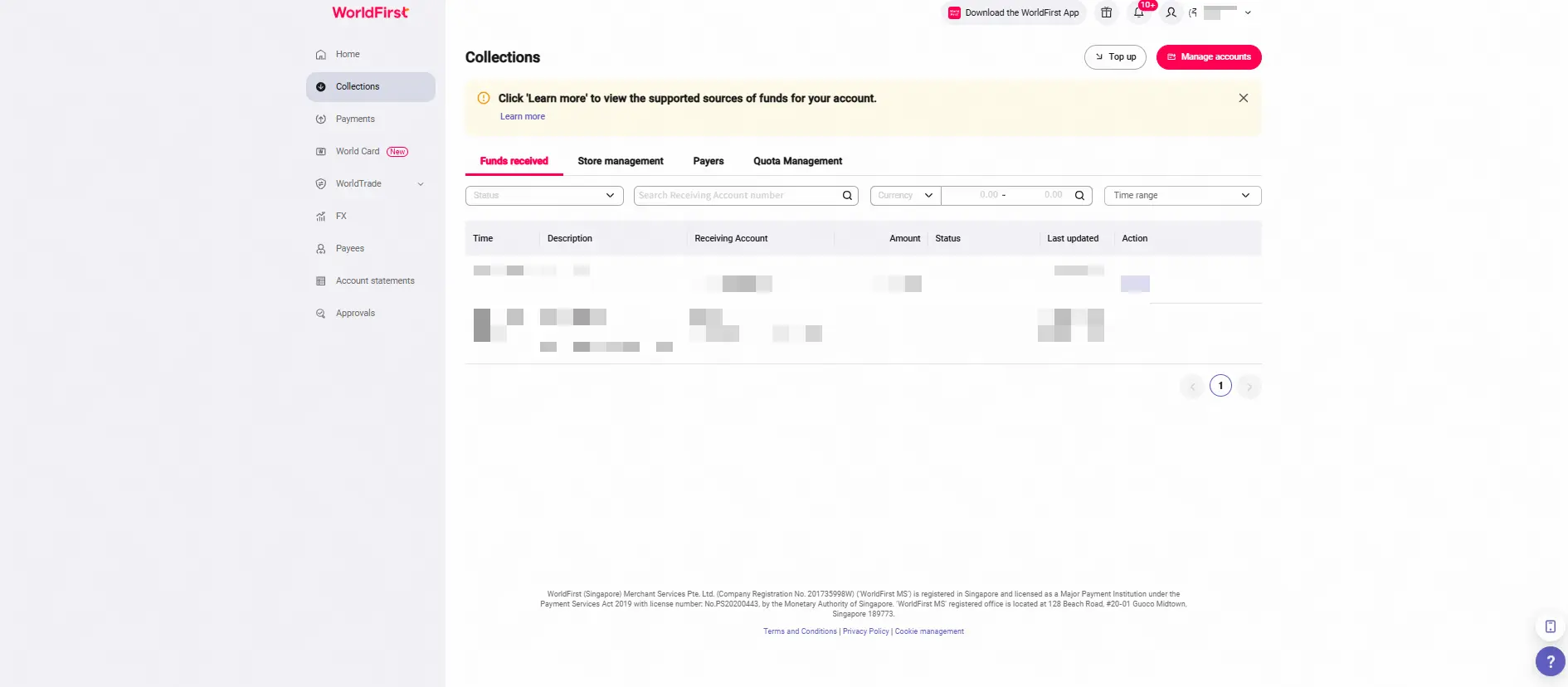
- Click on Add a new Receiving Account. You can then select the currency for your receiving account
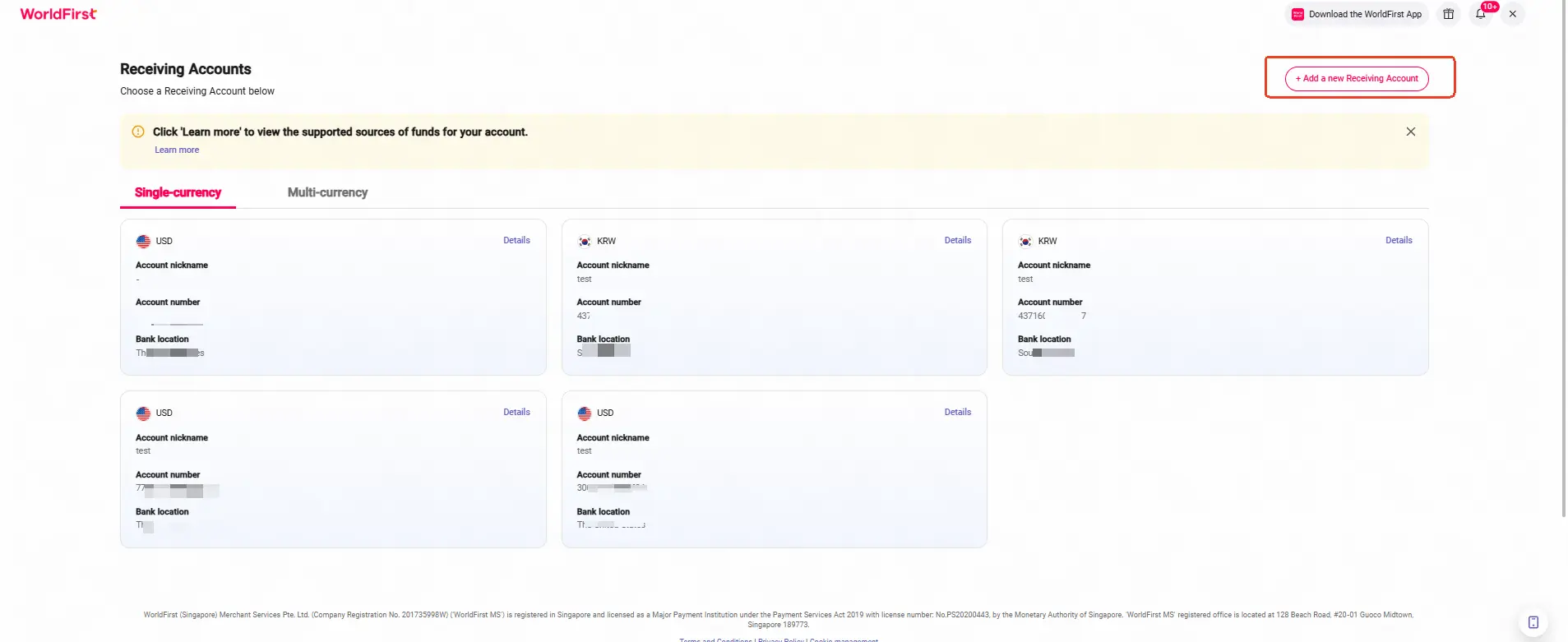
- Select the required currency, account usage, marketplace platform, supported bank, and enter an account name. Click Confirm to complete your new receiving account
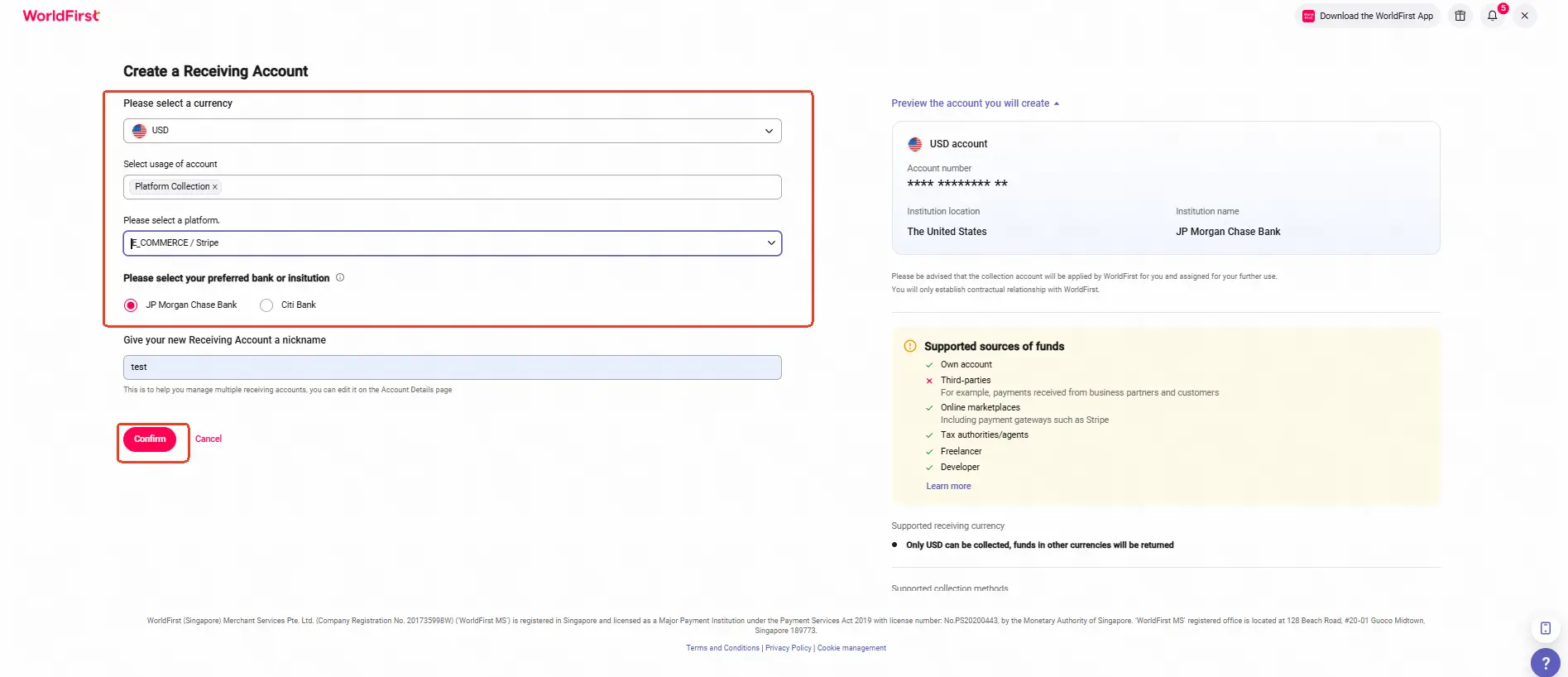
- Once the account is set up, you can click on Details to get the account details
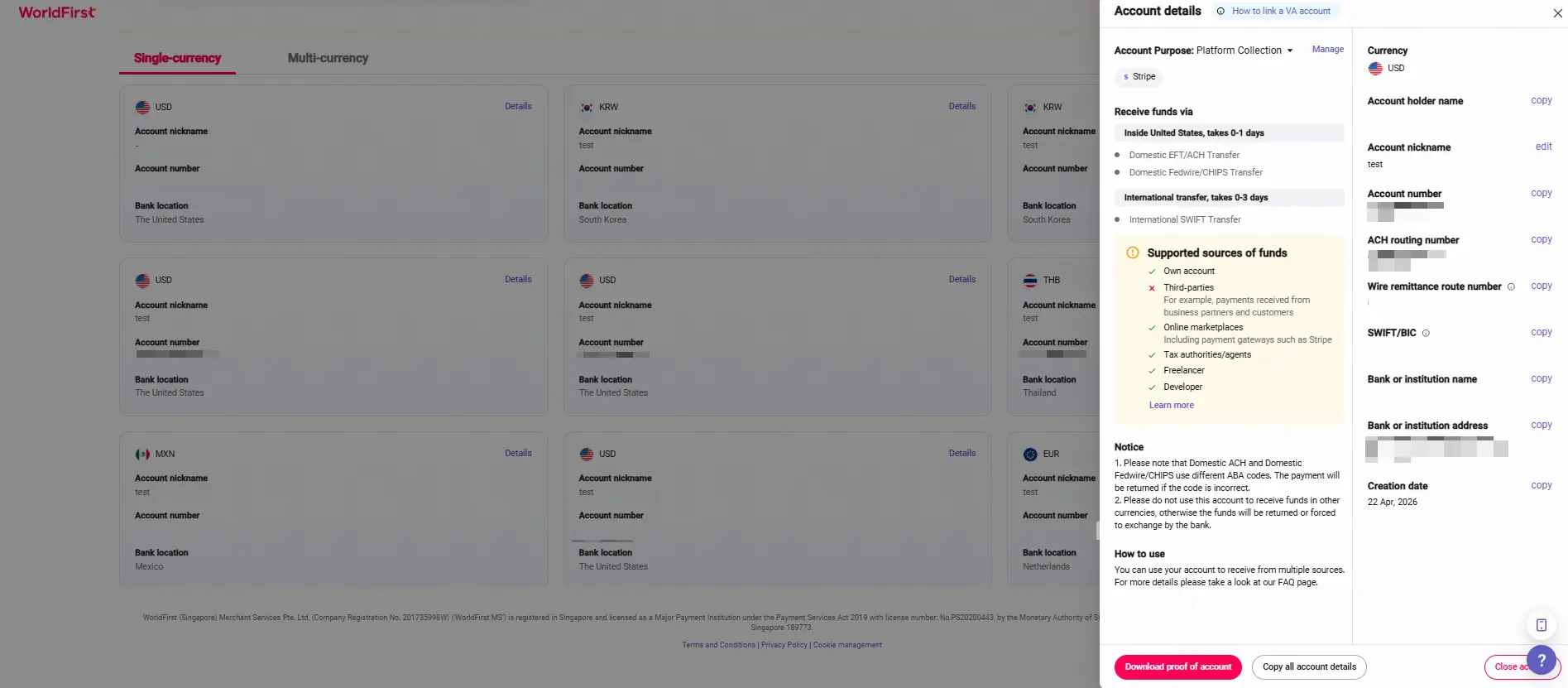
Step 2 – Link your receiving account to Stripe
Reminder:
You need to create a receiving account in your World Account before linking it to your Stripe for payments.
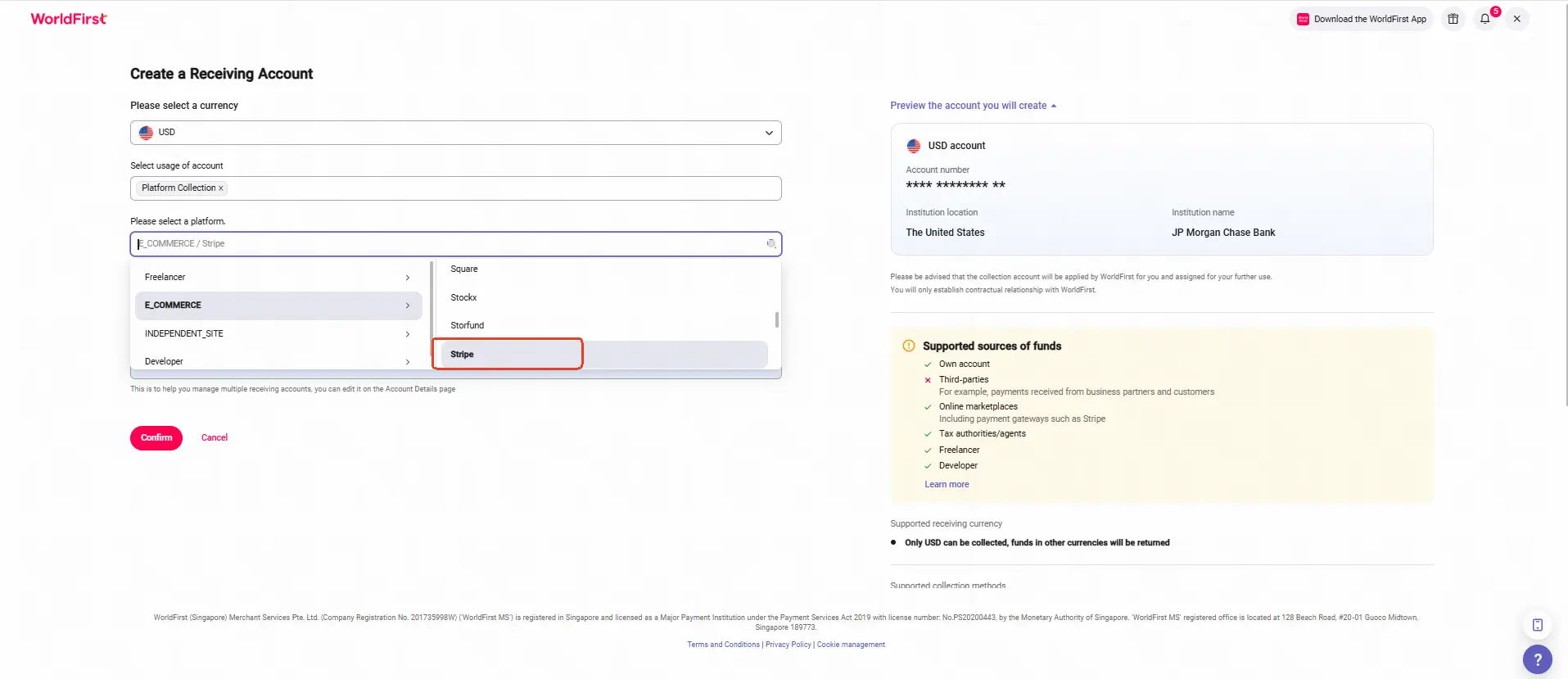
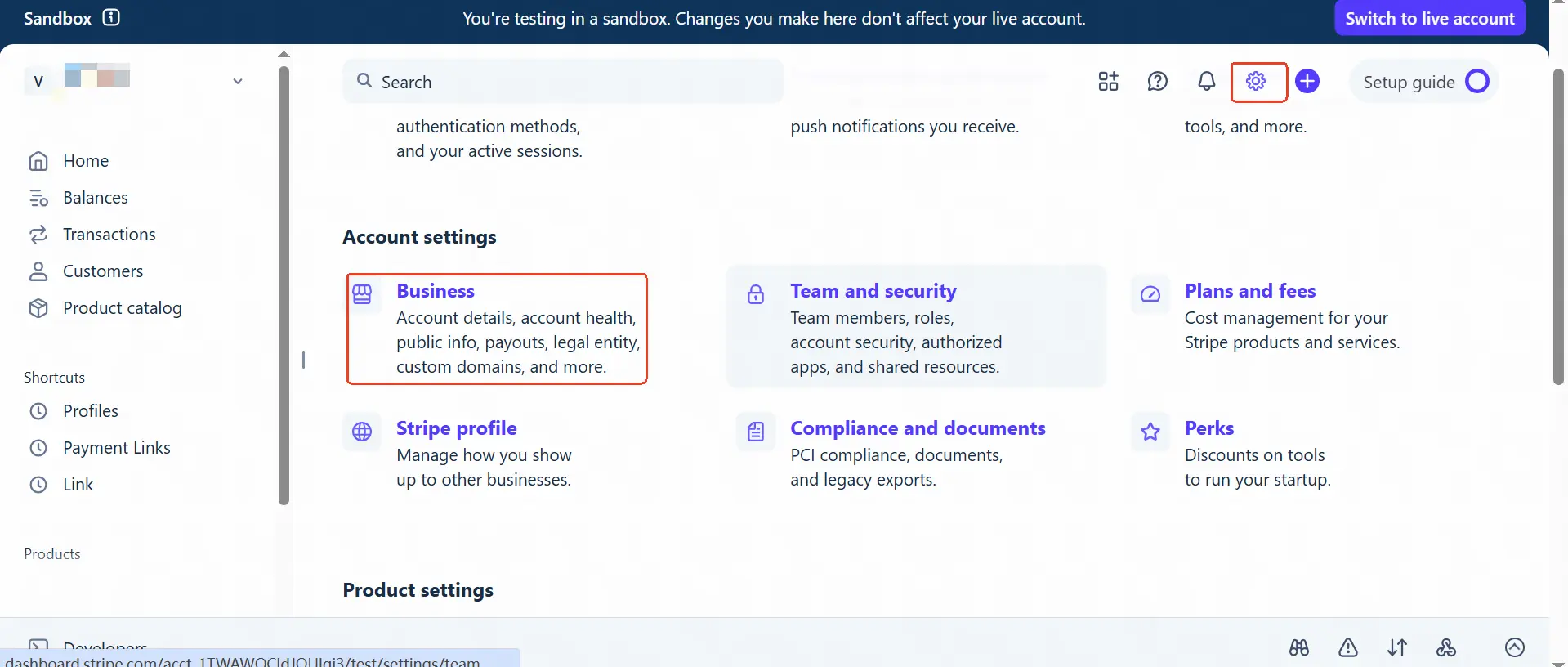
Log in to the Stripe Dashboard:
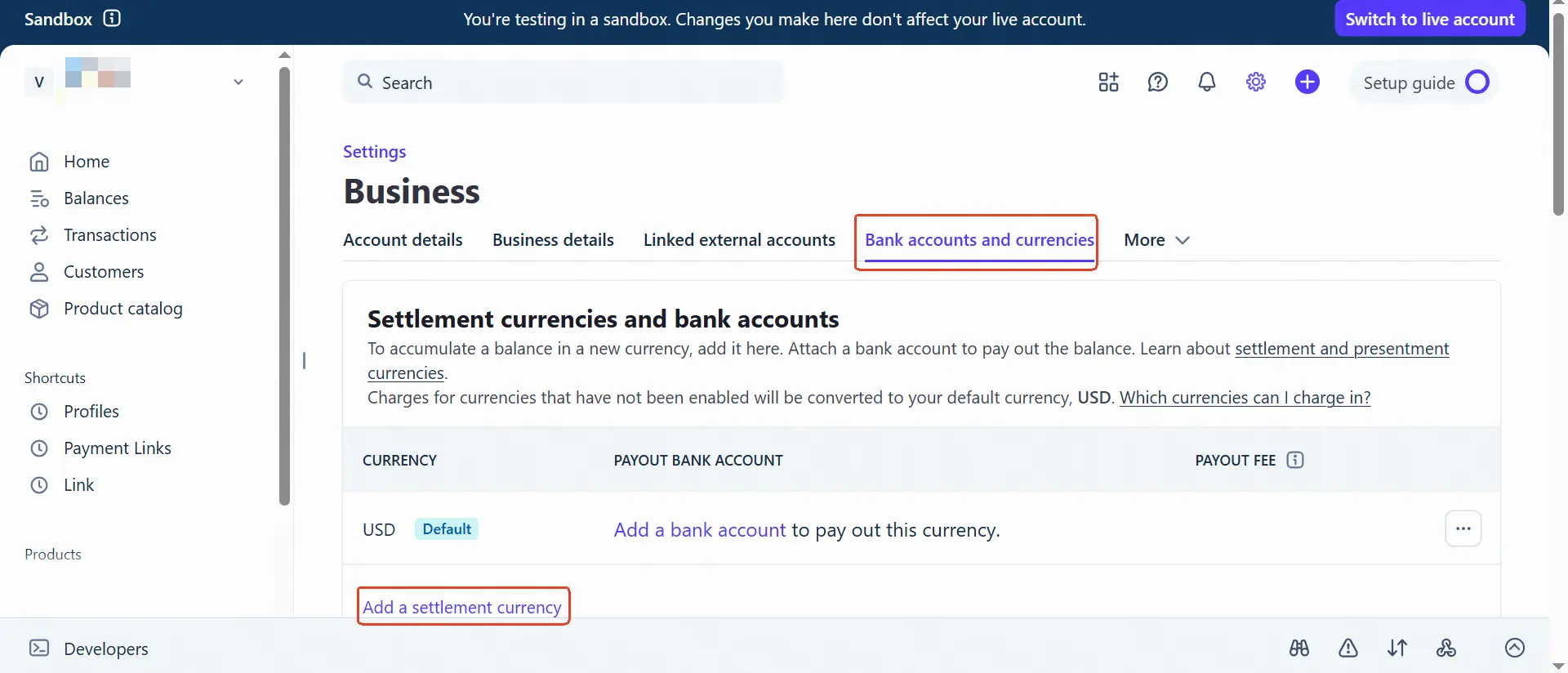
- Click the Settings gear in the upper-right corner of the page;Under Account Settings, click Business, then select the Bank accounts and currencies tab.
- Under Settlement currencies and bank accounts, find the currency you use for payouts or add a new currency, then click Add a settlement currency.
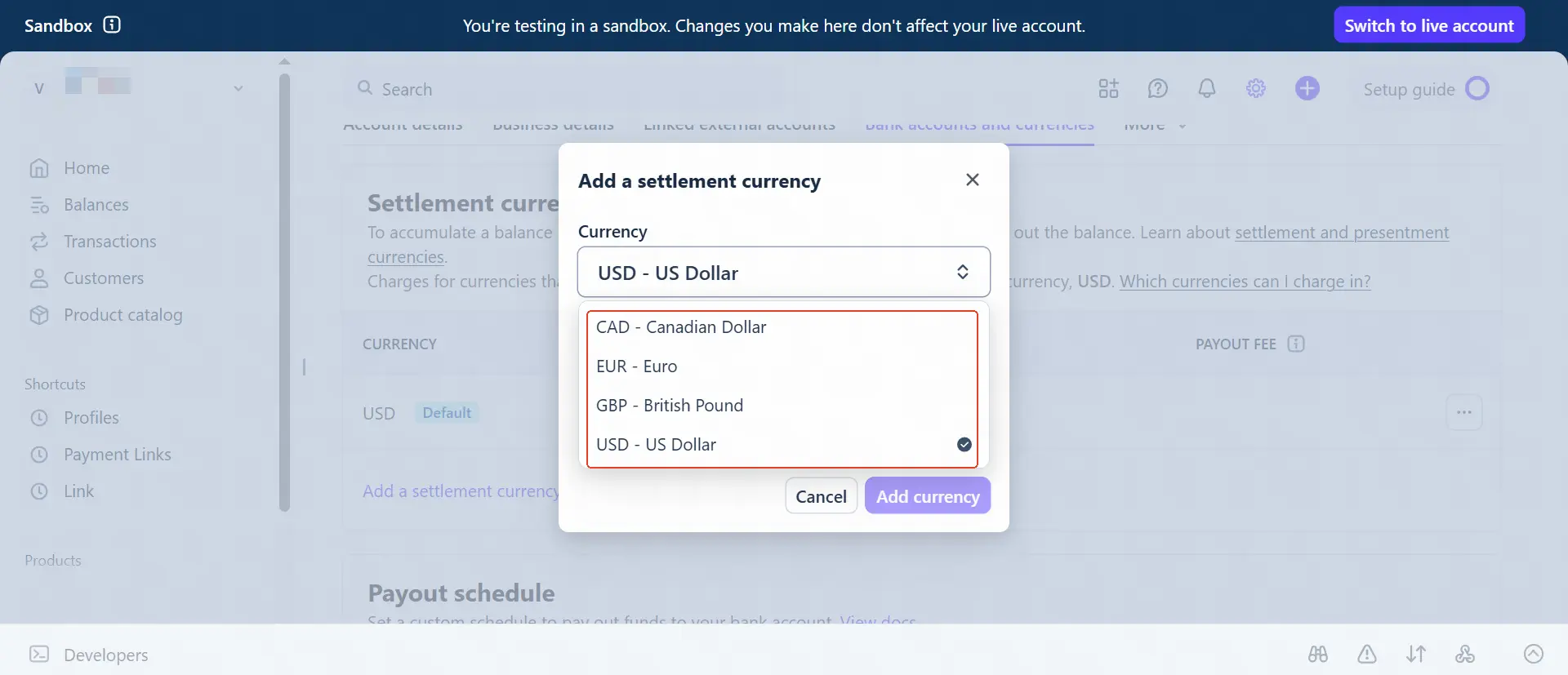
- You may be asked to verify your credentials by email or password.
- Enter your bank account information. The account must be a checking account, and the account number, routing number, and account holder name must match your bank statement. The bank account currency must match the currency in your payout settings.
- Click Add currency to submit.
Tips:
Fill in or select the bank details exactly as shown in your World Account receiving account
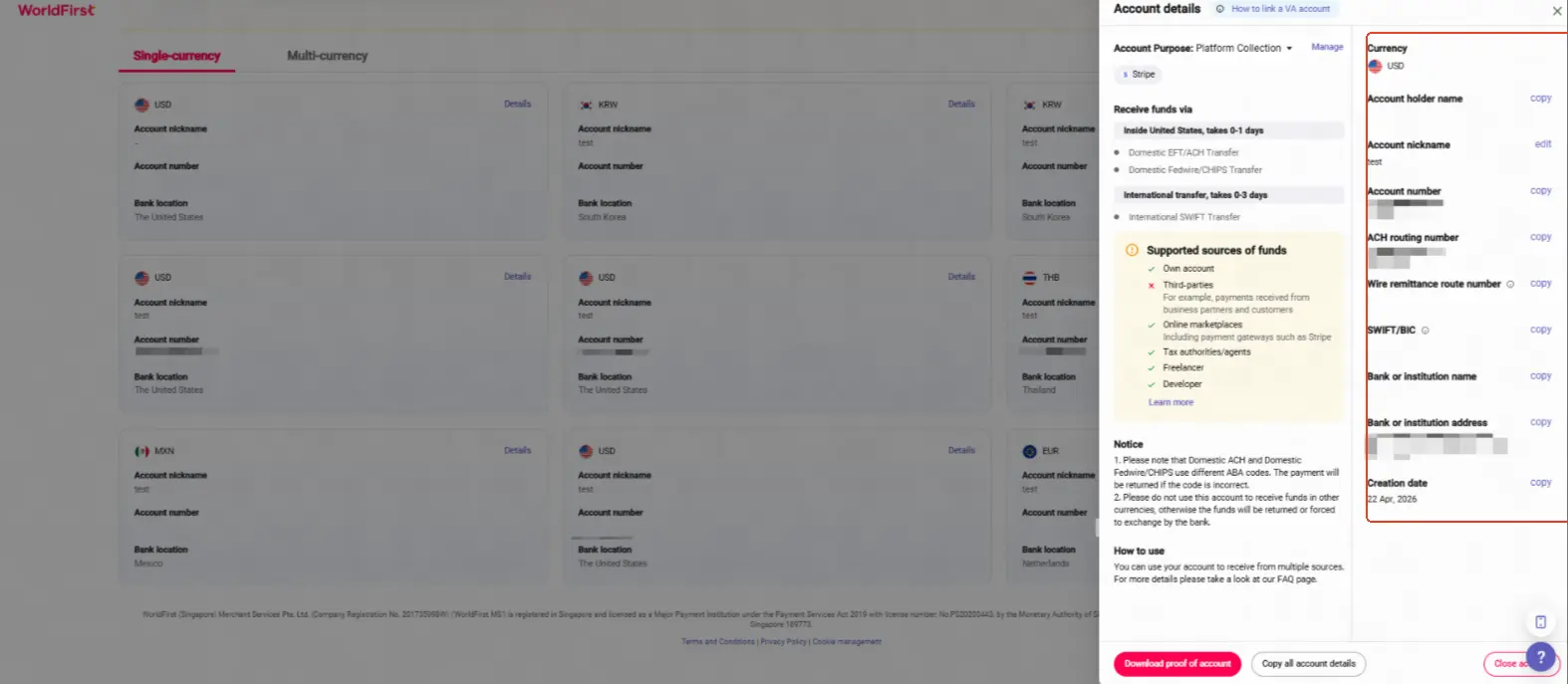
- Account holder name: Account holder name (refer to details in your WorldFirst portal)
- Routing number: ACH routing number (refer to details in your WorldFirst portal)
- Account number: Account number (refer to details in your WorldFirst portal)
- Confirm account number: Account number (enter the same account number again)
*Note: The bank account must be associated with the same person or entity as your Stripe account, and only users with Admin or Owner permissions can add or edit bank account details.
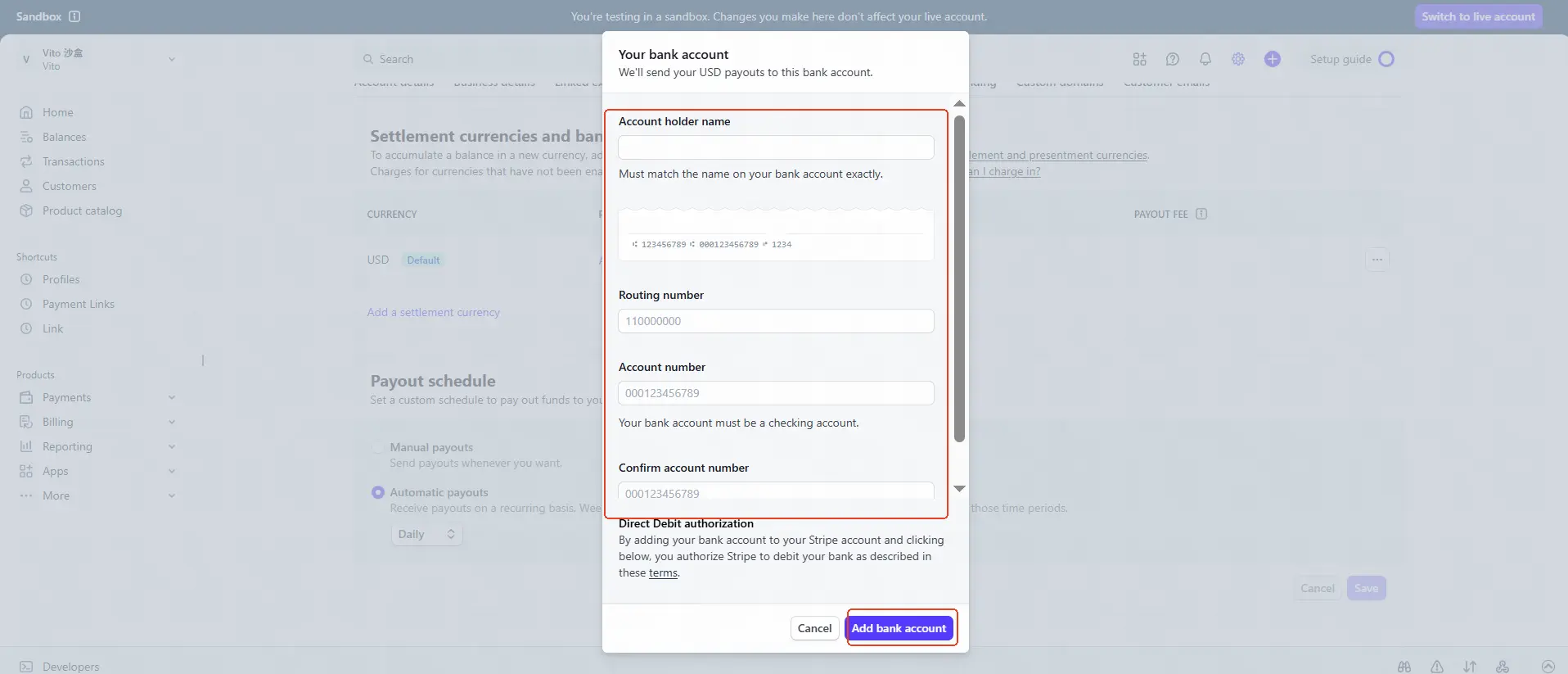
- After submission, once the platform review is approved, the account