






























Connect your Shopify store to your World Account and get paid like a local

Key takeaways
- Shopify allows sellers to add different bank accounts for different currencies
- Yo can only add one bank account for a currency
- You can set up a World Account to accept payments from Shopify in 15+ currencies
Introduction
If you are an online seller with a Shopify storefront, you can set up a World Account to accept payments from Shopify in various currencies – without any overhead receiving fees. Hold collected funds in the same receiving currencies to pay suppliers, process refunds, or withdraw to your bank anytime.
Let’s look at how you can connect your Shopify account to your World Account and get paid like a local.
Why WorldFirst?
With a single World Account, you can set up 15+ local currency accounts, including GBP, USD, EUR, CAD, JPY, AUD, SGD, NZD, HKD and CNH. The accounts can be set up online in your business’s name without visiting any branch and you don’t need to provide a local proof of address. You get a separate account number and branch codes for every currency account.
Most requests to open a new local currency account are approved instantly. In some cases, the account activation can take 1-2 business days.
A World Account lets you:
- Collect payments from 100+ global marketplaces and payment gateways, including Amazon, eBay, Etsy, AliExpress, and Stripe
- Hold your earnings in the original currency to fund supplier payments or withdraw them to your bank account at competitive interbank exchange rates
- Send and receive payments in 40+ currencies across 130+ countries and regions
Steps to connect Shopify with WorldFirst
1. Open a World Account
Businesses based in Australia can directly open a World Account by registering and uploading the required documents. Opening an online account only takes a few minutes.
You can also reach out to us for help and our local team will be happy to speak with you.
In Australia
1800 326 667
Outside Australia
+61 2 8298 4990
*Mon. – Thurs. [8am — 6pm] AEST/AEDT time
Fri. [8am — 5.30pm] AEST/AEDT time
2. Get your local bank account details
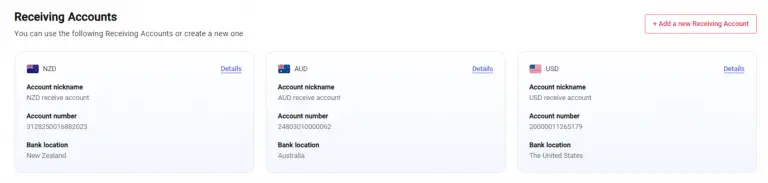
With a World Account, you can open local currency accounts almost instantly, allowing you to do business like a local, even when you operate overseas.
You need to set up a Receiving Account in the corresponding currency of your Shopify payout currency.
- On your World Account dashboard, go to the Collection tab.
- Click Manage Accounts > Add a New Receiving Account.
- Select the currency of your marketplace.
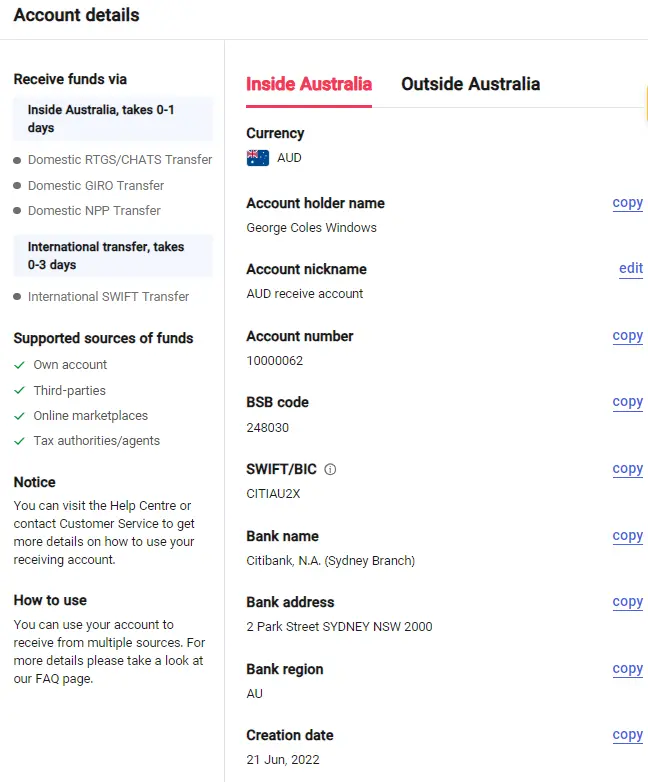
Once the account is set up, you can click on details to get the account details, including the bank account number and a sort code.
3. Add or replace bank account details
Here are steps to add a new bank account in Shopify or replace an existing one:
- In your Shopify admin dashboard, go to Settings > Payments
- Under the Payments section, select Manage
- Click on Add in the Payouts section
- Under the bank account section, select the country where the bank account is registered
- Select the currency in which the payouts are to be made. You can add different accounts for different currencies and regions. For example, a USD account for customers in the US and a GBP account for customers in the UK.
- Copy and paste the account details from your WorldFirst Receiving Account. The banking information required can depend on the location.
- Australia: Add account number, name of the account holder, and BSB code
- The US: Add the account number along with the routing number
- The UK: Add the bank account number and sort code
- Europe: Add the IBN and BIC
- When done, click on Add bank account
For further details, please check here
4. Change the default bank account for payouts
When you add a second bank account for Shopify payouts, the first bank account automatically becomes the default account. Payments collected in currencies that don’t have a dedicated bank account linked to them are converted into the currency of the default bank account.
Here are the steps to change your default bank account in Shopify:
- In your Shopify admin dashboard, go to Settings > Payments
- Under the Payments section, select Manage.
- In the Payouts section, click on the three dots (…) next to the bank account that you want as your default payment account
- Click on Make default
For further details, please check here
Things to keep in mind when getting paid in multiple currencies
Here are some things to keep in mind when you have a Shopify storefront that collects payments in multiple currencies from global customers.
- You can only add one bank account for a currency
- When payments are collected in currencies matching with any of the existing bank accounts, the funds are deposited into the corresponding bank account with no currency conversion fee
When payments are collected in currencies that don’t match with any of the existing bank accounts, the funds are deposited in your default bank account. A currency exchange rate and a conversion fee are applied
Disclaimer: The information contained is general only and largely our views. Before acting on the information you should consider whether it is appropriate for you, in light of your objectives, financial situation or needs. Although information has been obtained from and is based upon multiple sources the author believes to be reliable, we do not guarantee its accuracy and it may be incomplete or condensed. All opinions, estimates, mentioned products/services and referenced material constitute the author’s own judgement as of the date of the briefing and are subject to change without notice. WorldFirst shall not be responsible for any losses or damages arising from your reliance of such information.