





























WorldFirst – ERP Homepage & Start Connection
Step 1: Access Portal
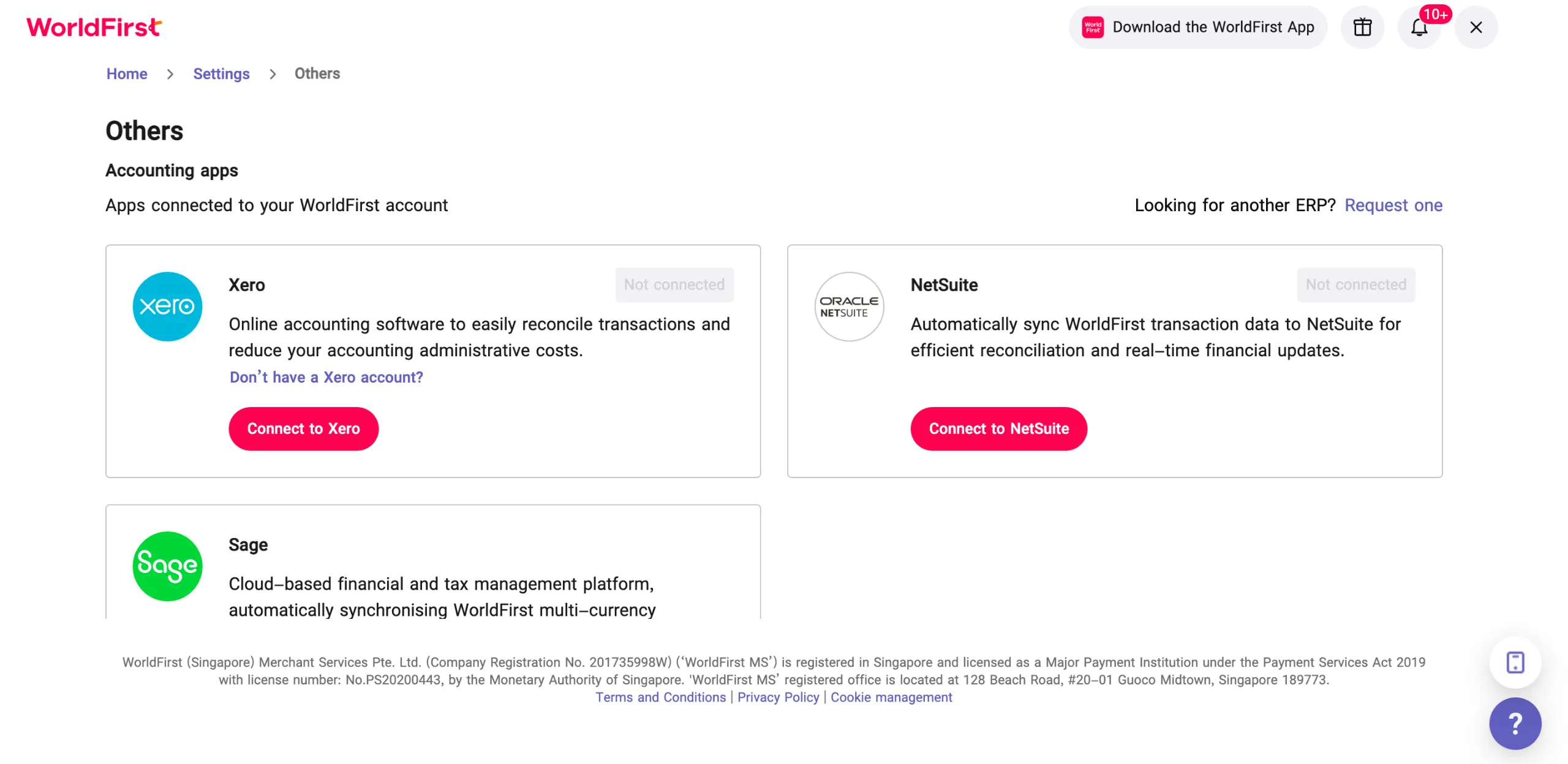
Log in to the WorldFirst portal and navigate to “Accounting ERP” section
Step 2: Integration Process
Select “Sage” from the list of supported accounting platforms to view the process for binding your Sage account
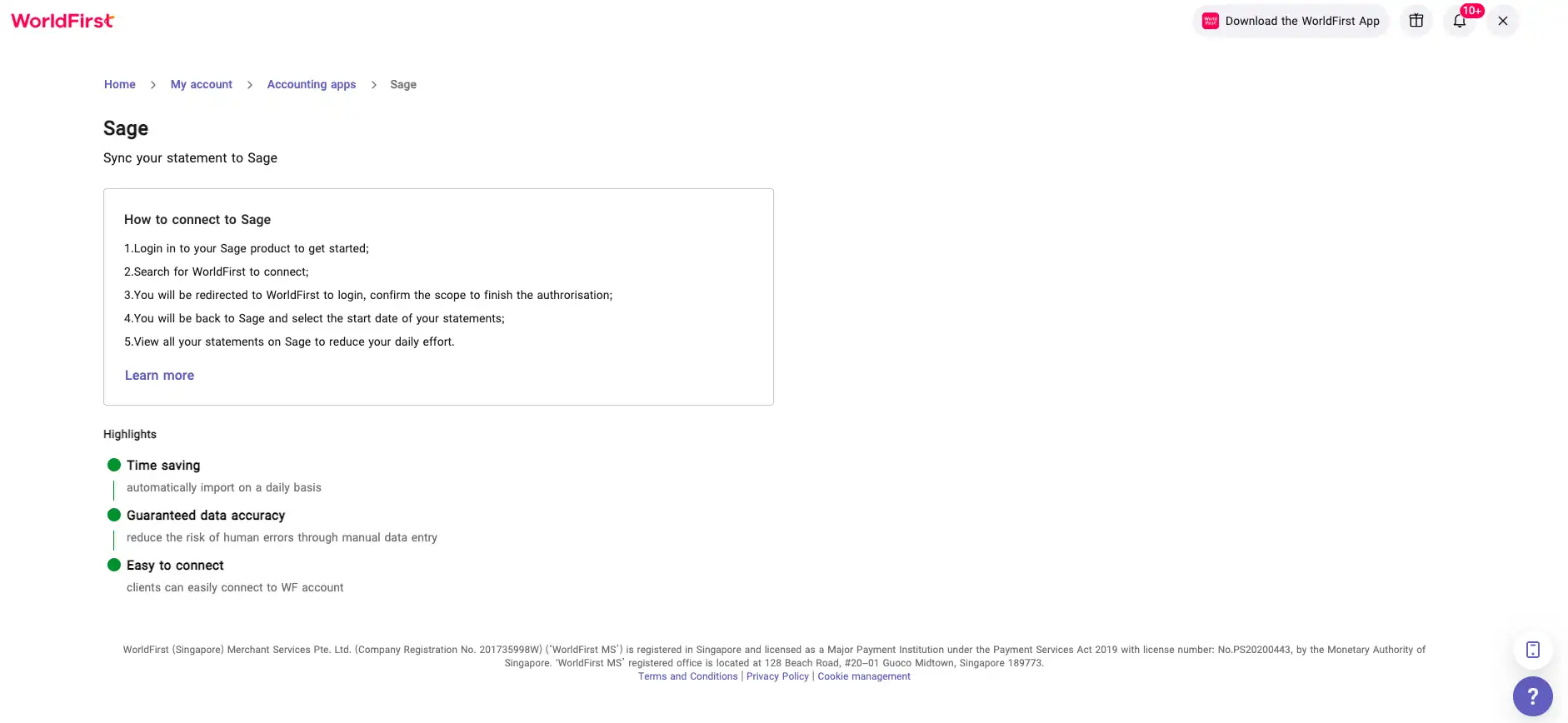
Sage Authorization
Step 1: OAuth Authentication
Navigate to Sage portal to add your account and complete the authentication
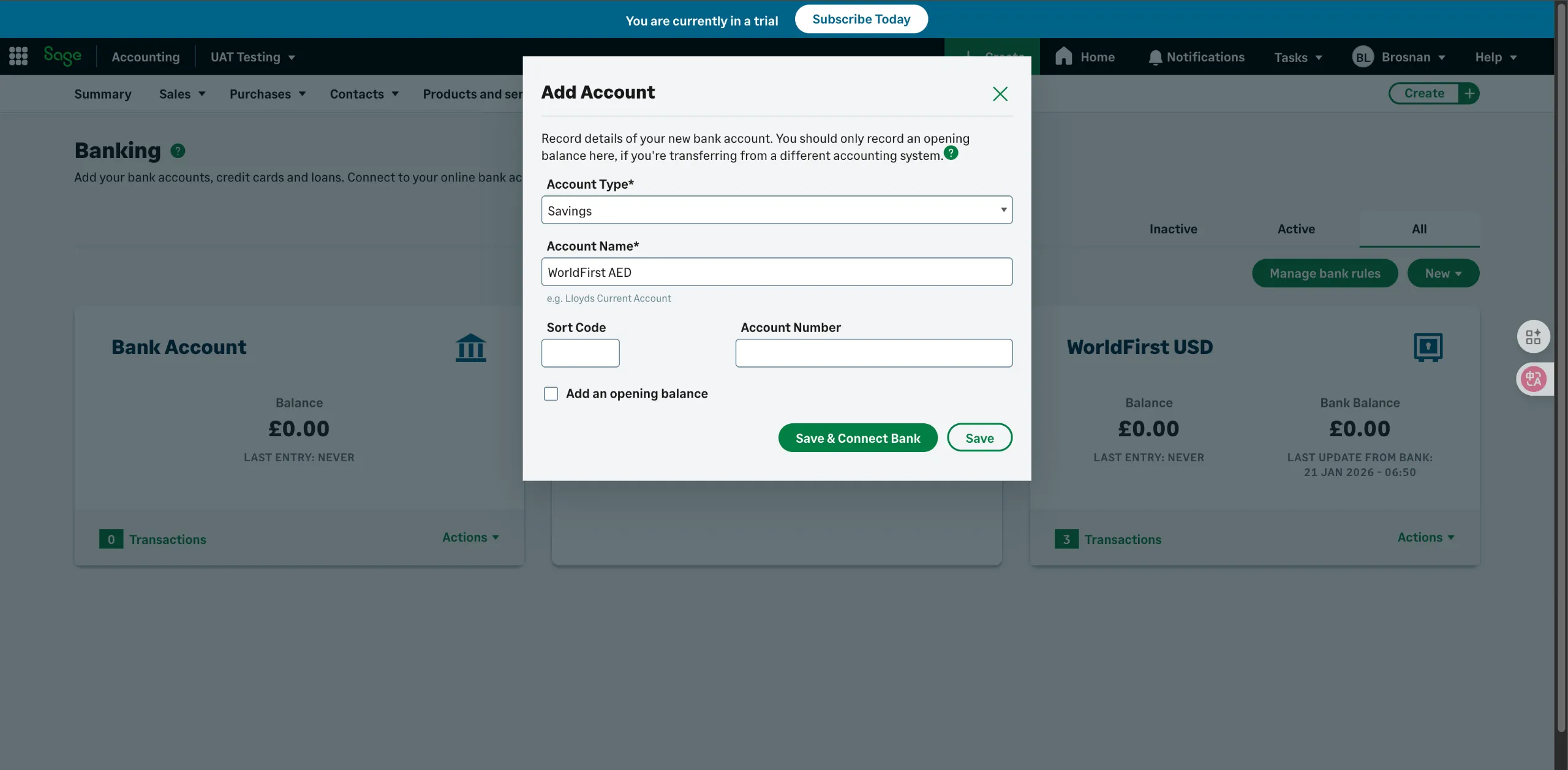
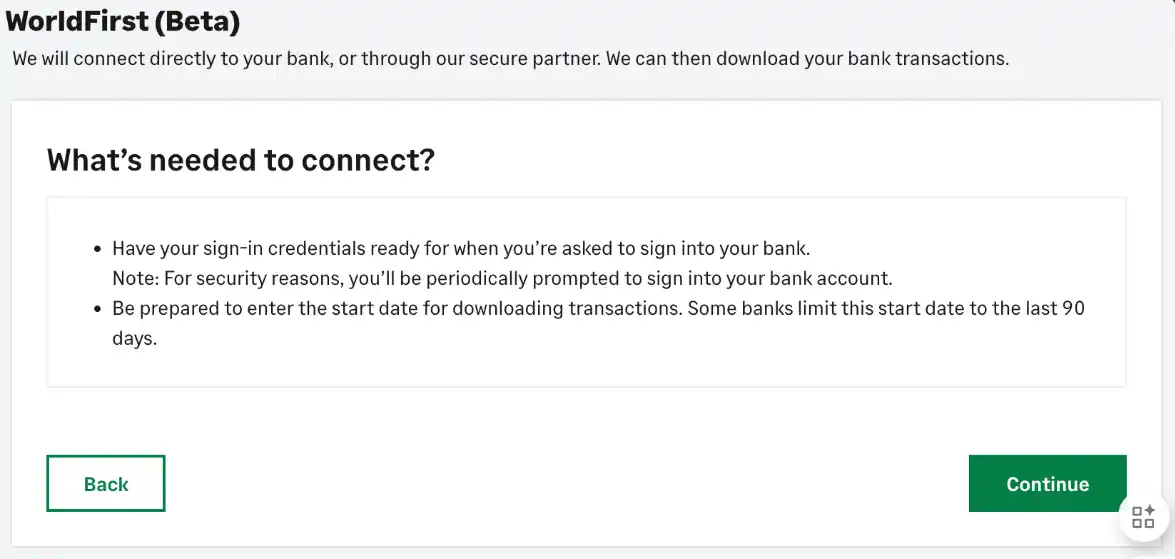
WorldFirst – Select Account
Step 1: Search WorldFirst
- Start from Sage
- WF Login Page
- WF Account Selection Page (optional step, If you log in with multiple accounts connected)
- WF Consent Page (with Auth scope and disclaimer wording)
Sage – Linking Accounts
Step 1: Map Bank Accounts
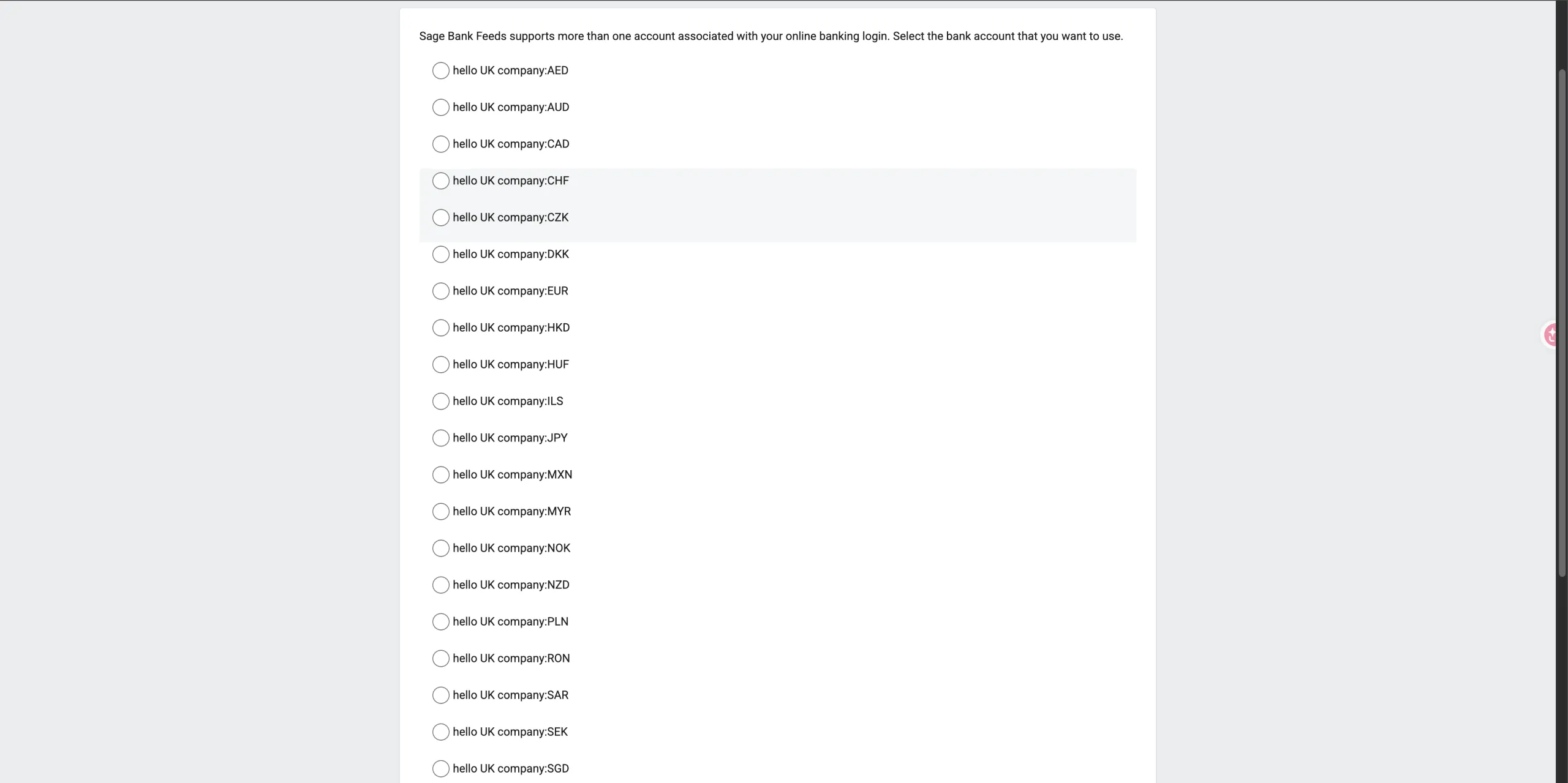
- Select WorldFirst currency accounts you wish to link and map them to their General Ledger accounts in Sage
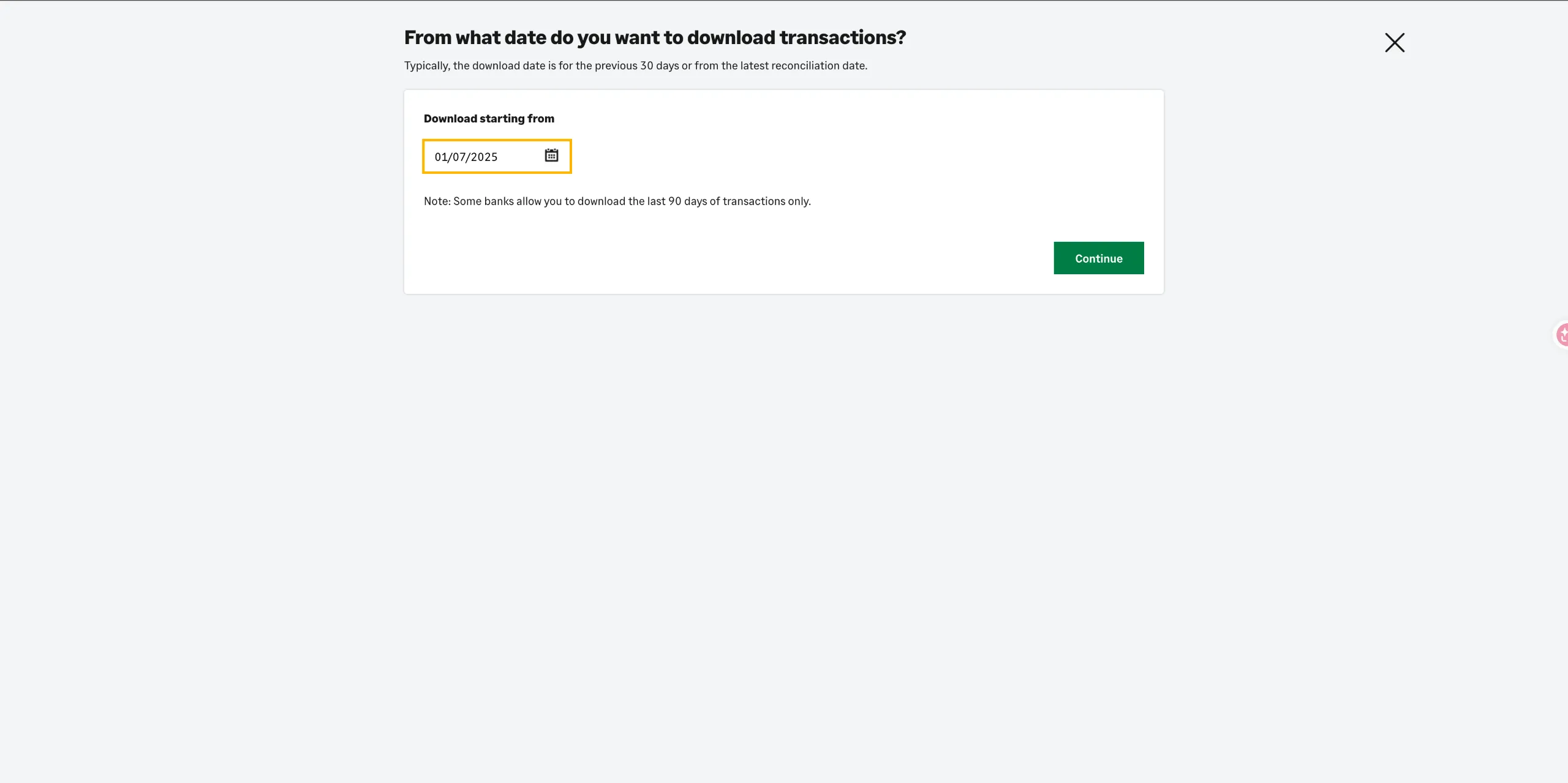
- Select the sync start date
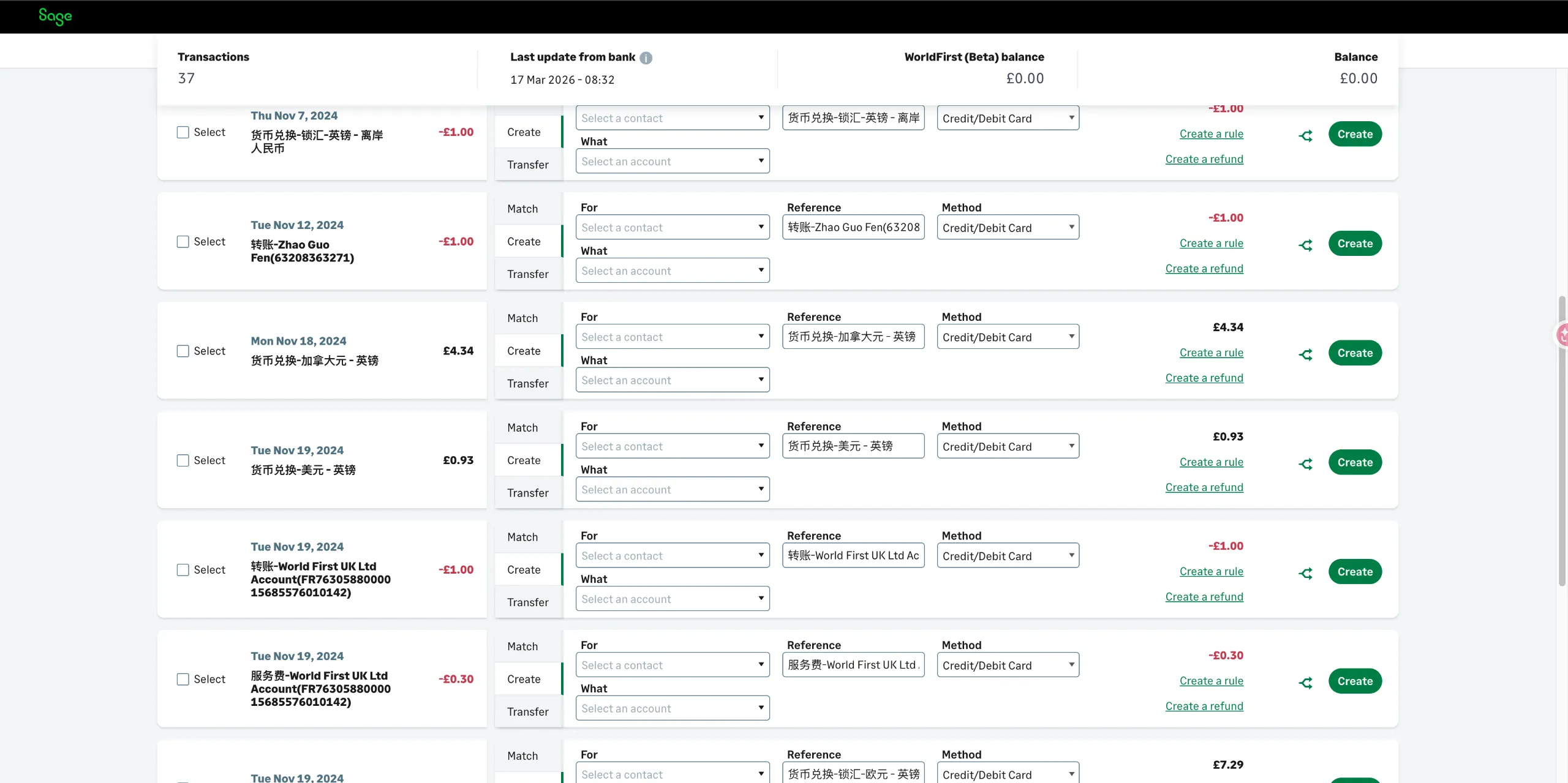
Step 2: Check the statement
You can check the statement info on Sage side, data fields within expectation
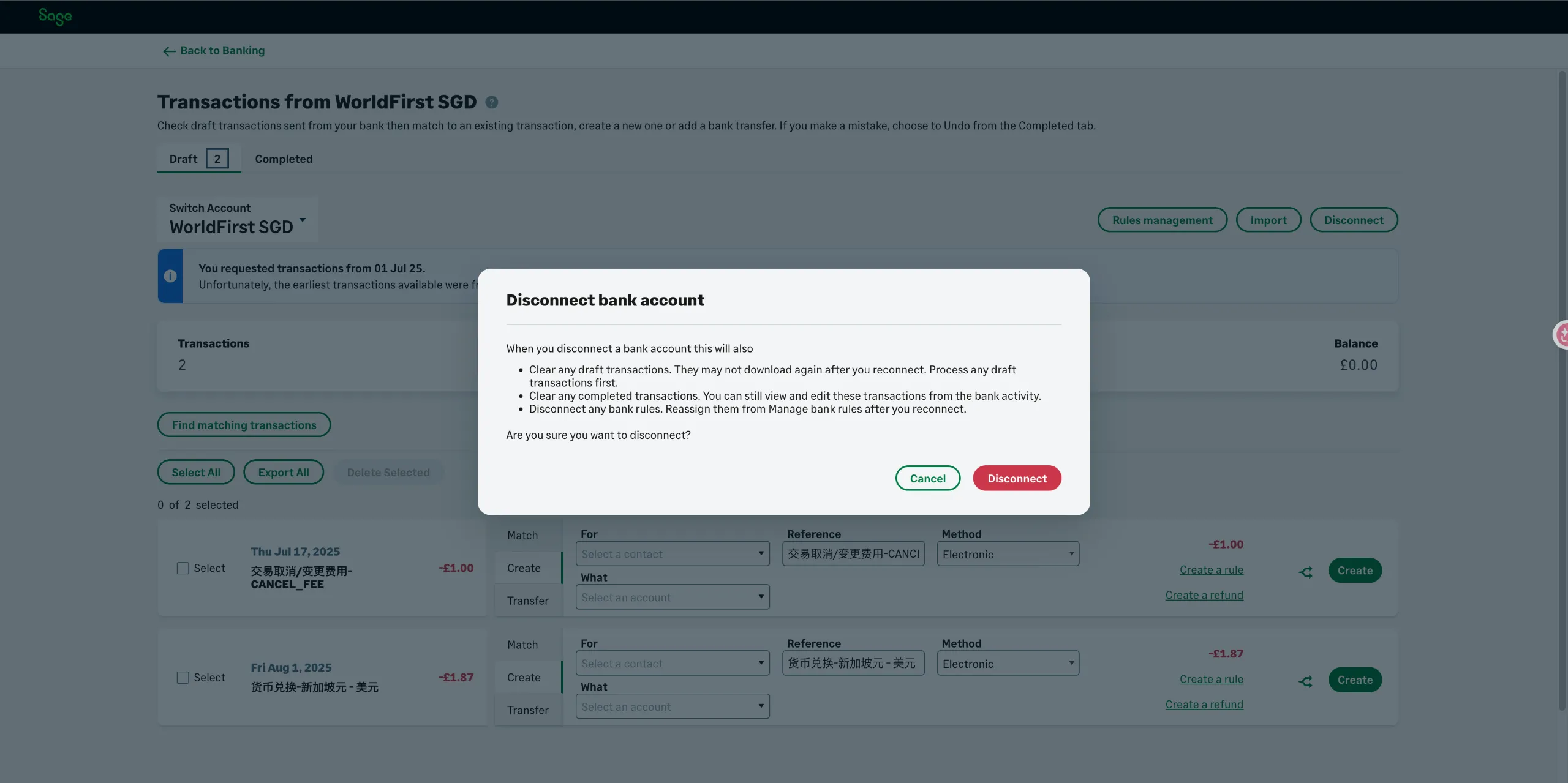
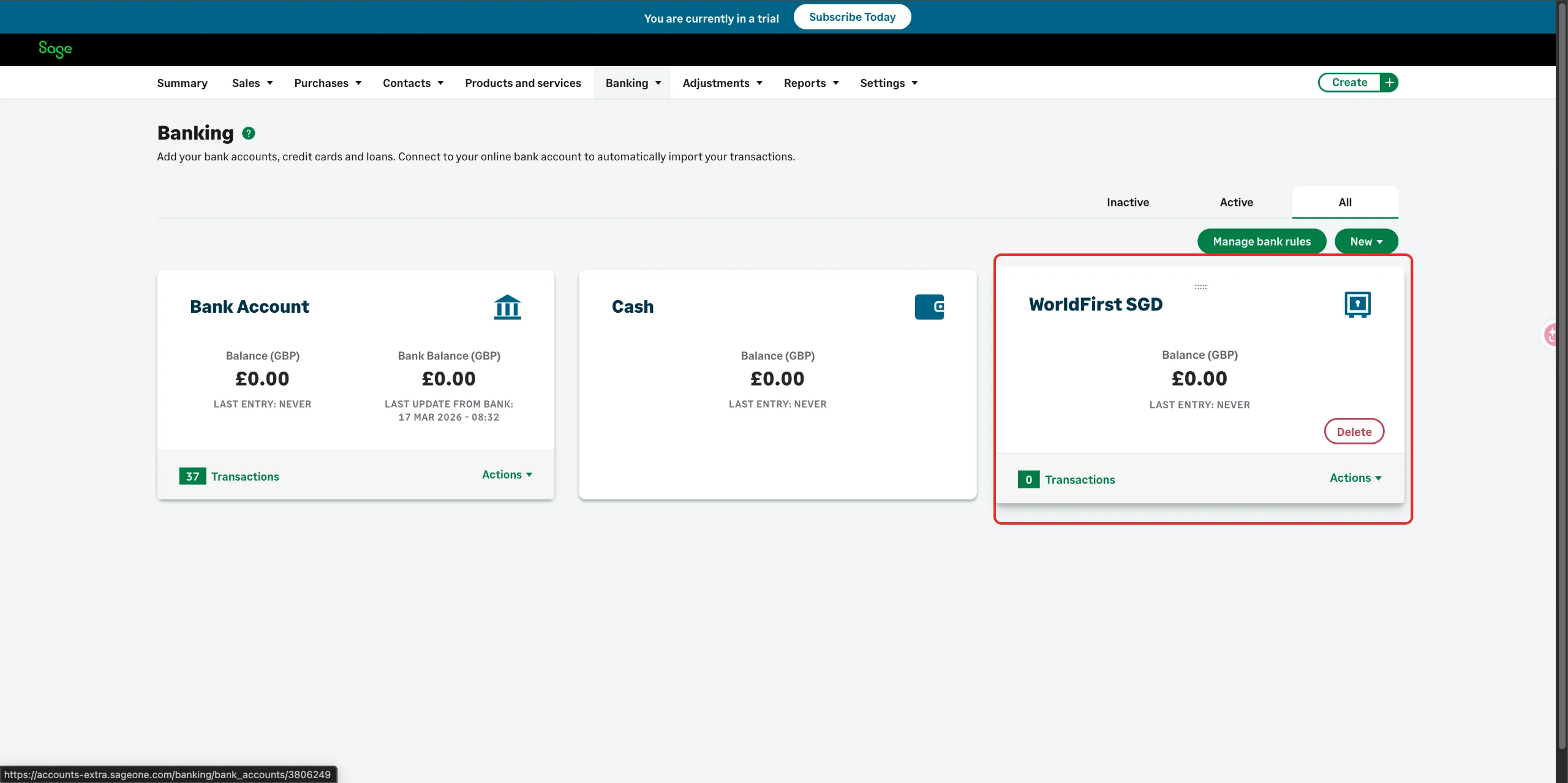
Sage – Disconnect
Step 1: Multi-Factor Auth
Disconnection start from Sage Portal, and Sage will let WF know that disconnection happened, WF will stop to post statement data immediately