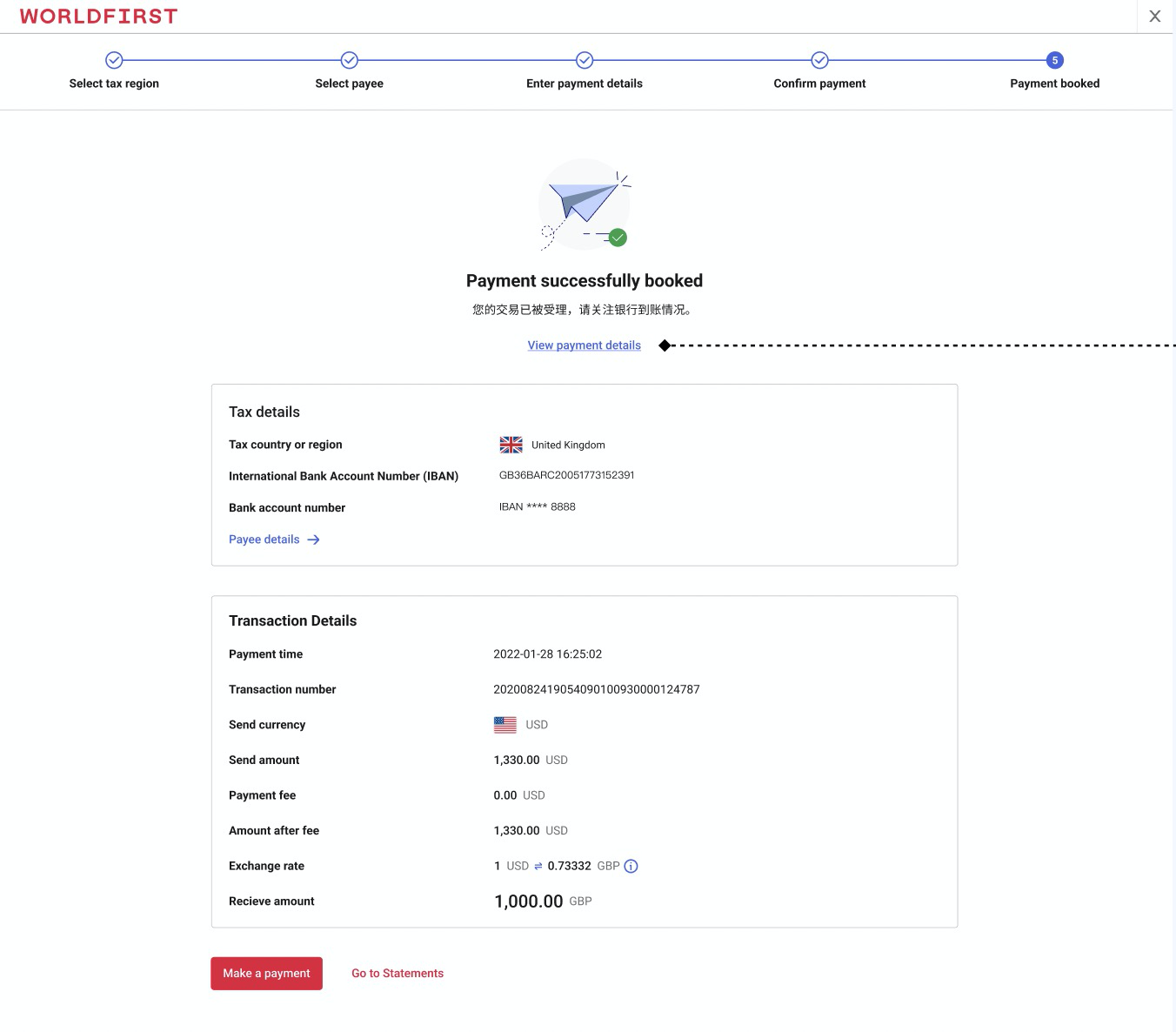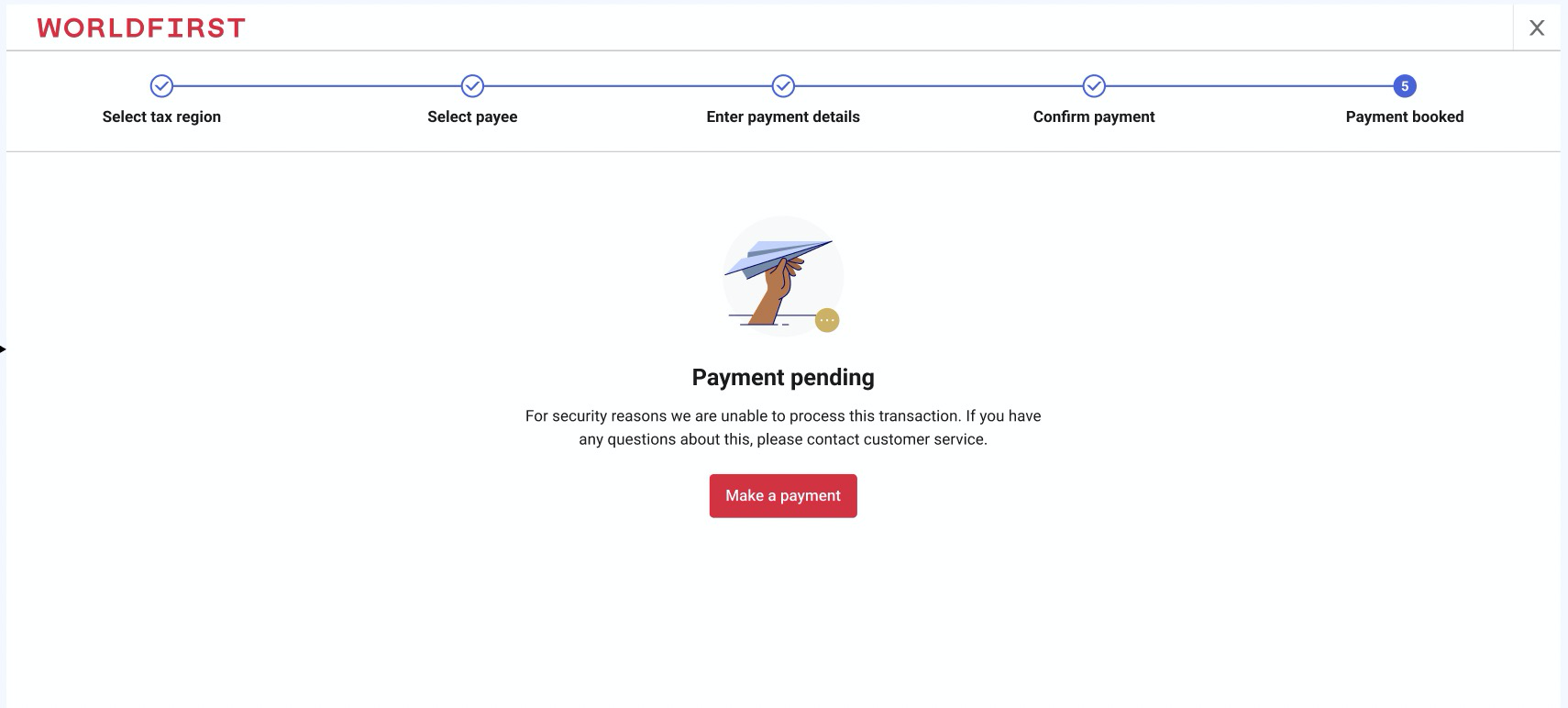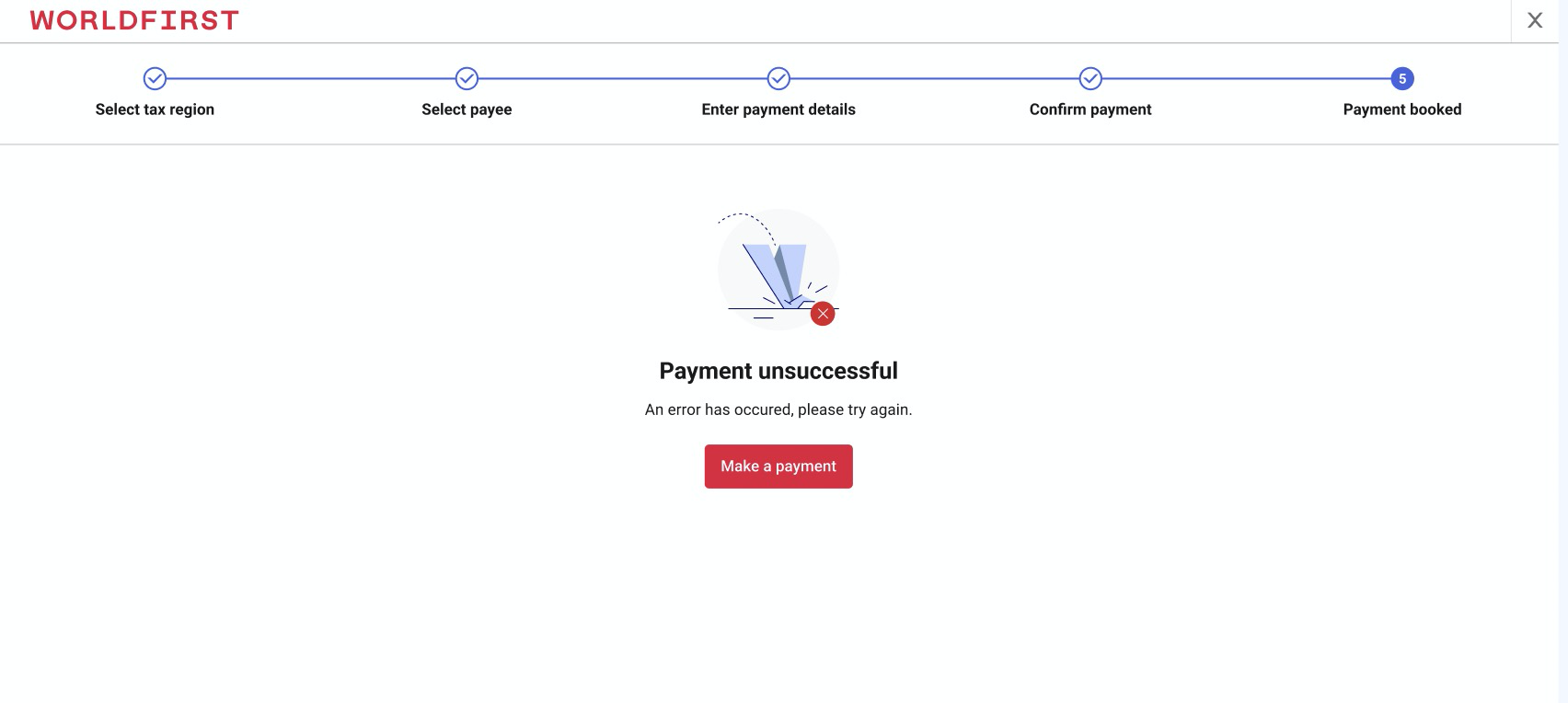




























1. Tax payment
After login to the portal, clients could navigate to ‘Fund Management’ via the Navi bar, and then click on “tax payment”
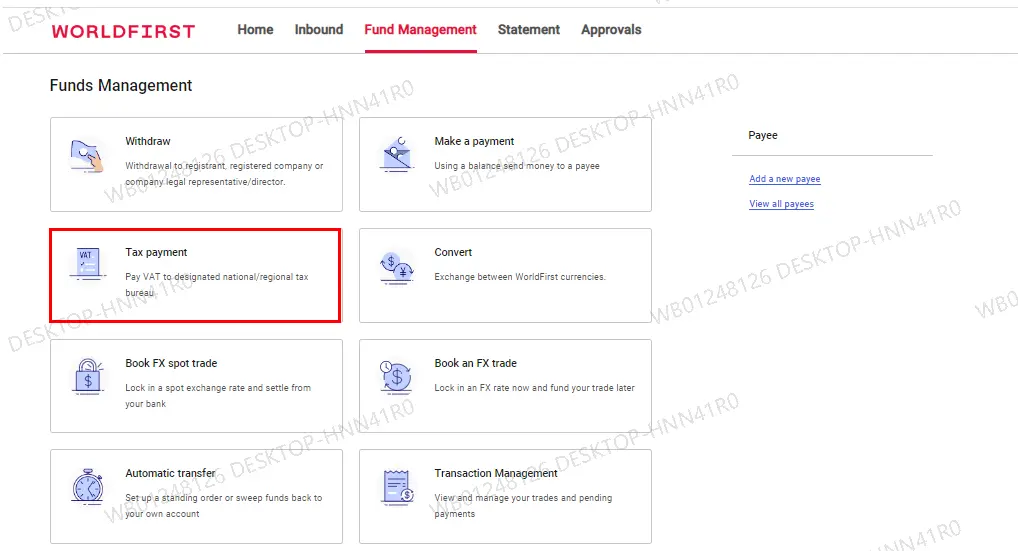
2. Country selection
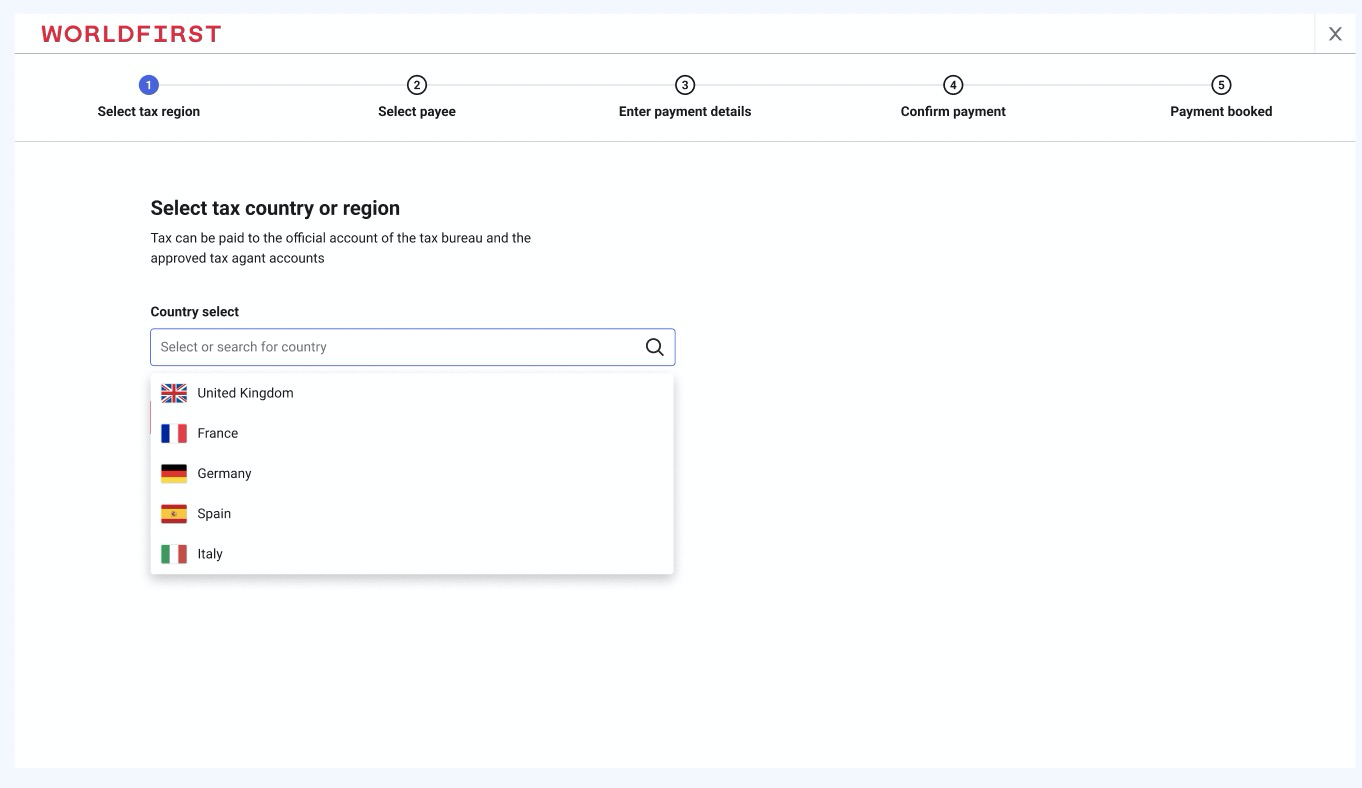
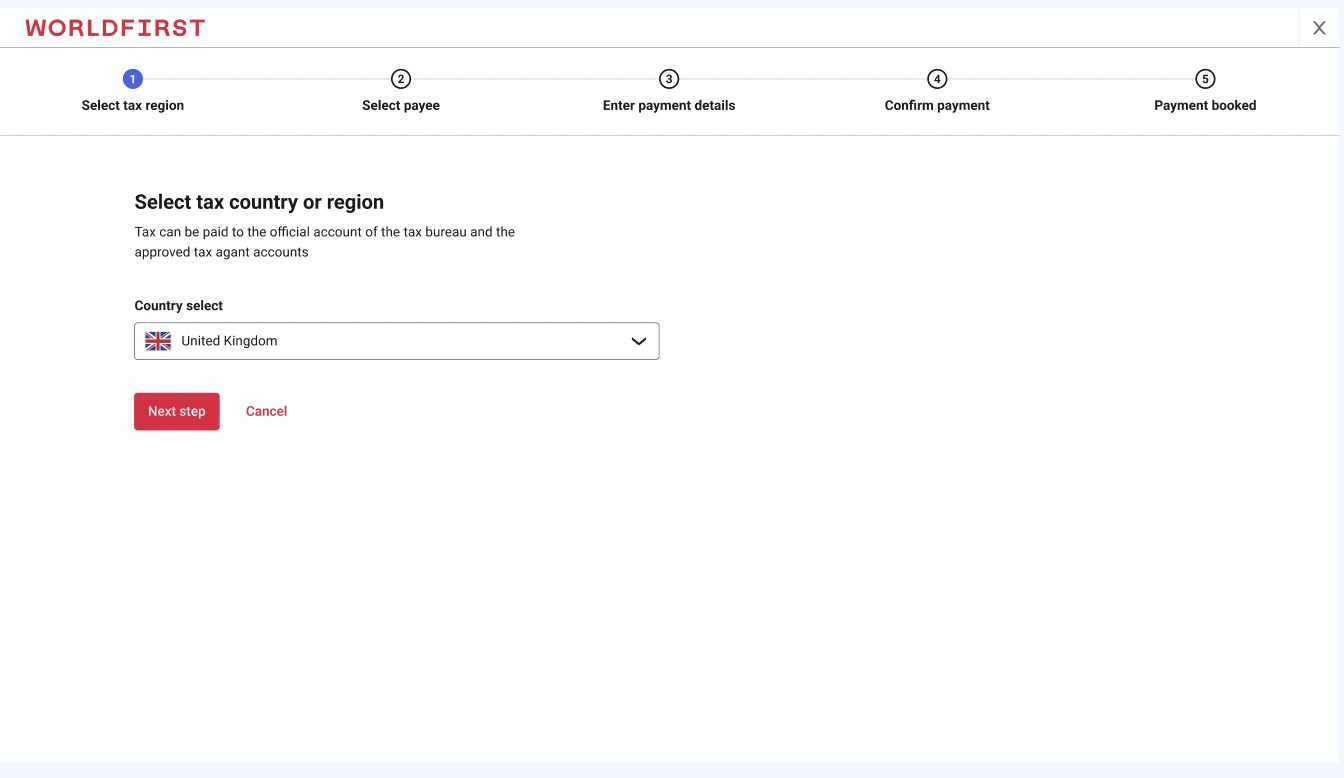
3. Add / Select a tax payment bank account
3.1. Select an official bank account of the tax authority
- For UK and Germany, users can only select an official bank account of the tax authority, adding a new payment bank account is not supported here.
- For Italy, Austria, Czech Republic and Netherlands, users can directly pay taxes to the tax authority, and they can pay tax through a tax agent.
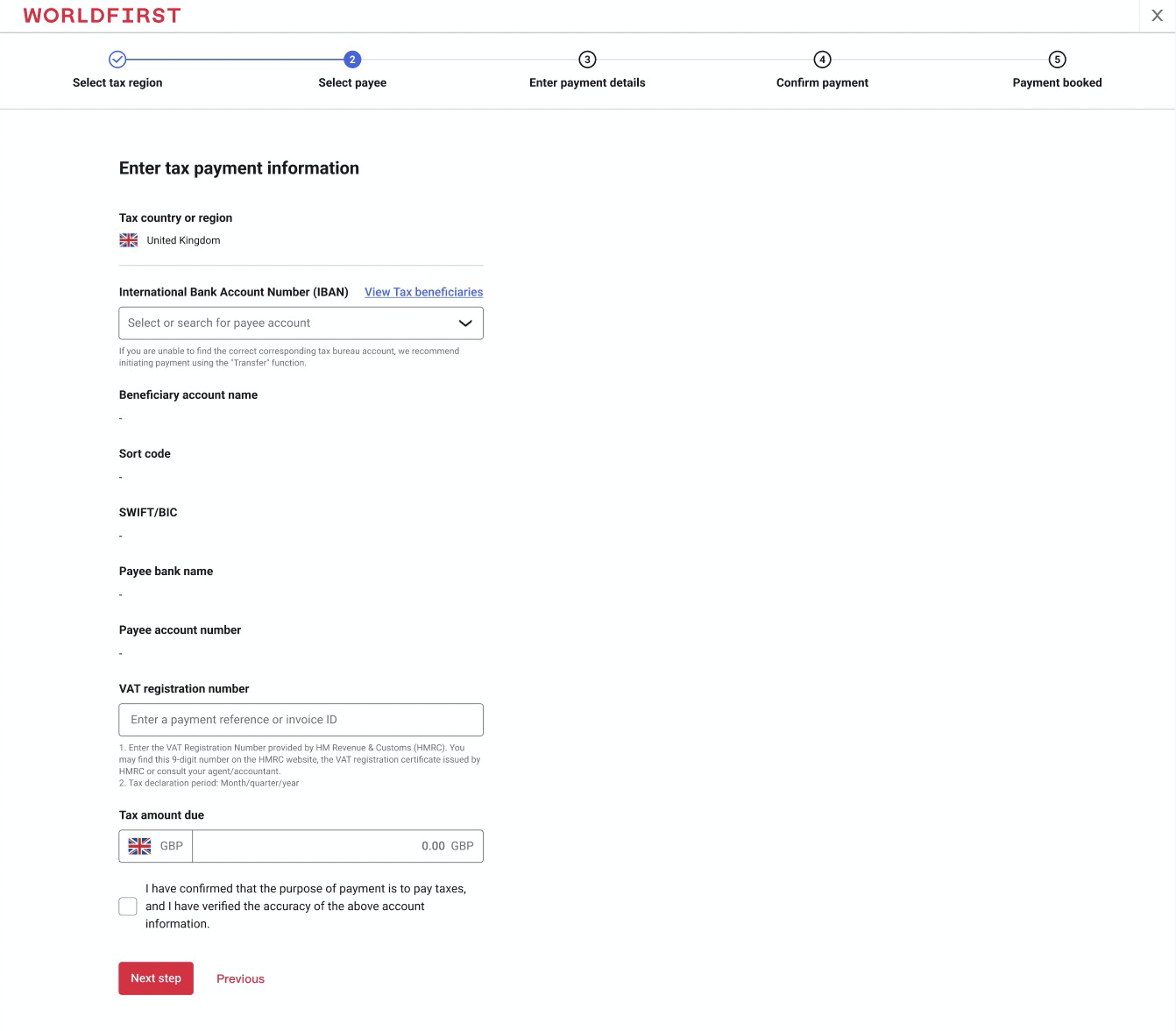
The system will display the official bank account of the tax authority. The customer can select it without adding it. User clicks on the relevant IBAN, the tax authority information would be pre-populated in the back office.
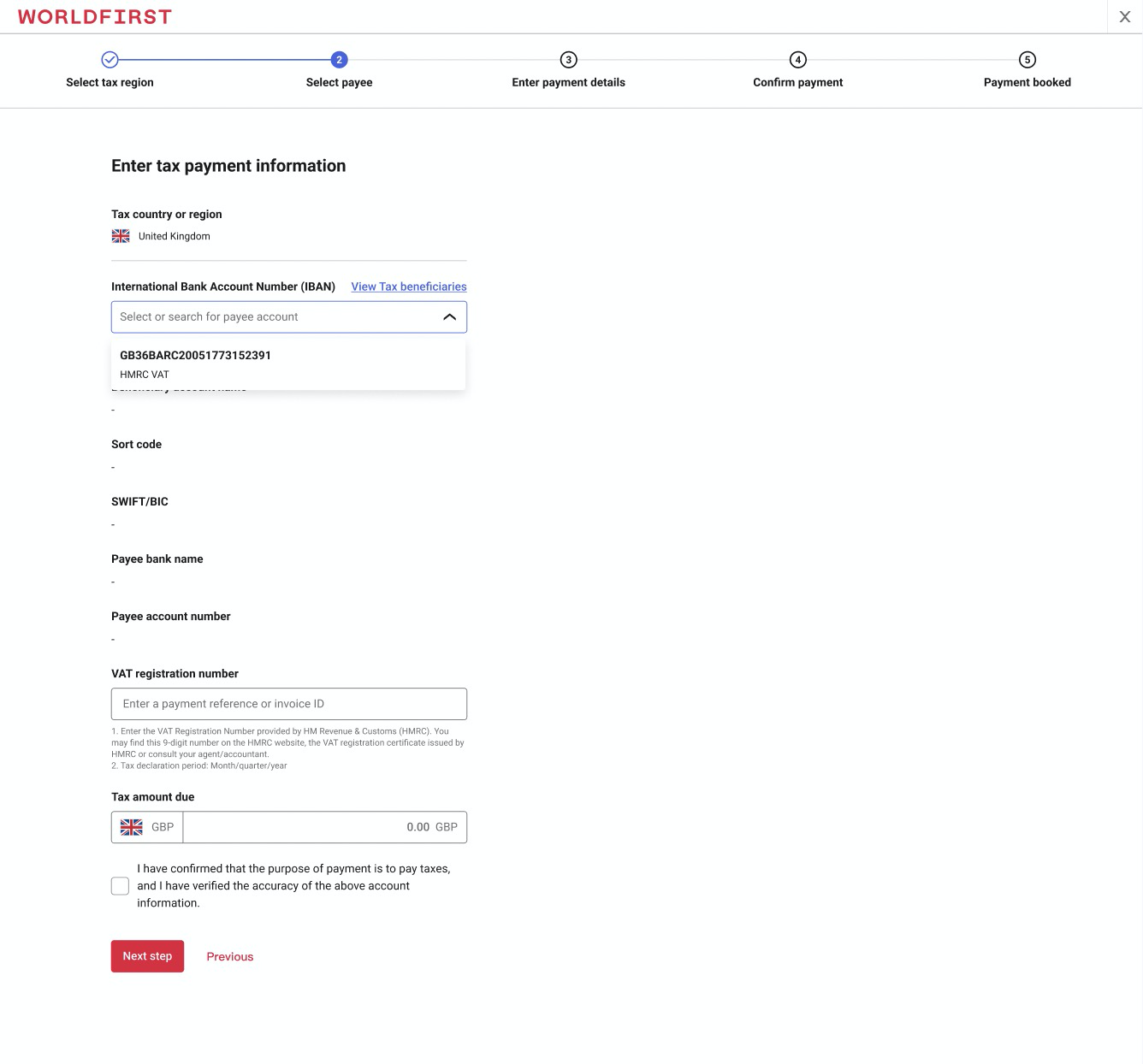
3.2. Add/select a bank account of a Tax Agent
In France, Spain, Mexico, Italy, Austria, Czech Republic, Netherlands and UAE, merchants are allowed to pay tax through a tax agent.
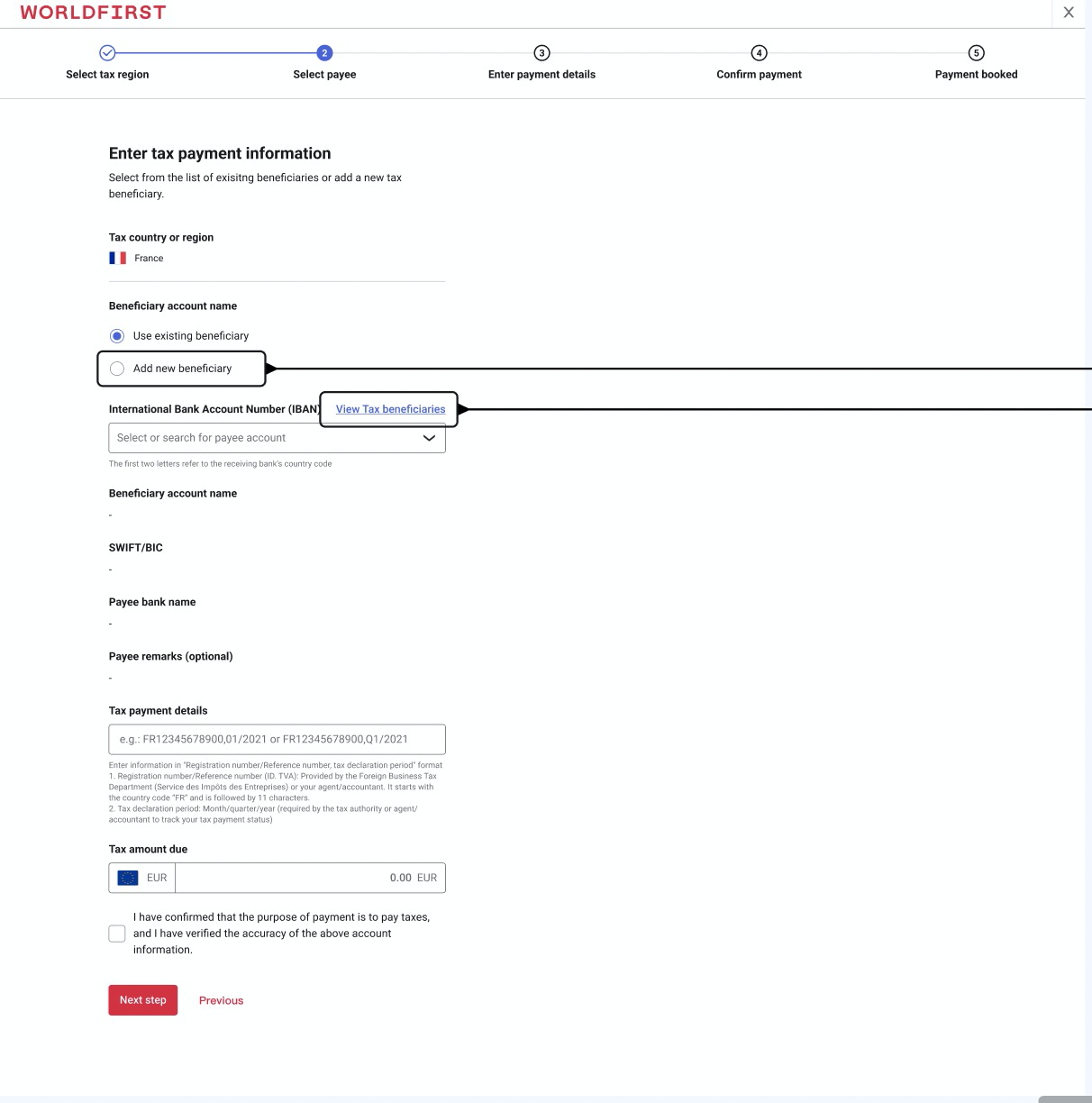
- Click “Add new beneficiary”
- Enter the IBAN
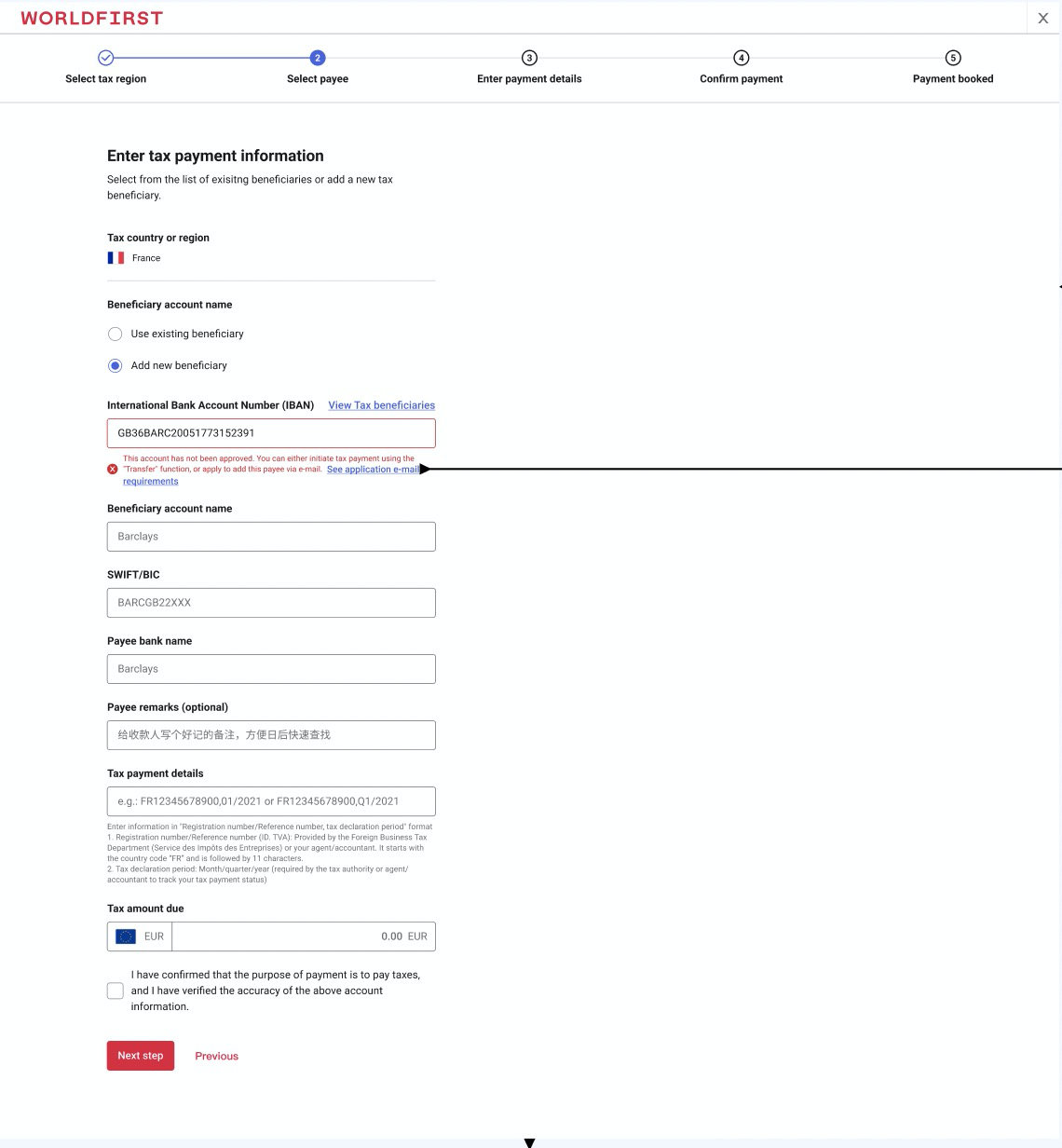
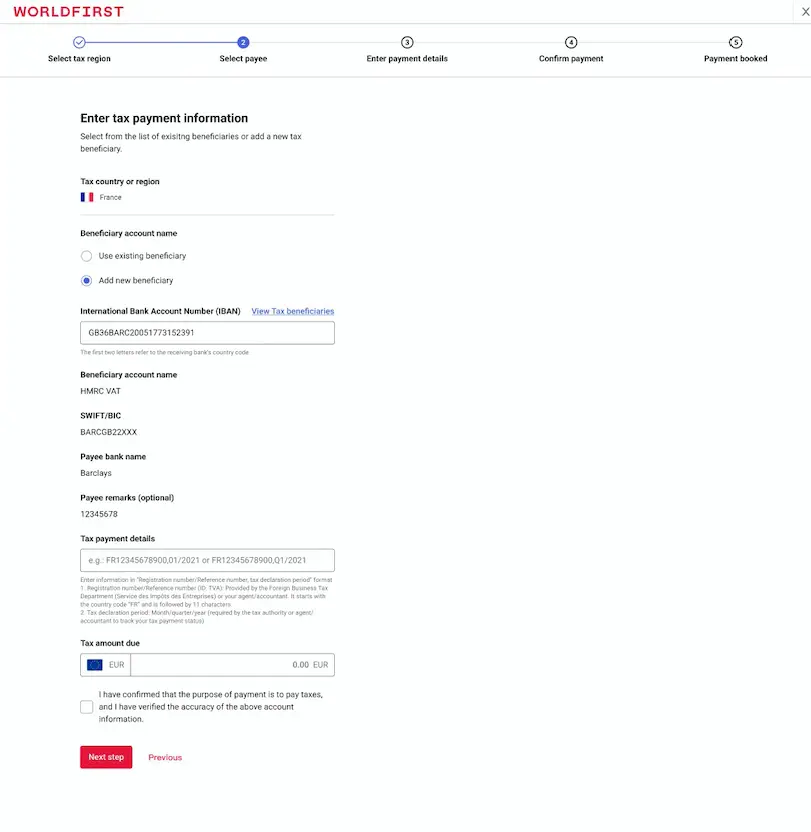
3.3. Add/select an exclusive tax payment bank account
In Poland and UAE, the tax authority issues an exclusive tax payment bank account to taxpayers. There is no official tax payment bank account of the tax authority.
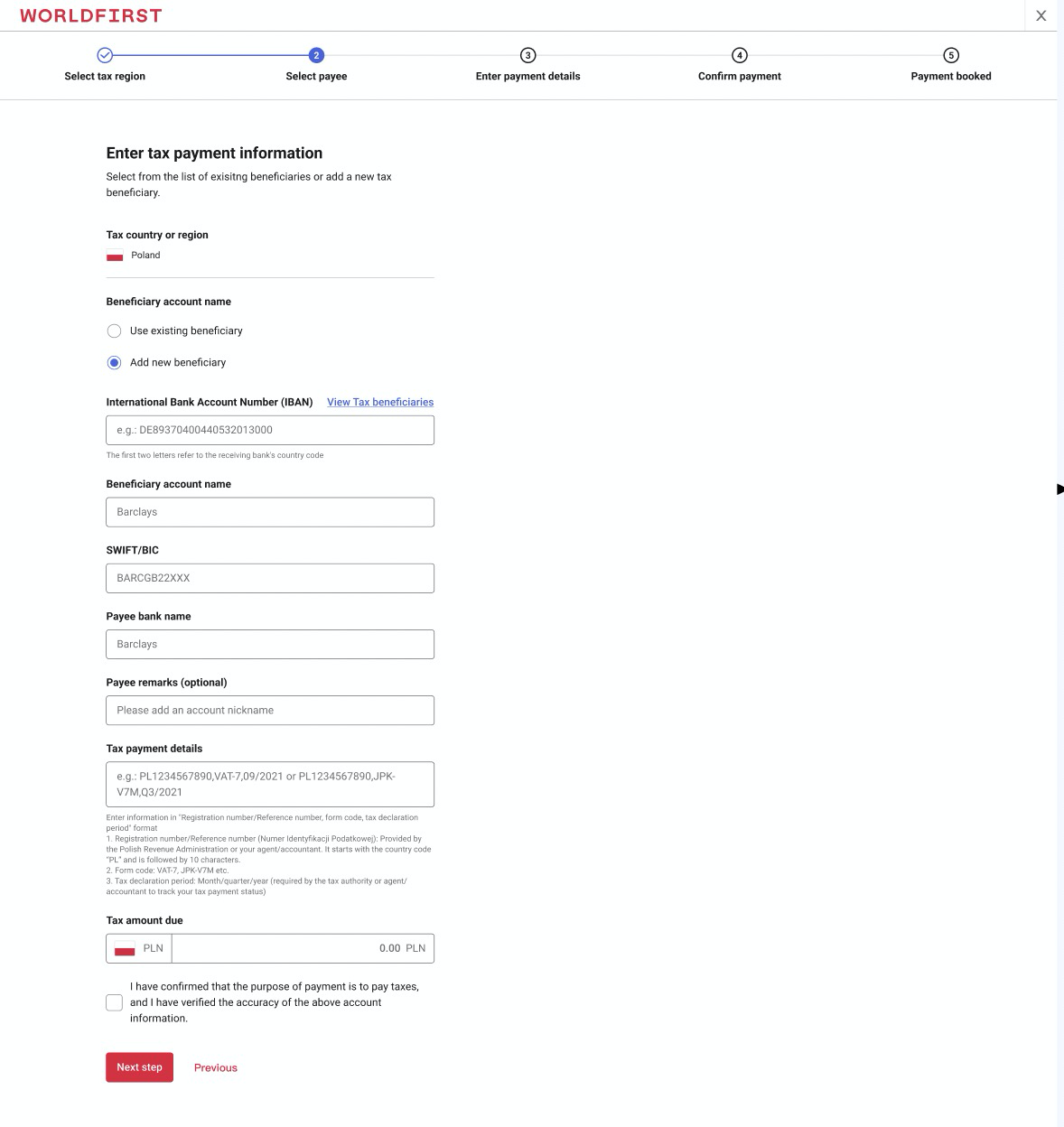
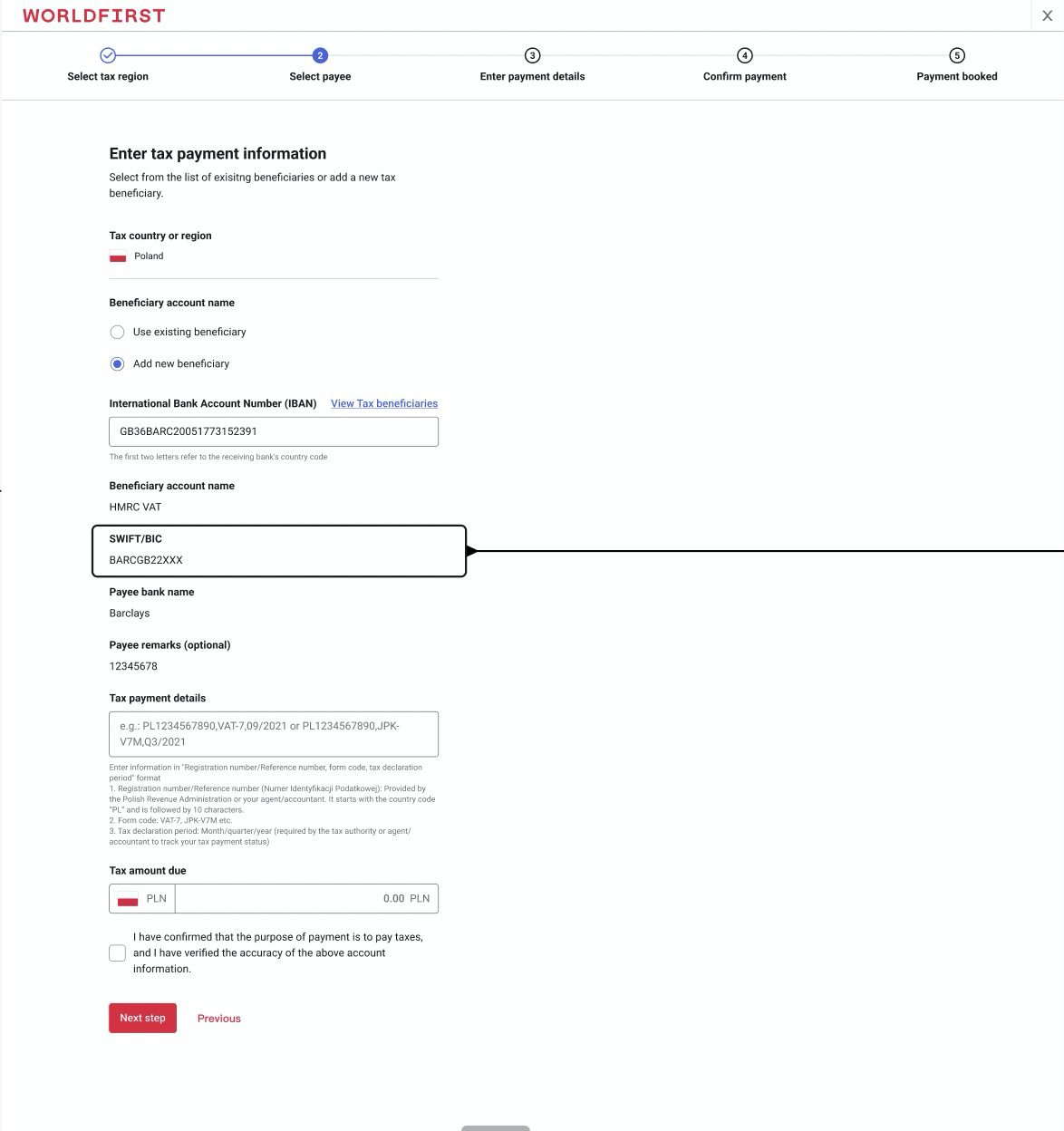
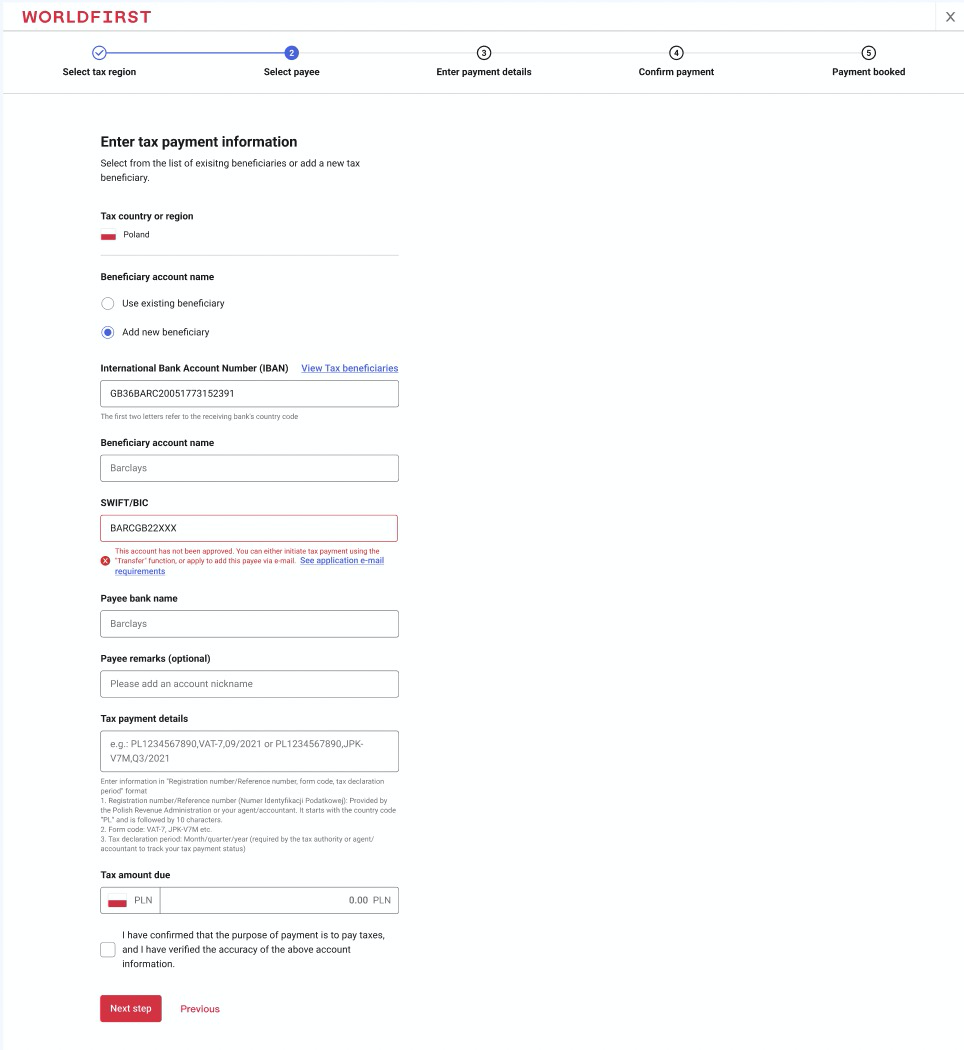
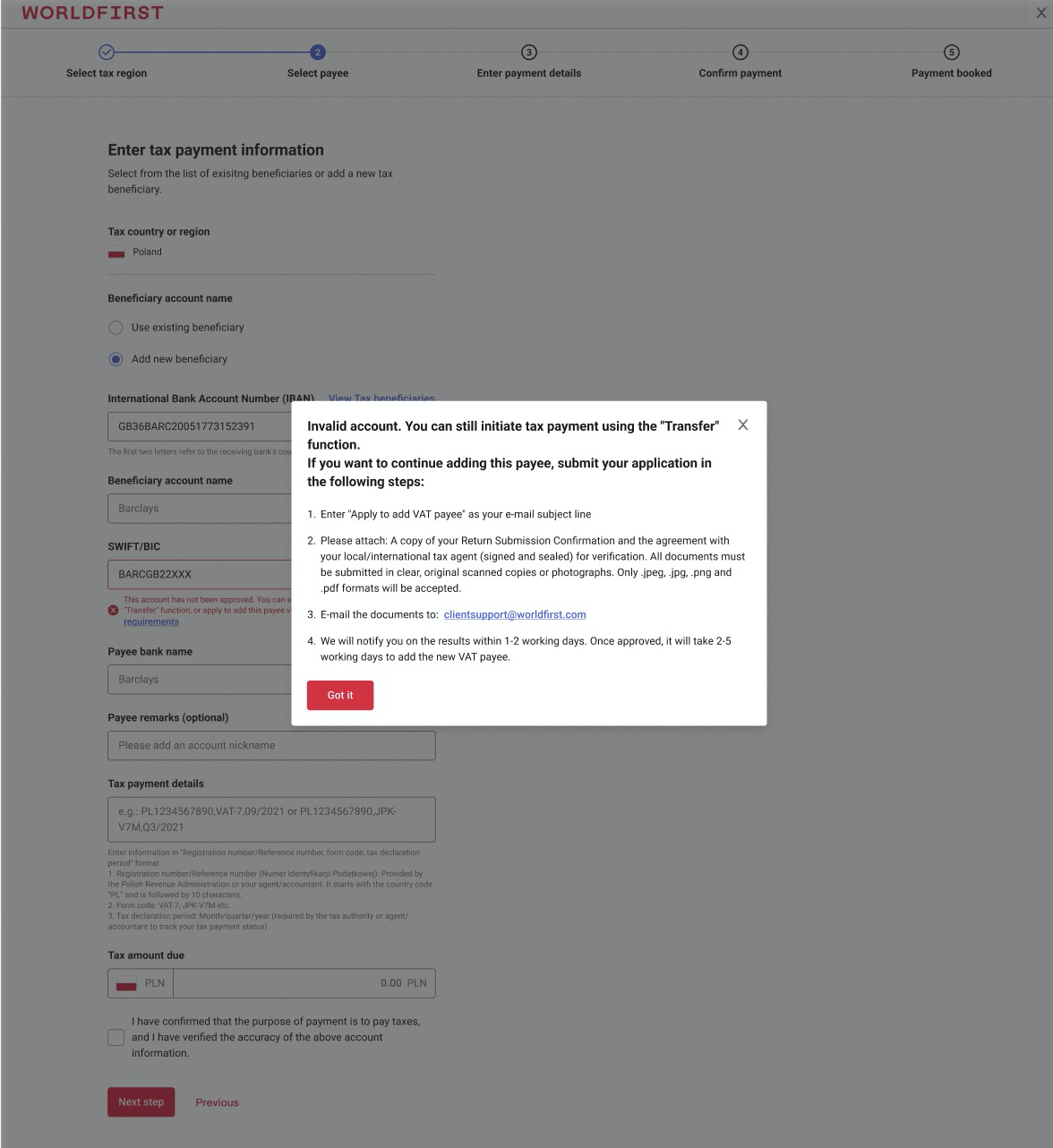
After the user enters the IBAN number and other info and if this IBAN account is never reviewed and added in IBOSS, the system will check the Swift/BIC
- For Poland, if the BIC matches the NBPLPLPWXXX. The first 8 digits are NBPLPLPW (which can be NBPLPLPW,NBPLPLPWXXX, and NBPLPLPWSEA).
- For UAE, if the BIC matches E868AEXXX. The first six digits are E868AE.
Then the users can continue to add and pay to this bank account. Or an error will be shown to the user and request the user to submit documents for manual review.
3.4. View Tax bene
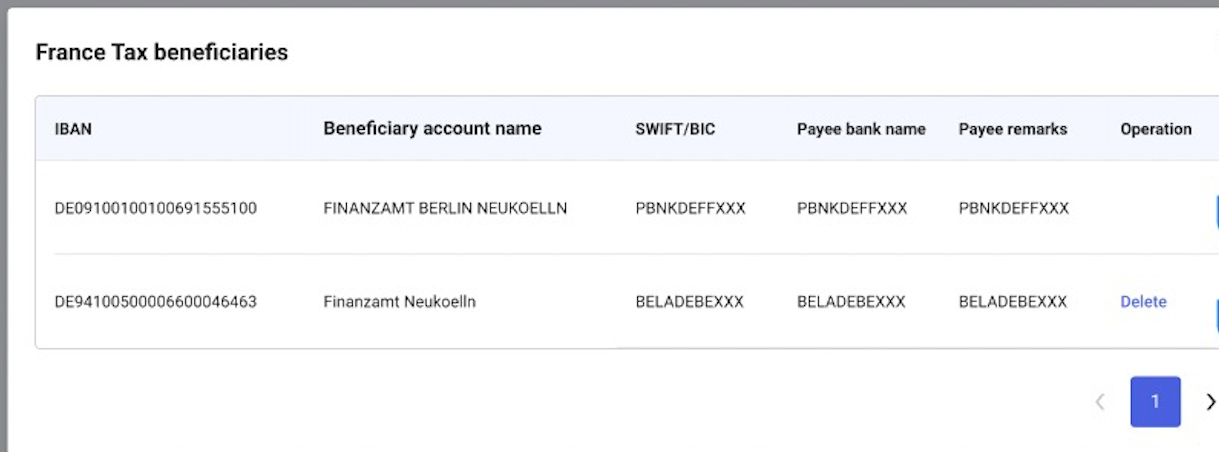
Users can click on “View Tax bene” to check all the tax payment bank accounts for selected country.
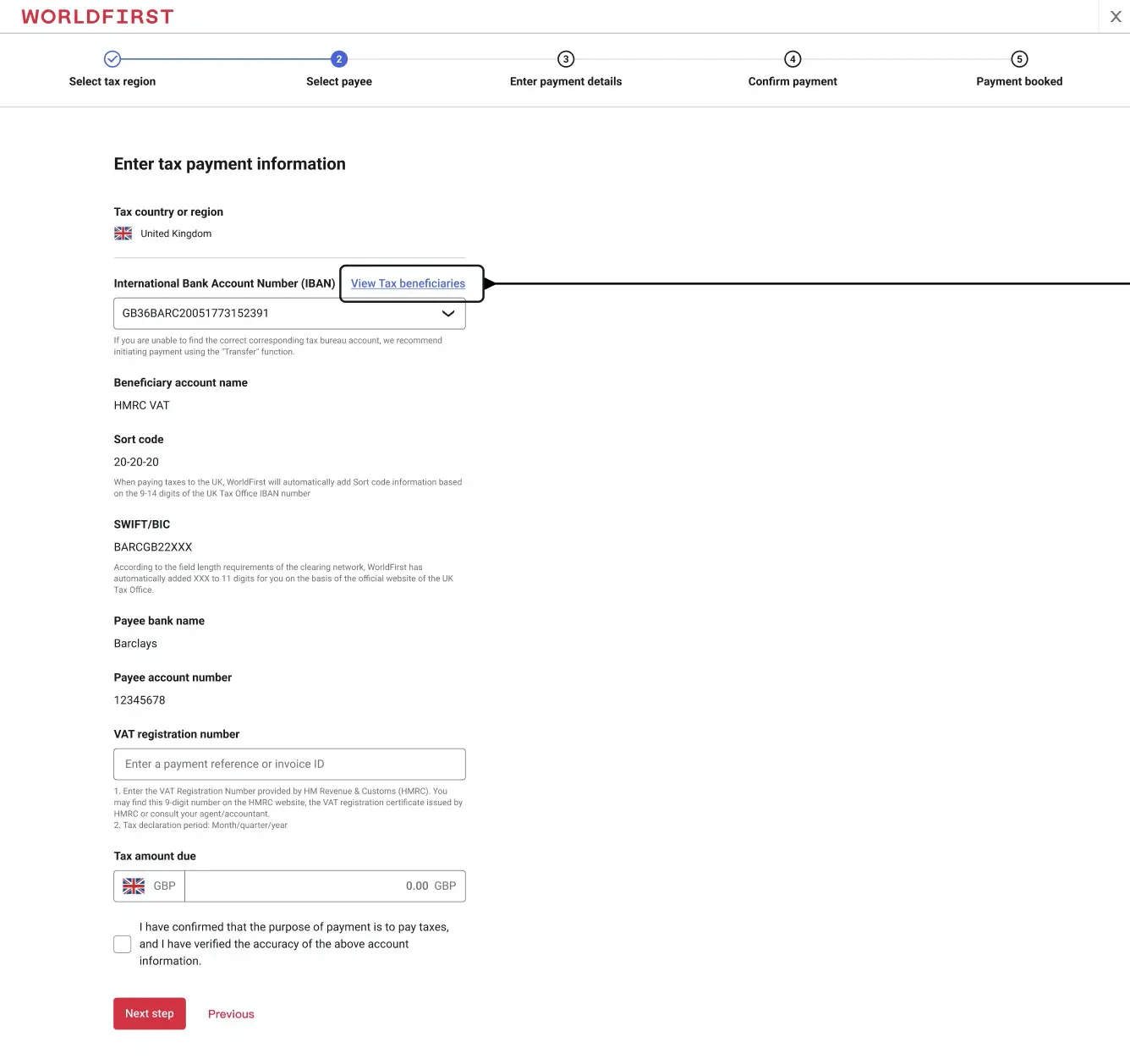
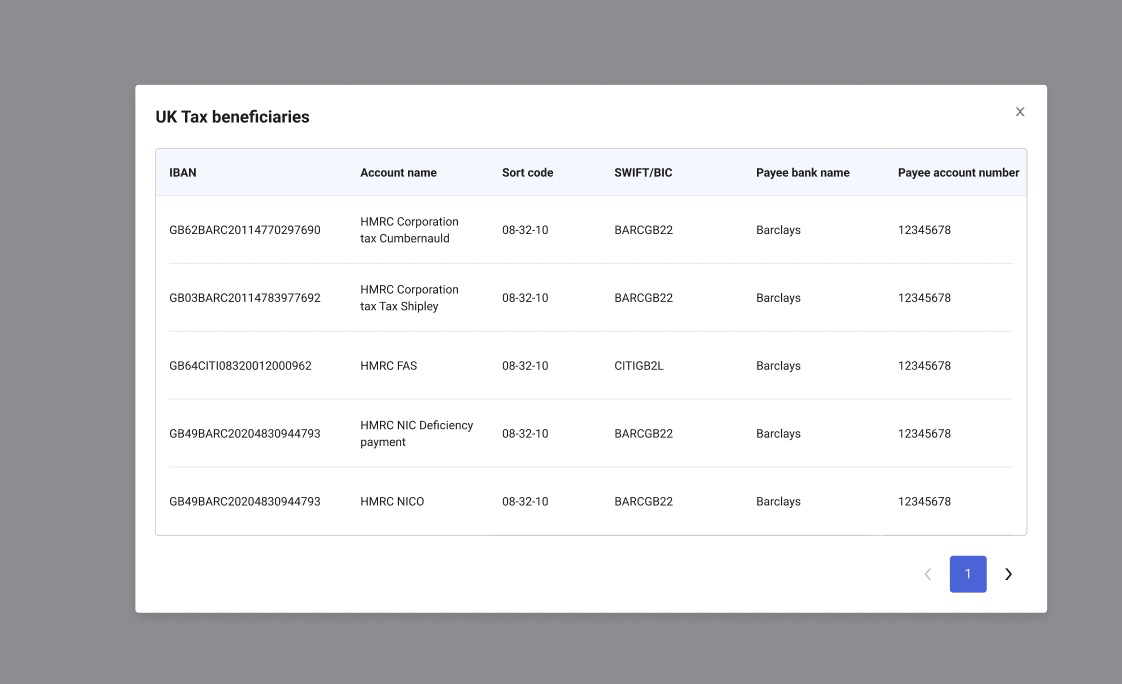
- For those official bank accounts of the tax authority, they cannot be deleted.
- For the rest bank accounts added by the users, they can be deleted.
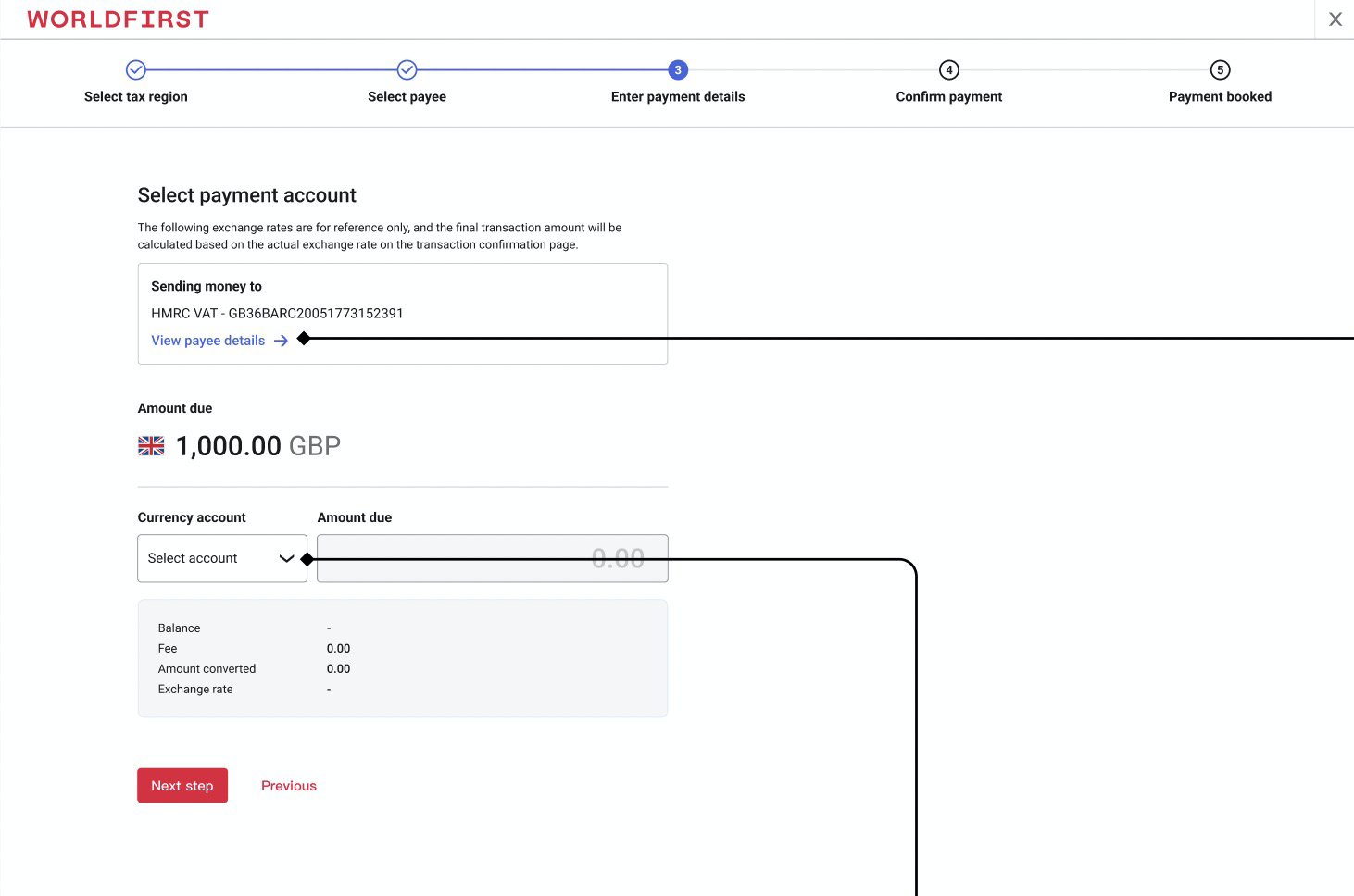
4. Select currency account
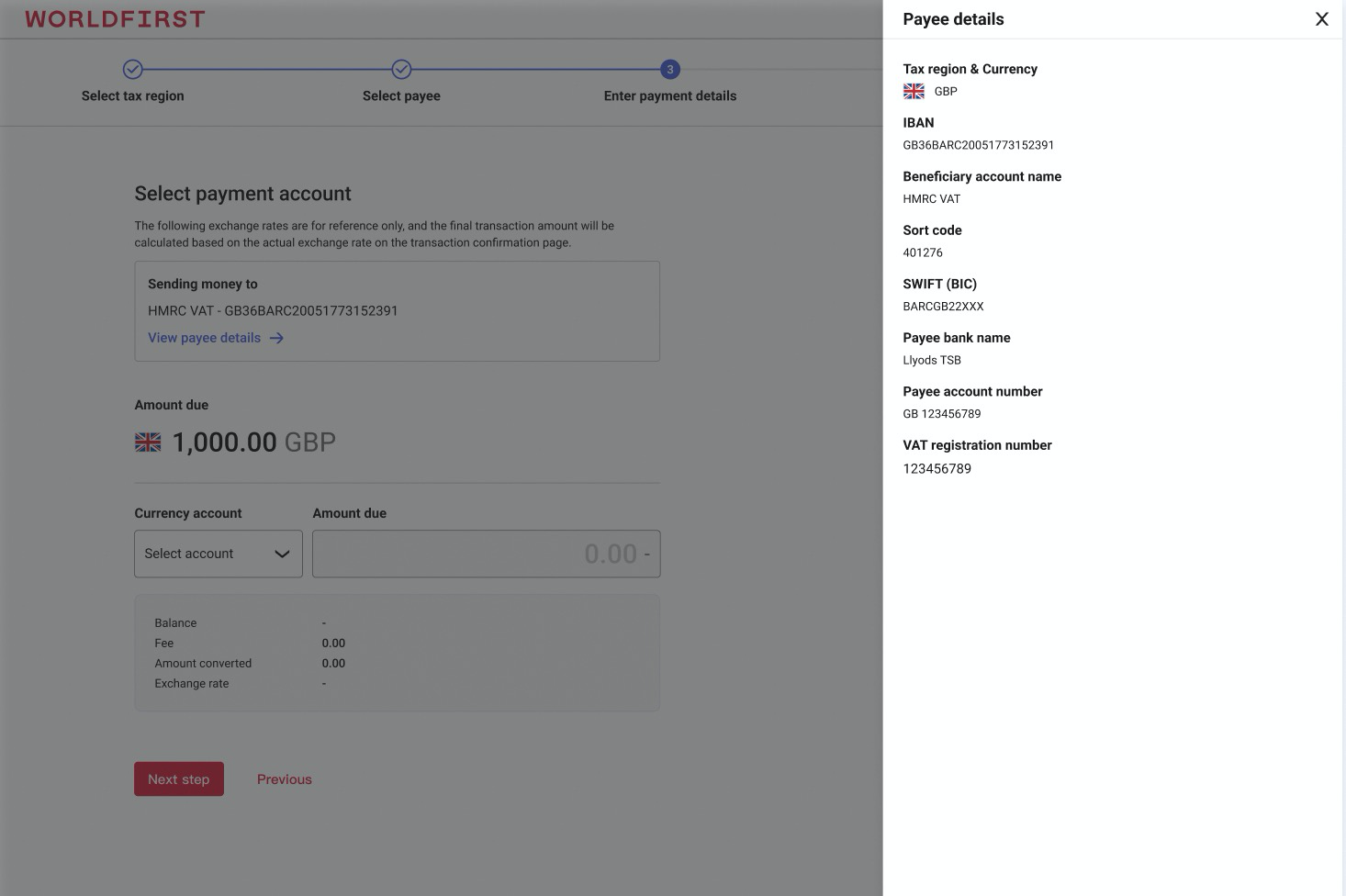
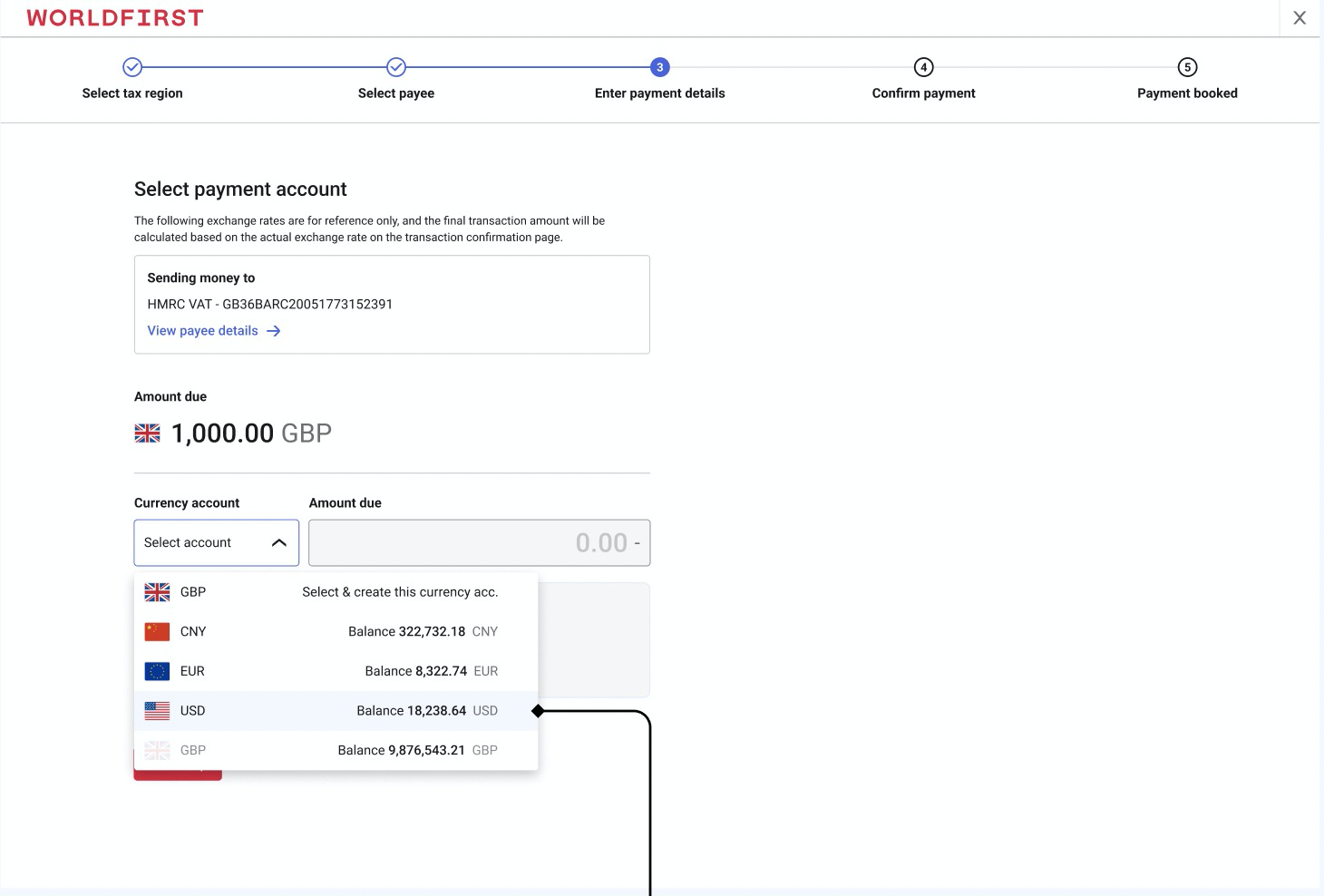
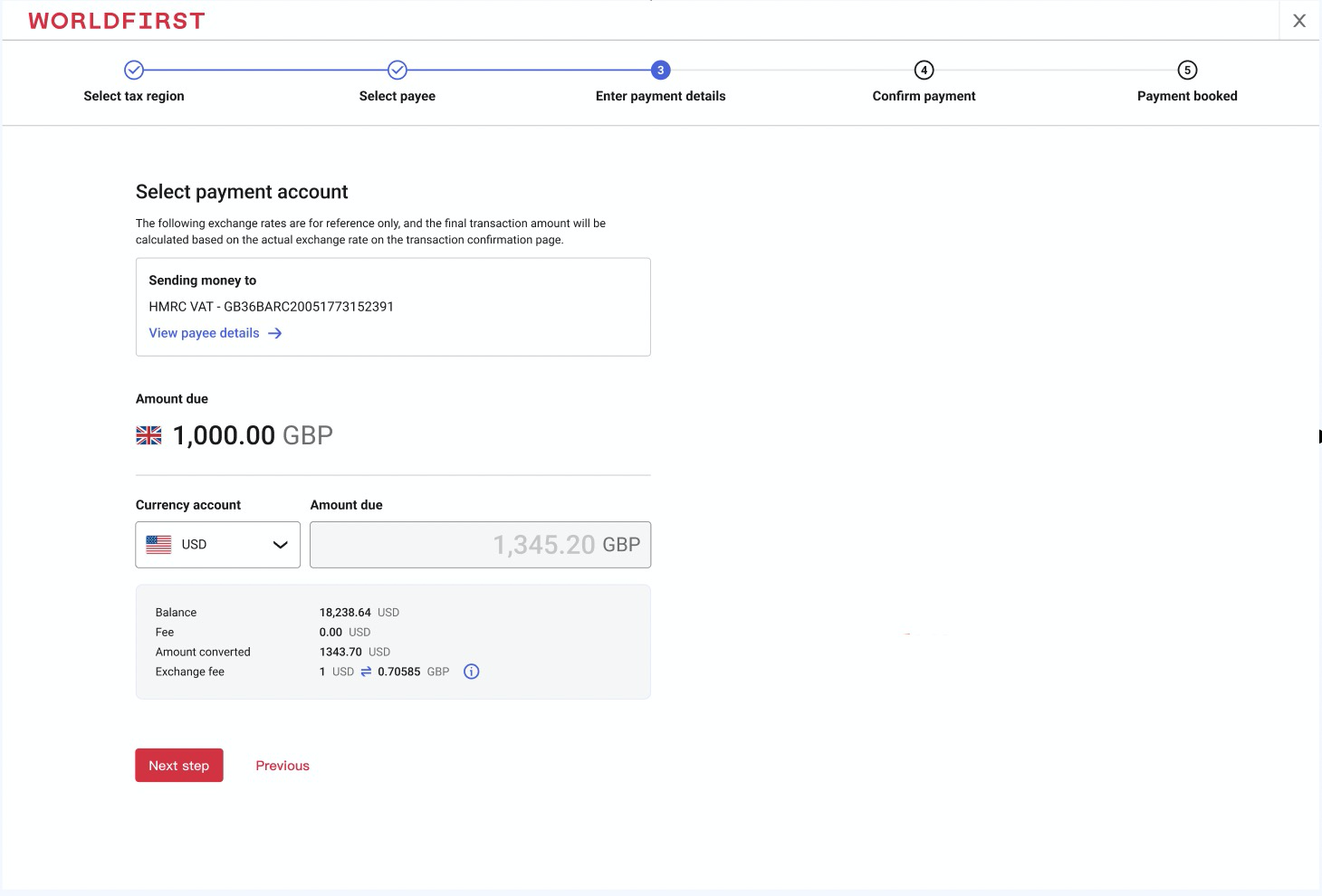
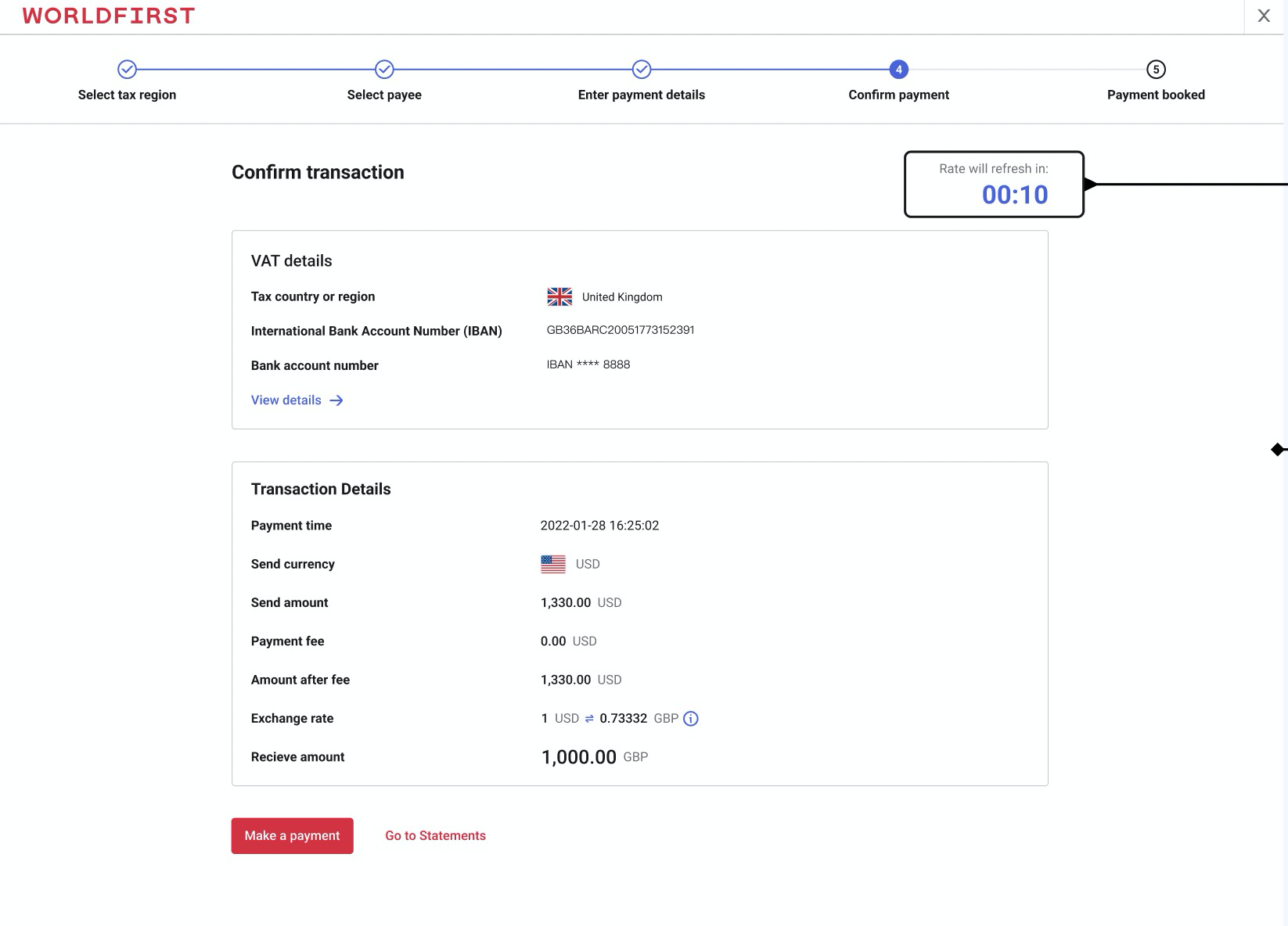
5. Confirm payment information
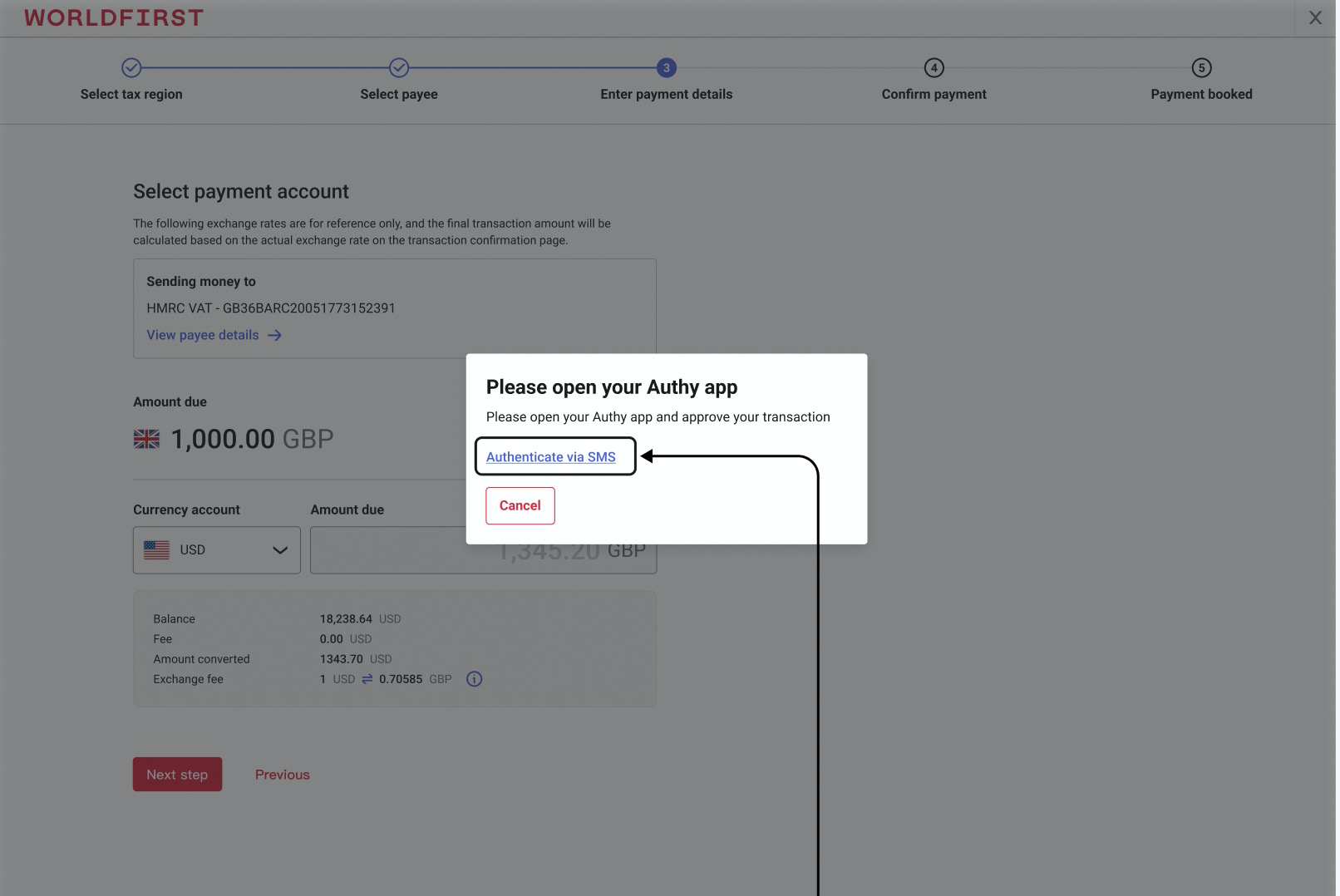
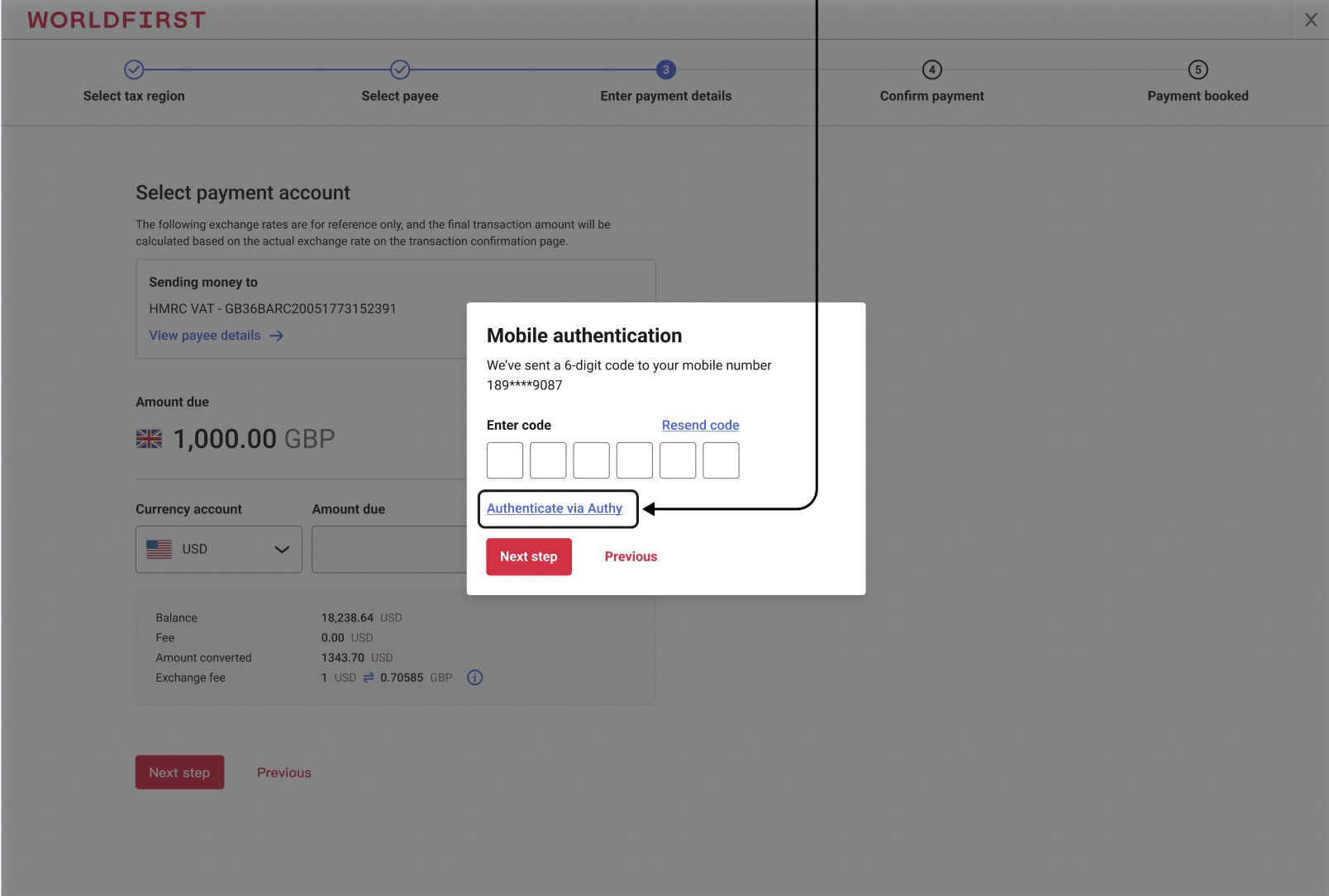
6. Payment result