




























WorldTrade is a B2B payment and order management platform that enables wholesale buyers and sellers to complete sales in a more efficient, transparent, and cost-effective manner.
As a buyer, you can pay for your orders with credit/debit cards at competitive rates or with your WorldFirst balance.
WorldTrade order payment flow for overseas buyers
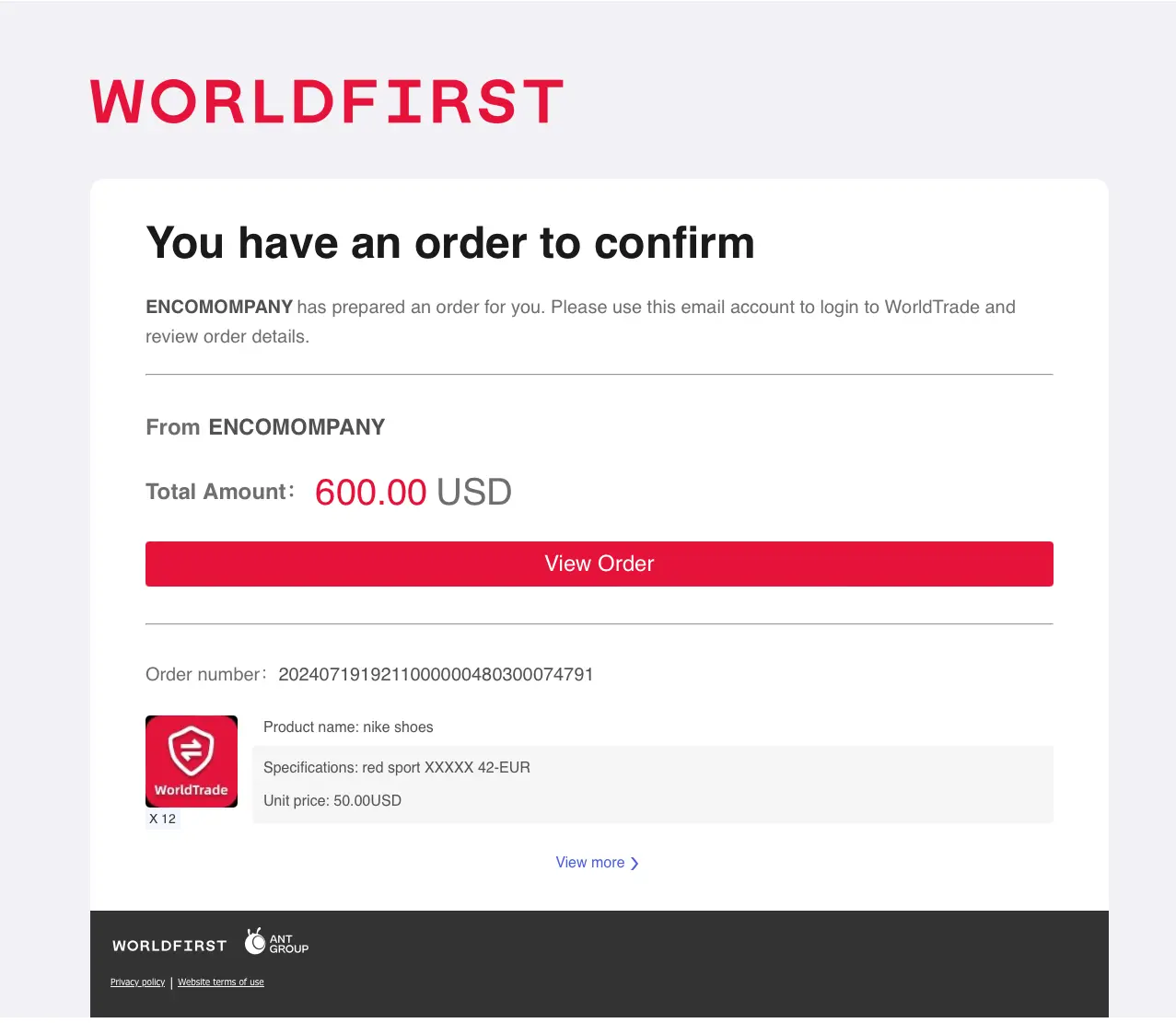
Step 1 – Check your order
If you’re expecting an order from your seller, you will receive an order payment request on your email. By clicking on the link, you will be redirected to sign into WorldFirst or register if you’re a new user.
Step 2 – View order
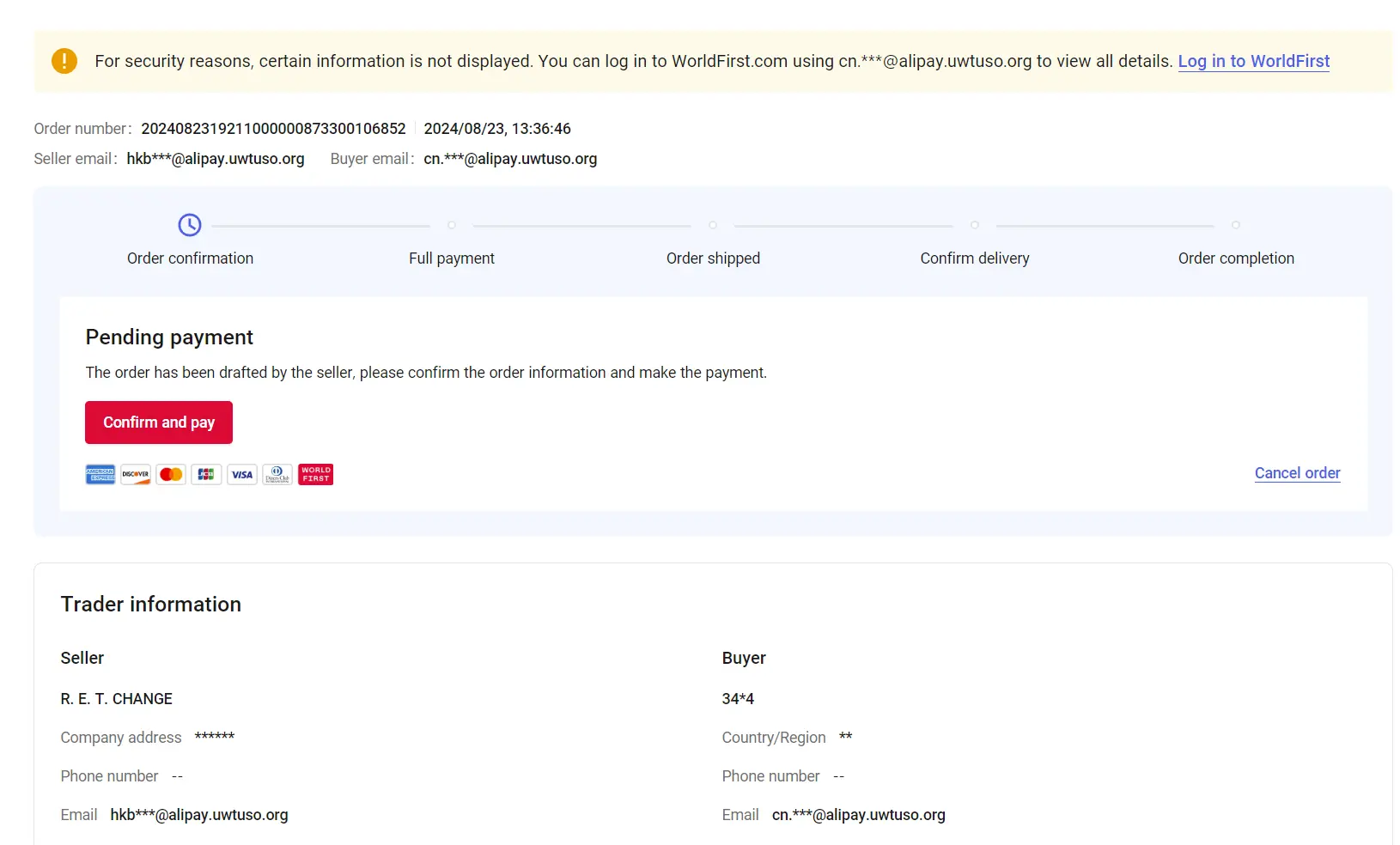
After clicking on the link, you will see a partially anonymized order details page. Please click “Log in WorldFirst” at the top to proceed with logging in/registration.
Step 3 – Log in and activate WorldTrade service
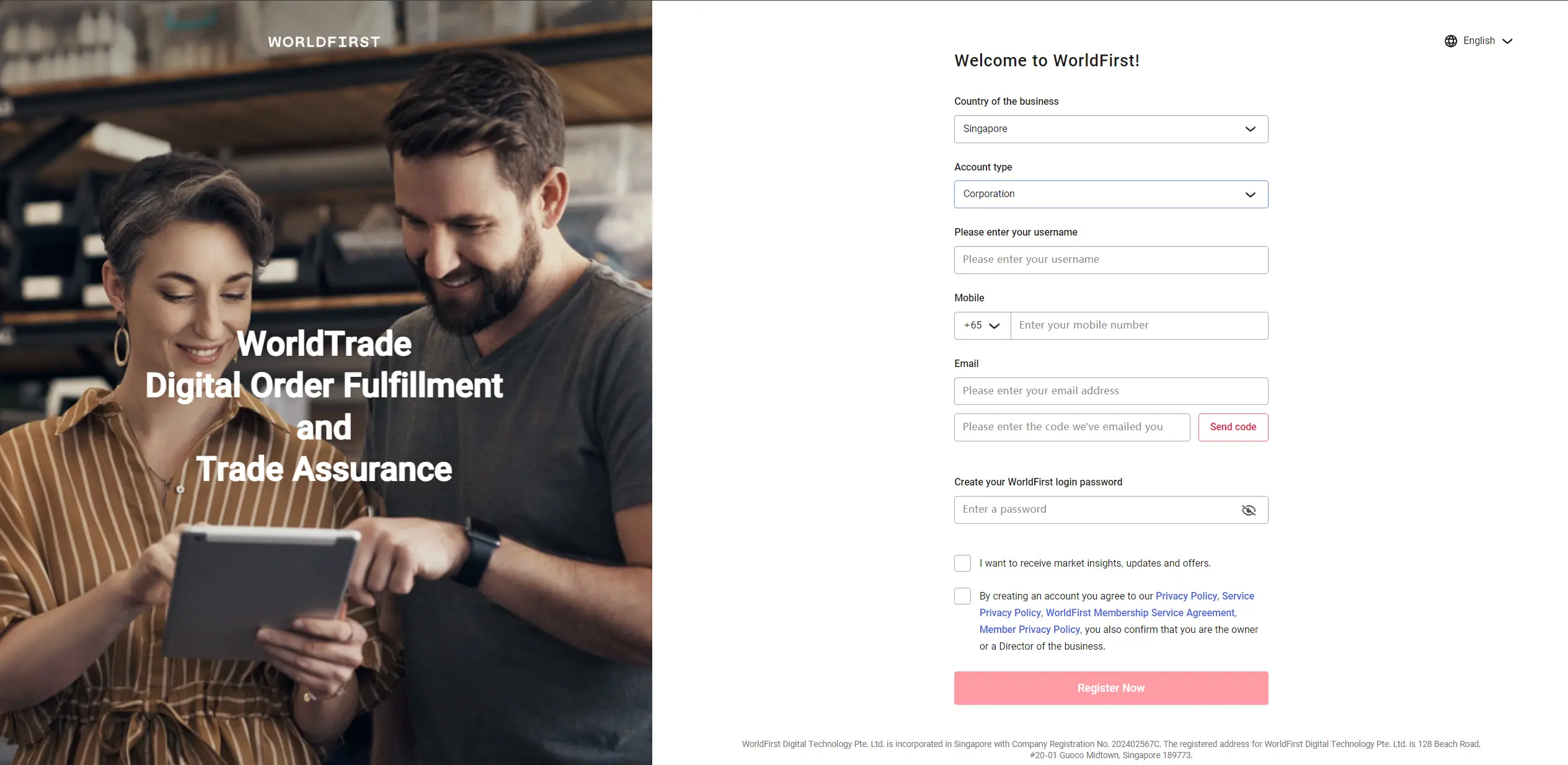
If you have not registered with WorldFirst before, please click “Register now” to enter the registration page. Here you will need to enter your account details such as your country/region, account type, account name, login password, etc.
Please read and click agreements related to WorldTrade to register and activate WorldTrade service.
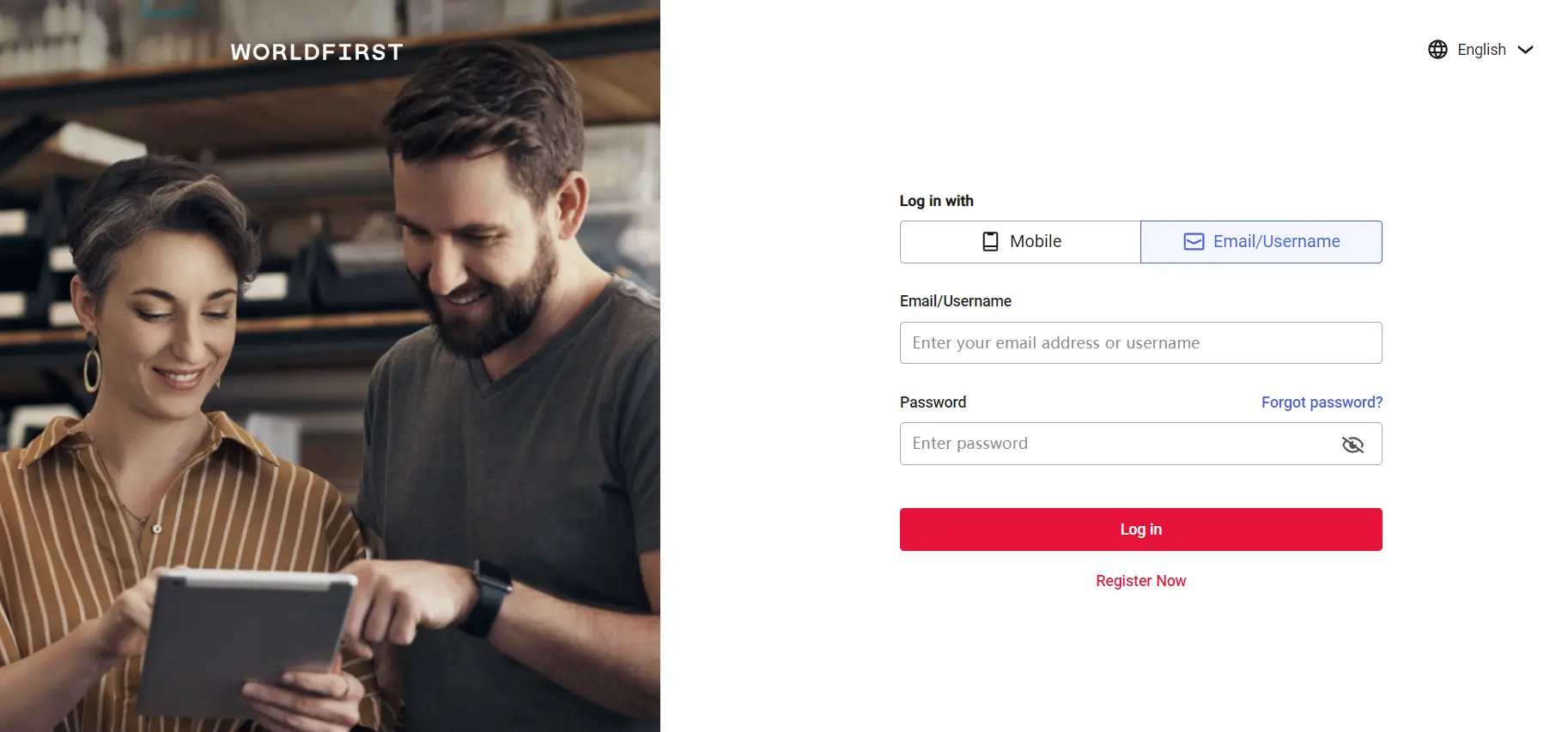
If you have previously registered with WorldFirst account, please directly enter your username/email and password to log in.
If you need to register and log in to WorldTrade using a Google account, please ensure that the email address linked to your Google account is the same as the email address used to receive your WorldTrade order.
Step 4 – Confirm order details
After successful activation, you will be redirected to the WorldTrade order page, where you can view the details of the order drafted by the seller (including product quantity and specifications, product price, shipping information, etc.).
If you have any objections to the order, you can negotiate with the seller and click “Cancel order” to cancel the order. If you have no objections, please click “Confirm and pay” to pay for the order.
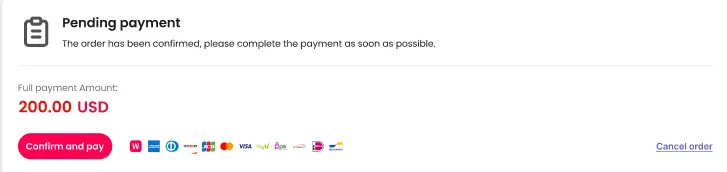
Step 5 – Complete order payment
Click “Confirm and pay” to enter the Checkout page.
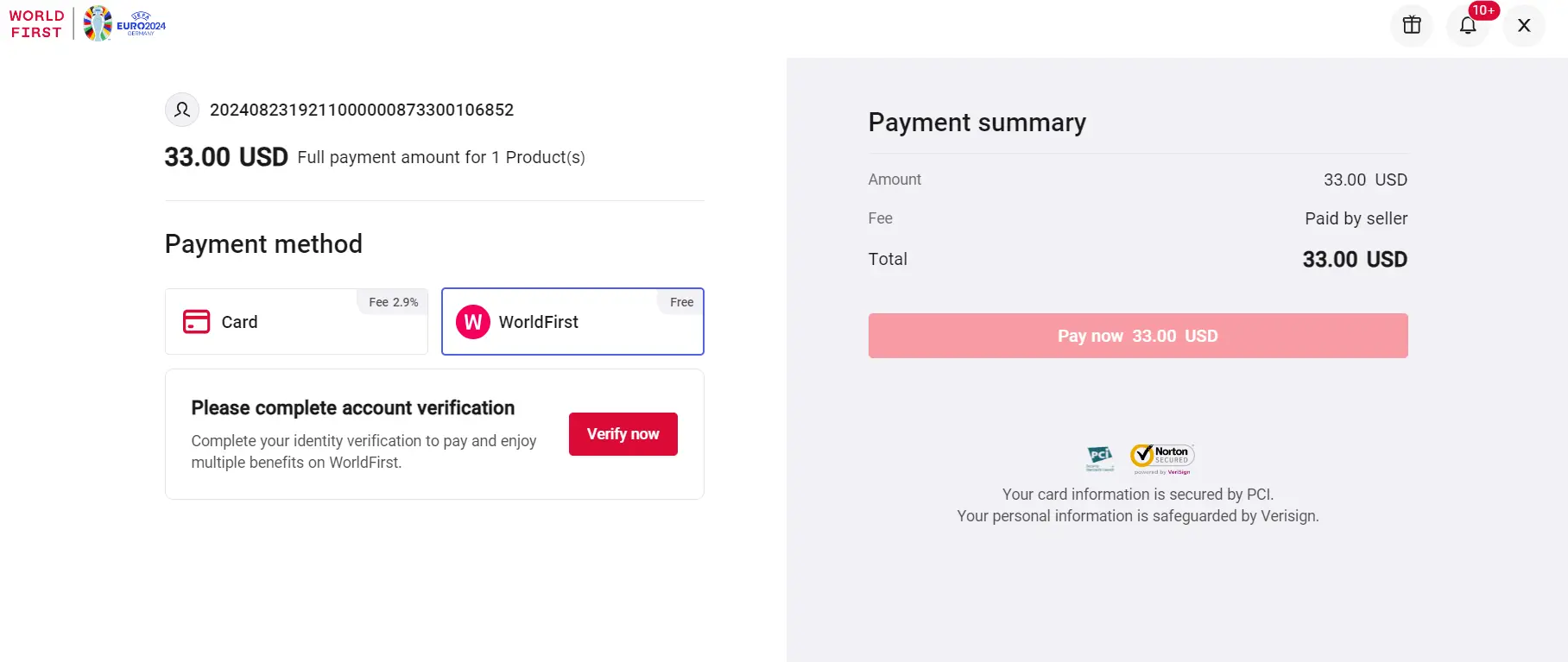
Pay with World Account balance
- If you have activated the World Account before, you can use the USD/EUR balance in your World Account to pay for the USD/EUR order; if you have not activated the World Account yet, you can click “Verify now” to start the verification process and open the WorldAccount.
Note: If you’re based in the US and have a Zyla account, you will not be able to log in and pay with your balance at the moment. We apologize for any inconvenience caused.
Pay with credit/debit cards
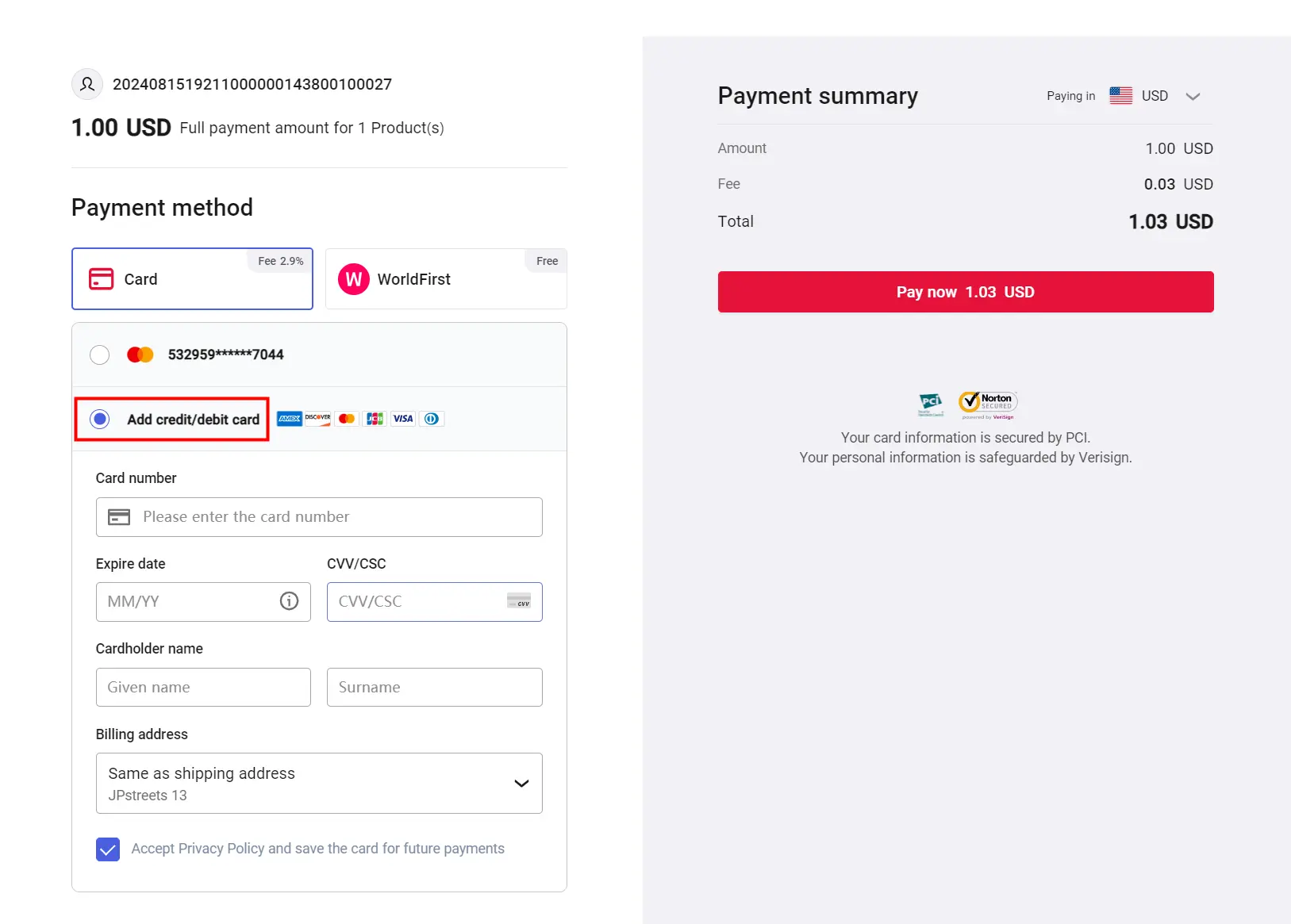
- If you are paying with a card, select “Add credit/debitCard” and enter your card information.
- Please note: A Service fee will be incurred by the buyer at the time of WorldTrade order payment. You can negotiate with the seller to determine who should bear the service fee, and this should be clearly agreed upon while drafting the order.
- Transaction service fee = payment amount * service fee rate. If the buyer uses a credit or debit card for payment, the default rate is 2.9%, actual fees will be based on the rates displayed on the Checkout page.
| Supported Card Brands | Required Fields for Adding Credit Cards | Payment Processing Time | Seller Receiving Currency | Buyer Payment Currency | Single Transaction Limit |
|---|---|---|---|---|---|
| Mastercard Visa JCB Discover Diners Club |
Card Number Cardholder Name Expiration Date CCV/CSC |
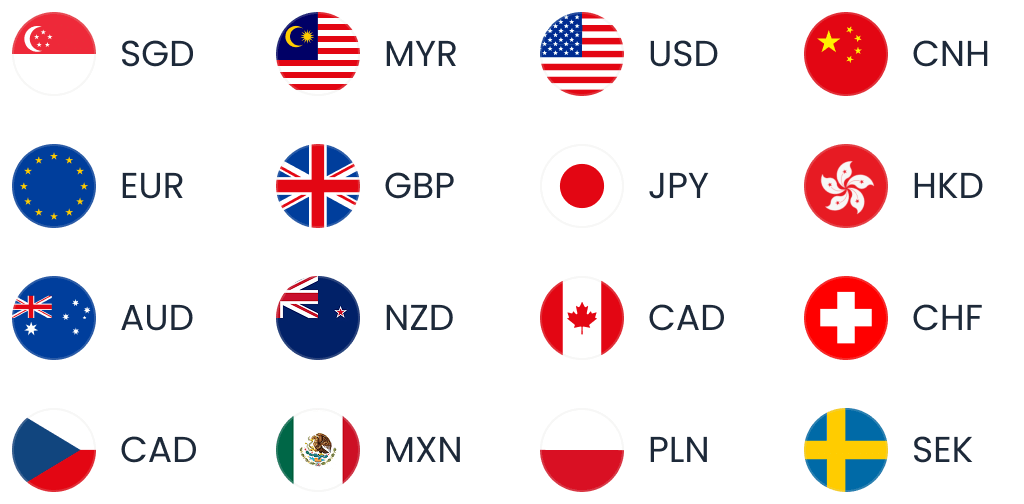
Within one working day | USD | USD EUR GBP JPY SGD AUD CAD HKD |
1-10,000 USD |
| EUR | EUR | 1-10,000 EUR | |||
| American Express | USD | USD | 1-10,000 USD |
Please note if your credit card supports USD/EUR/GBP/JPY/SGD/AUD/CAD/HKD payments, you can click “Paying in…” on the right hand side to select the payment currency. The seller will eventually receive USD.
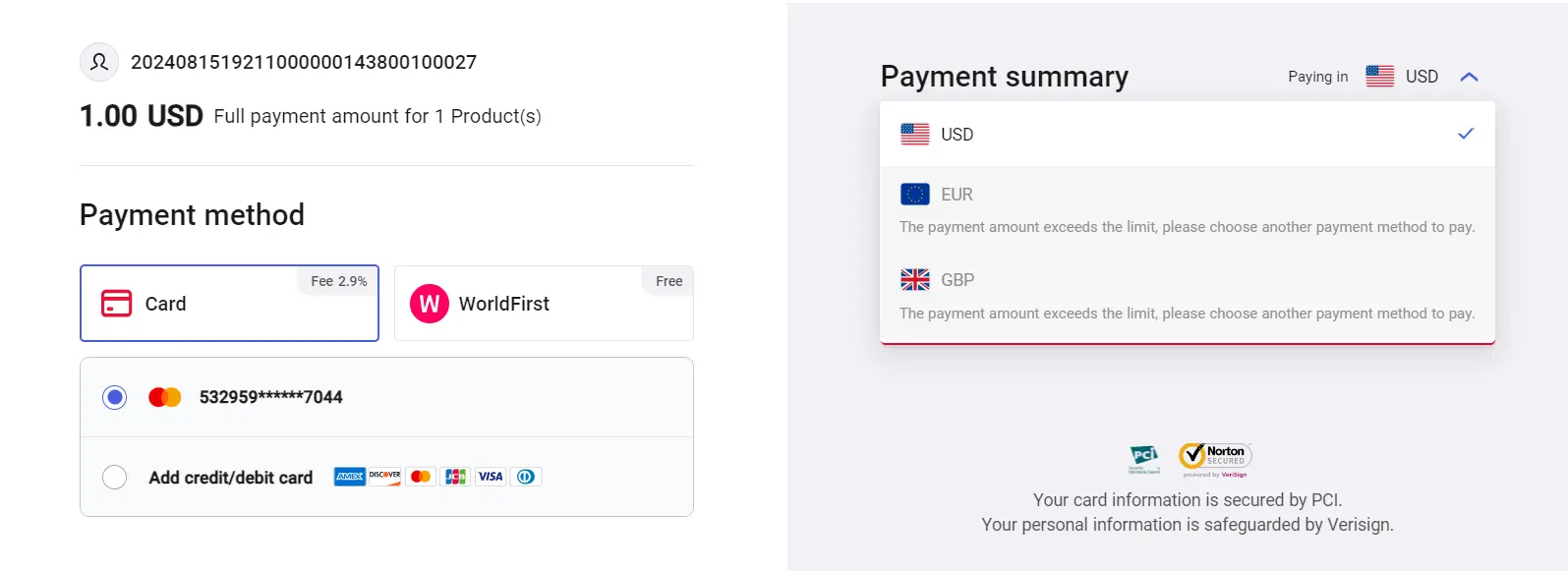
Note: Your bank or card company may charge fees on international transactions, depending on your location. If you make a payment in a currency other than the stated payment currencies, your credit card issuer or bank may charge you a currency conversion fee or exchange processing fee. Please be aware that WorldTrade has no control over these charges. Should you have any questions, please contact your bank or credit card issuer for more information.
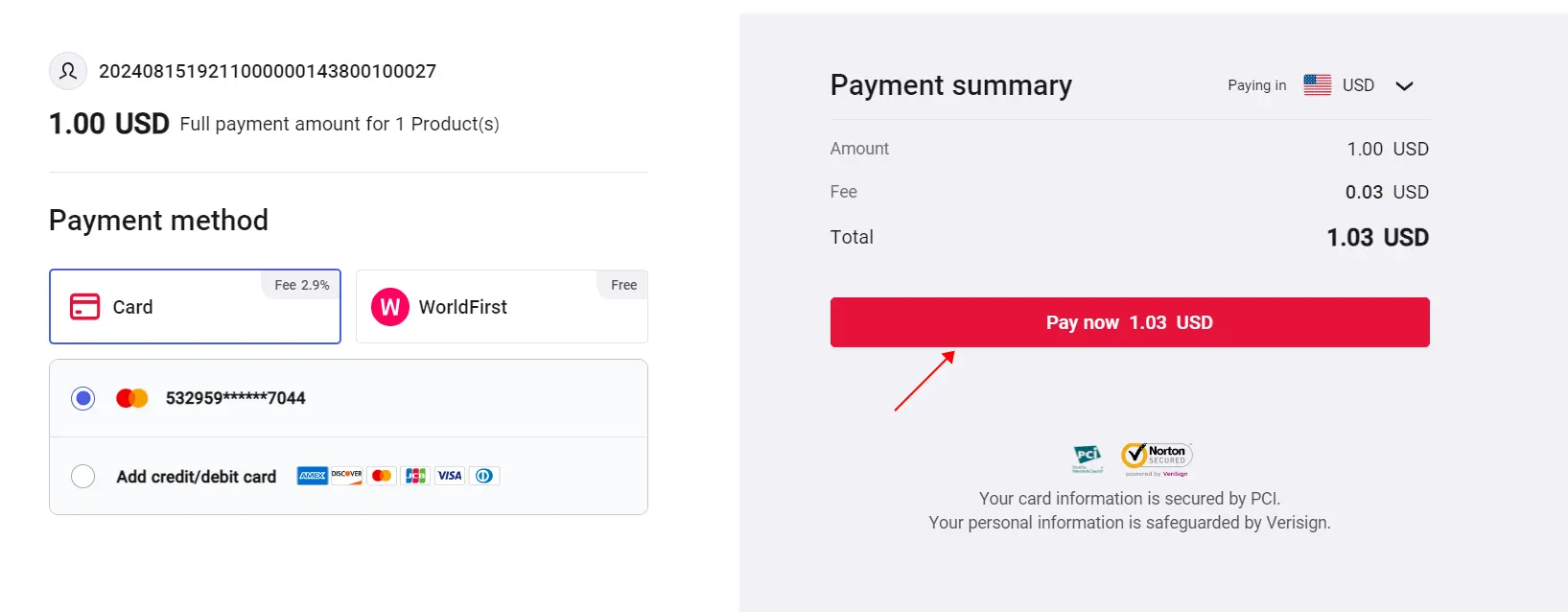
- Confirm the payment details and click “Pay now” to complete order payment.
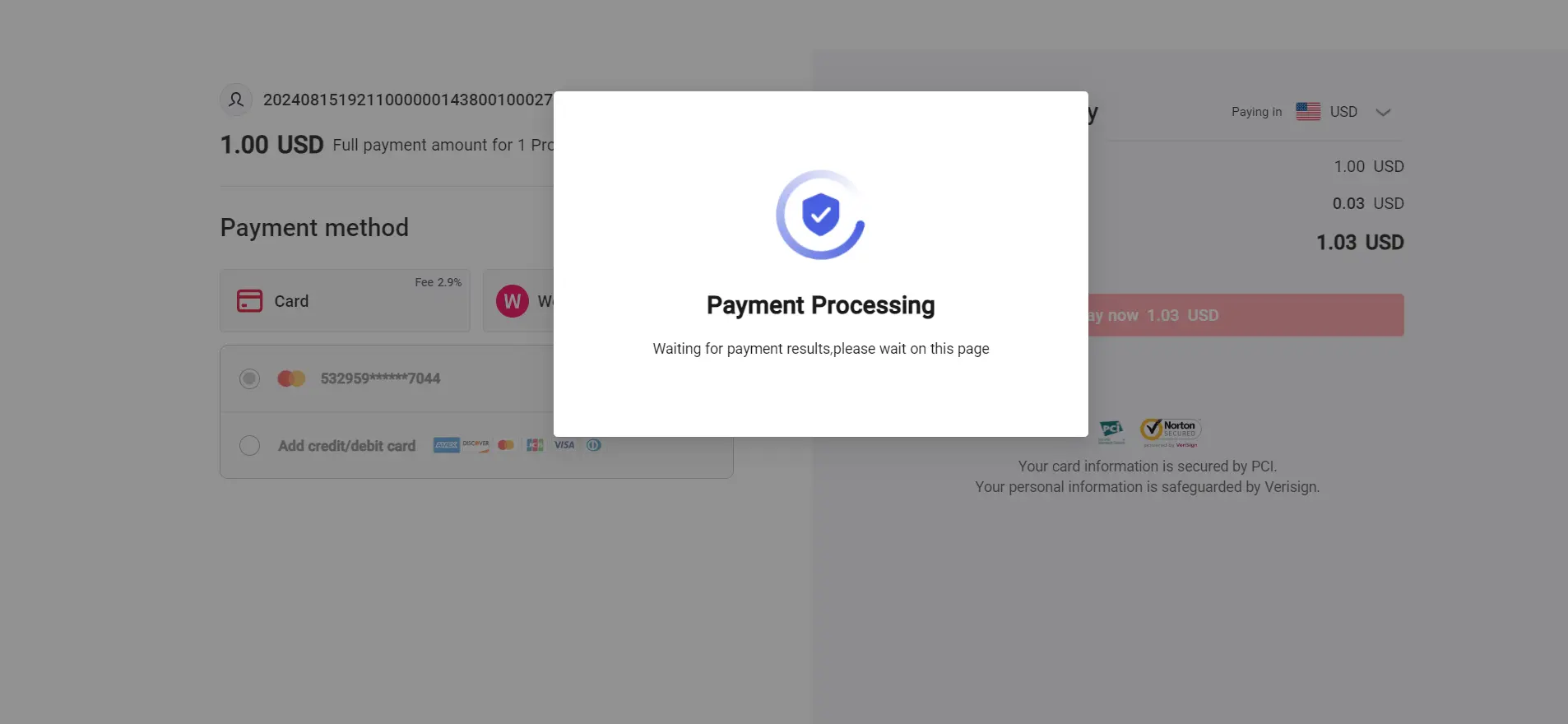
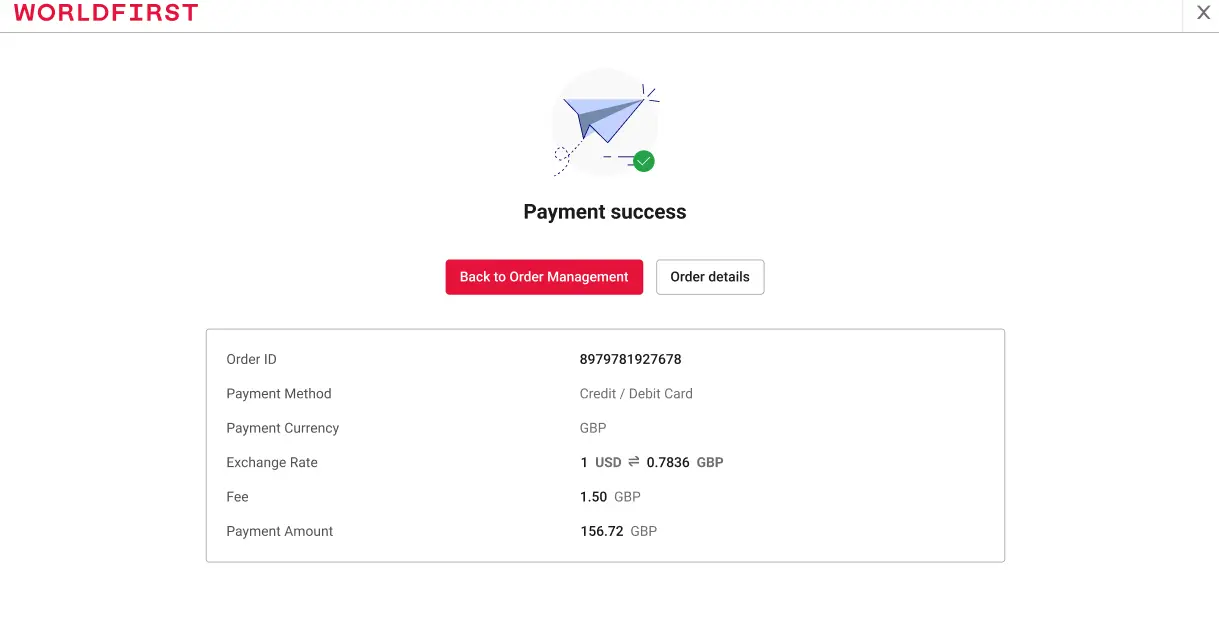
- After payment, you will be redirected to the payment processing page. Please wait for a moment until the payment is displayed as successful, which indicates that the order payment has been completed.
Pay with PPRO online banking
- If your account’s registered country is the Netherlands, Austria, Belgium, or Poland, you can use PPRO Online Banking to complete the payment for your WorldTrade order. The system will display the available payment methods based on your registered country, including iDEAL, Bancontact, EPS, and PayU.
- Please note: A Service fee will be incurred by the buyer at the time of WorldTrade order payment. You can negotiate with the seller to determine who should bear the service fee, and this should be clearly agreed upon while drafting the order.
- Transaction service fee = payment amount * service fee rate, actual fees will be based on the rates displayed on the Checkout page.
| Supported Payment Method | Supported Country | Buyer Payment Currency | Service Fee Rate | Payment Processing Time | Single Transaction Limit |
|---|---|---|---|---|---|
| iDEAL | Netherlands | EUR | 2.99% | Real-time | Unlimited |
| Bancontact | Austria | 2.5% | |||
| EPS | Belgium | 1.5% | |||
| PayU | Poland | PLN | 2.5% |
- After selecting the available PPRO payment method, click ‘Pay now’ and the system will automatically redirect you to the third-party payment page, where you need to complete the payment process.
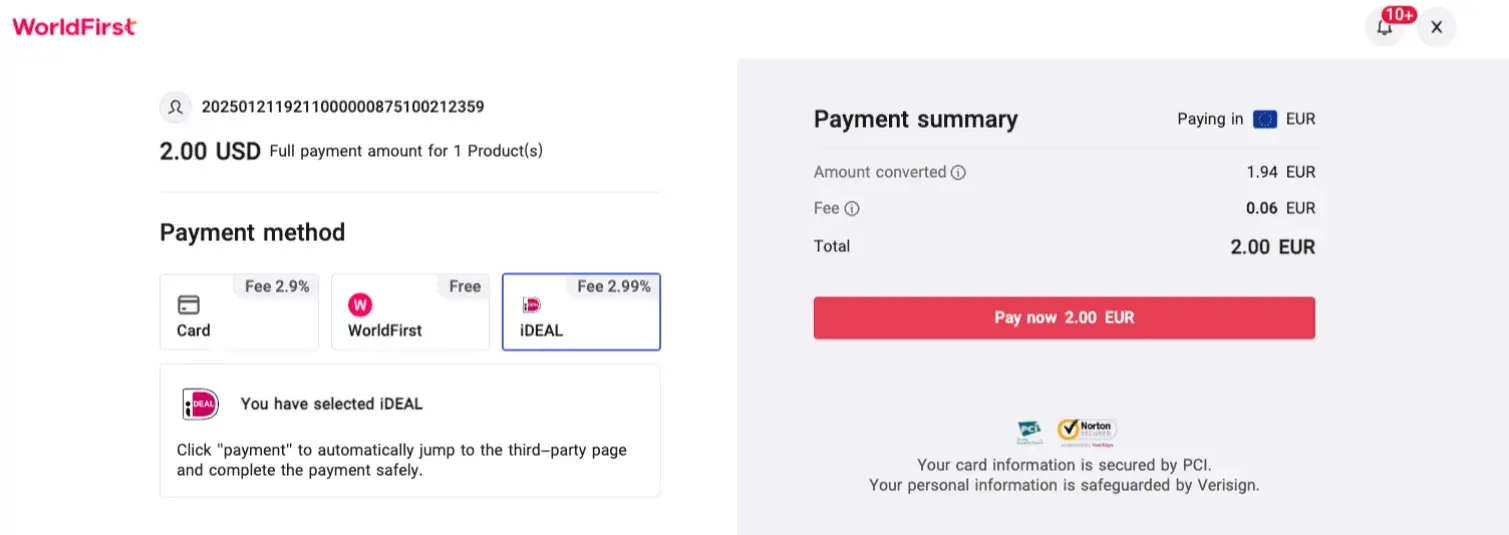
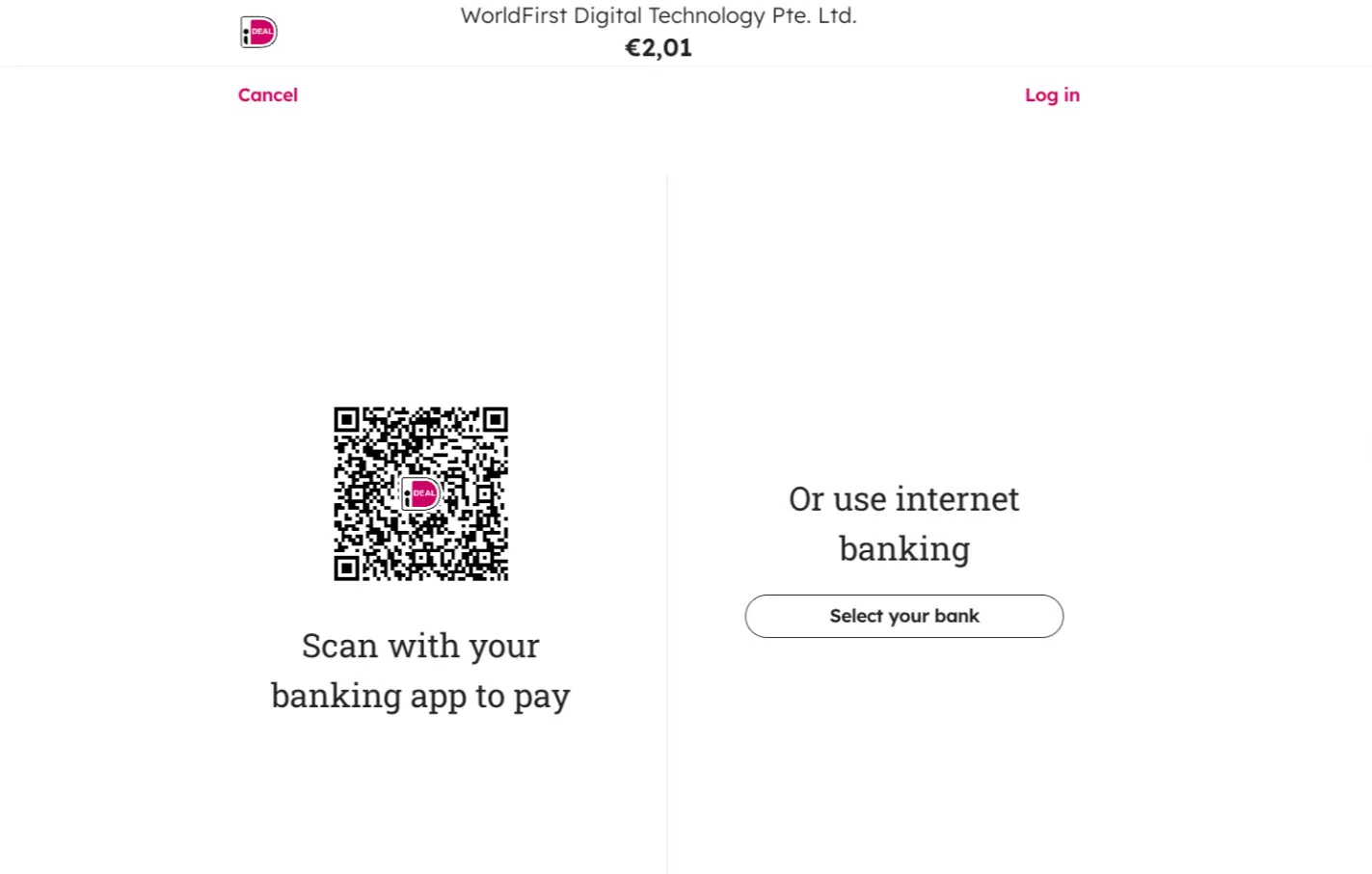
- After payment, you will be redirected to the payment processing page. Please wait for a moment until the payment is displayed as successful, which indicates that the order payment has been completed.
Pay with GooglePay
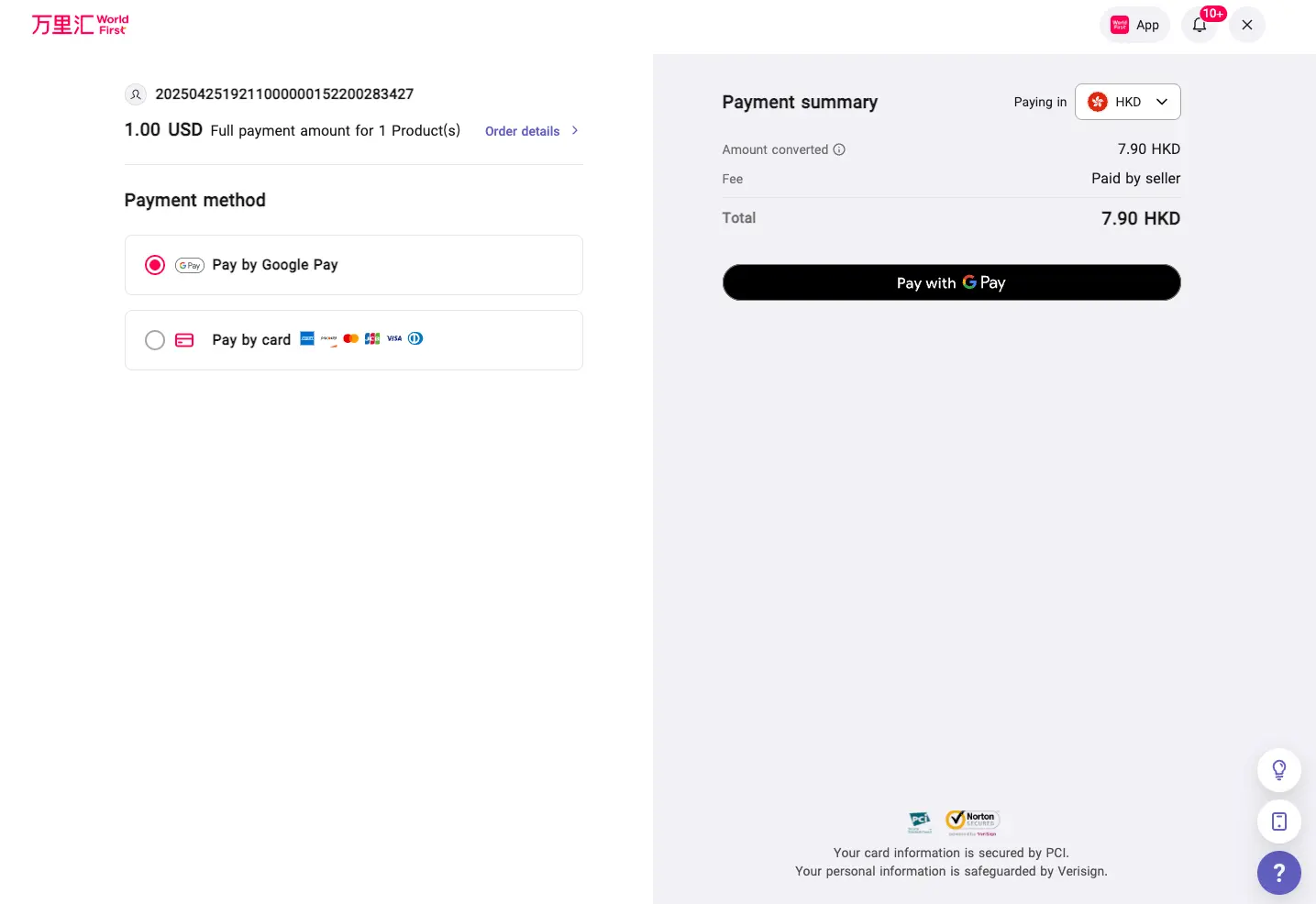
- If you’re using Google Pay to make a payment, simply select “Google Pay” at checkout.
- You’ll be prompted to sign in to your Google account if you aren’t already logged in. Once signed in, your saved cards from Google Pay will appear — just choose the one you’d like to use and click “Pay” to continue.
- For the best experience, we recommend using an Android device with Chrome browser. Availability may vary on other devices or browsers.
- Please note:
A transaction service fee will apply when paying for your WorldTrade order. This fee is calculated as: Service Fee = Payment Amount × Service Fee Rate - For payments made via Google Pay (which uses linked credit/debit cards), the default service fee rate is 2.9%. However, the final rate and exact fee amount will always be clearly displayed on the checkout page before you confirm the payment.
- You may discuss and agree with the seller on who should bear this service fee — whether it’s the buyer or the seller. We recommend clarifying this point early and specifying it in your order terms to avoid misunderstandings.
【list】
| Supported Card Brands | Seller Receiving Currency | Buyer Payment Currency | Single Transaction Limit |
|---|---|---|---|
| Mastercard Visa JCB Discover |
USD | USD EUR GBP JPY SGD AUD CAD HKD |
1-10,000 USD |
| EUR | EUR | 1-10,000 EUR | |
| American Express | USD | USD | 1-10,000 USD |
Order management
Check order status
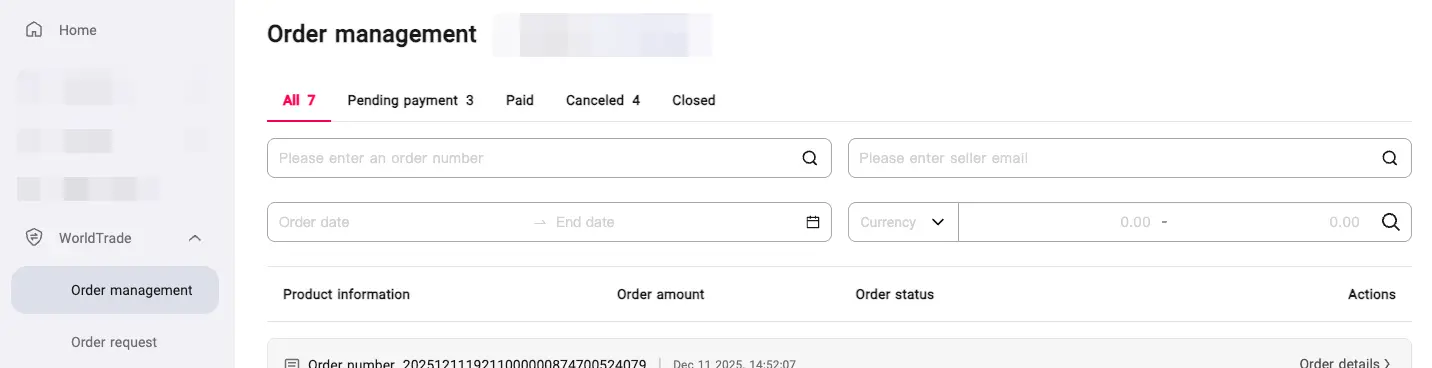
- You can view all the orders you currently receive in the left navigation bar “World Trade – Order Management”. You can view the current action point of the order through the order status. Click “Details” under “Action” to enter the order details page.
Cancel order
- Enter “World Trade – Order management” in the left navigation bar, and you can filter the orders that need to be canceled based on the country/region of order delivery. Only unpaid and unshipped orders can be canceled.
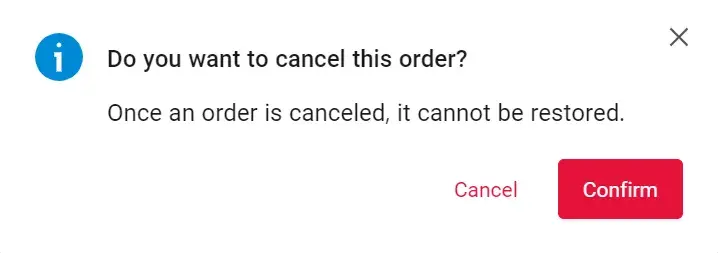
- After finding the corresponding order, click “···” on the right and click “Cancel Order”.Confirm whether to cancel the order or not on the pop-up window, click “Cancel Order”
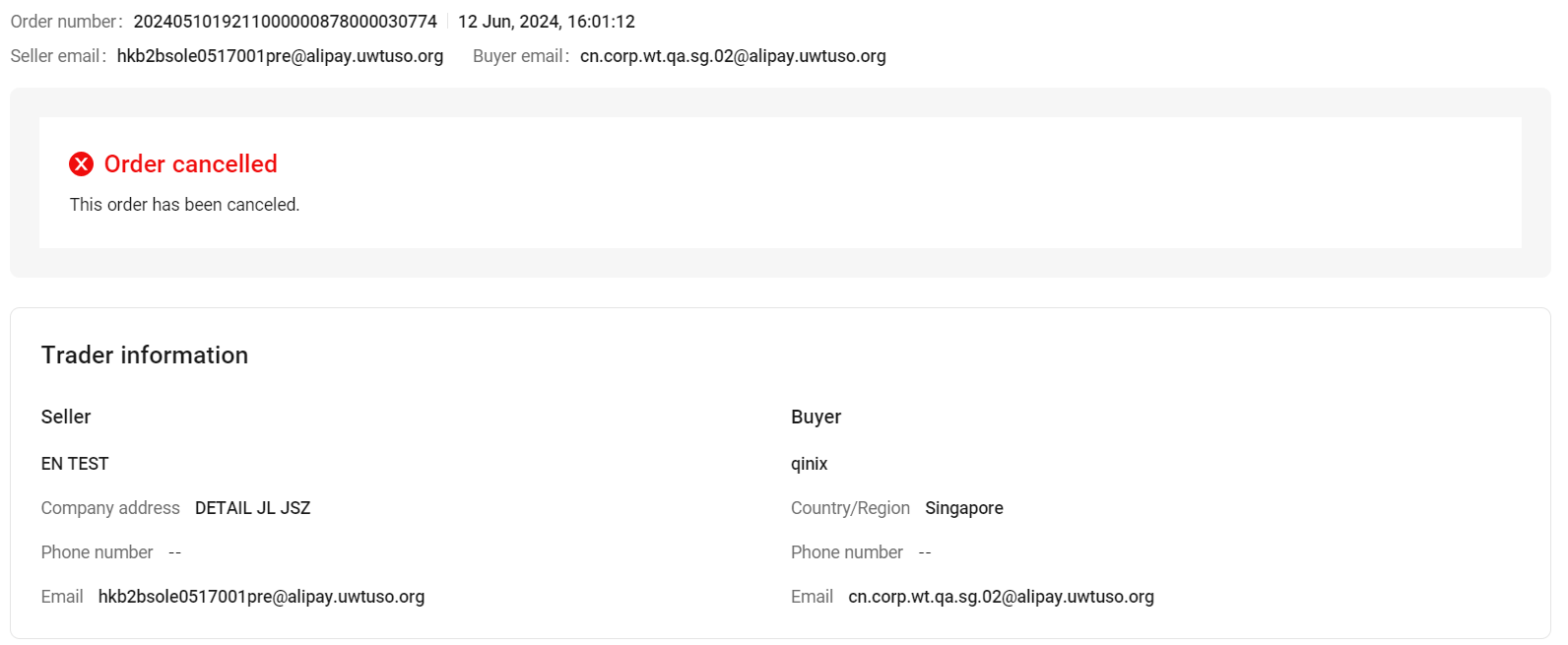
- After cancellation, a message will be displayed at the top of the order details page. You can view all manually canceled orders in “Order Management”-“cancelled”
Order request management
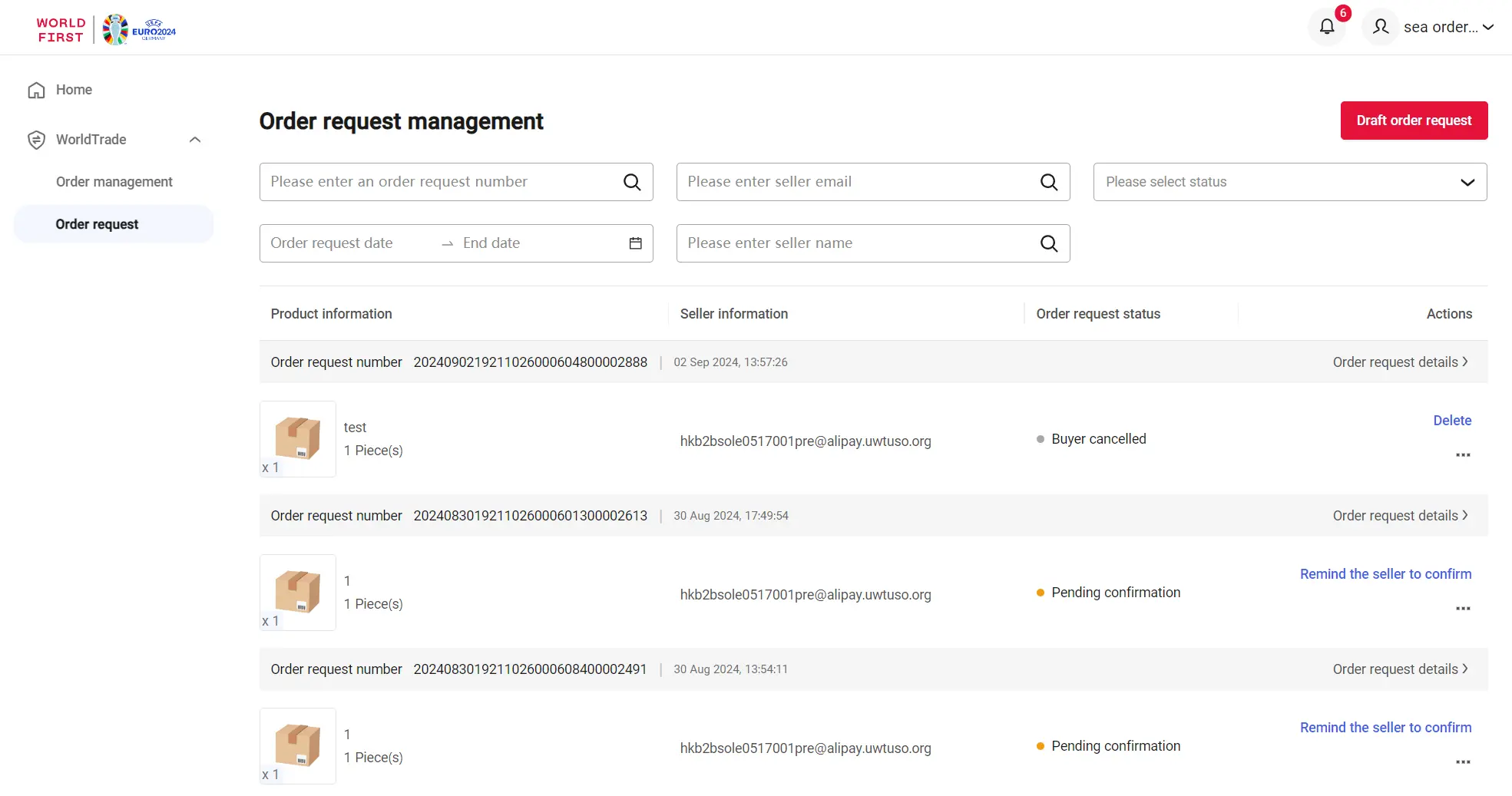
You can enter the “WorldTrade-Order request” in the left navigation bar to draft and manage order requests, and view the current action points of the order requests.
Send an order request to your supplier
- Click on the ‘Draft order request’ at the top right corner of the page to enter the draft order request page, where you need to fill in the seller information, product information, and detailed requirements (optional).
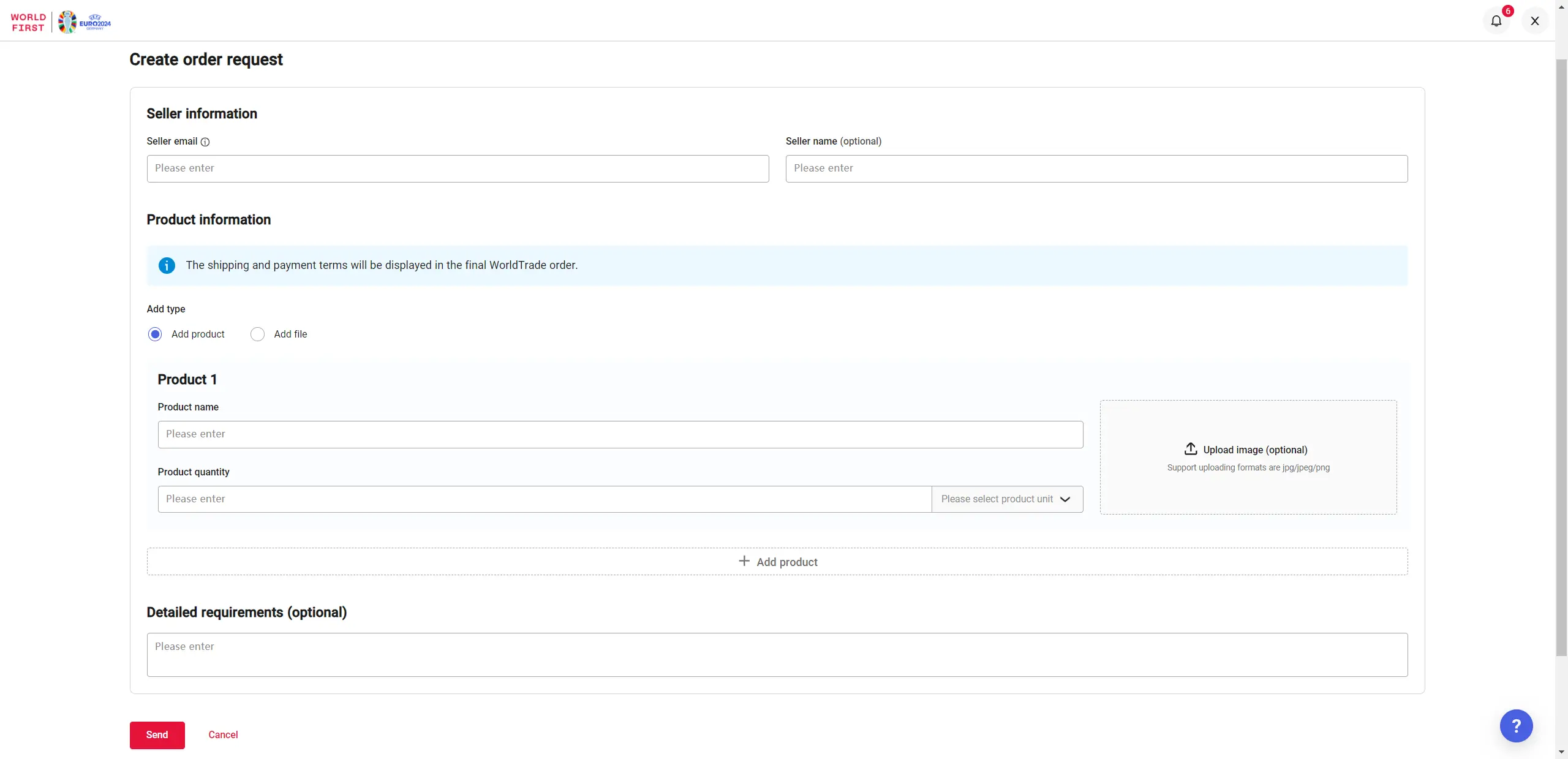
Step 1 – Fill in seller information

- Seller email:This is a required field. After the creation of the order request, the system will automatically send an email notification to your seller. The seller can confirm the order request through this email and draft a WorldTrade order based on the product information you provided.
- Seller name:This is an optional field.
Step 2 – Fill in product information
- You can add product or add contract to detail the products. Up to 30 products can be added at a time.
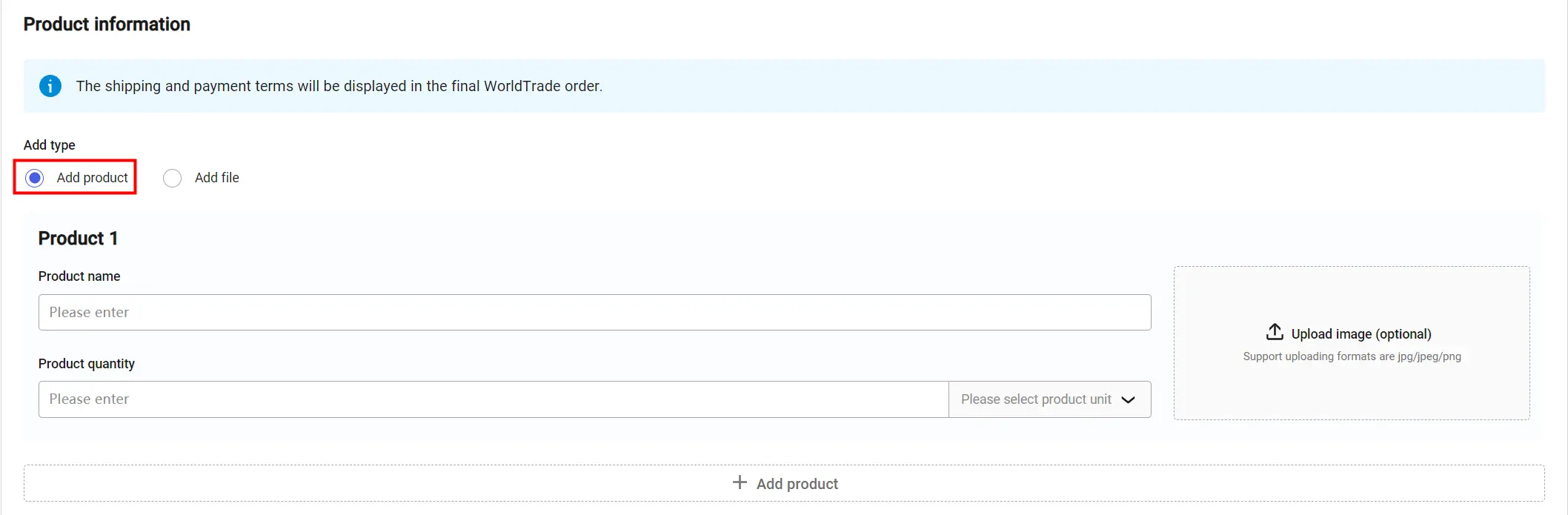
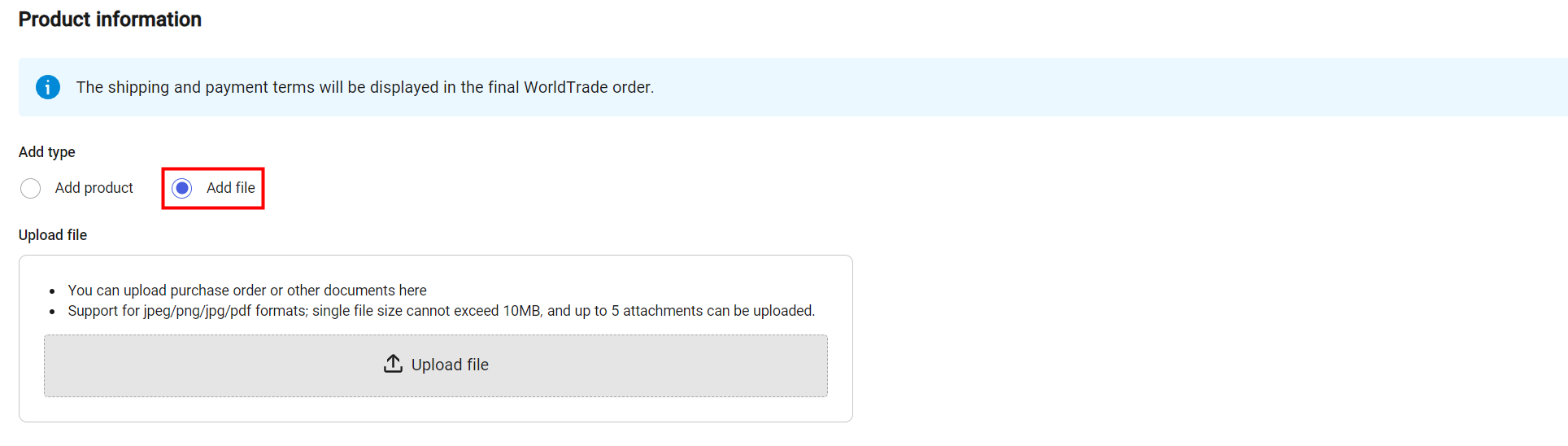
| Items | Required or Optional | Remarks |
|---|---|---|
| Option 1. Add product information by selecting “Add product” | ||
| Product name | *Required | English and English symbols only |
| Product quantity/unit | *Required | Quantity only supports integer filling, maximum of 10,000 |
| Upload image | Optional | jpg/jpeg/png format with size no larger than 10MB |
| Option 2. Add product information by selecting “Add contract” | ||
| Upload file | *Required | A maximum of 5 attachments can be uploaded, each up to 10MB. Supported formats include: jpeg/png/jpg/pdf |
- Please note that the shipping and payment plan will be shown in the final WorldTrade order after the seller confirms your order request.
- After completing the product information, you can supplement any additional information you need to note in the “Detailed requirements”.
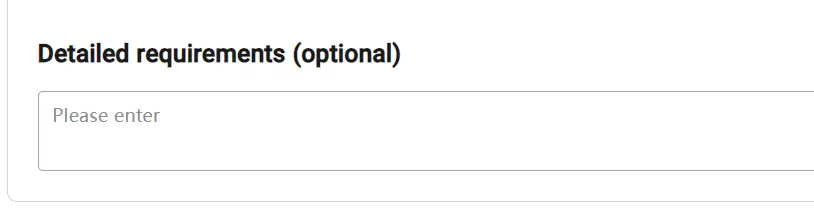
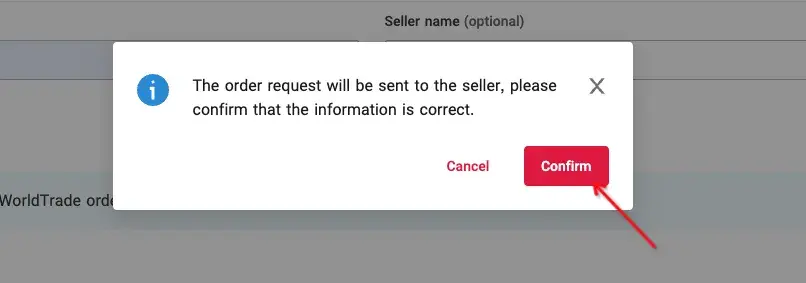
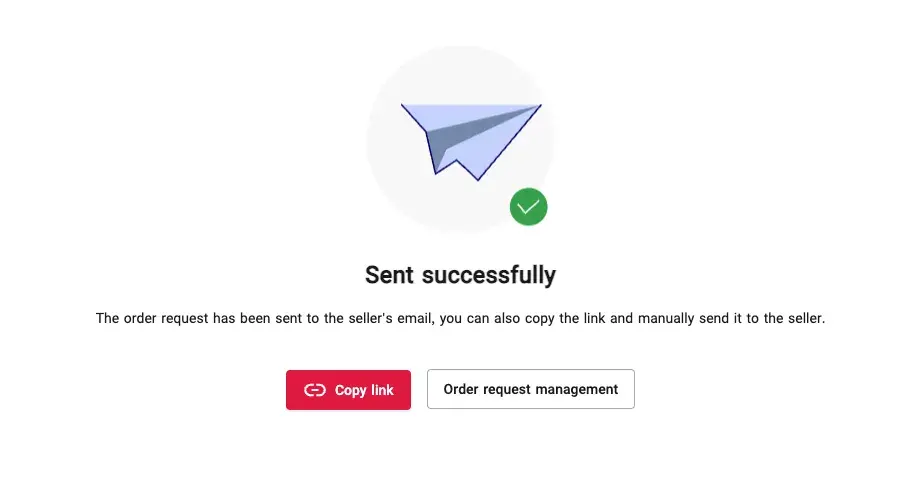
- Click “Send” and confirm, you can send the order request to the seller. After the order request is successfully sent, you can also click “Copy link” to copy the order request link of send it to the seller offline.
Manage order requests
Click the “Order request management” button on the results page, or the “WorldTrade-Order request” on the left-hand portal navigation bar, you can enter the order request management page and find the corresponding order request, then click on the right side “Order request details”.
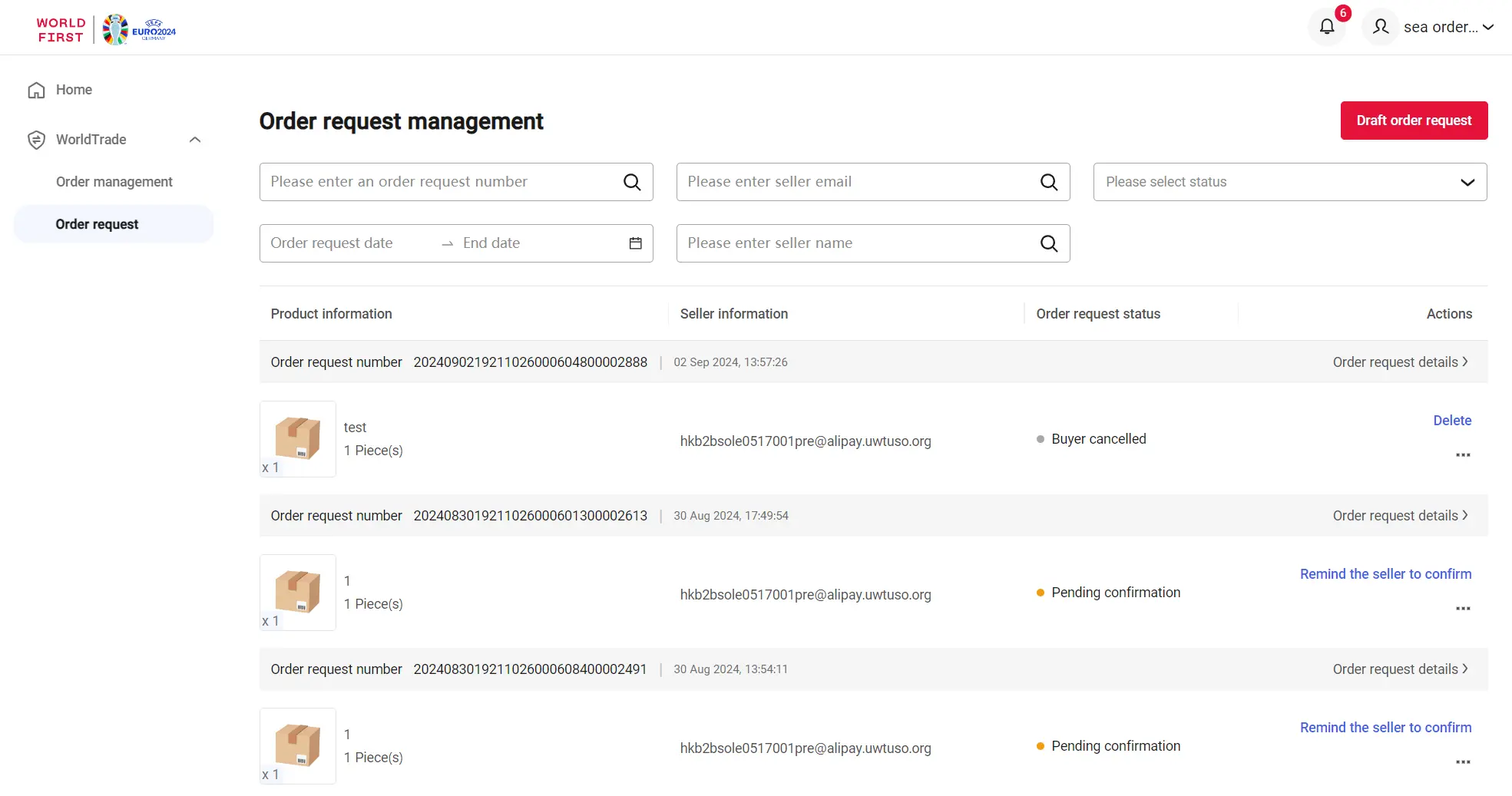
You can view the status, key information, and action points of the order request on the right side of the page. The order request is divided into the following three states:
- Pending confirmation
- Buyer cancelled
- Seller rejected
Remind the seller to confirm
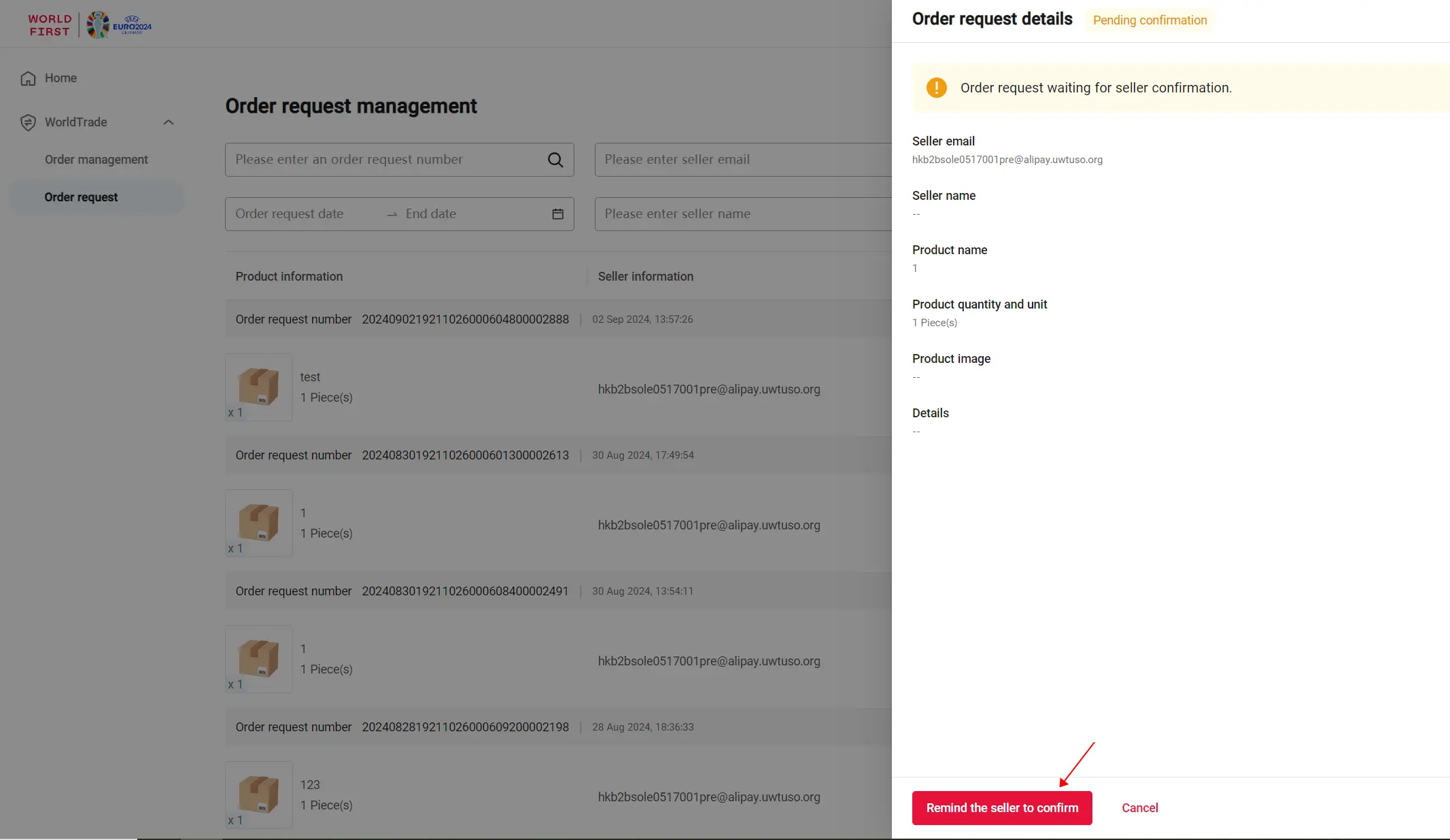
If the status of the order request is pending confirmation, you can go to the order request management page, find the corresponding order request, and click “Remind the seller to confirm” to remind the seller to confirm as soon as possible.
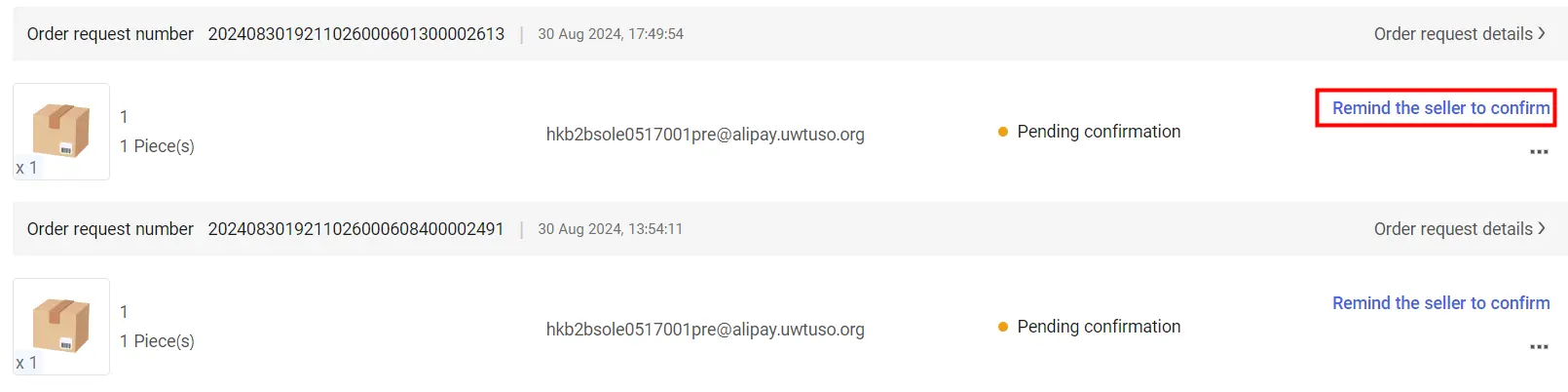
You can also go to the order request details page and click the “Remind the seller to confirm” button on the bottom left to remind the seller to confirm as soon as possible.
Cancel order request
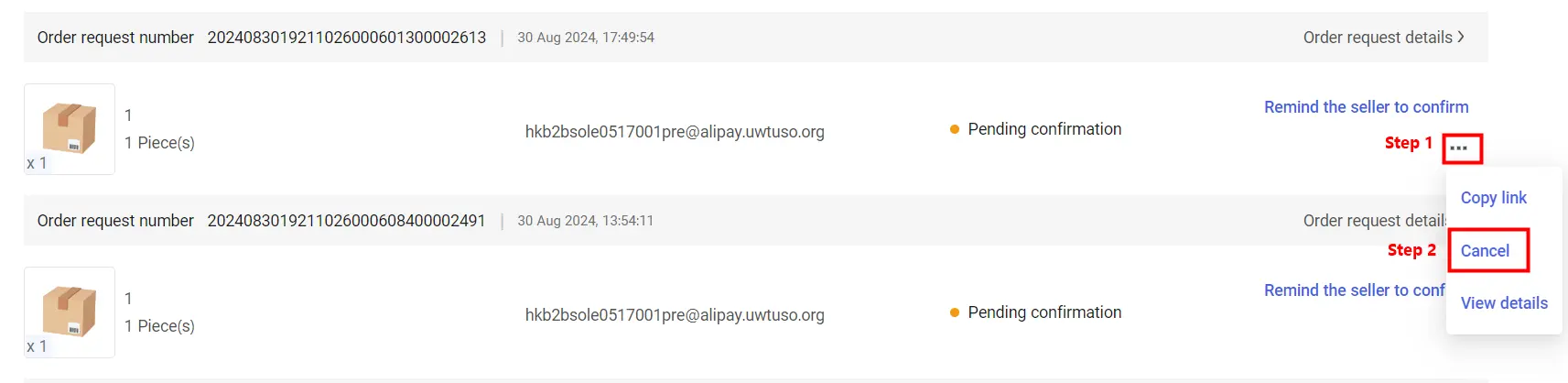
If the status of the order request is pending confirmation, you can go to the order request management page, find the corresponding order request, and click the “…” below the action point and select “Cancel” to cancel the order request.
You can also go to the order request details page, click the “Cancel” button on the bottom right, and confirm the cancellation.
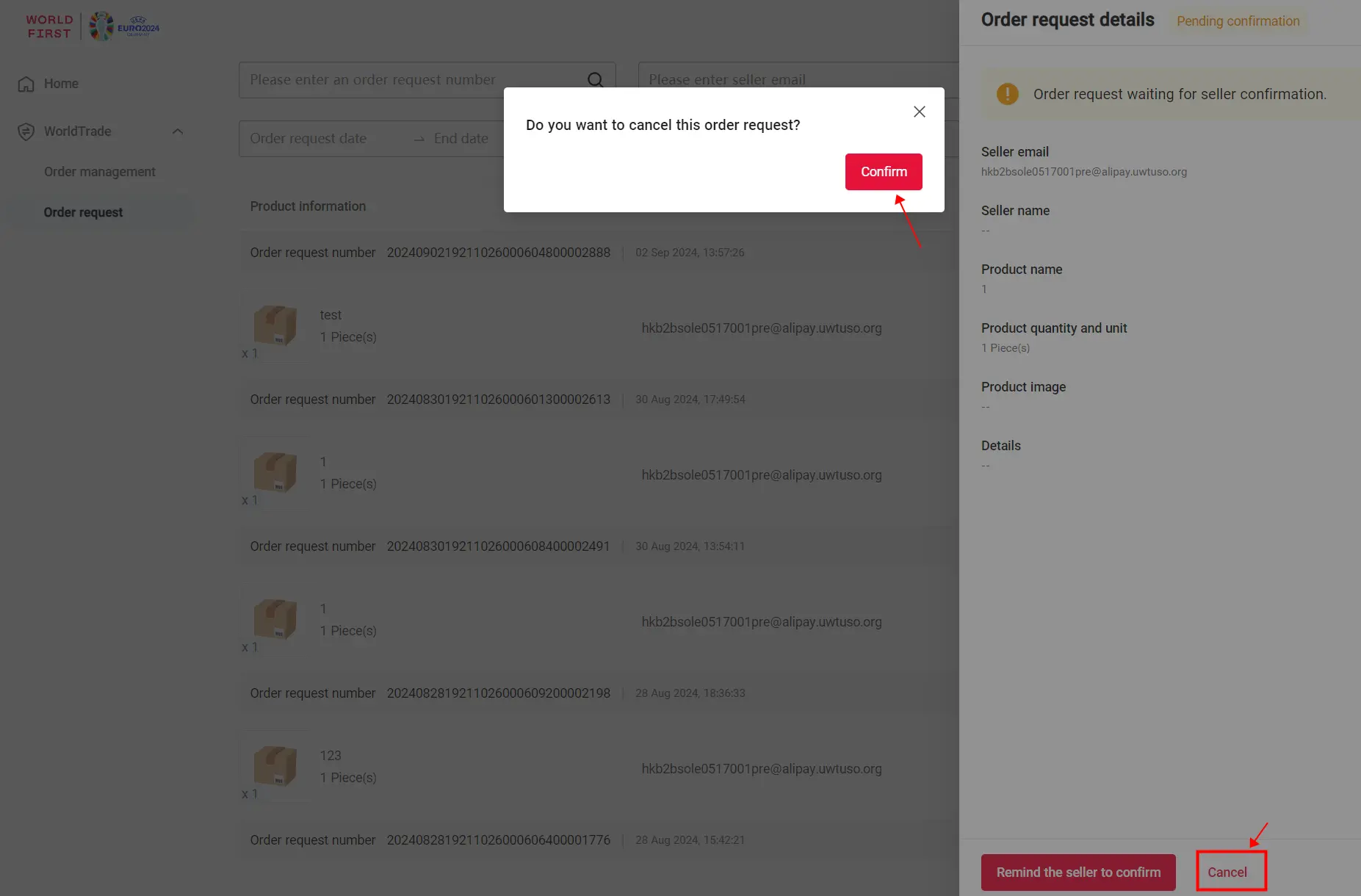
Please note: After confirming the cancellation, the seller will not be able to generate a WorldTrade order based on the order request.
Delete order request
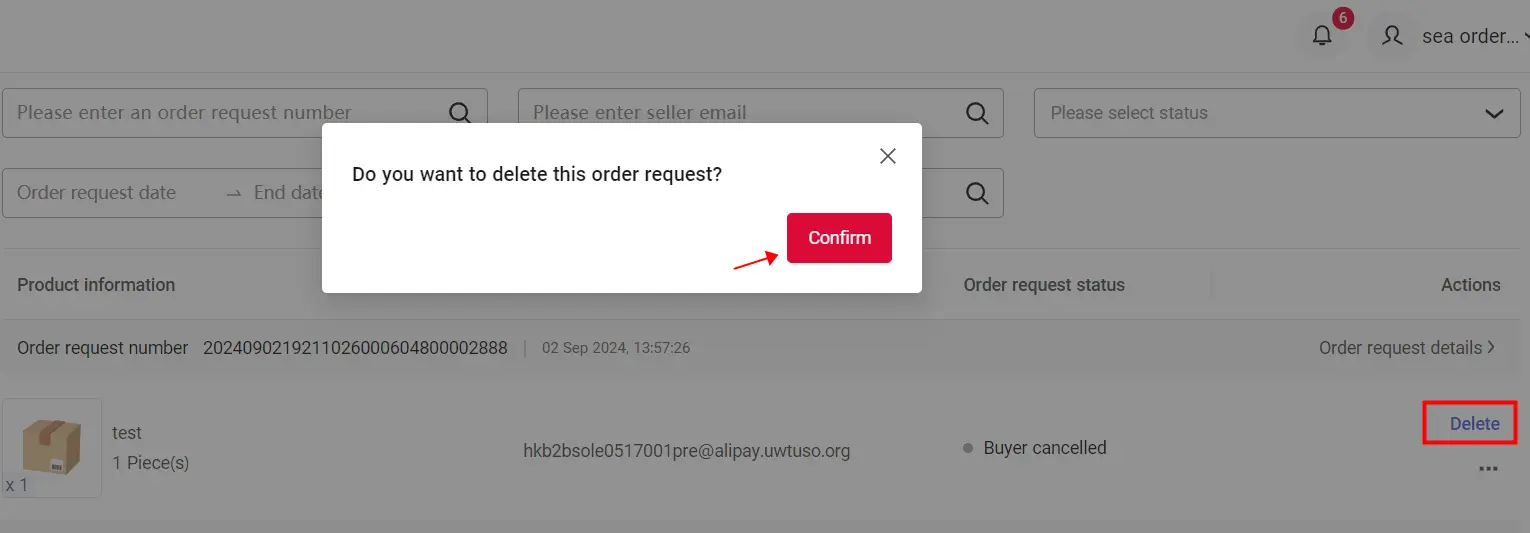
If the order request has been canceled or rejected by the seller, you can go to the order request management page, find the corresponding order request, click “Delete” and confirm the deletion of the order request.


Payment history
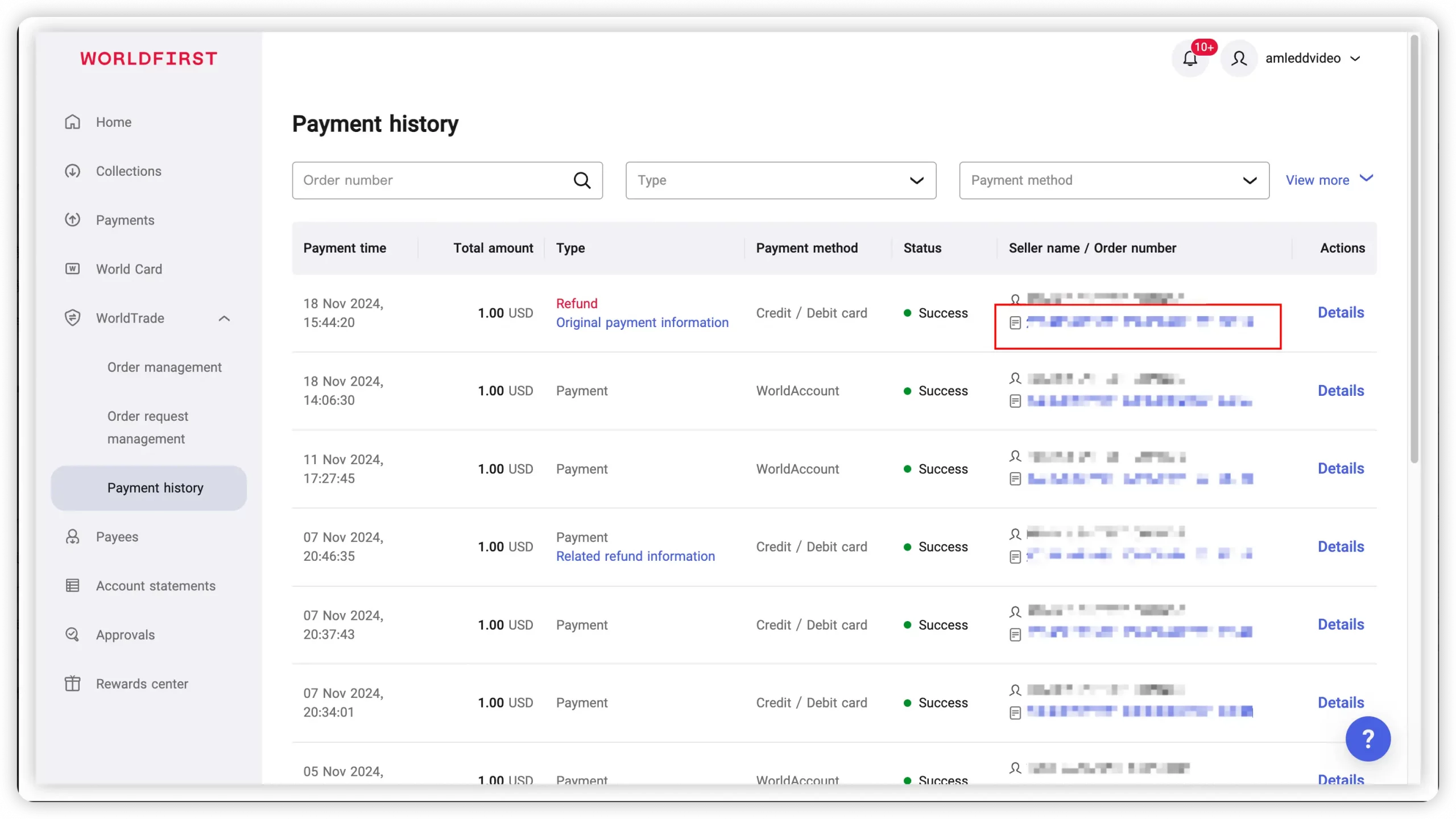
You can have access to the payment history by logging in to your WorldFirst account and go to the dashboard, clicking “Payment history” in the left navigation bar to enter the payment history page. The payment history provides various features to help you view and manage all payment records.
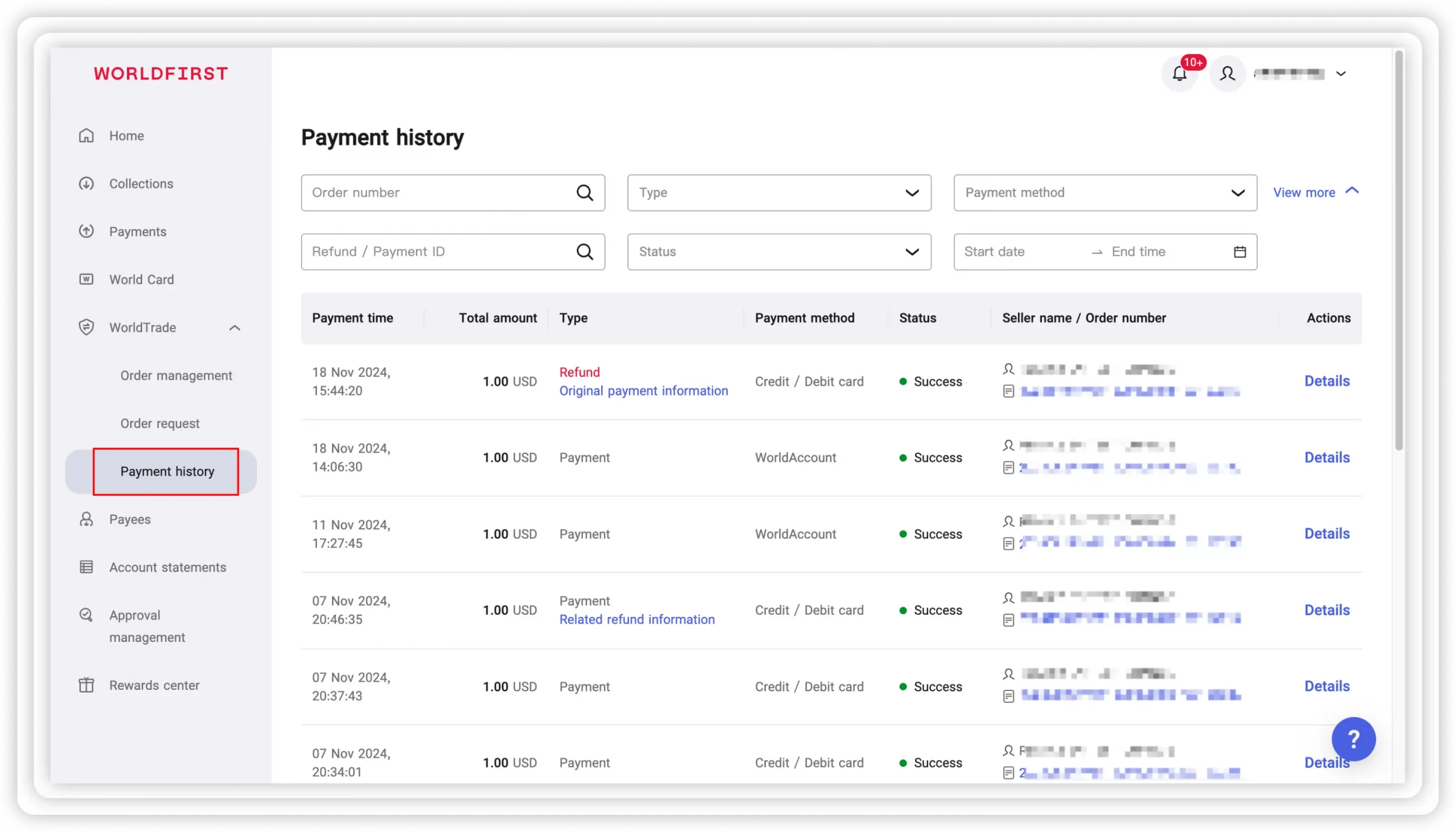
View payment details
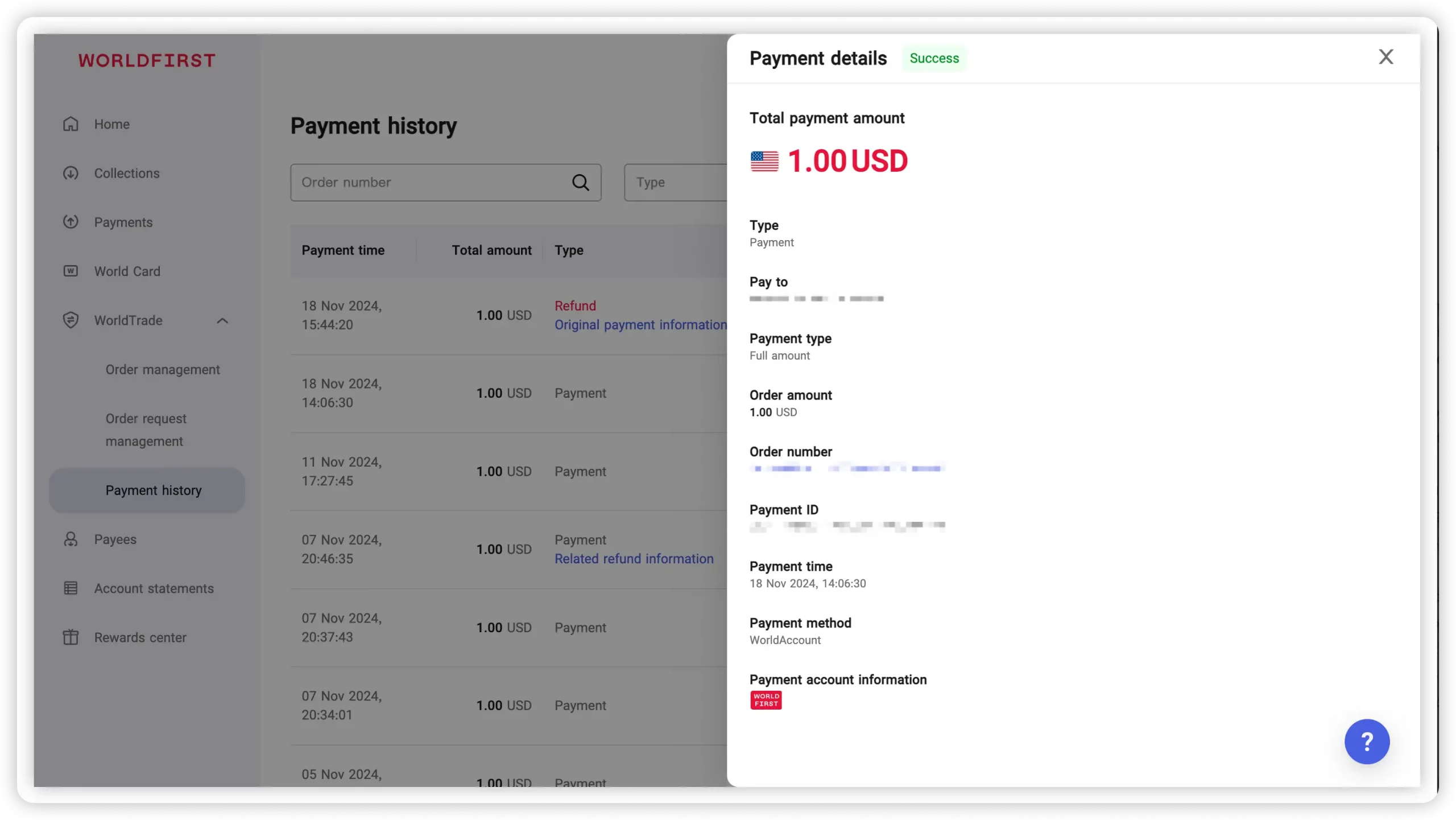
You can view payment details by clicking the “Details” next to any payment record. The details page provides key information such as transaction type, payment type, and payment method. This allows you to gain a clearer understanding of the specifics of each payment, ensuring transparency and traceability. You can find the original order by clicking “Order number”.
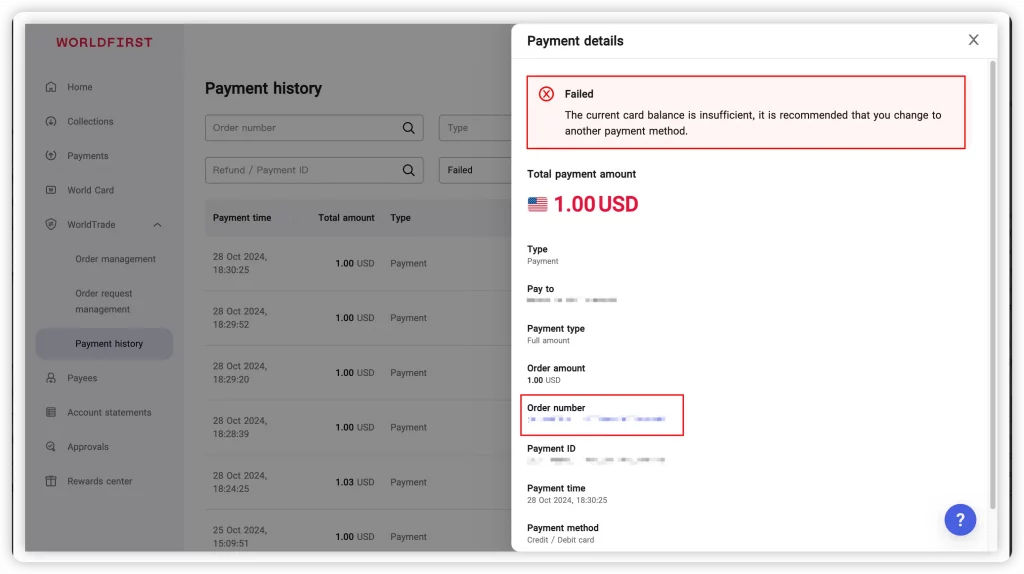
If your payment fails, you can find more information by clicking on the “Details”. This will provide you with the specific reason why the payment was not processed successfully. Also, you can find the original order by clicking “Order number”.
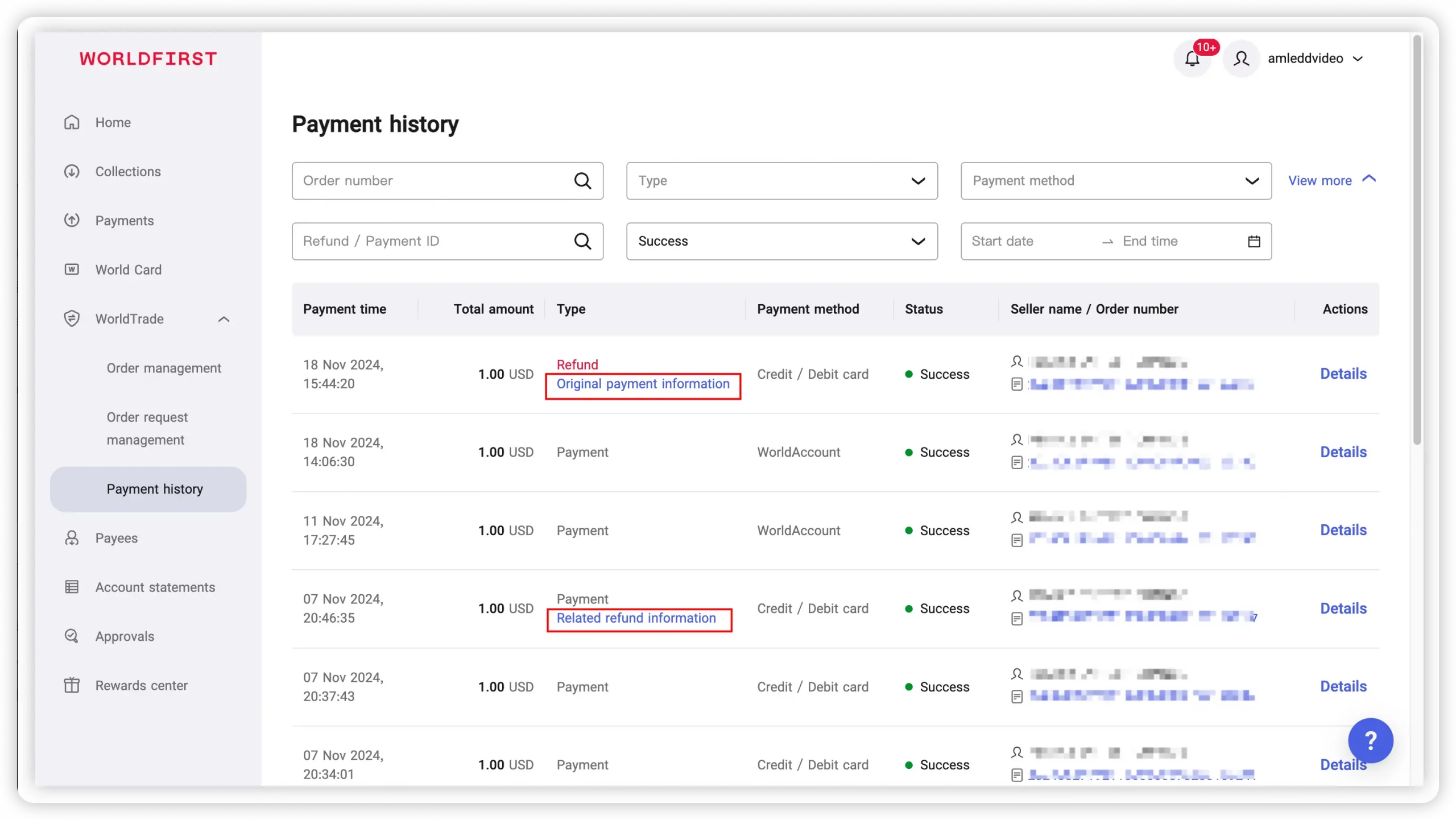
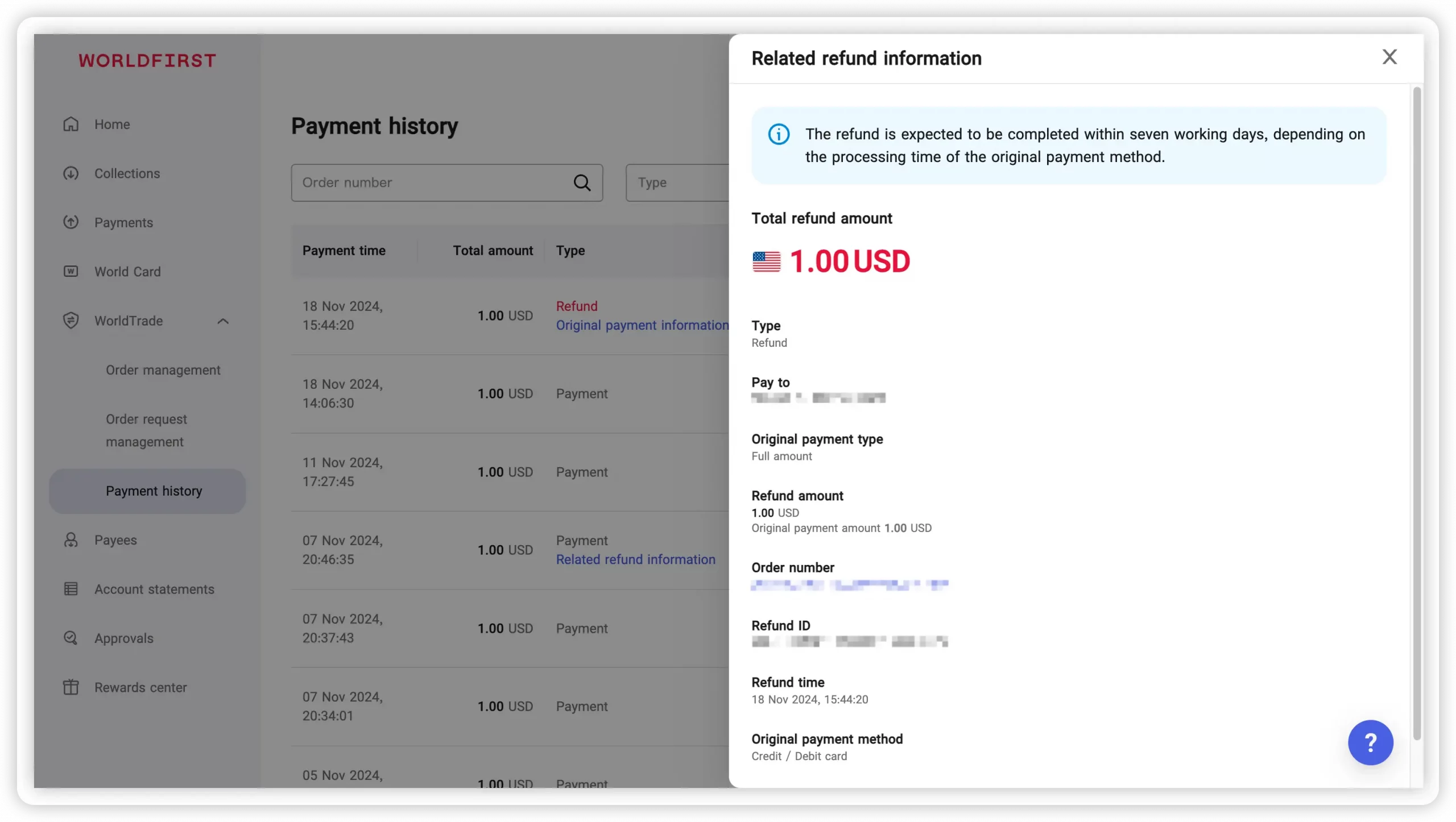
To view the details of the associated order of a refund record, you can click on “Original payment information” and have access to the details of the original payment. Similarly, clicking on “Related refund information” you can view the details of the refund.
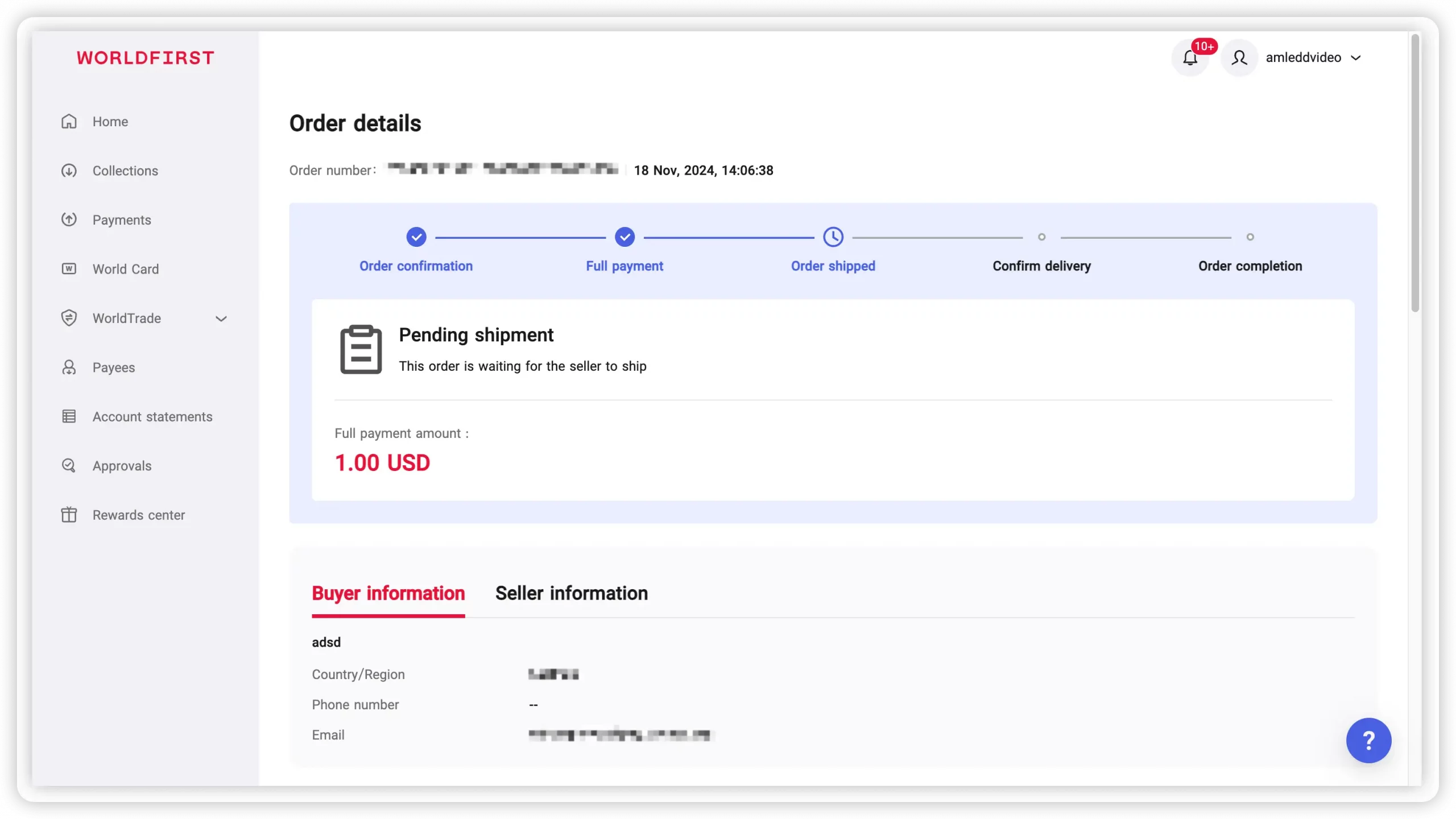
View order details
Click on the order number in the payment record, and the page will navigate to the order details page. Here, you can view basic information about the order, such as order status, payment amount, buyer and seller information, shipping and delivery details and product information. This helps you understand the order’s processing status comprehensively.