




























Overview
The payment password (also known as Transaction PIN) is a 6-digit security code that protects your account and funds. You’ll need to enter this PIN when:
- Adding a withdrawal account
- Making a withdraw
- Processing a payment
This two-step verification ensures your funds remain secure at all times.
Method 1: Set Payment Password from Homepage To-Do List
Step 1: Log in to your WorldFirst account and navigate to the homepage.
Step 2:Look for the “Set Payment Password” task in the To-Do section.
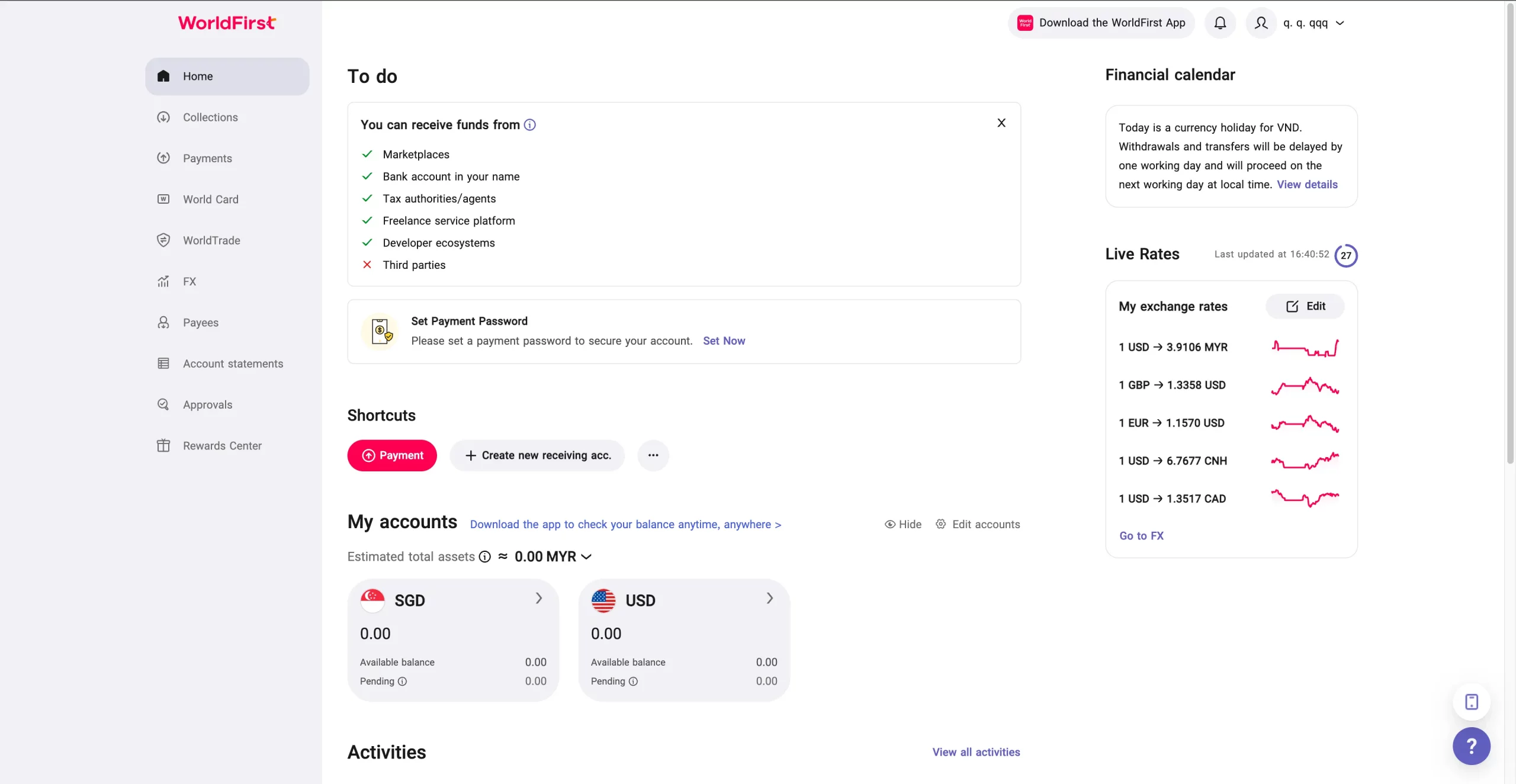
Step 3: Click “Set now” to navigate to the payment password setting page.
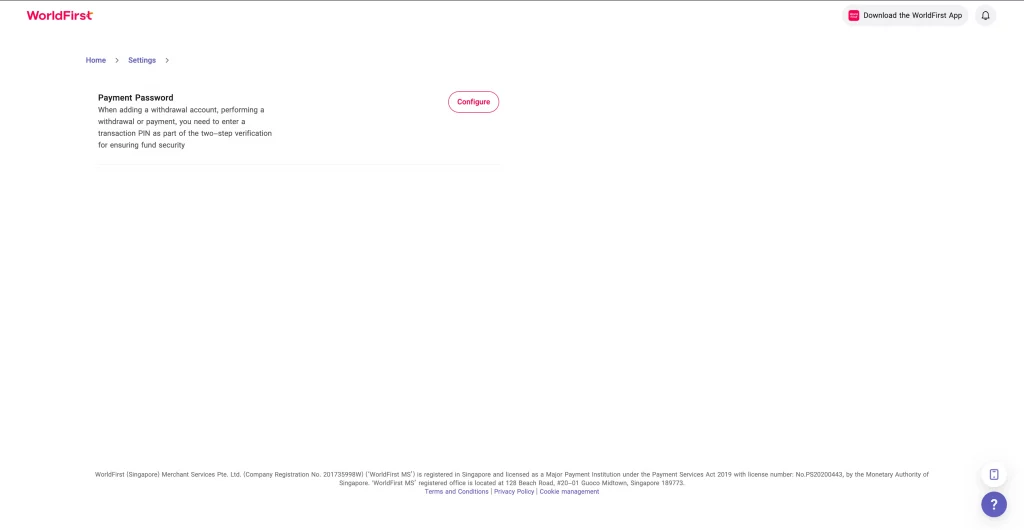
Step 4: Enter your 6-digit Transaction PIN.
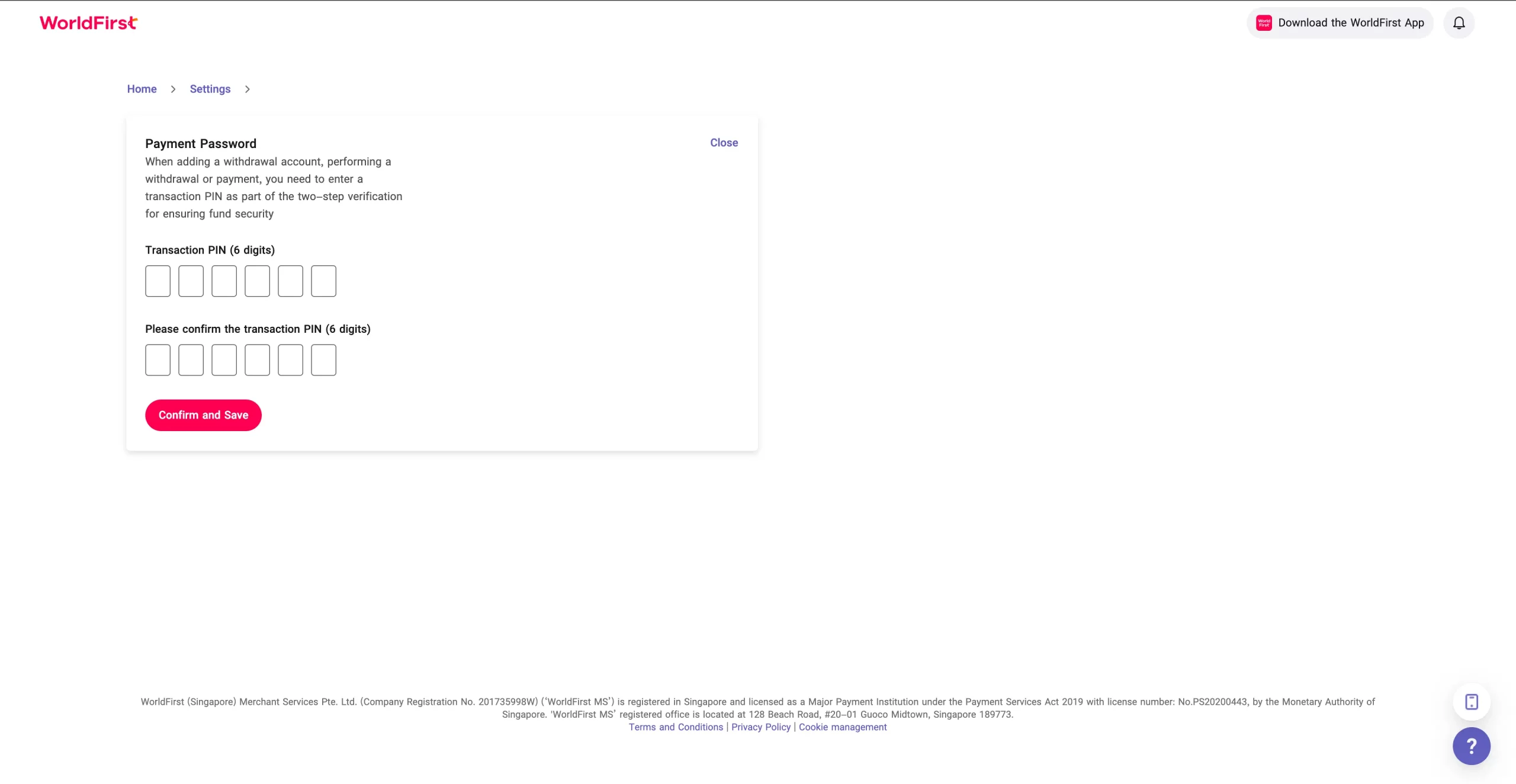
Step 5: Confirm the Transaction PIN by entering it again.
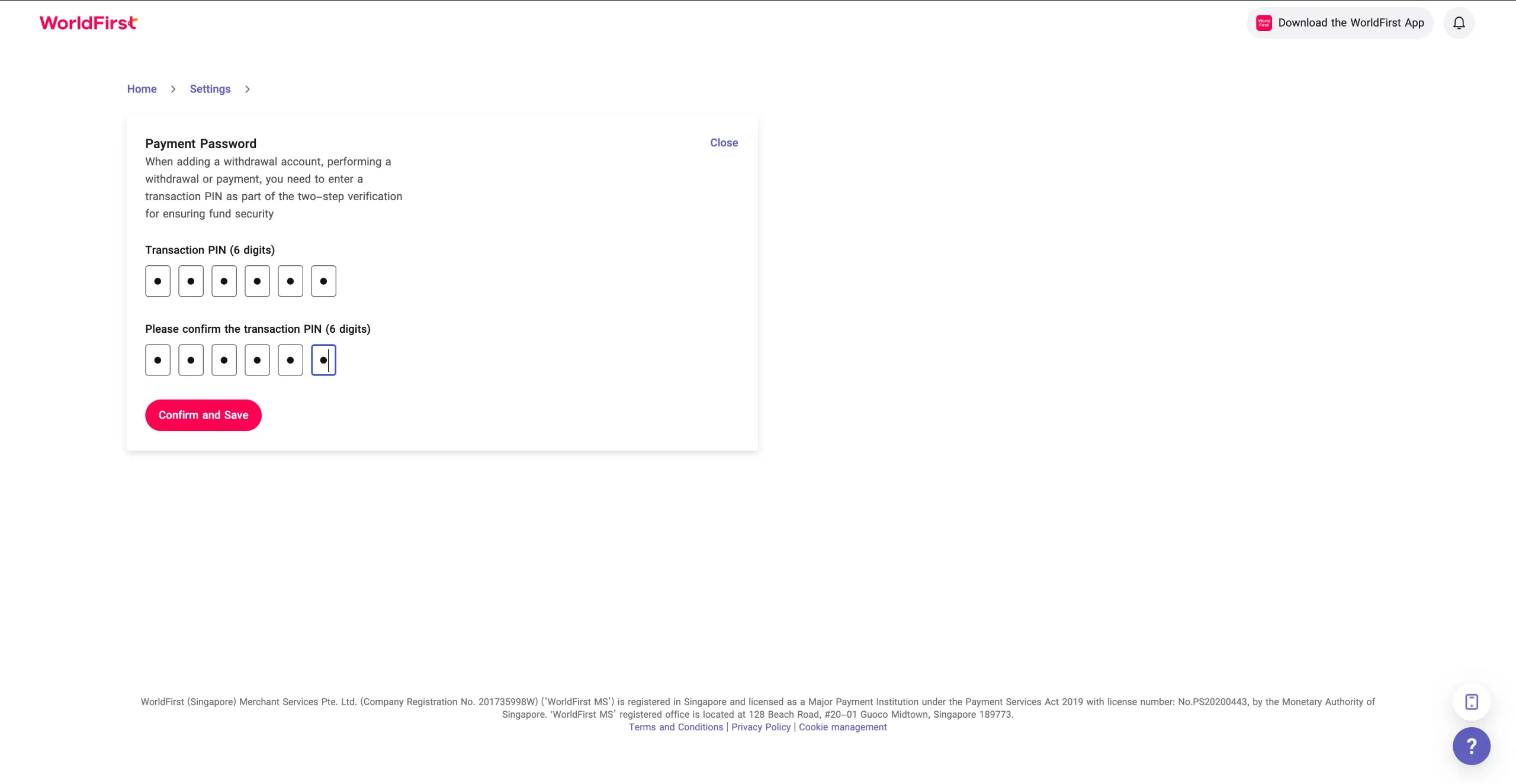
Step 6: Complete the two-step verification:
- A 6-digit verification code will be sent to your registered mobile number
- Enter the verification code
- Click “Confirm and Save”
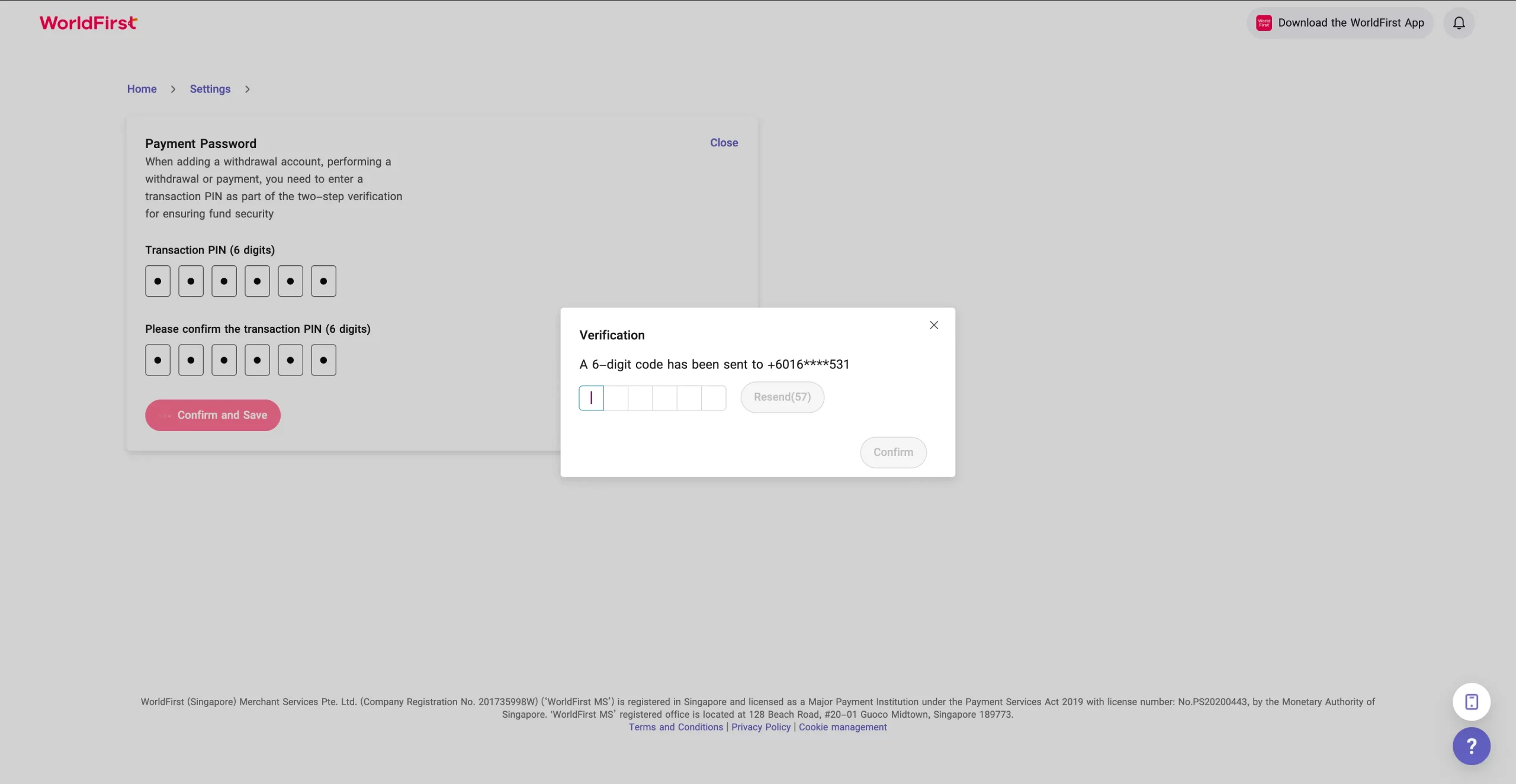
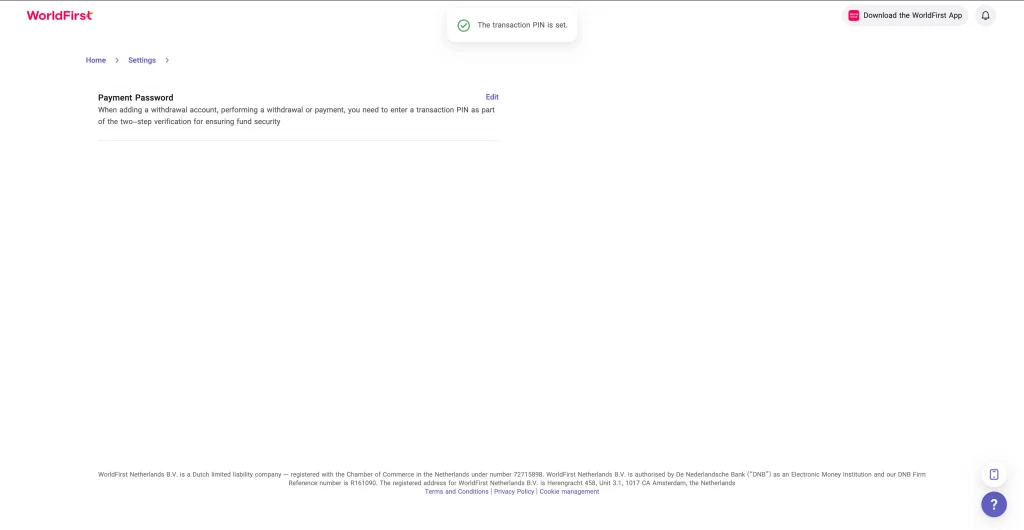
Step 7: Once completed, you’ll see the confirmation message: “The Transaction PIN is set!”
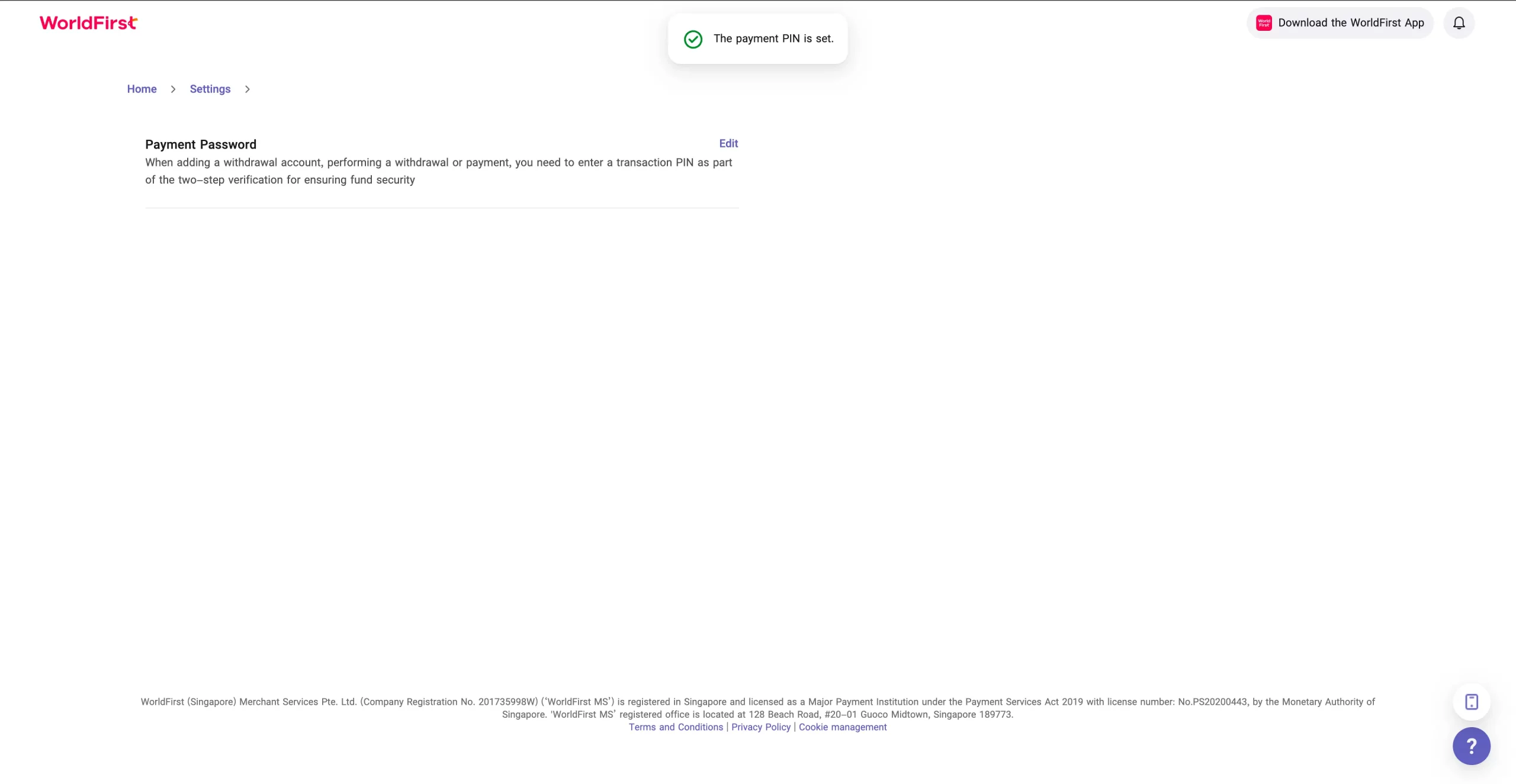
💡 Note: The “Set Payment Password” To-Do task will disappear from your homepage once you’ve successfully set your Transaction PIN.
Method 2: Set Payment Password from My Account Page
Step 1: Log in to the WorldFirst account.
Step 2: Go to Settings →Payment Settings.
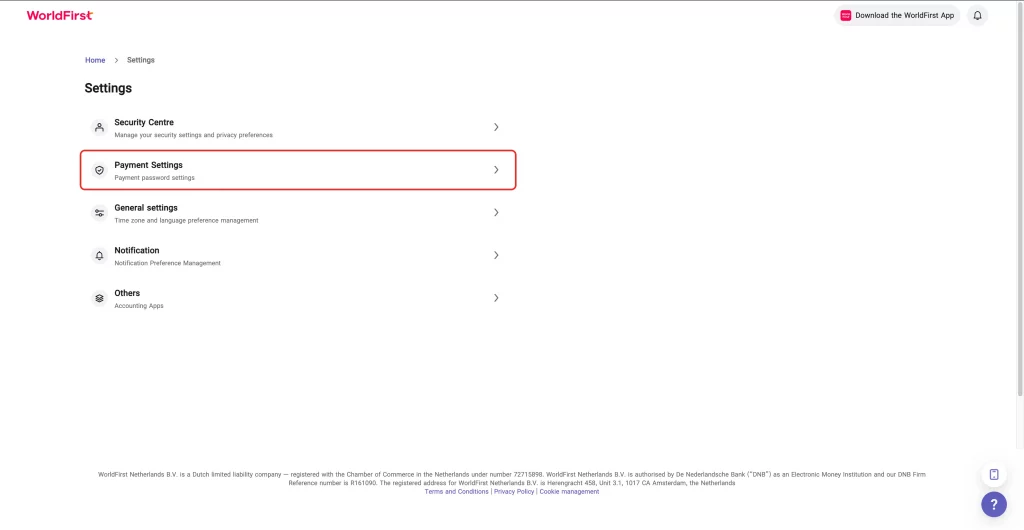
Step 3: Select “Payment Password” and Enter your 6-digit Transaction PIN.
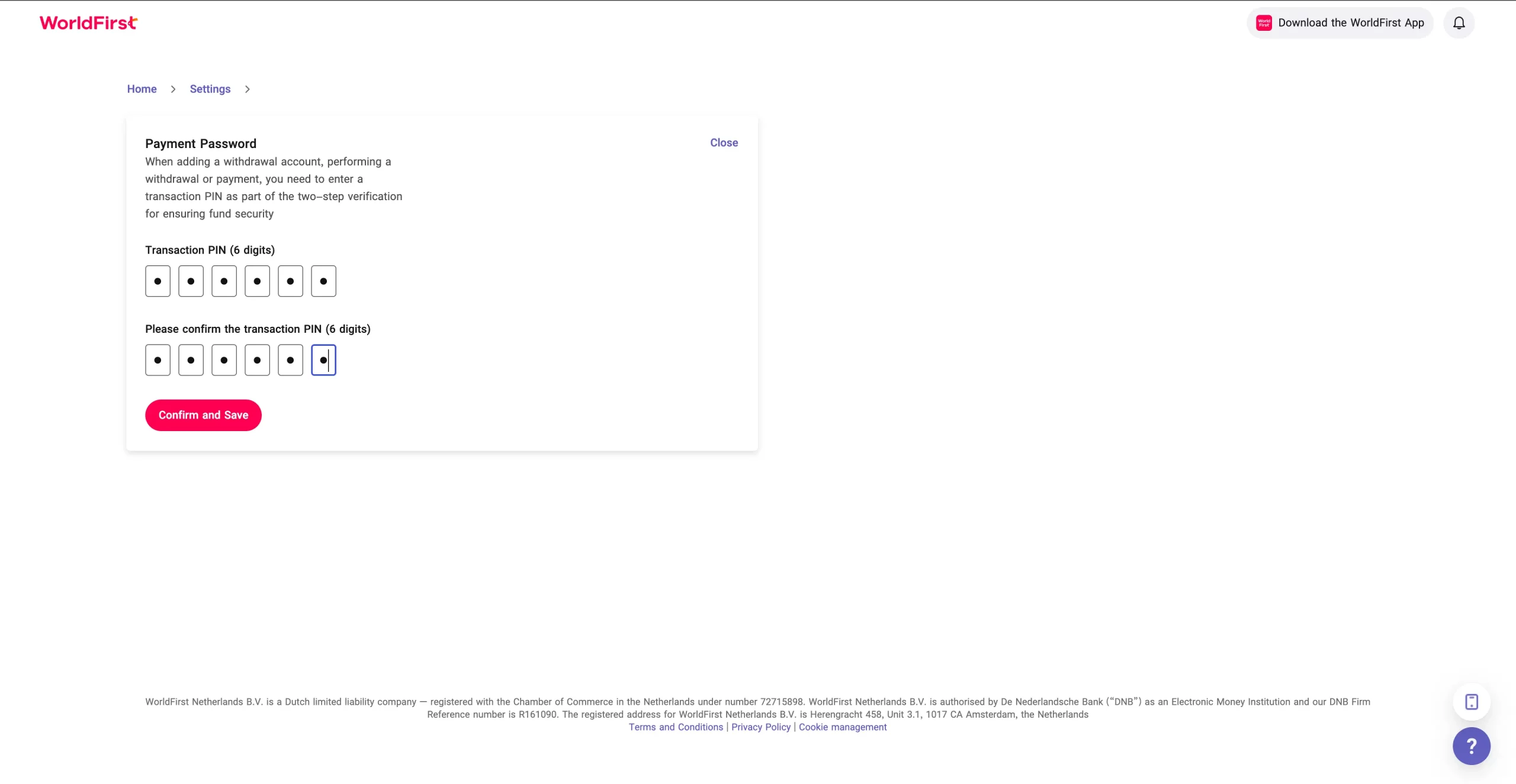
Step 4: Confirm the Transaction PIN by entering it again.
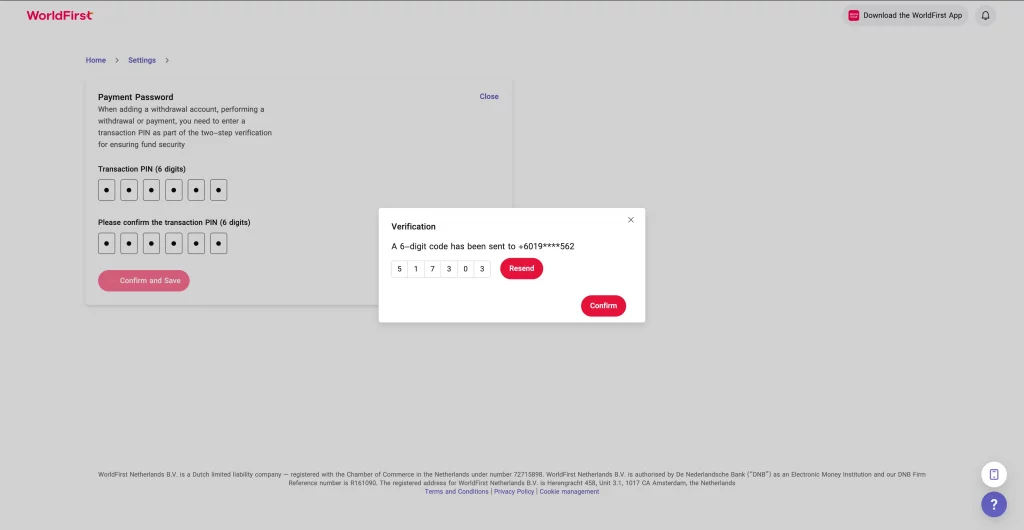
Step 6: Complete the two-step verification:
- A 6-digit verification code will be sent to your registered mobile number
- Enter the verification code
- Click “Confirm and Save”
Step 7: Once completed, you’ll see: “The Transaction PIN is set!”