




























WorldFirst automatically syncs transaction details over to Exact Online, making reconciliation significantly easier without additional importing work. Once connected, all your WorldFirst transactions—including international payments, currency conversions, and incoming transfers—flow directly into Exact Online, saving you time and ensuring accuracy.
Before you begin, ensure you have:
- Access to manage connected apps in WorldFirst
- An active Exact Online Account
- Appropriate user permissions in Exact Online to configure bank feeds
- Financial Year configured in Exact Online, or it will fail to sync the statements
- Currency configured in Exact Online
Step-by-step guide: From WorldFirst and Exact.
1. Log in to your WorldFirst Account
2. Go to Settings > Others (Accounting Apps)
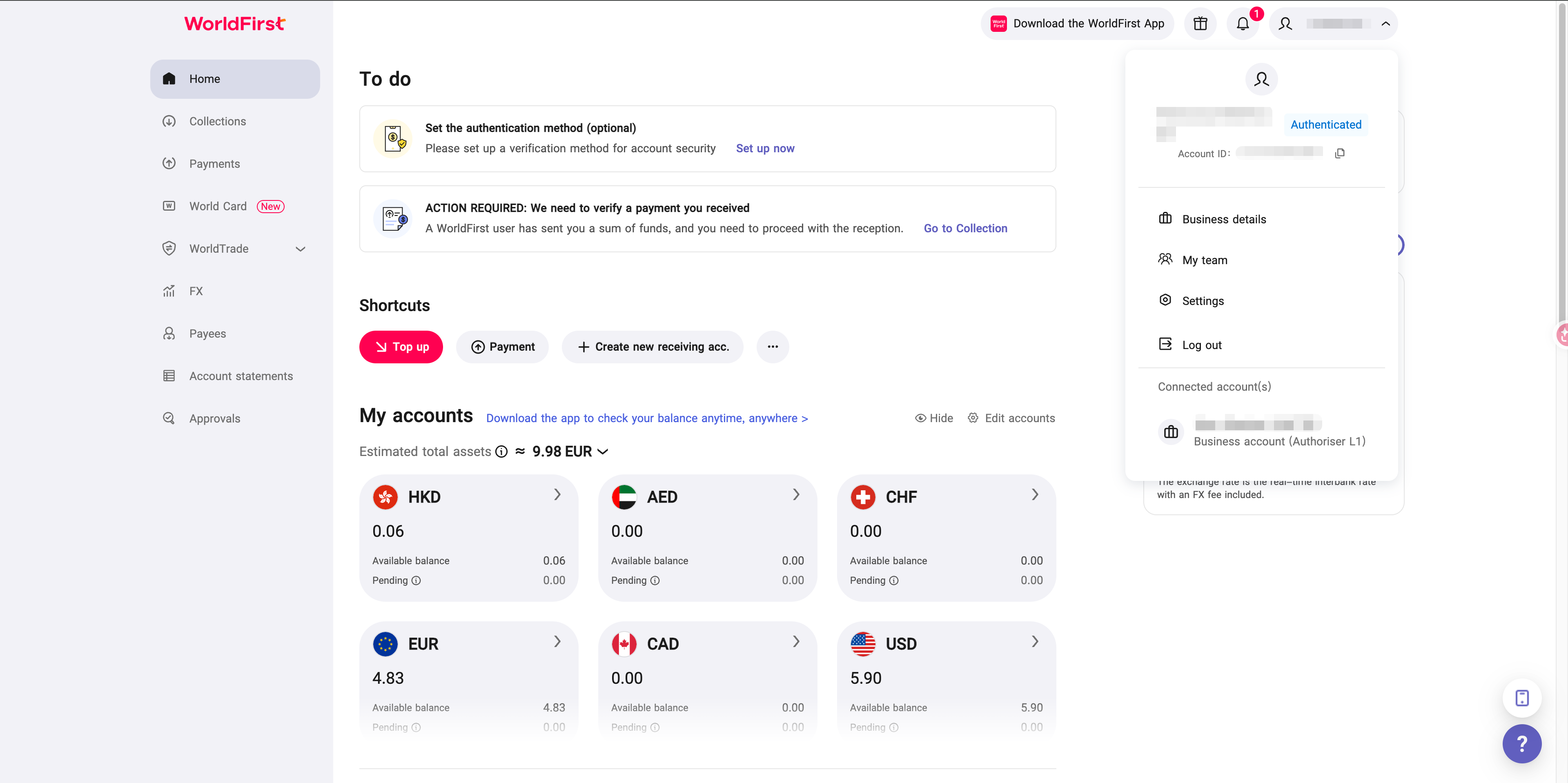
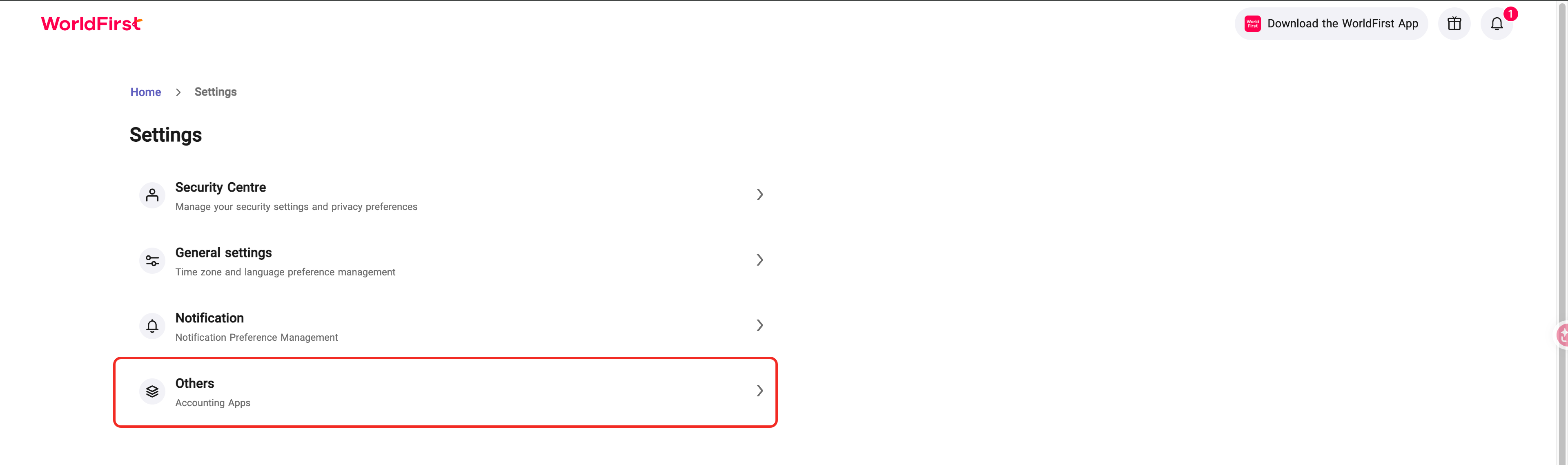
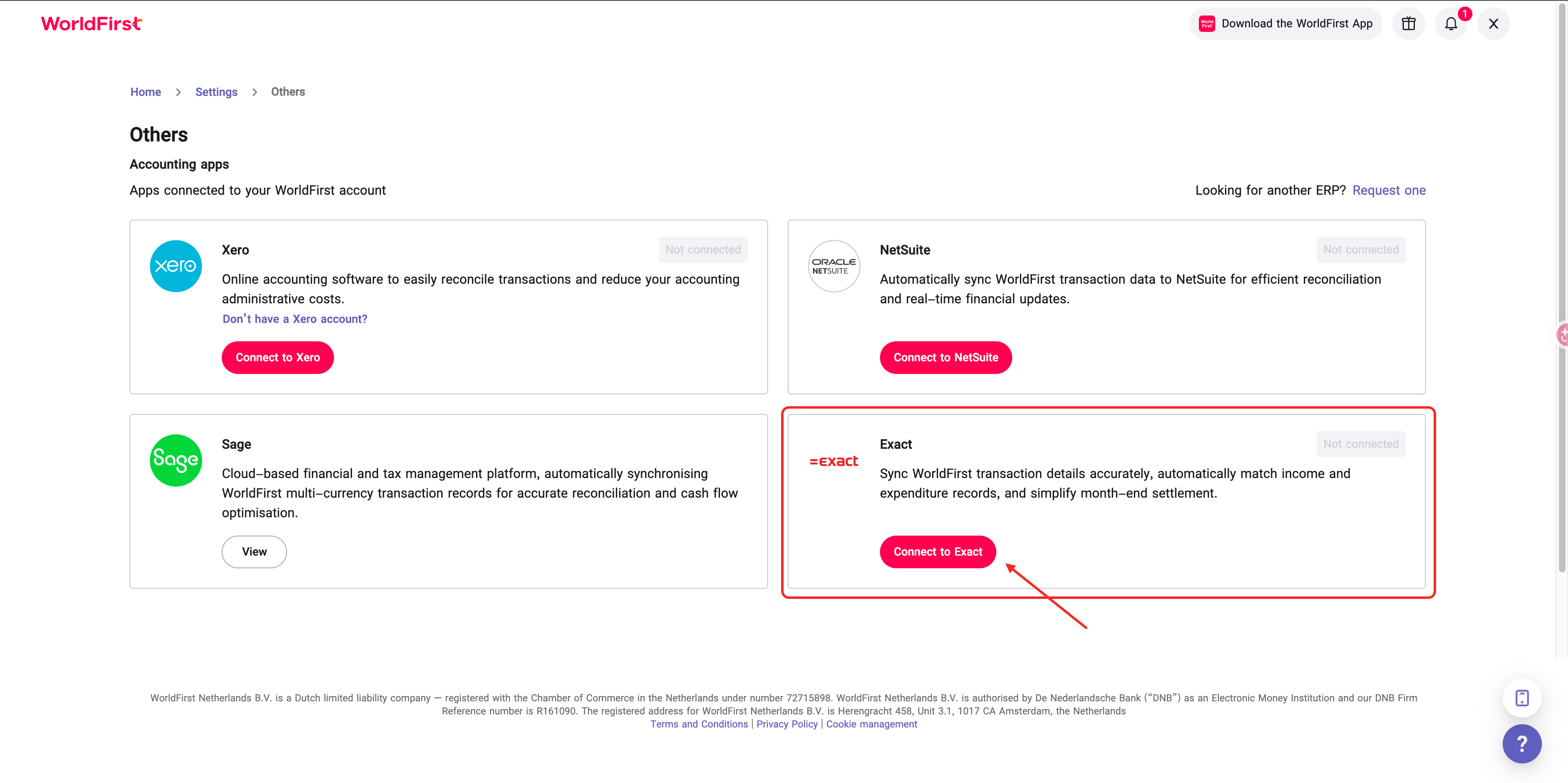
3. Find Exact Online in the list of available integrations and click Connect.
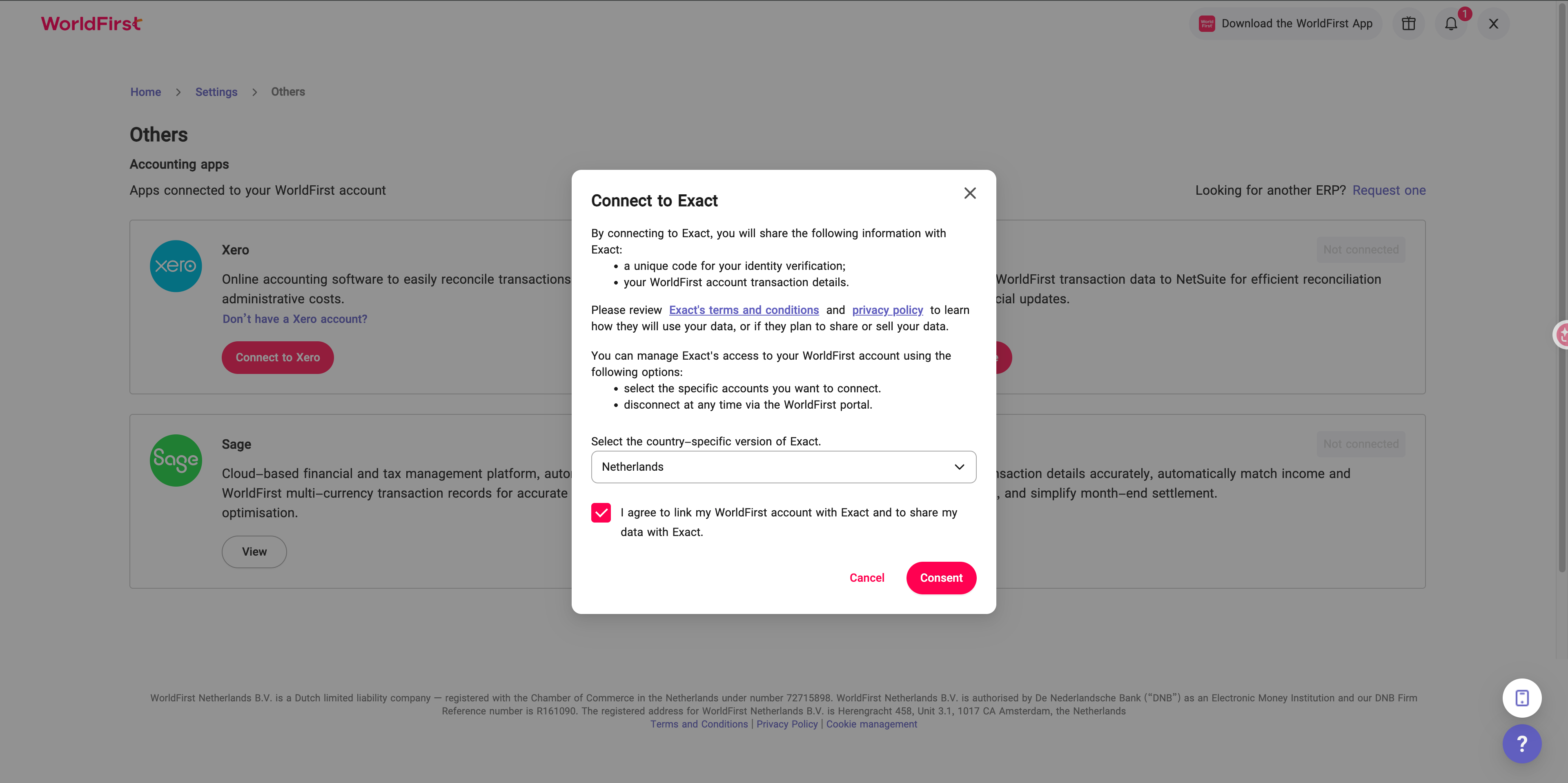
4. Review and agree to the consent request, then select your Exact Online region.
5. You’ll be redirected to the Exact Online — grant WorldFirst permission to access your account.
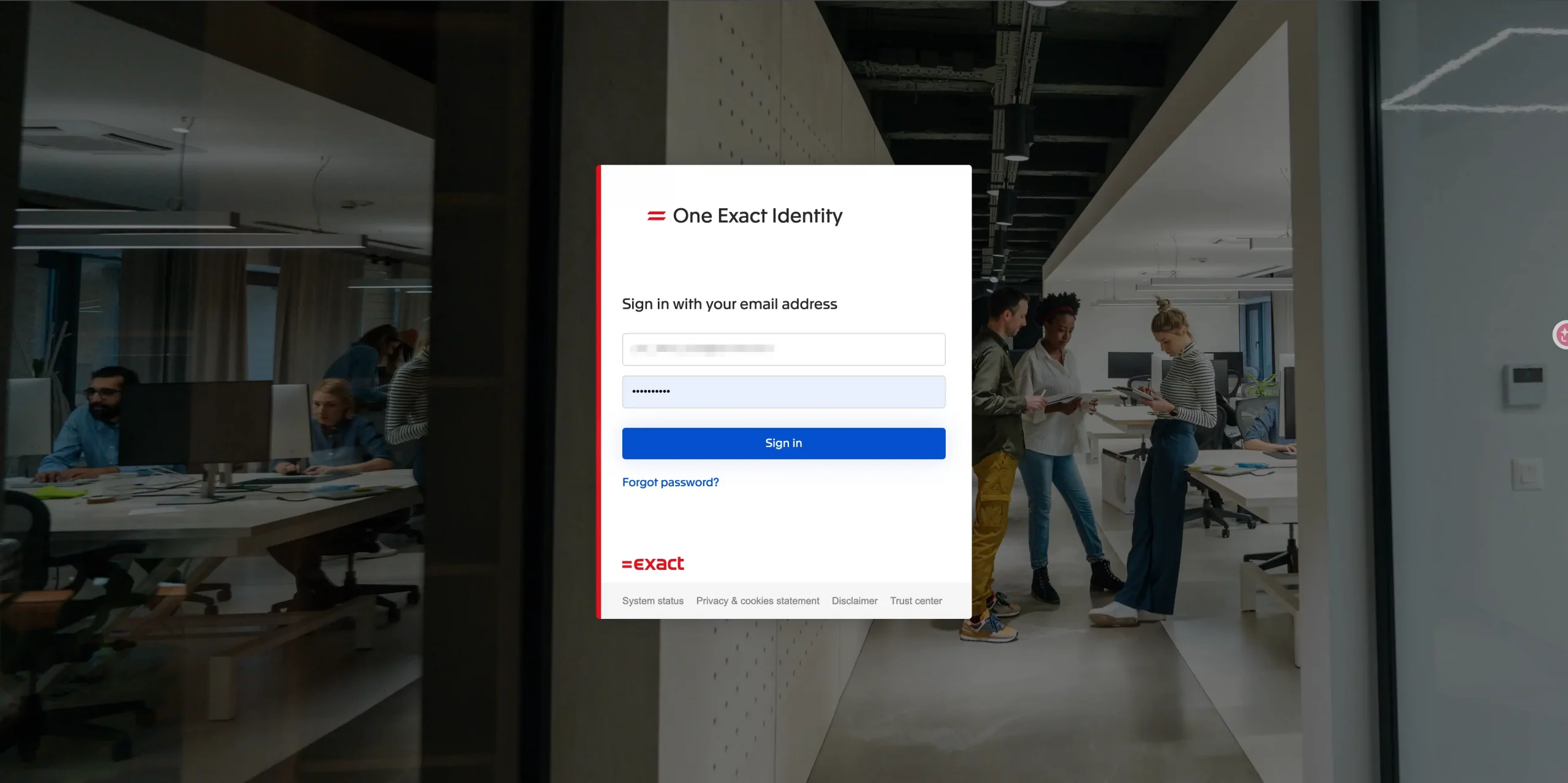
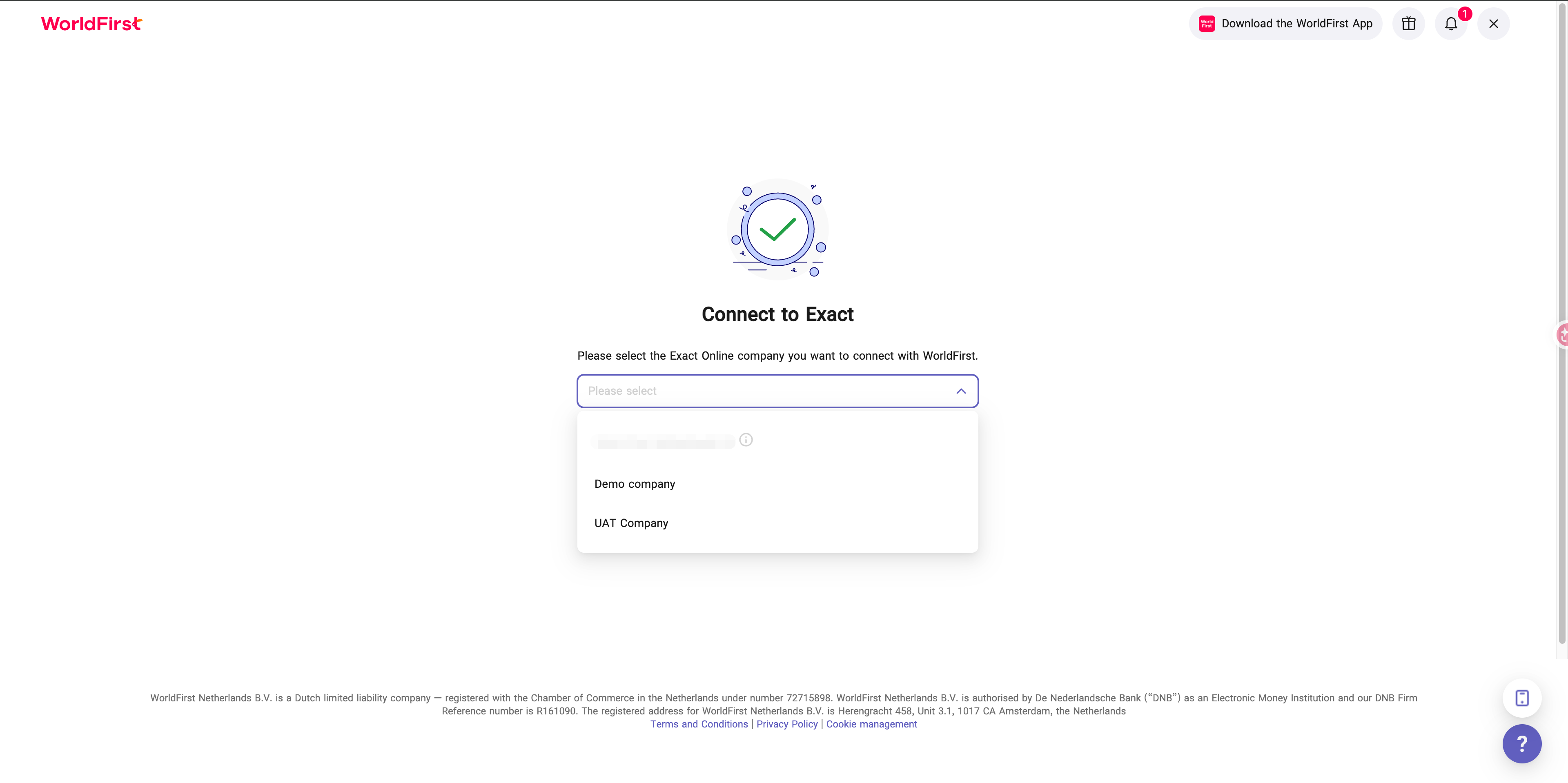
6. After completing the authorization, you’ll be redirected to WorldFirst. Select the company you want to connect, then confirm to complete the integration.
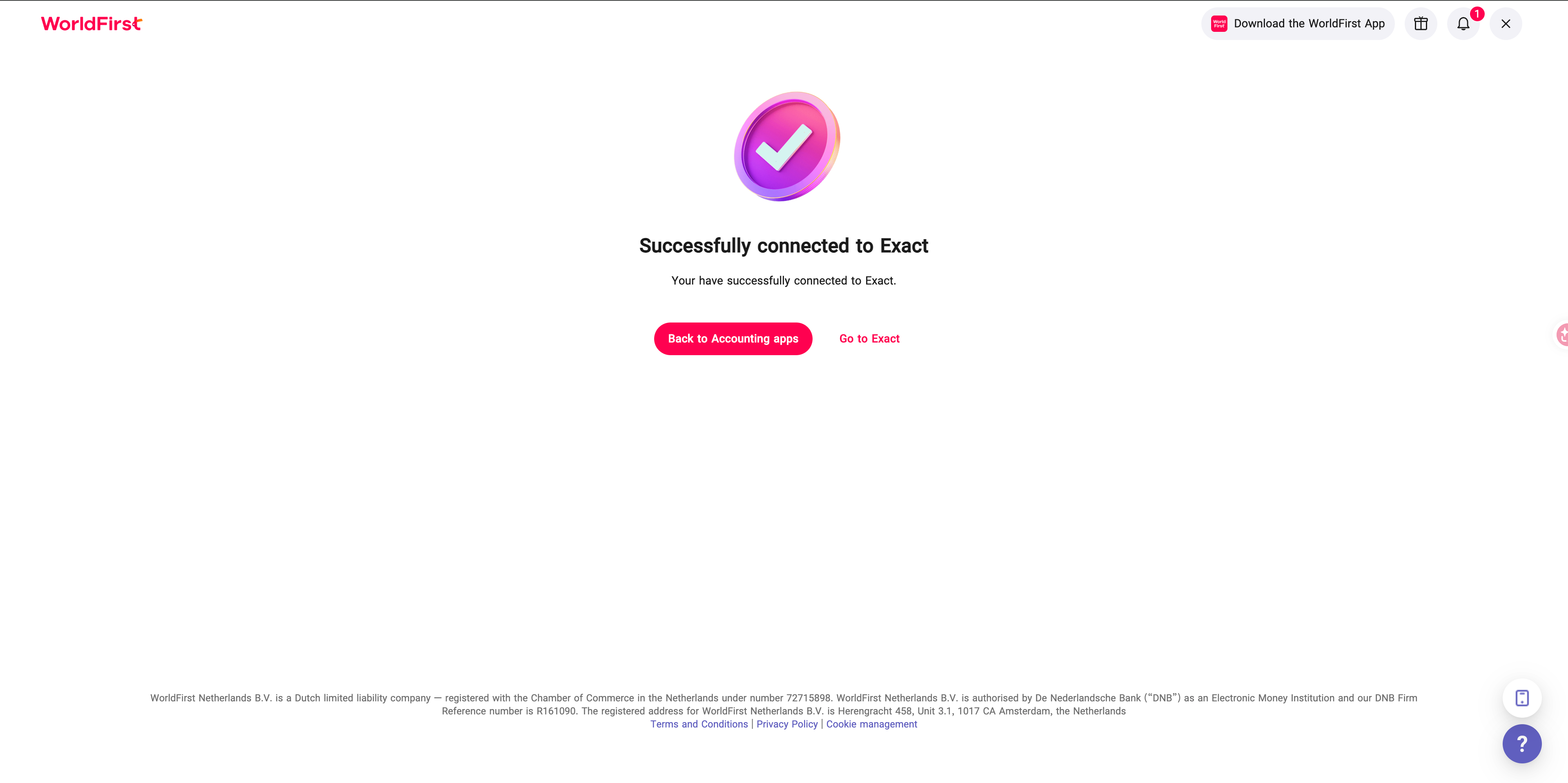
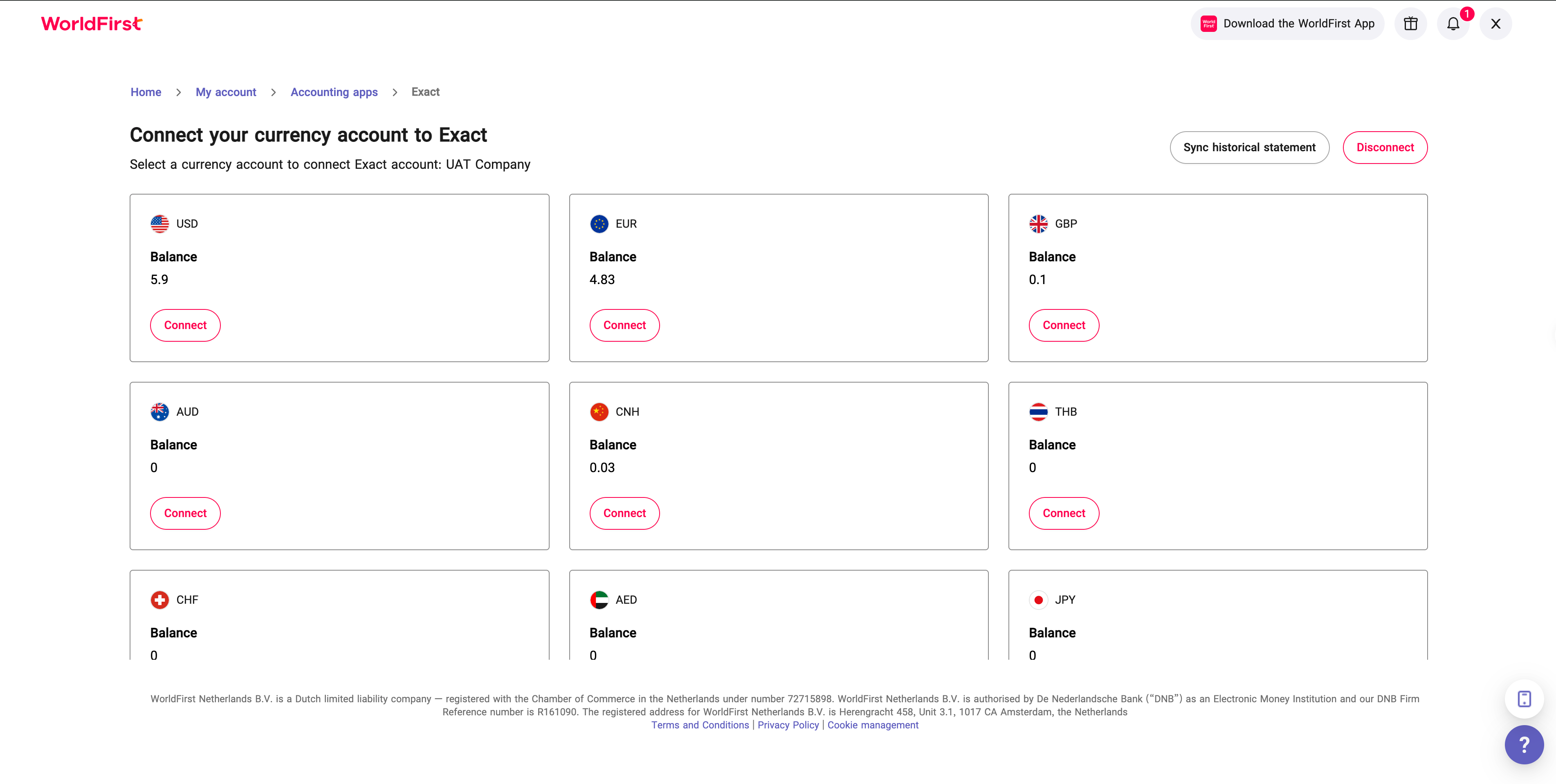
7. Select a Currency Account you wish to connect and click Connect.
8. Map Your Online Bank Journal:
- Choose an existing bank journal account, or
- Create a new bank journal within WorldFirst.
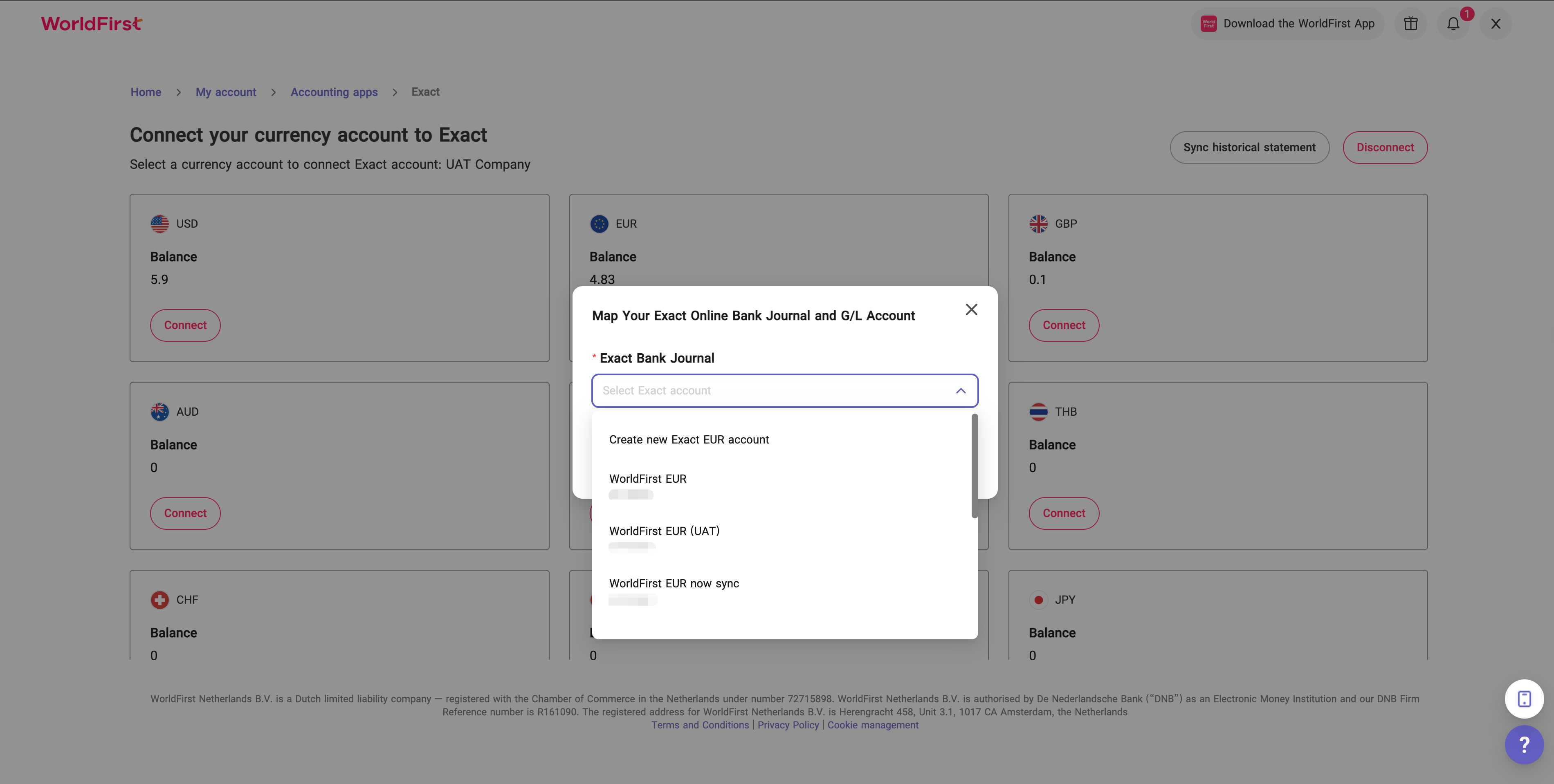
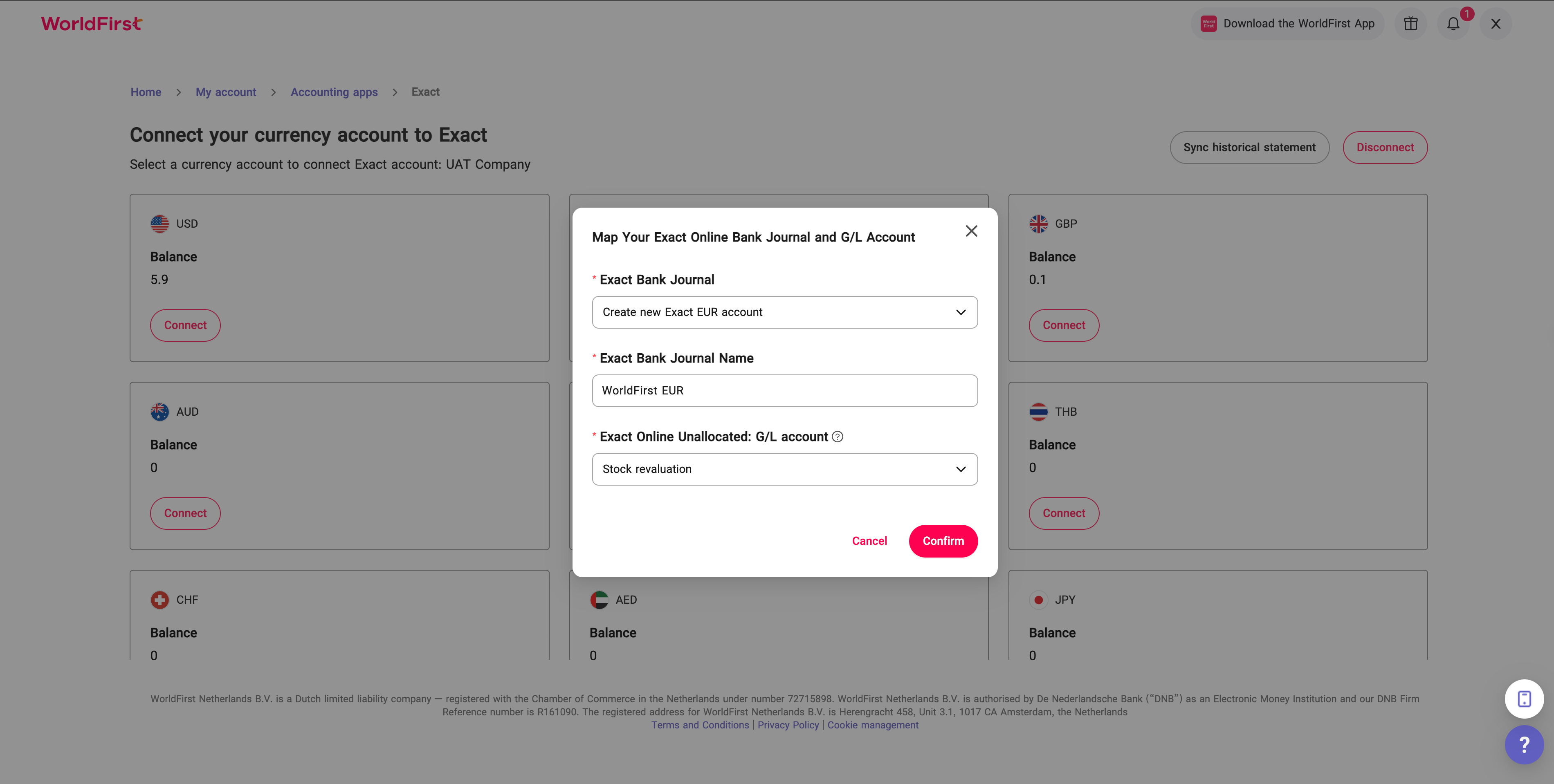
9. If creating a new bank journal:
- Click Create Bank Journal,
- Enter the bank journal name, and
- Select the unallocated G/L account, or create a new WorldFirst clearning account.
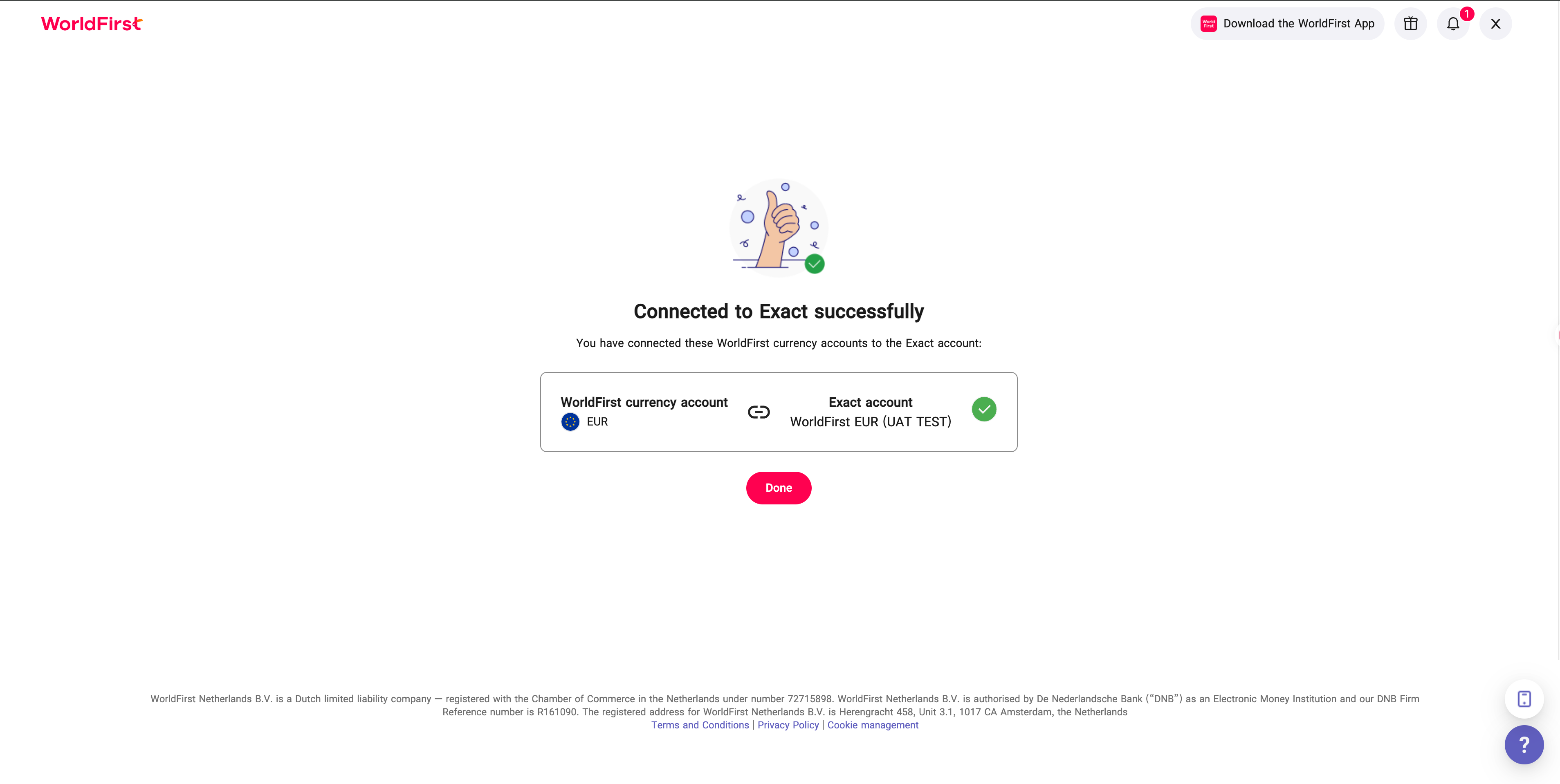
10. Once connected successfully, statements will begin syncing automatically.
- Please check back after a few hours to view the sync details.
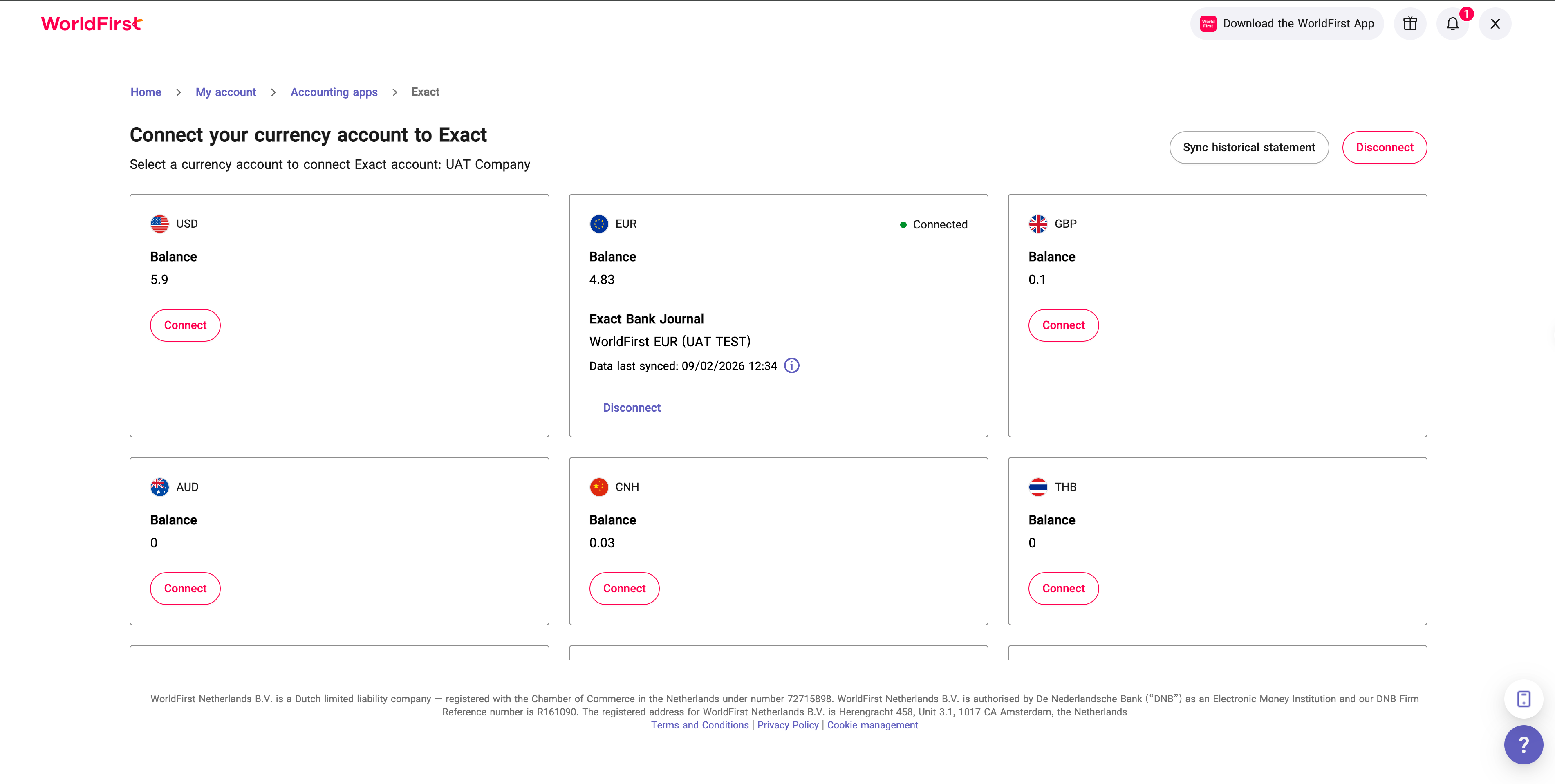
How to sync historical statements?
1. Click Sync Historical Statement.
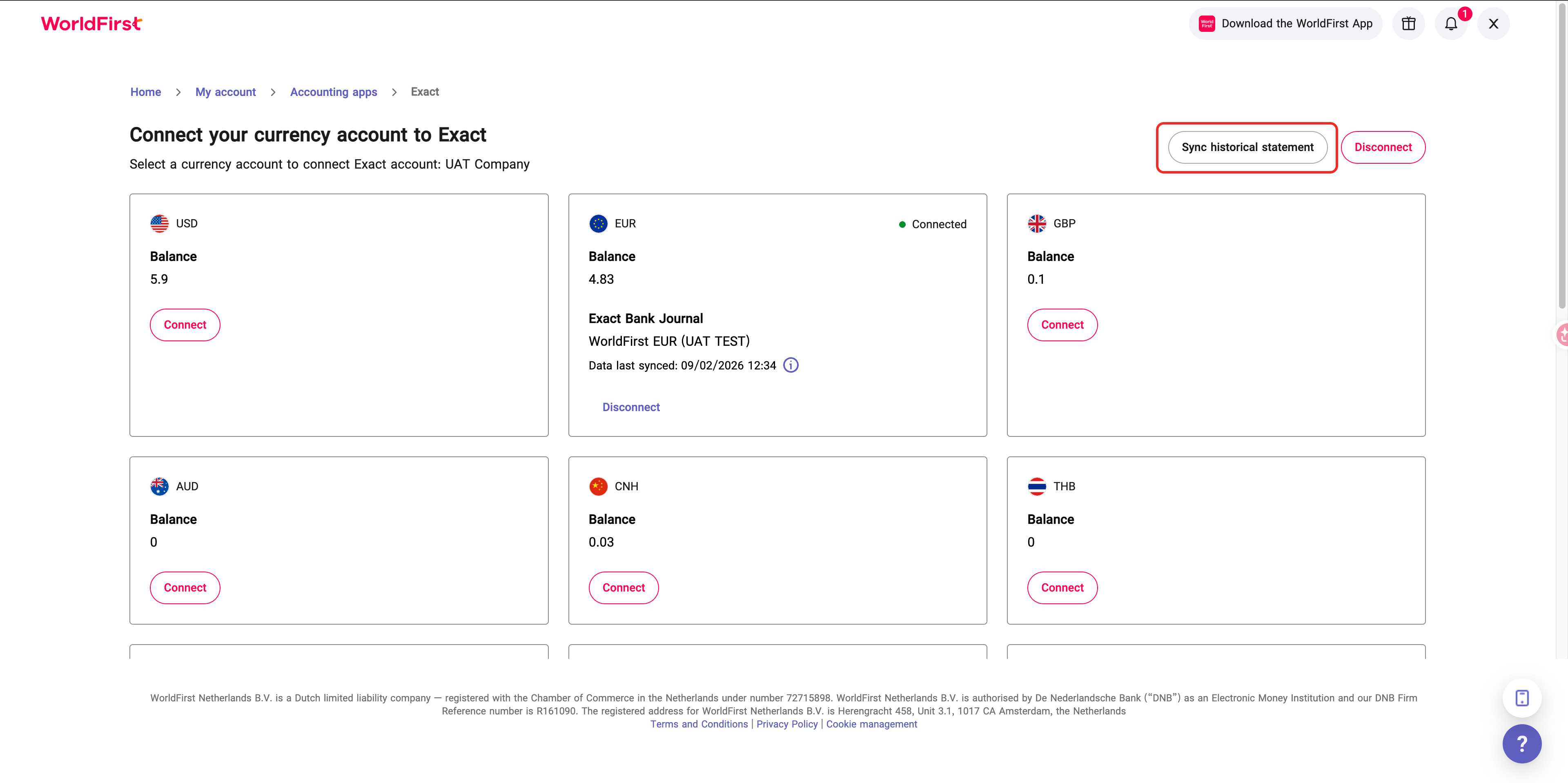
2. Select the desired date range and currency.
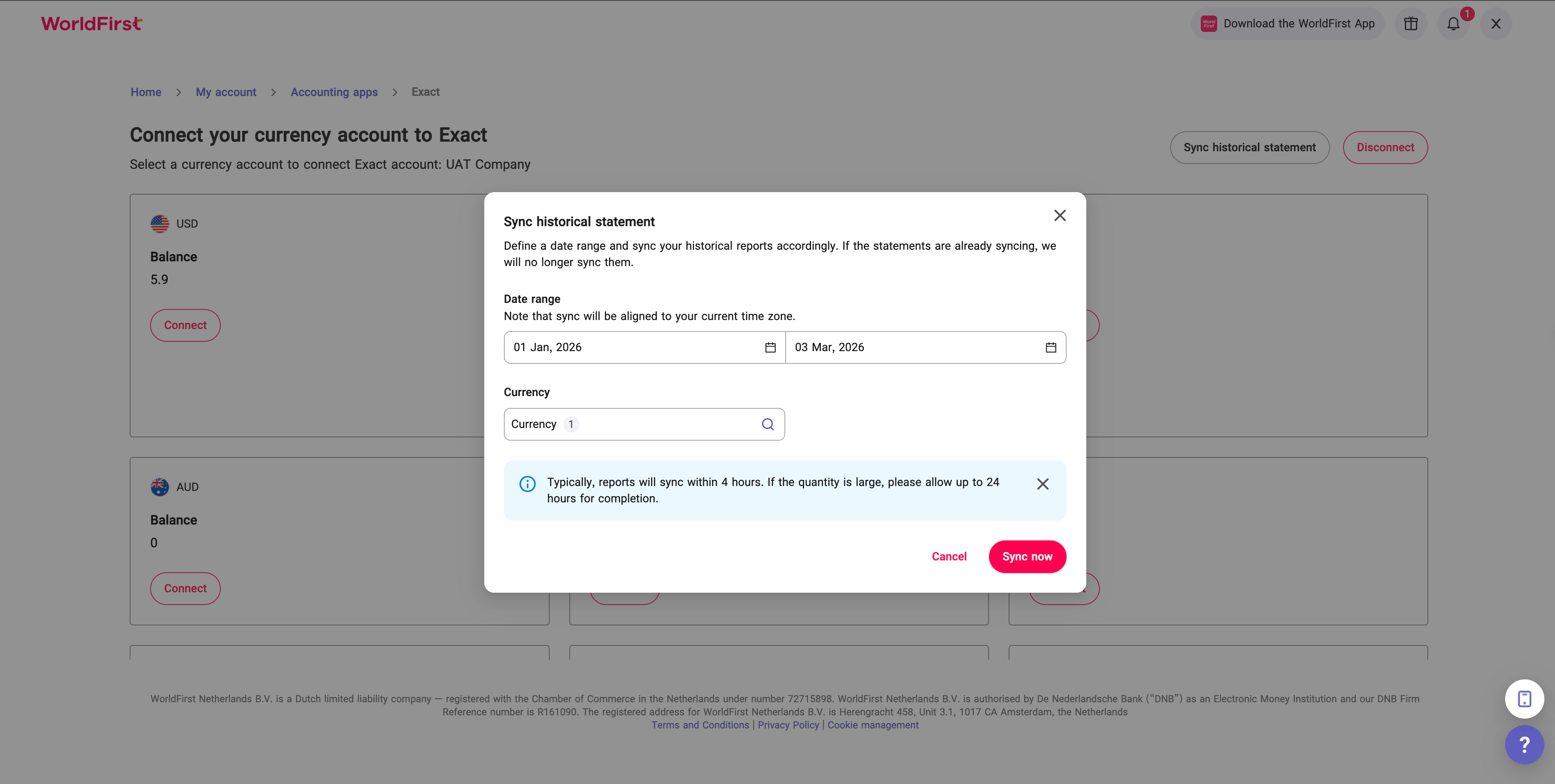
3. Click Sync Now to begin syncing.
- Note: Reports typically sync within 4 hours. For larger data volumes, please allow up to 24 hours for completion.
How to step up multi-currencies in Exact?
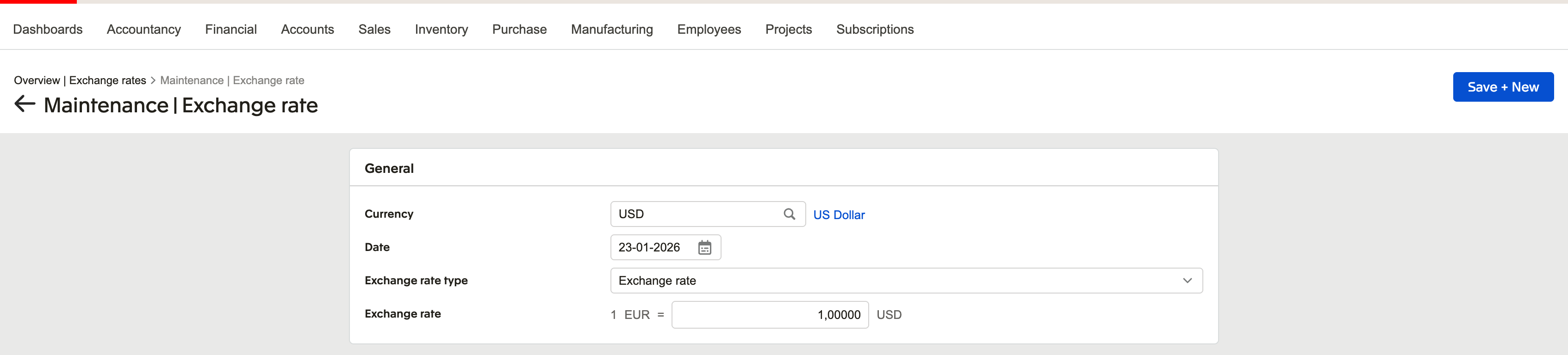
1. Navigate to Financial → Analysis & Results → Exchange Rates.
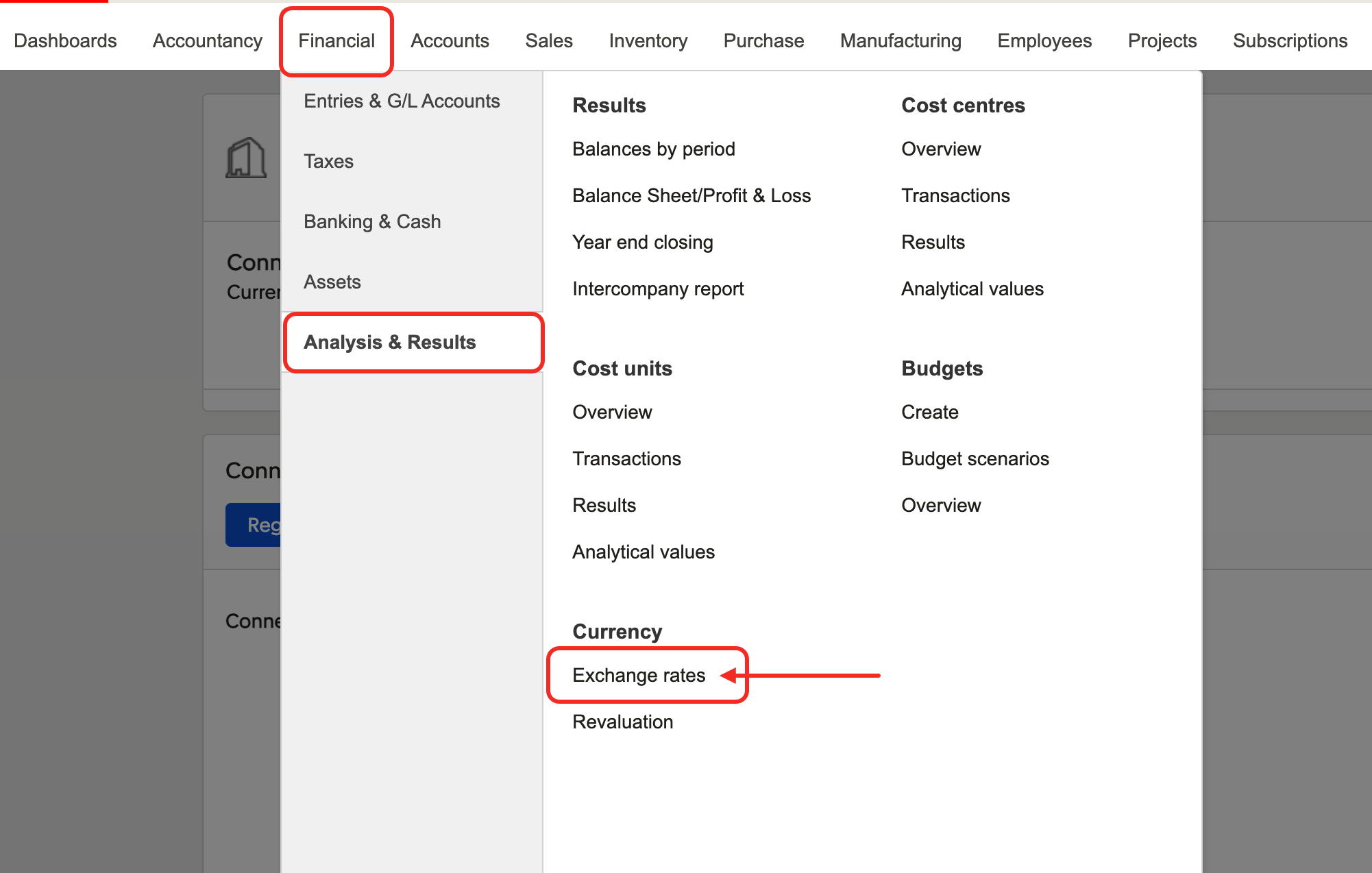
2. Click New to add a new exchange rate.
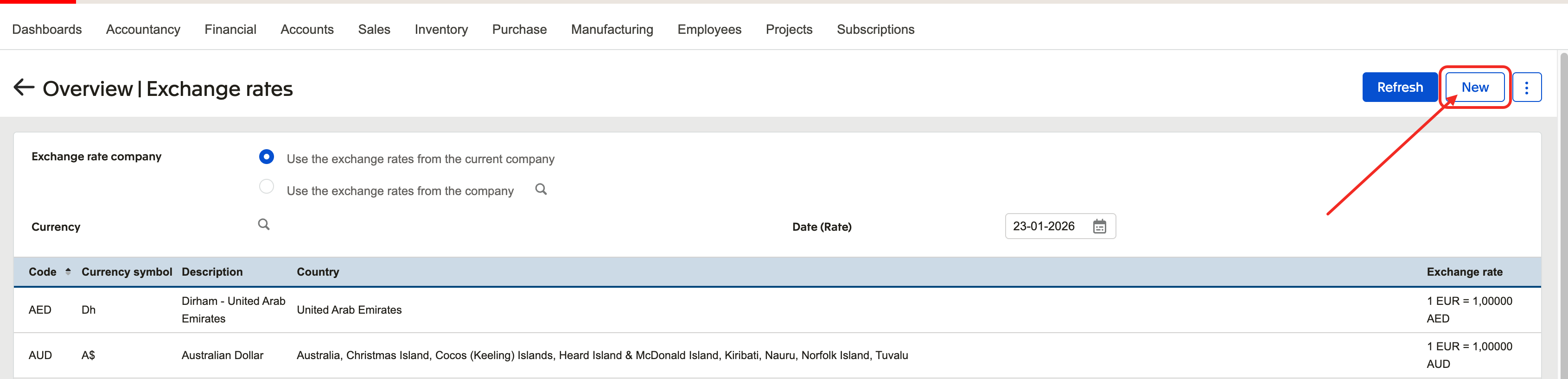
3. Select the currency, then define its conversion rate relative to your company’s default currency.
4. Specify the Start Date — this determines when the exchange rate becomes effective.
- All transactions from this date onward will use the specified rate.
5. Click Save + New to finalize and add another entry if needed.
Note: Since WorldFirst supports multiple currencies, please ensure you set up exchange rates for all currencies you transact in.
How to match data/ how to set up automatic reconcilliation in Exact.
- https://files.exact.com/training/nlen/EN-NL_Fin_AutomaticMatchingU/
- https://files.exact.com/training/nlen/EN-NL_Fin_ManualMatchingU/
Setting Up Multiple WorldFirst–Exact Online Connections
To connect multiple WorldFirst accounts to multiple Exact Online companies, you must use a separate Exact Online user account for each company connection.
⚠️ Important Warning If the same Exact Online user account is used to connect another WorldFirst account to a different company, the new connection will replace the previous one, rendering the earlier connection inactive.
To keep all your connections active and functioning properly, ensure that:
- Each WorldFirst account is linked to a unique Exact Online company.
- Each connection uses its own Exact Online user account to authorise the link.
Recommended setup example:
- WorldFirst Account 1 → Exact Online Company 1 (linked using Exact Online User 1)
- WorldFirst Account 2 → Exact Online Company 2 (linked using Exact Online User 2)
- WorldFirst Account 3 → Exact Online Company 3 (linked using Exact Online User 3)
FAQ
How often are transactions sent to Exact Online?
Transactions are automatically synced to Exact Online every four hours.
Which countries/regions are supported?
This integration is available for all WorldFirst EEA regions. Exact Online accounts from Germany, Netherlands, France and Spain are fully supported for connecting with WorldFirst bank feeds.
Where can i get help?
If you experience any issues or need assistance with your Exact Online bank feed, please contact our WorldFirst Technical Support Team at [[email protected]].