


































General
How to download the app?
Scan the QR code below. The system will automatically detect your region (based on device settings and network location) and device model, then redirect you to the appropriate download link.
Available options: App Store (iOS), Google Play (Android), or Direct APK Download (Android only).

If automatic detection fails,that means the system cannot identify your region/device, an introduction page will shown. From there, you can manually select your download method.
What features are available on the app?
The WorldFirst app provides multi-currency accounts for receiving global payments, fast payments to 3rd party payees or your own bank accounts, real-time FX conversion at competitive rates, top up* your account via credit card/debit card/bank transfer,virtual cards for various expenses.
*Top up only available in UK,EEA,SG.
Can existing WorldFirst customers use the app?
Yes, WorldFirst primary account holders are welcome to download the app and enjoy the app features currently available
There is an exciting WorldFirst app roadmap in development, meanwhile there will be differences between the WorldFirst Account website portal and app functionality, for e.g.:
- Sub users are not currently supported in app.
- Booking and managing FX forward contracts are currently not supported in the app.
How do I log in to my account?
If you are the primary user of an existing WorldFirst Account, you can log in using Email/Mobile phone/Biometric ID, Android user can also login with Google ID. For example, if your Google ID email is the same as your WorldFirst account email, we can link these two account together, so that you can also login with Google ID.
The first time you log in, you will be prompted to complete two-factor authentication (2FA) via SMS or Authy.
Once you are logged into the app, You can then set up biometric 2FA, making your next login even easier!

Can I use Face ID or Touch ID?
Yes, you can set up biometic two-factor authentication (2FA) by tapping on the account icon in the top-left corner of the screen, navigating to ‘Privacy and Security’, and toggling on biometric ID.
Can App users use the WorldFirst portal on their web browser?
Yes, clients registered via the WorldFirst app can log in to their account on the WorldFirst website.
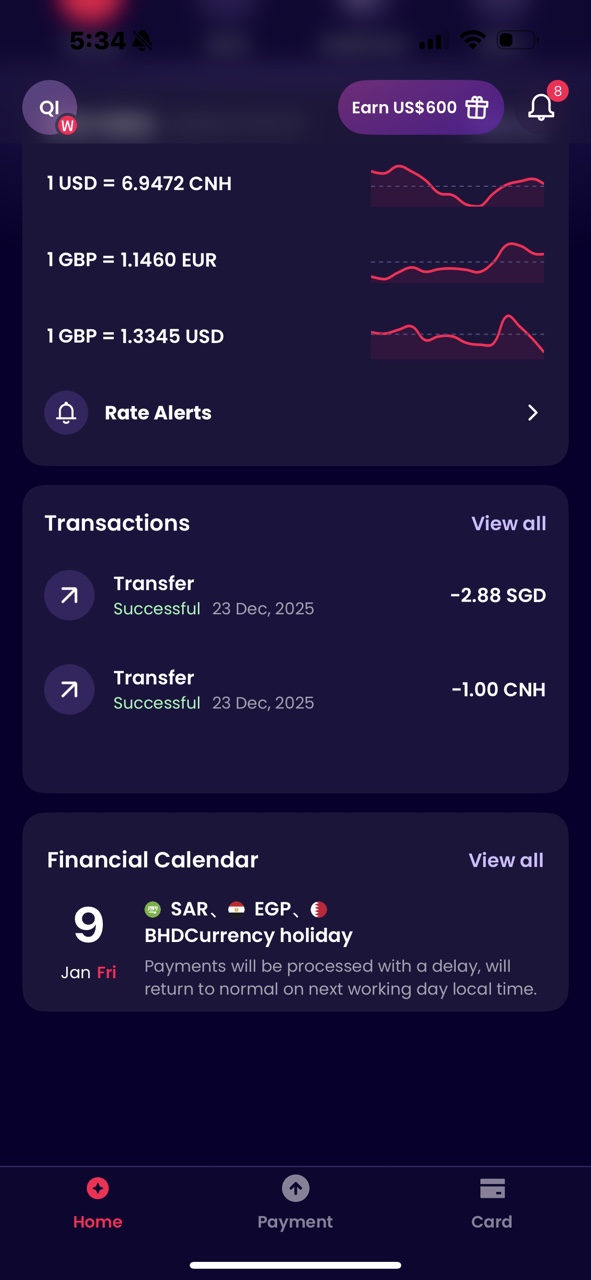
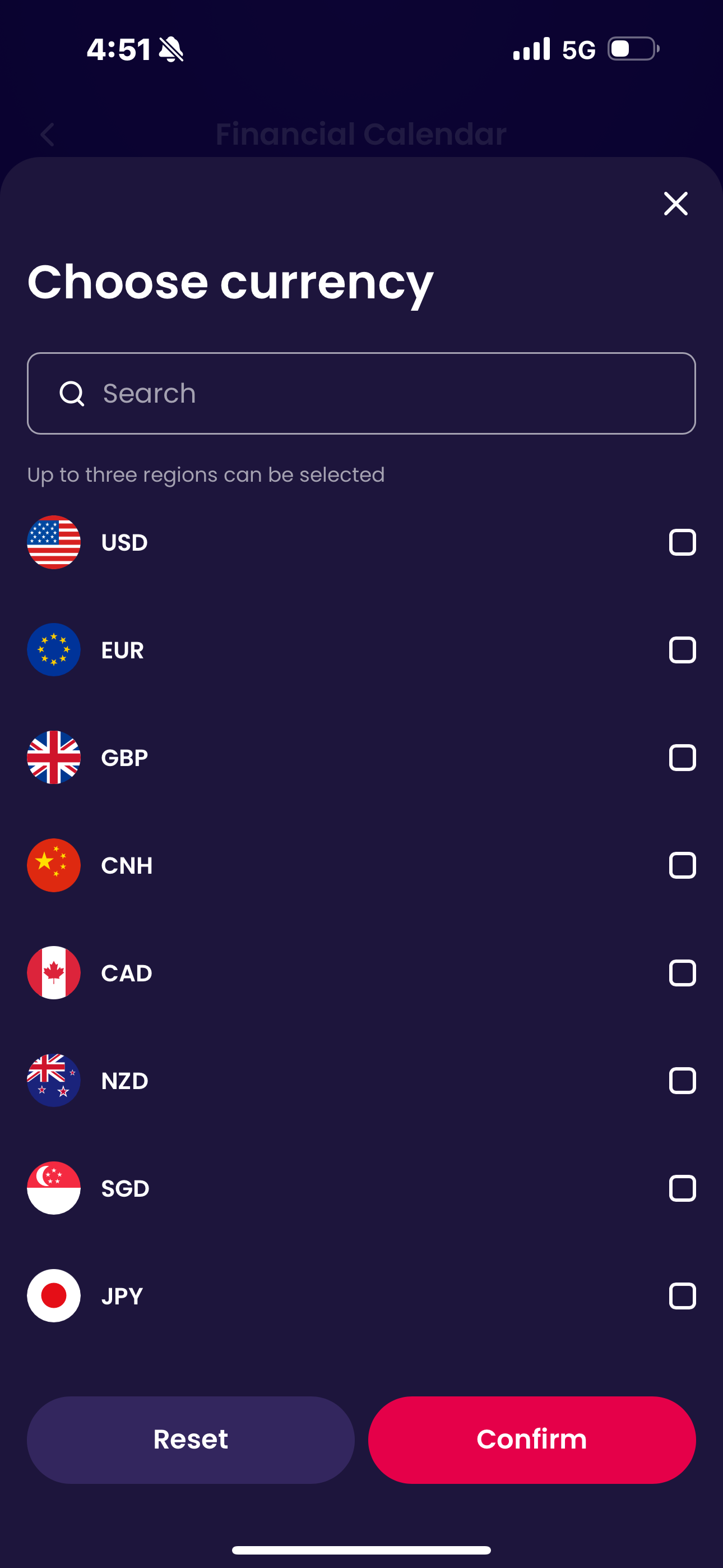
| App homepage -Financial Calendar |
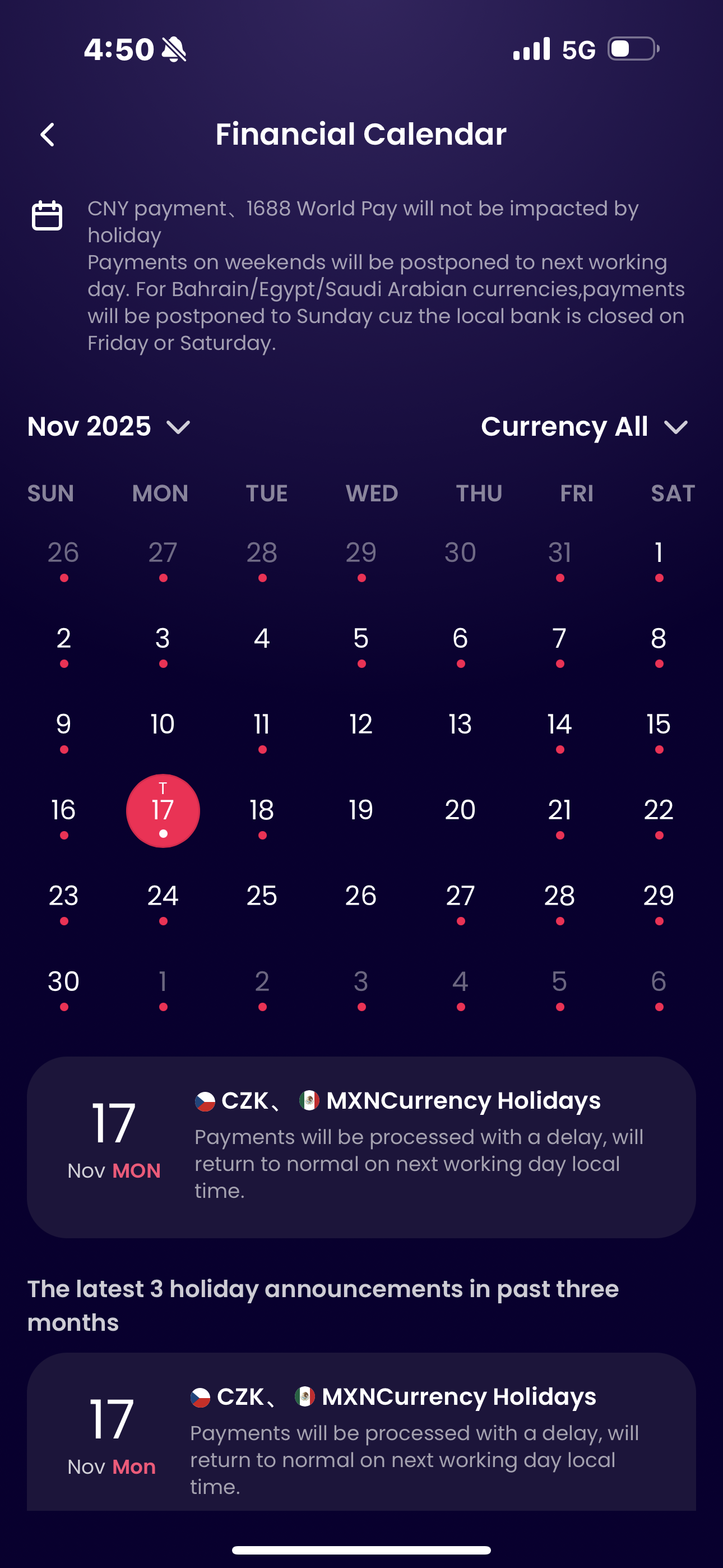
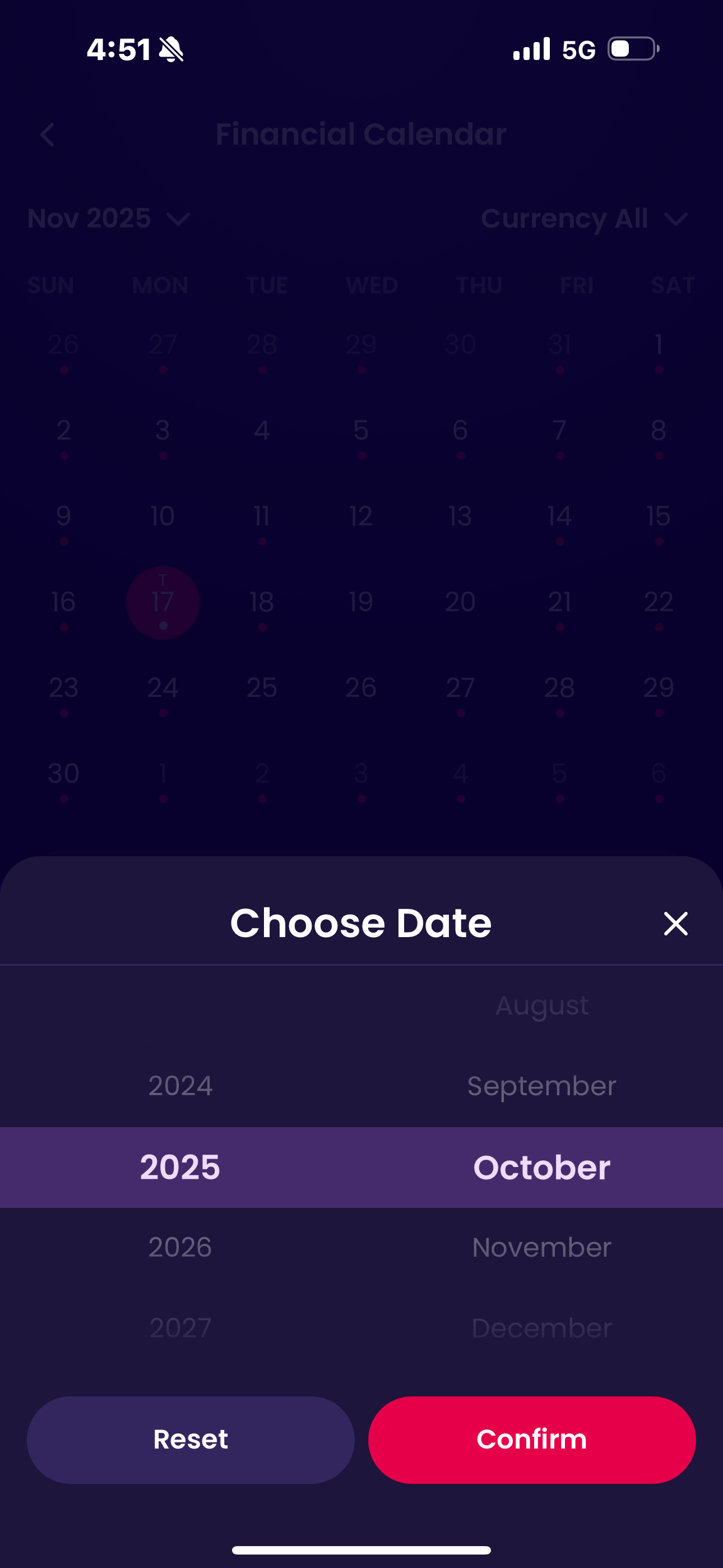
View all | Choose date | Choose currency |
|---|---|---|---|
| Scroll to the bottom of the app homepage to find the ‘Financial Calendar’. | Tap “View All” to see calendar details. Select a date to view currency holiday announcements for that day. |
You can view by month selection. | You can choose the currency. |
 |
 |
 |
 |
Payments
What kind of payments can I make on the app?
You can send funds in 90+ currencies to:
1. Your own accounts;
2. Third-party accounts (bank accounts or WorldFirst accounts) ;
Here are steps to make a payment (Bank accounts or WorldFirst accounts):
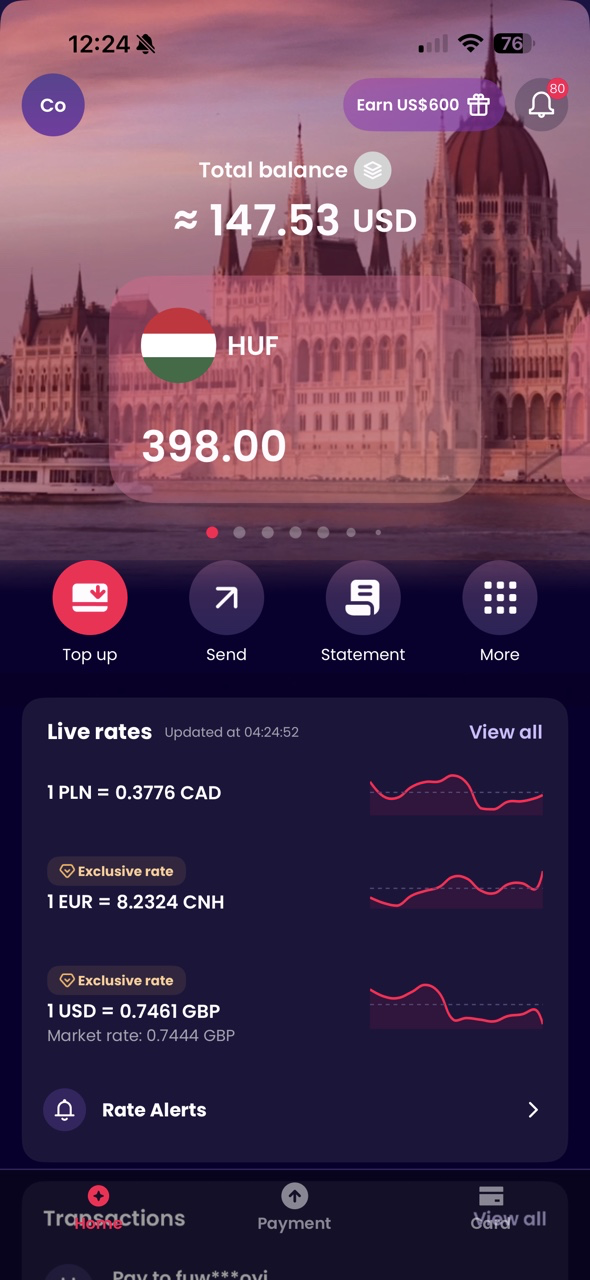
Step 1:Initiate transfer
- Go to the homepage and tap ‘Send’
Step 2:Add recipient
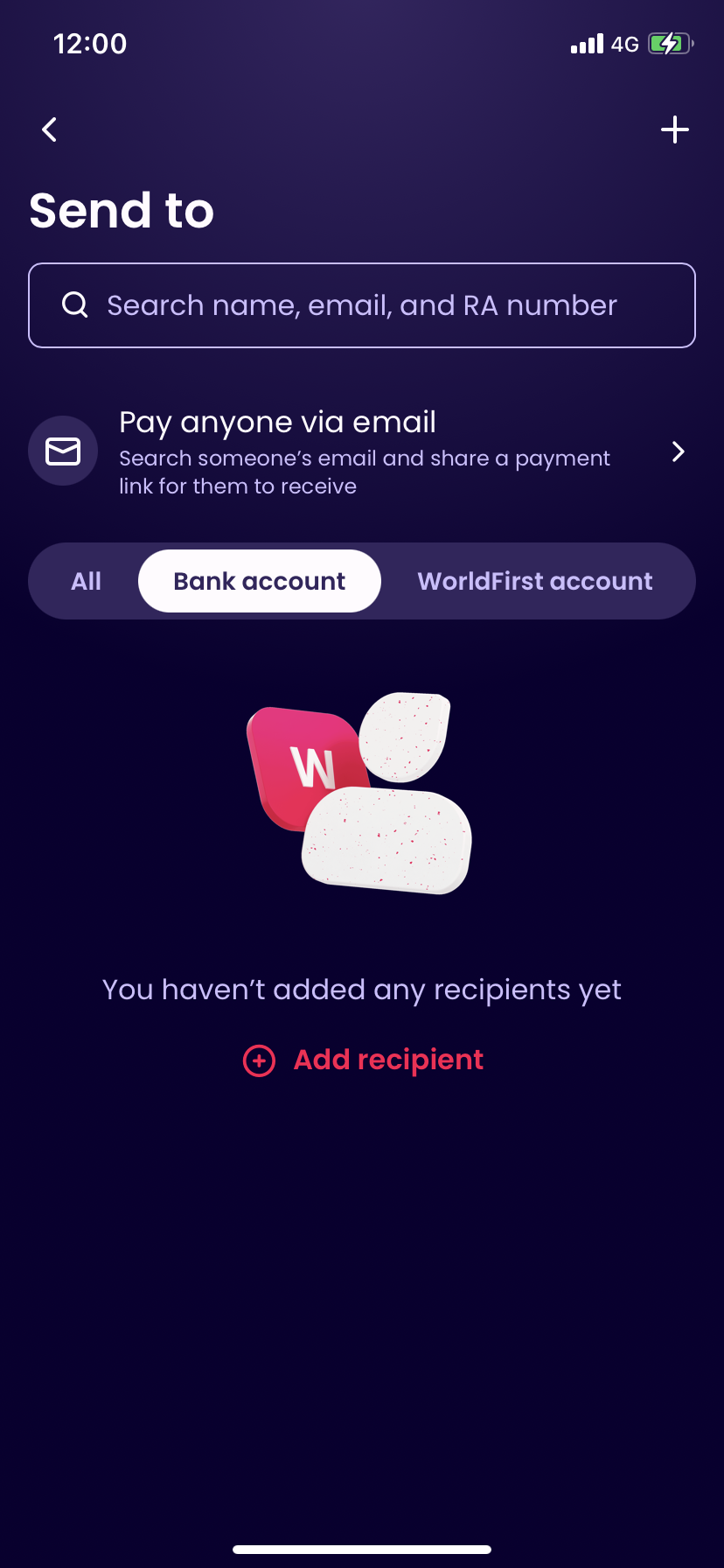
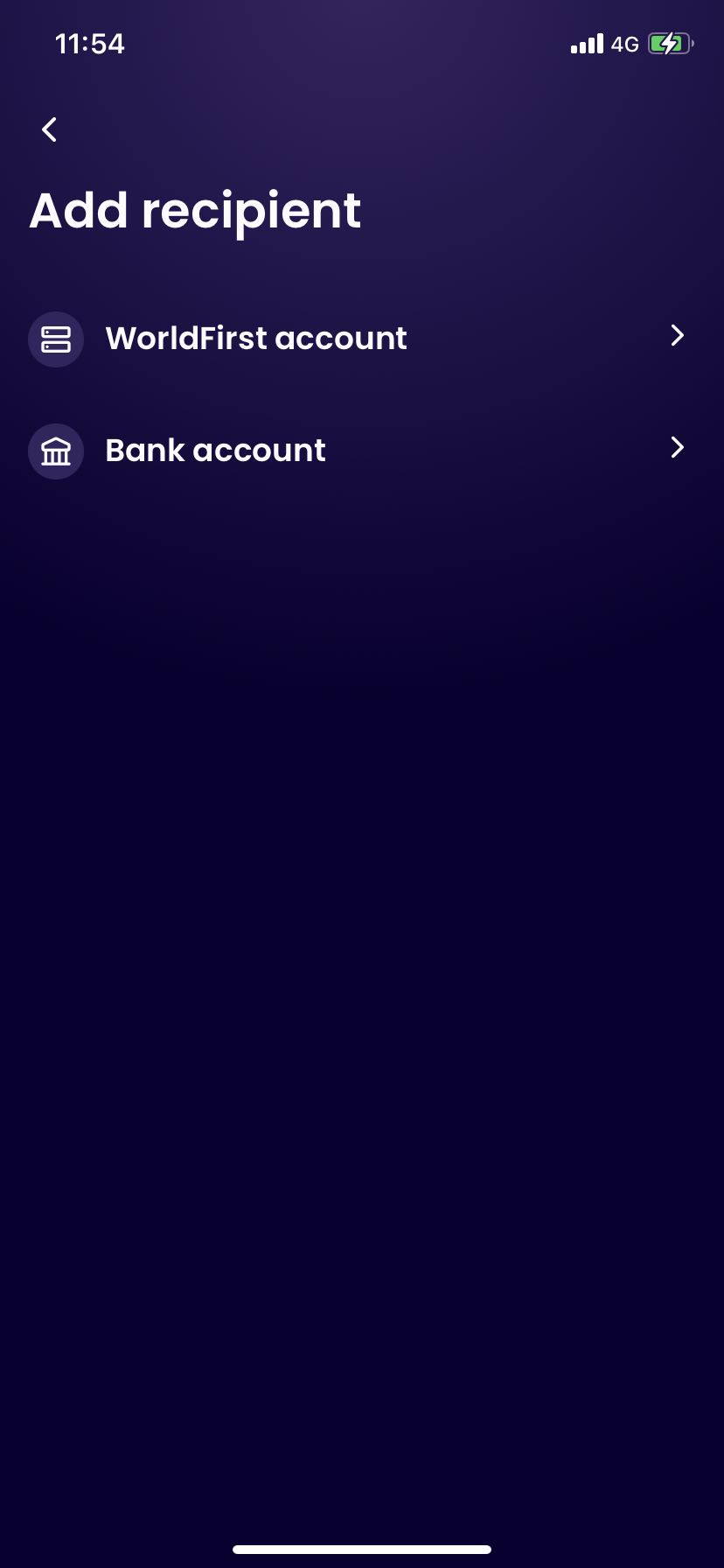
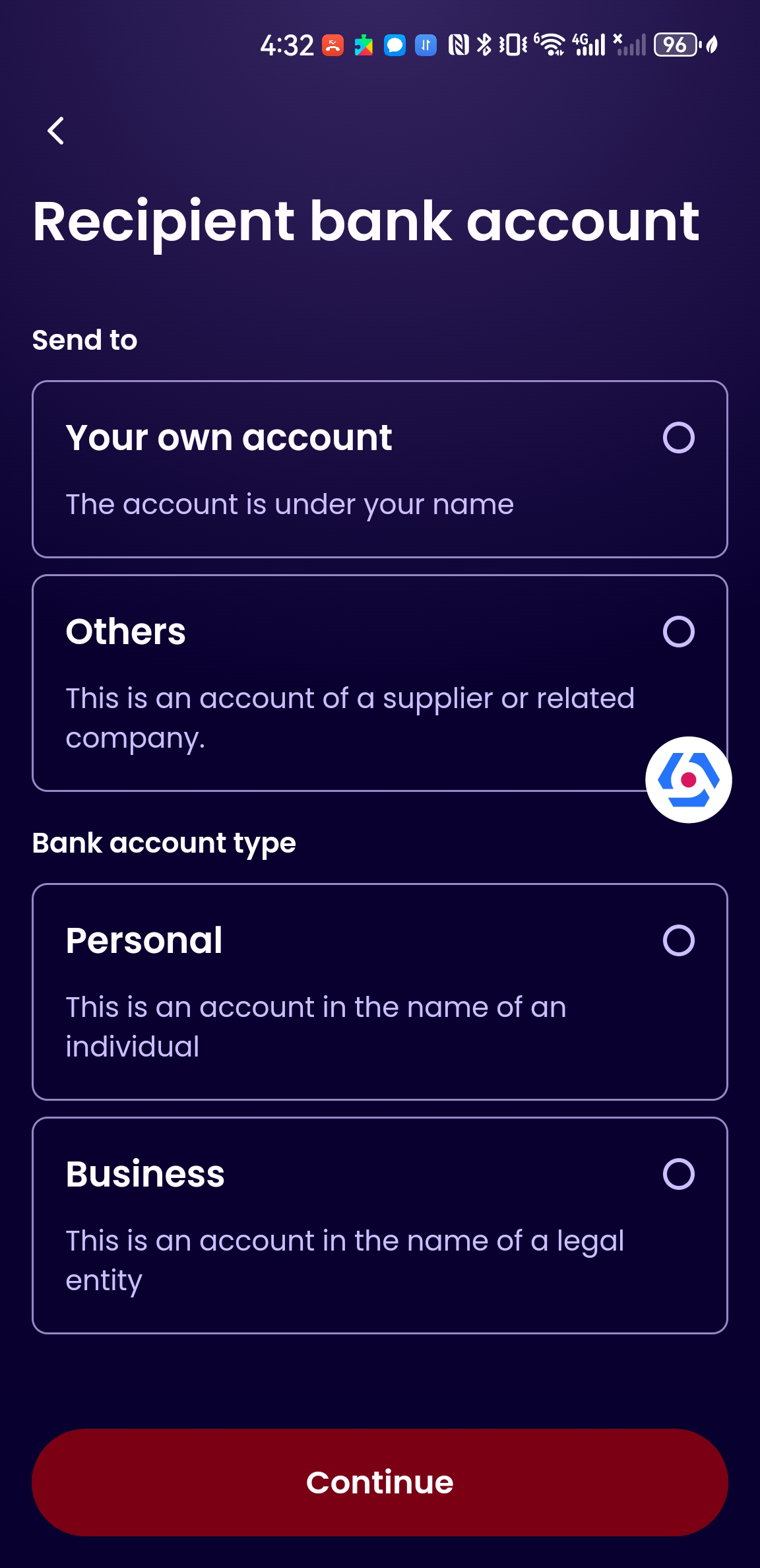
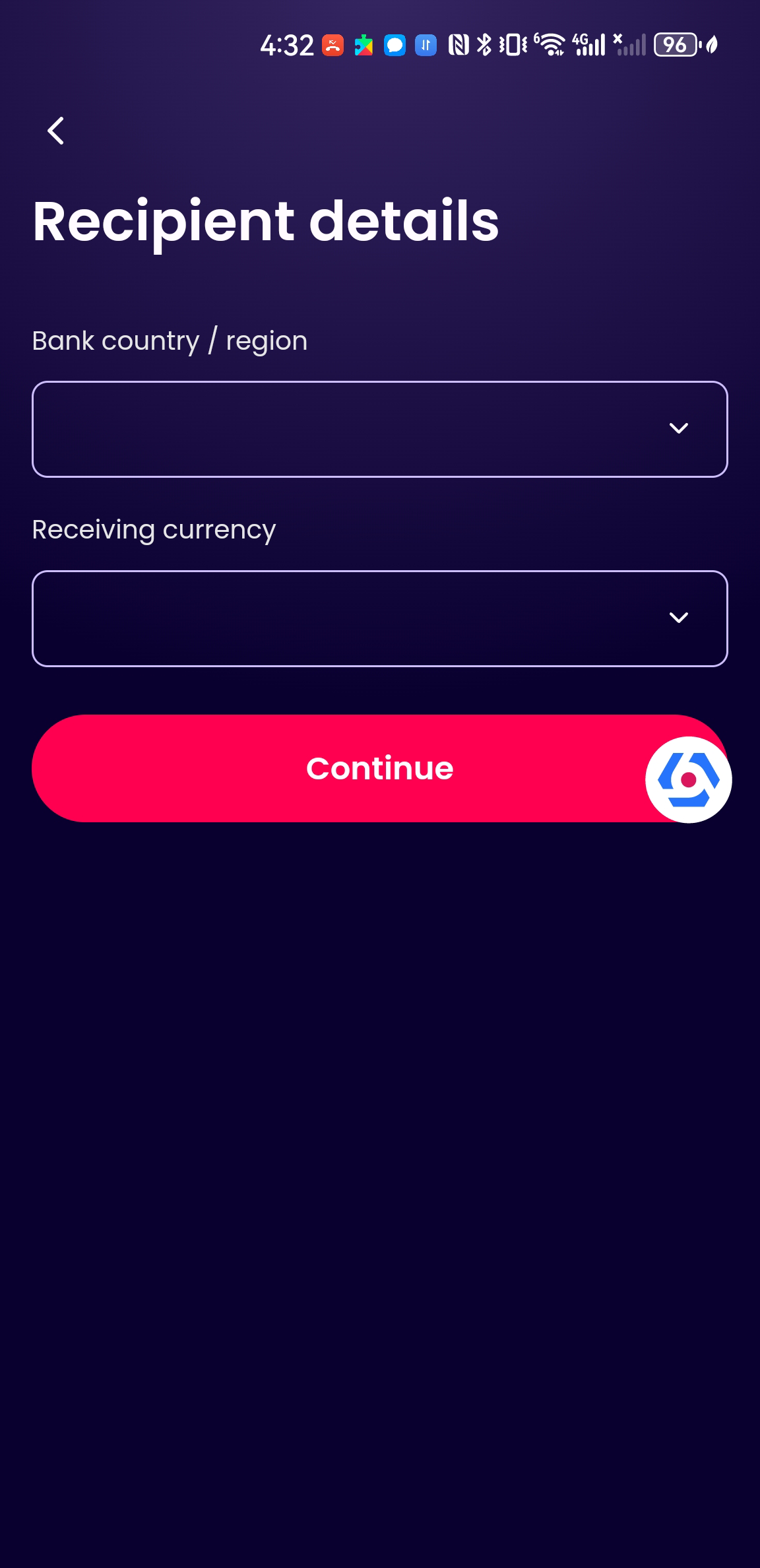
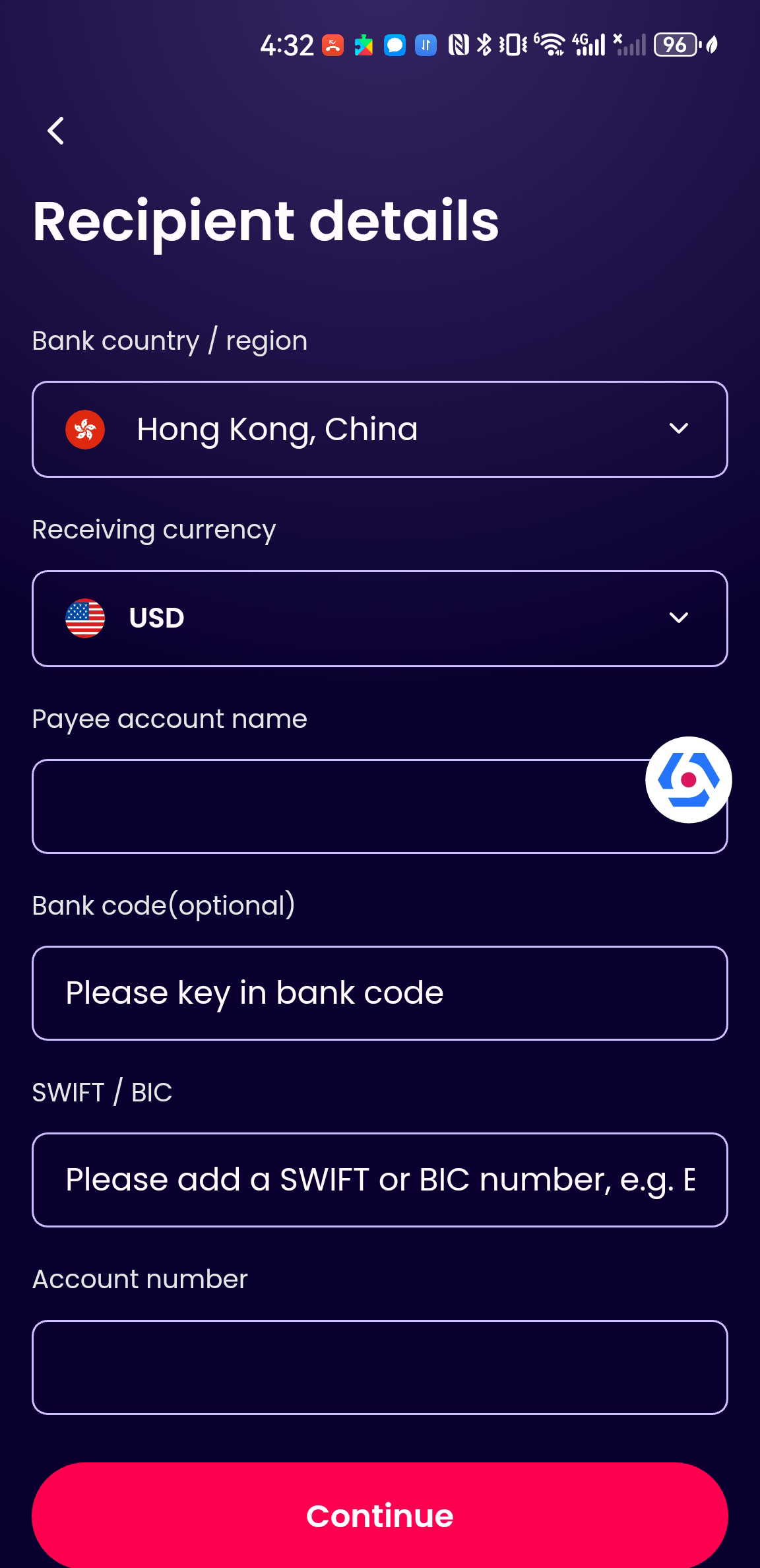
- For Bank account: Choose bank account type, fill in the recipient’s details (region, currency, account name, etc.) ,verify the information and save the payee;
- For WorldFirst account: Don’t need to add a new payee, you can search WorldFirst account by account name (you can only search by name only if you have paid to the WorldFirst account before)/email/WF account number, and then you can send to WorldFirst account directly. Once the payment is successful, the payee automatically appears under the WorldFirst Account dashboard.
| Send Money Page | Add Recipient | Bank Account Type | Recipient Details | |
|---|---|---|---|---|
 |
 |
 |
 |
 |
Step 3:Complete the transfer
- Choose your recipient
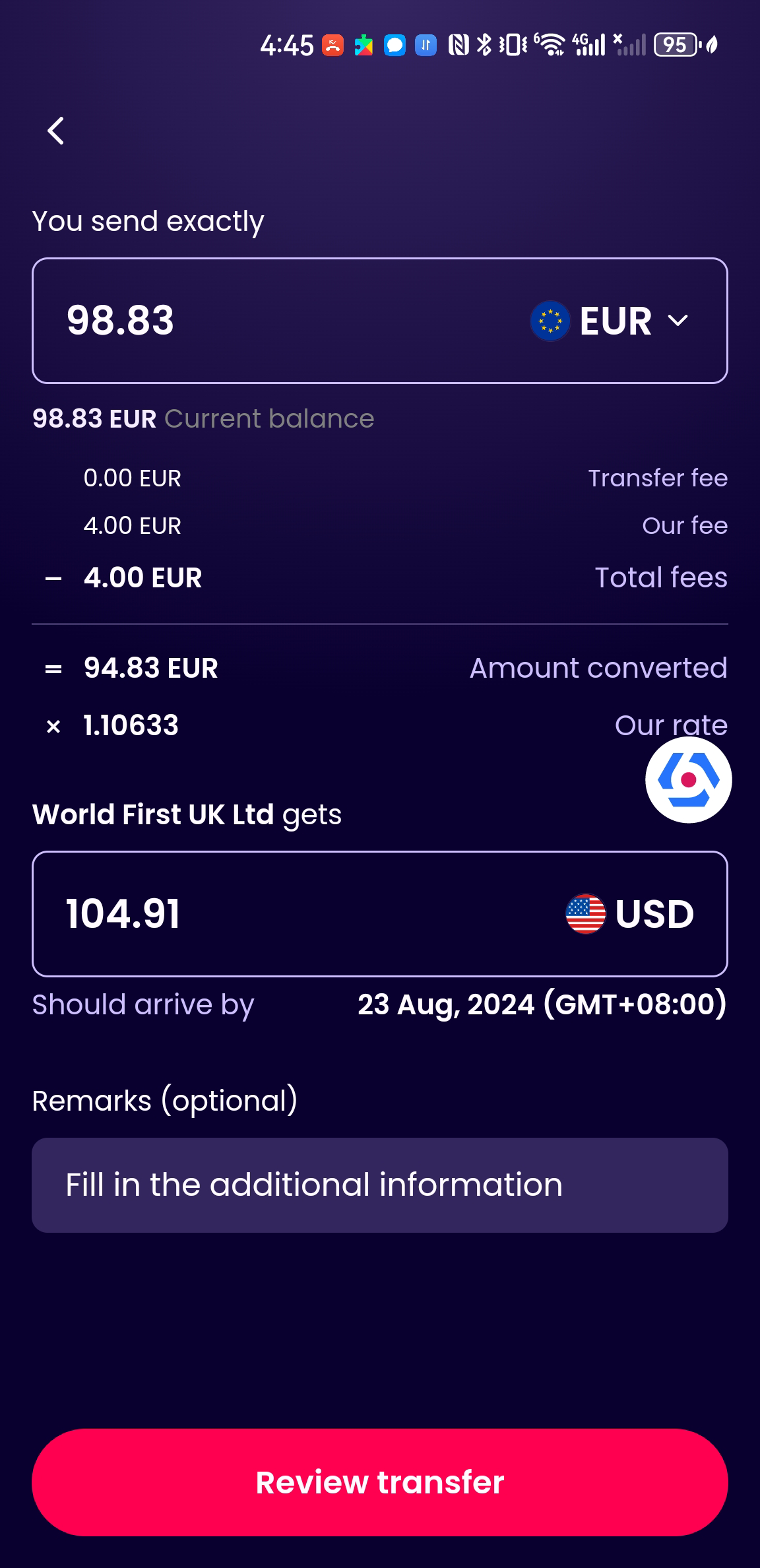
- Enter the payment amount
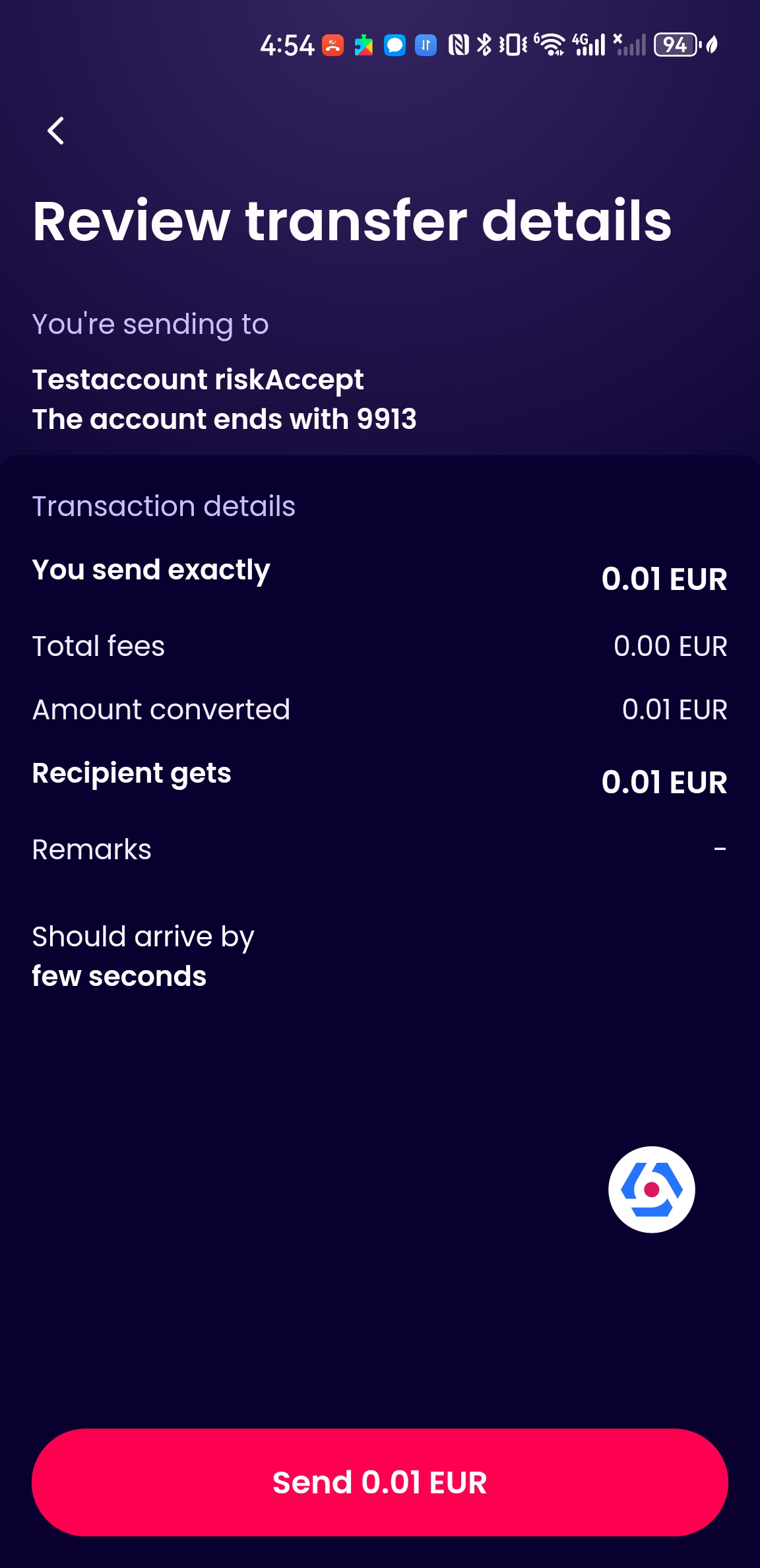
- Review the transfer details
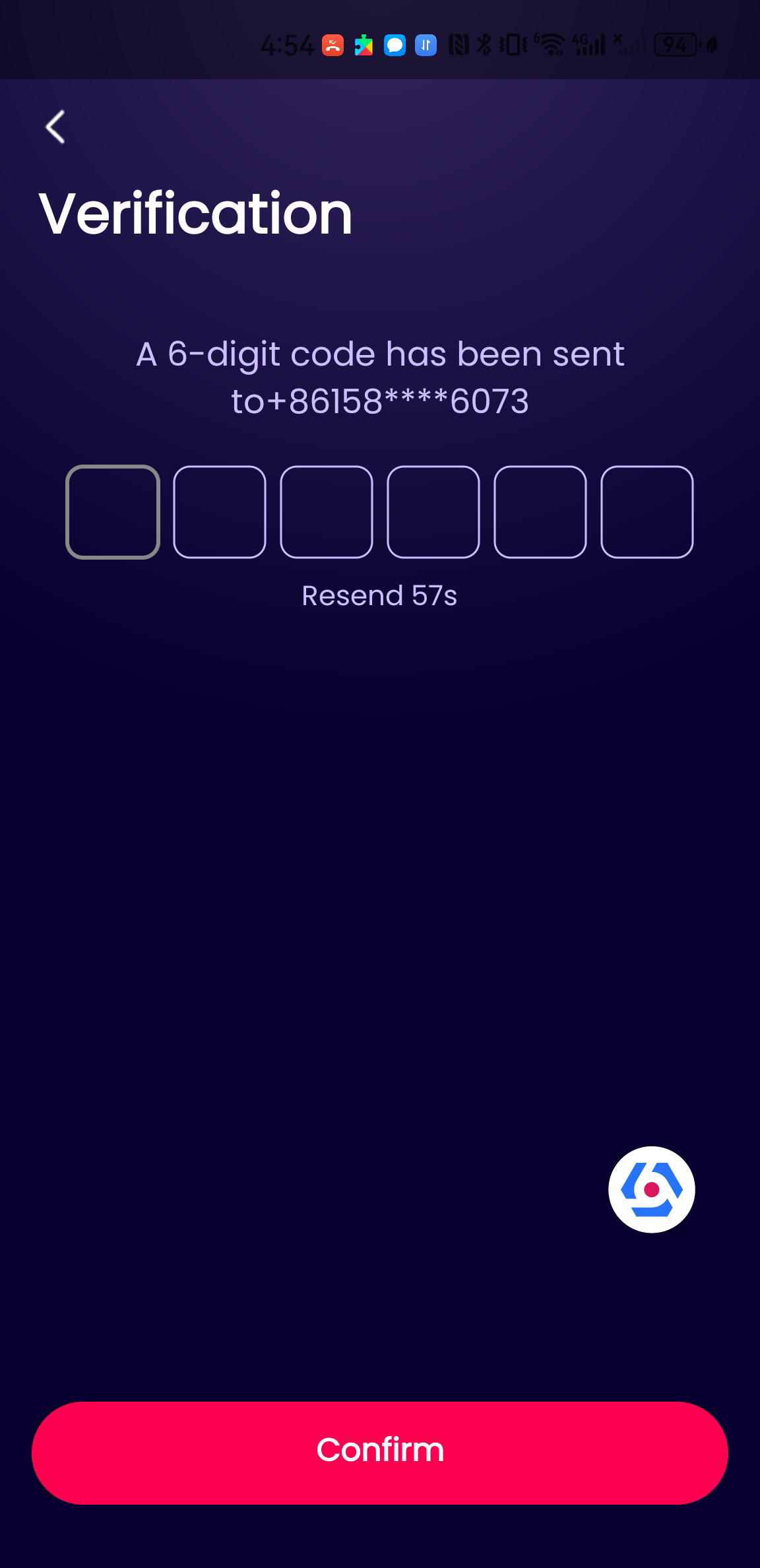
- Complete the verification
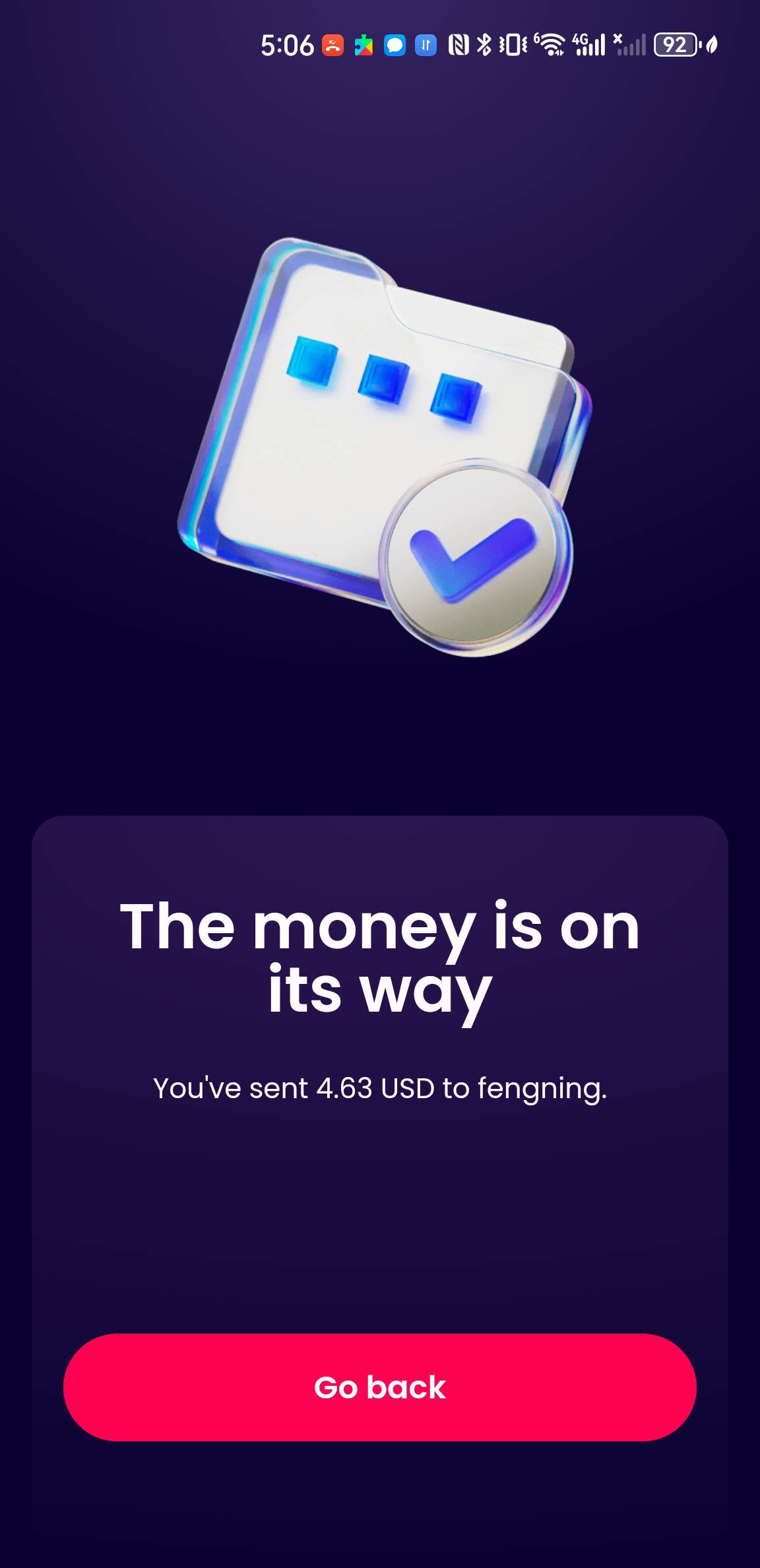
Then,you can see the transaction status. You can also check the status later in transaction section on the app’s homepage.
| Enter amount | Confirm transaction | Verification | Transaction result |
|---|---|---|---|
 |
 |
 |
 |
Why is a “Transaction Failed” page displayed?
If your transaction has failed, you should see a notification on the page. Potential reasons include, but not limited to the following:
1. Approval Process: Your WorldFirst account may have an approval process enabled. Currently, our app does not support payments for accounts with this setting.
2. Security Restrictions: The transaction may have been blocked due to our security restrictions.
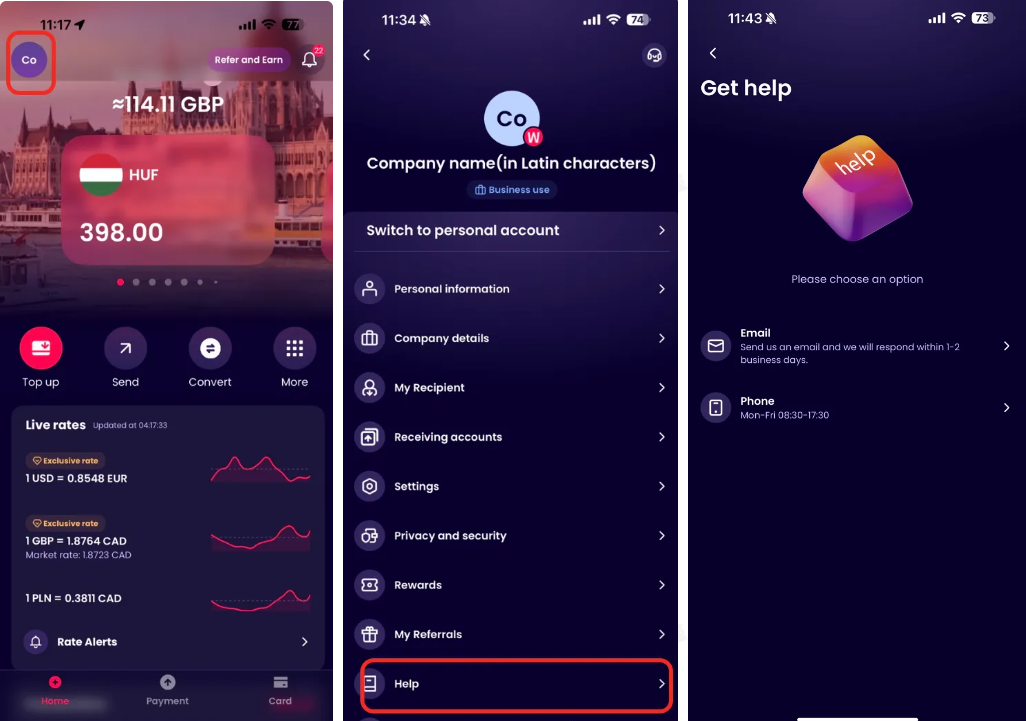
If you have any questions or require support, you can tap Profile icon in the top-left corner and click on Help to either start a chat, access email support or find phone support options.
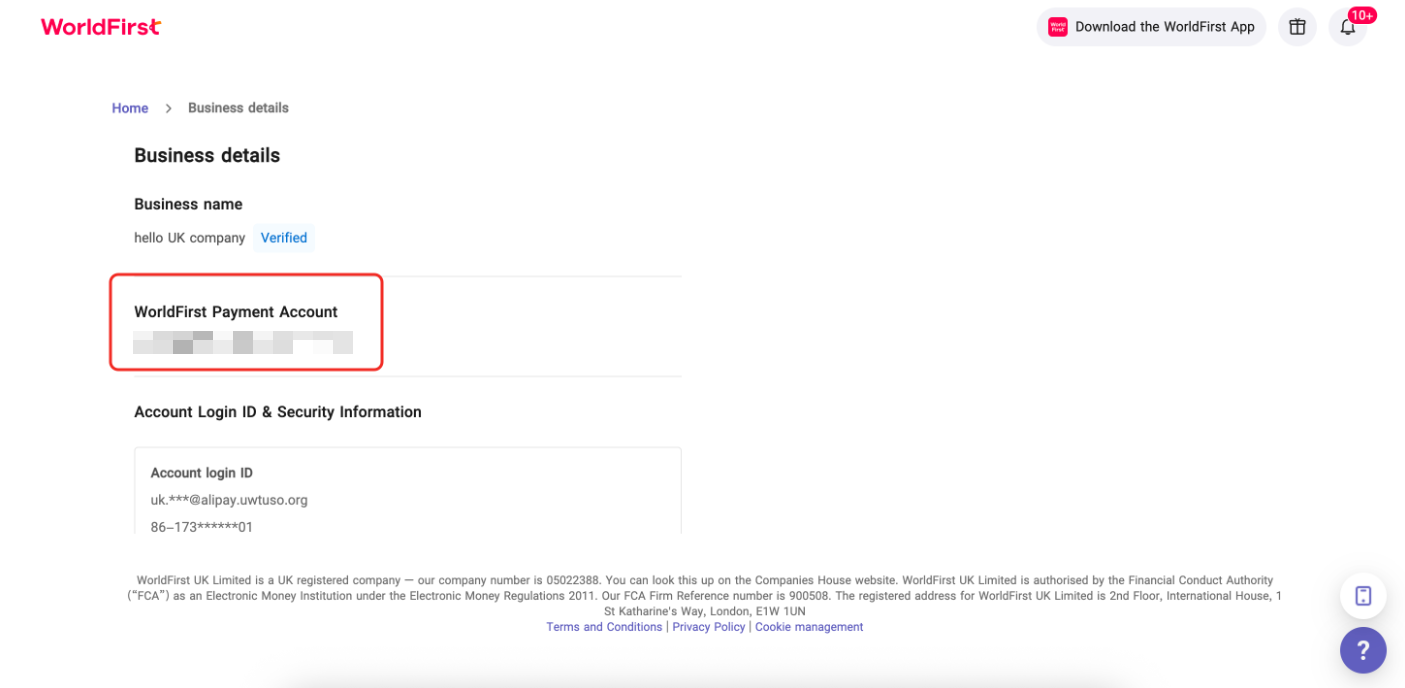
How to find my WorldFirst Account number?
Go to website portal-home > My account > Business details
Can I set up an unfunded payment?
You cannot currently make an unfunded payment on the app, to do this you will need to log into your account via the WorldFirst website.
Can I make a payment utilising an existing forward contract?
You cannot currently drawdown from your forwards via the app. To do this you will need to log into your account via the WorldFirst website.
Can I pay on a specific date?
You cannot currently make a payment on a specific date via the app. To do this, please log into your account on the WorldFirst website.
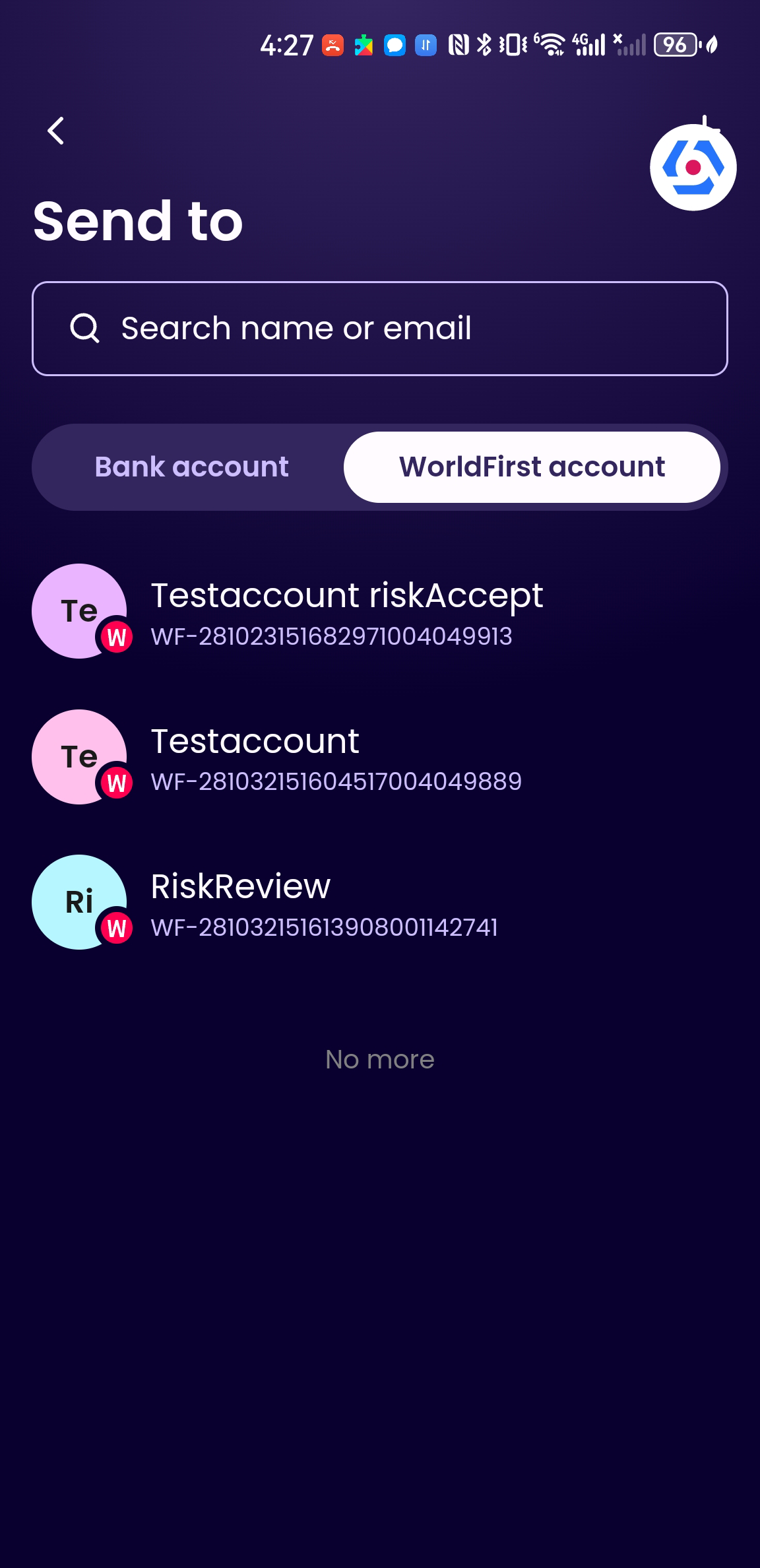
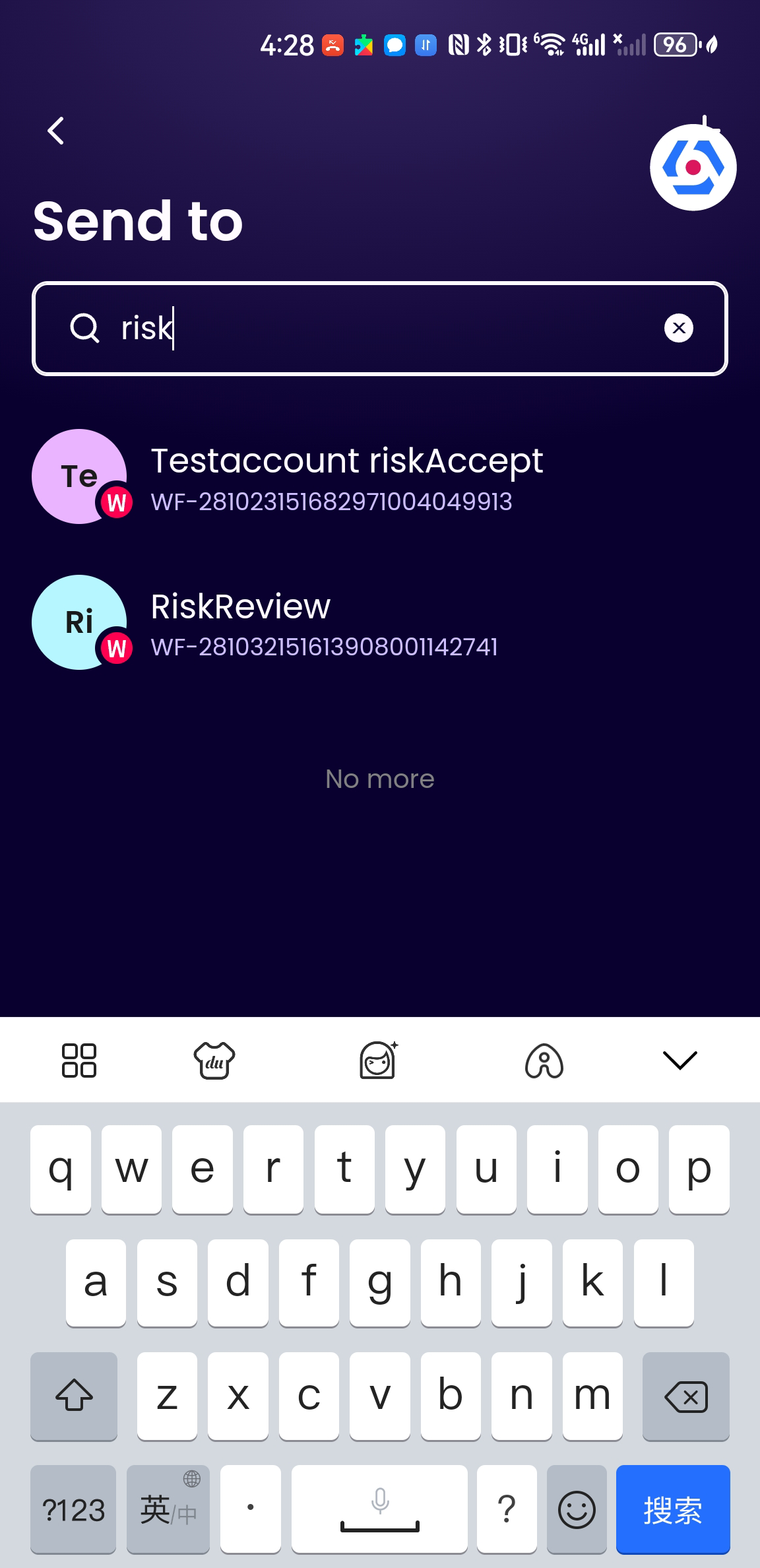
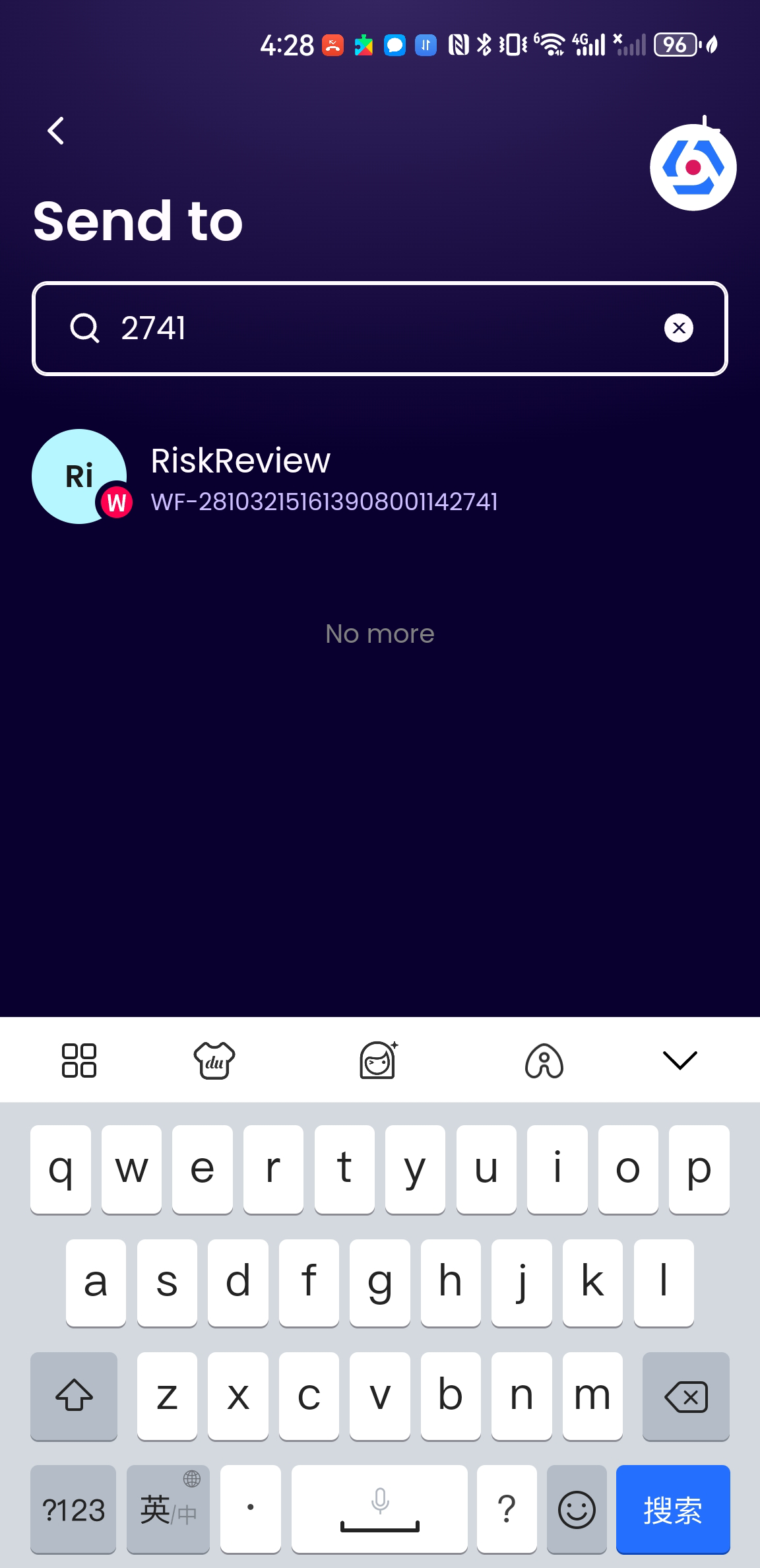
How do I make payments to another WorldFirst Account?
Yes, you can still make instant and free payments to other WorldFirst accounts via the app by these steps:
- Go to Home Page > Tap on Send > Tap on Add recipient > Choose ‘WorldFirst account’ > Add a WorldFirst account by search your recipient’s name or email > Select a WorldFirst account > Enter amount > Confirm transaction
| Send Money Page | Add Recipient | Bank Account Type | Recipient Details | |
|---|---|---|---|---|
|
|
 |
 |
 |
Payees
Can I add a new payee on my account?
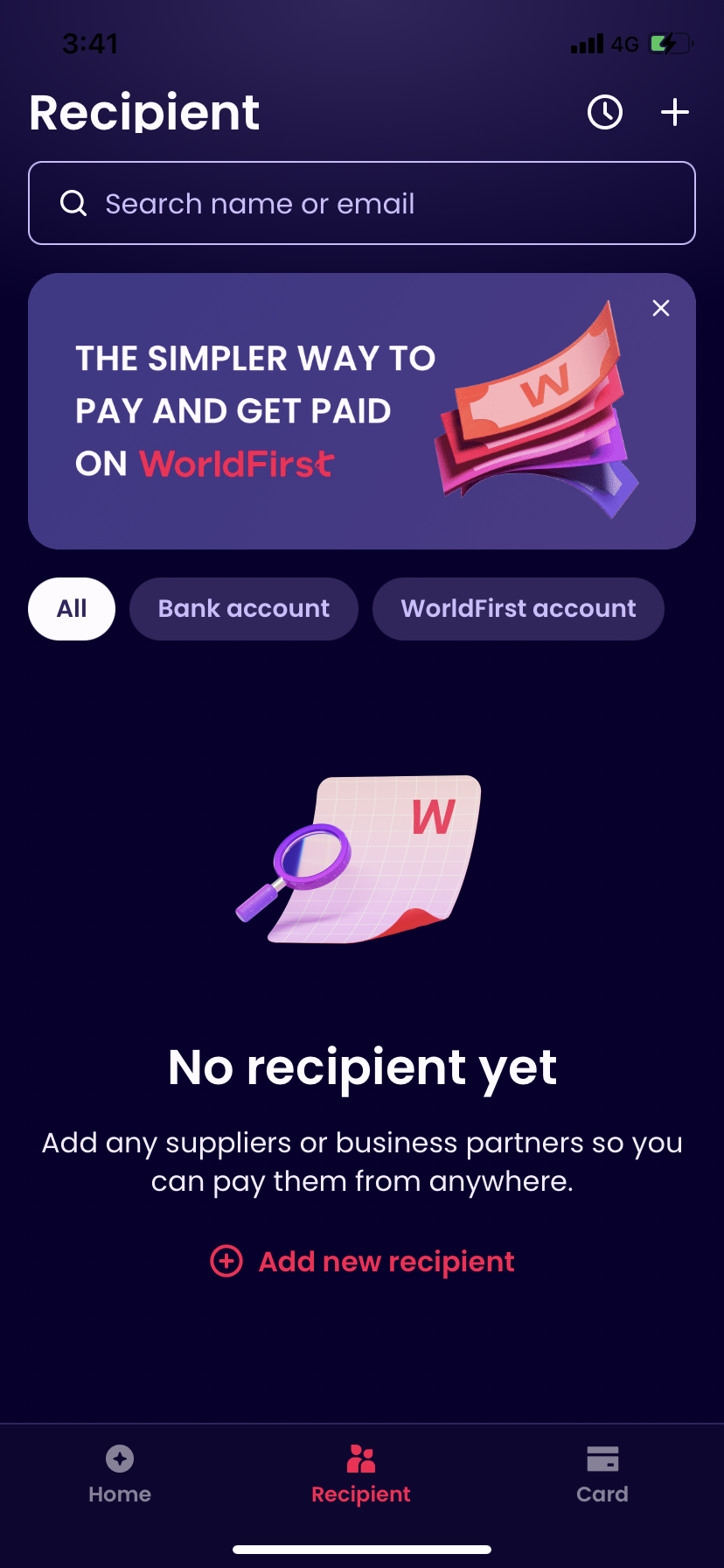
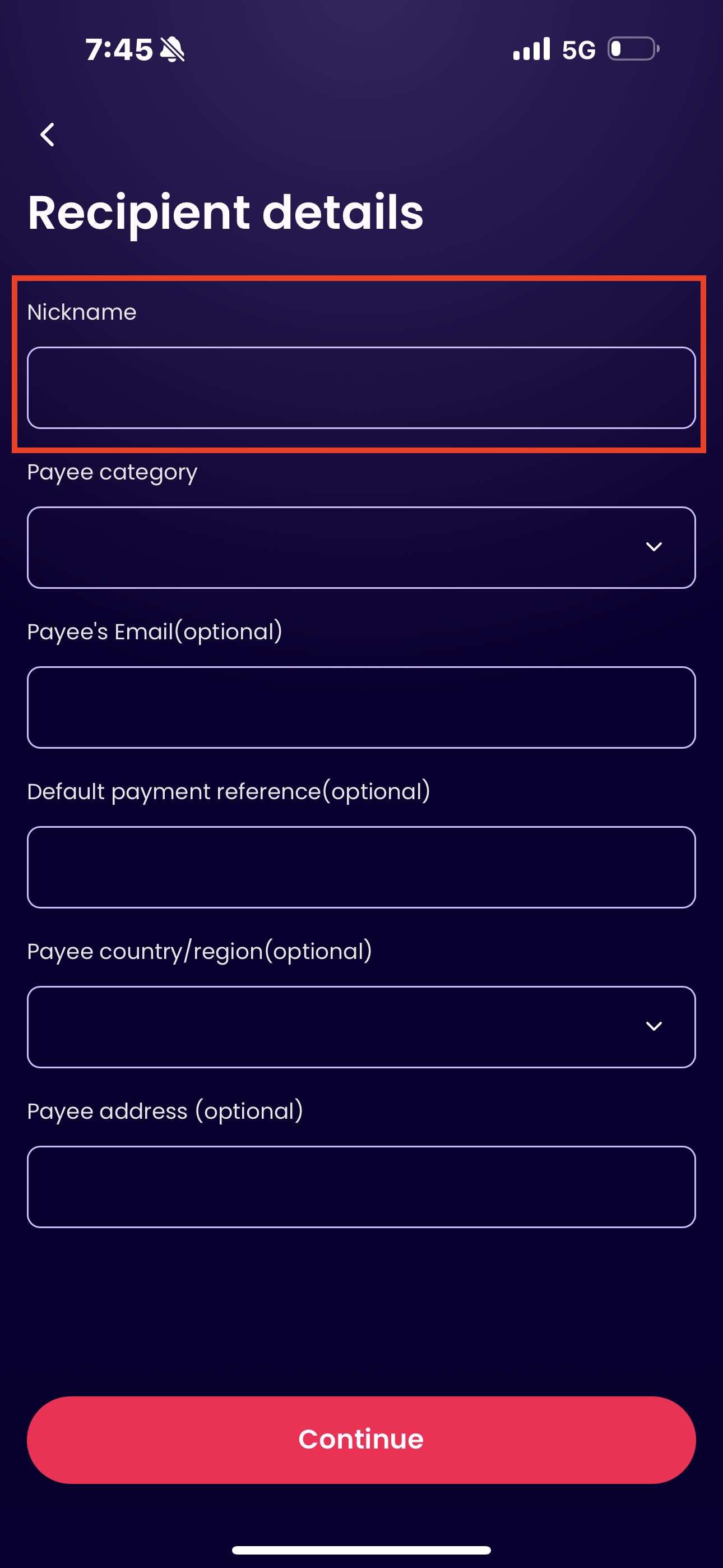
Yes, you can add a new payee to your account by tapping on ‘recipients’ on the bottom of your screen, and tapping the plus sign at the top-right corner of the screen. (If you need to make the payment by bank account, please add a new payee first. If you need to make the payment by WorldFirst account, you don’t need to add a new payee, you can search WorldFirst account by account name (you can only search by name only if you have paid to the WorldFirst account before)/email/WF account number, and then you can send to WorldFirst account directly. Once the payment is successful, the payee automatically appears under the WorldFirst Account dashboard. )
| Recipient Page | Add Recipient | Bank Account Type | Complete Recipient Details | Add Account Nickname | |
|---|---|---|---|---|---|
 |
|
|
|
|
 |
Can I delete a payee on the app?
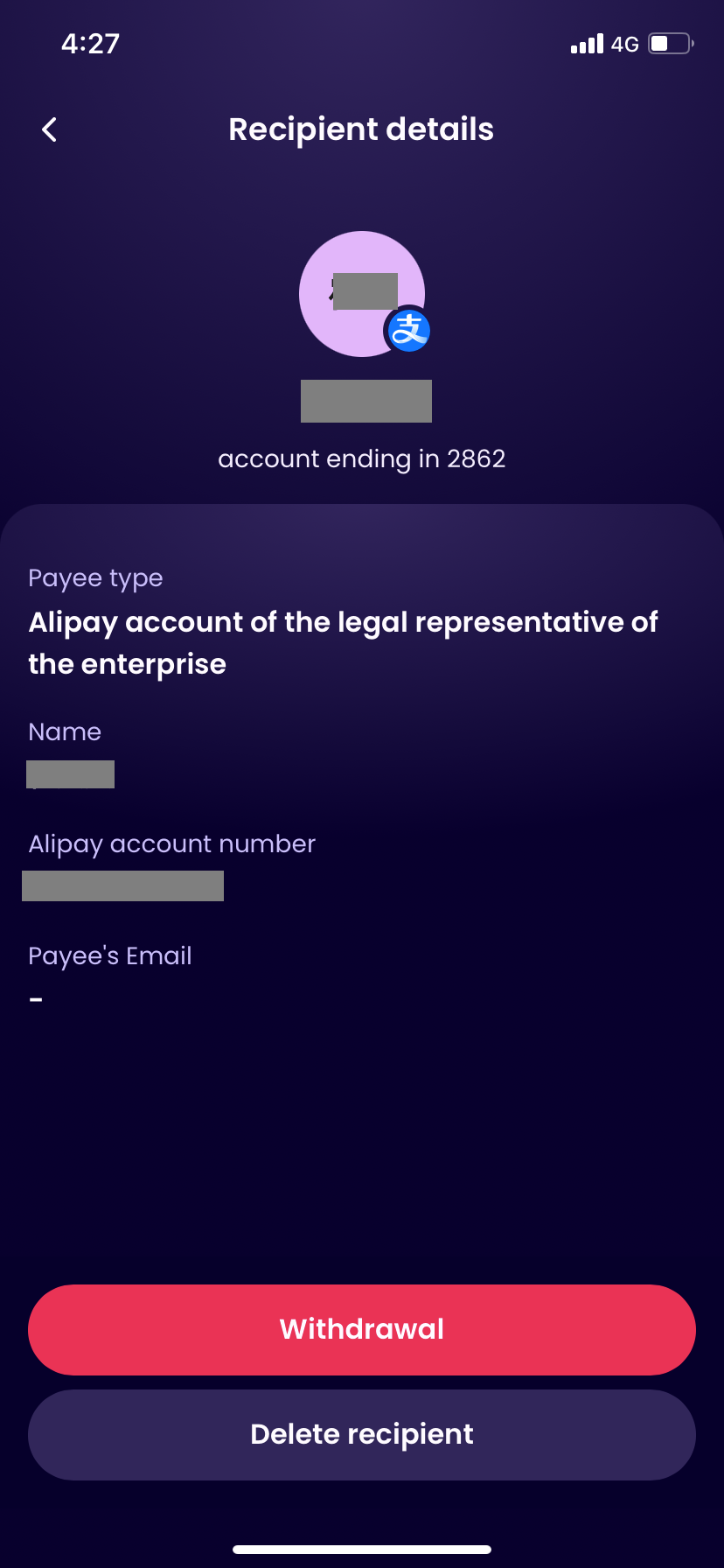
Yes, you can delete a payee by tapping on Recipient Page, choose a Recipient account, viewing the Recipient details and tapping on the ‘Delete Recipient’ button.
| Recipient Page | Payee Page |
|---|---|
|
 |
Can I edit a payee on the app?
No, you cannot currently edit a payee directly in the WorldFirst app. To update a payee’s details, you should delete the payee and re-add it with the correct information, or log in to your account on the WorldFirst website to edit the payee.
Collections
Can I open a currency account?
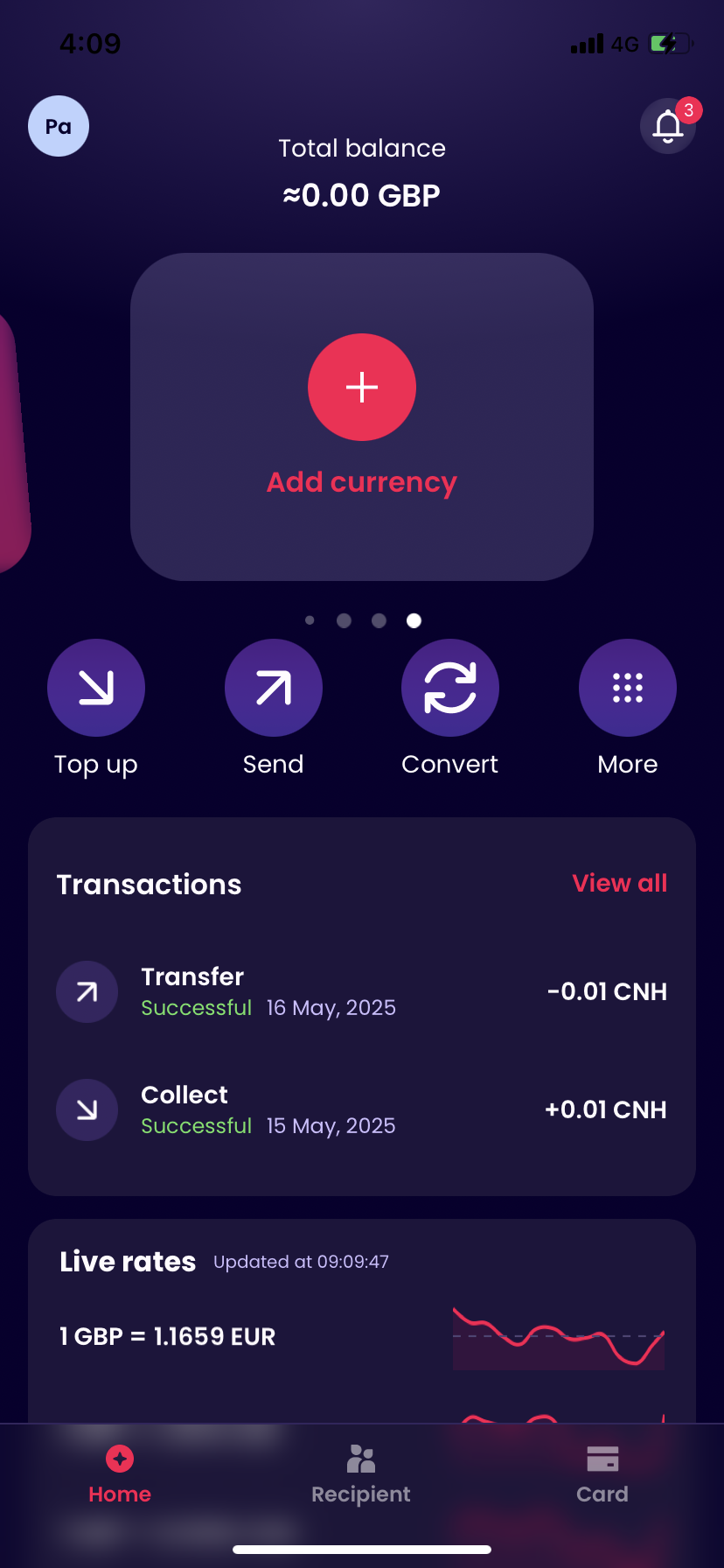
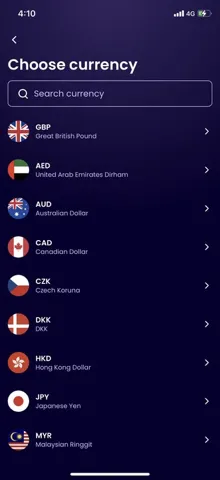
Yes, you can open a new currency account in one of the following 21 currencies available.
EUR, USD, HUF, CNH, GBP, AED, AUD, CAD, CZK, DKK, HKD, JPY, MYR, NOK, NZD, PLN, RON, SEK, SGD, THB, ZAR
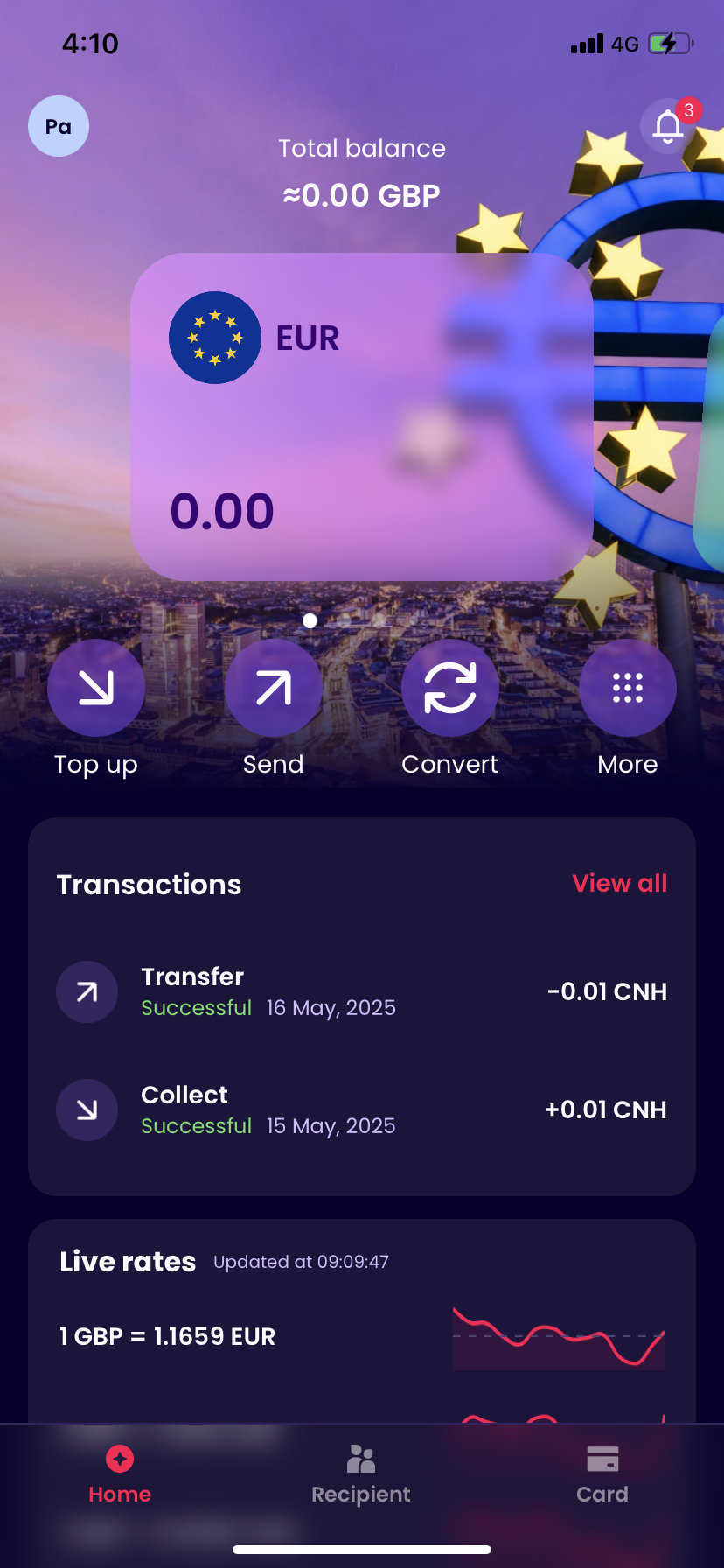
To do this you need to swipe to the right of your existing currency accounts, and tap on the empty card with the plus sign.
| Home Page | Swipe to the far right | Choose Currency |
|---|---|---|
 |
 |
 |
Where can I view VA list?
Step 1 – Function entrance
- Entrance :The avatar in the upper left corner-Receiving Accounts
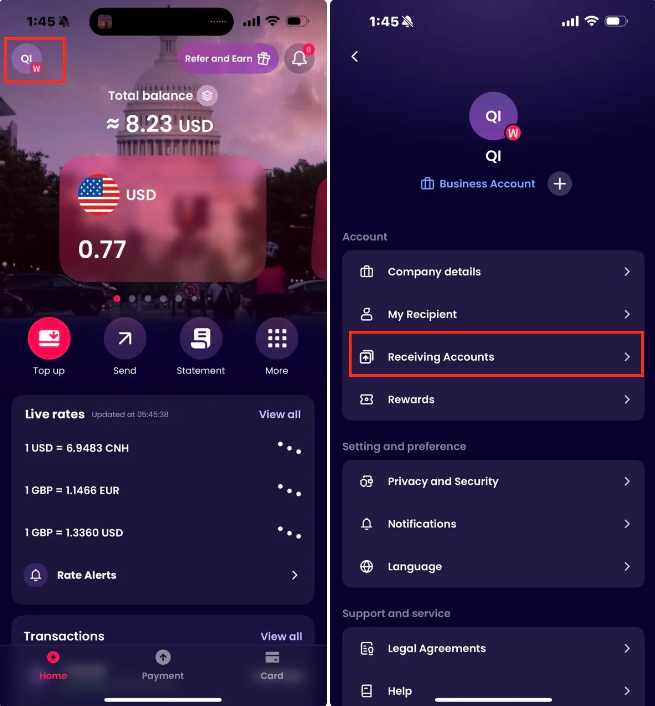
Step 2 – View Account List
- Users can view both single-currency accounts and multi-currency accounts.
- Users can copy all receiving account details with one click
- Users can filter and search for receiving accounts by account number and currency
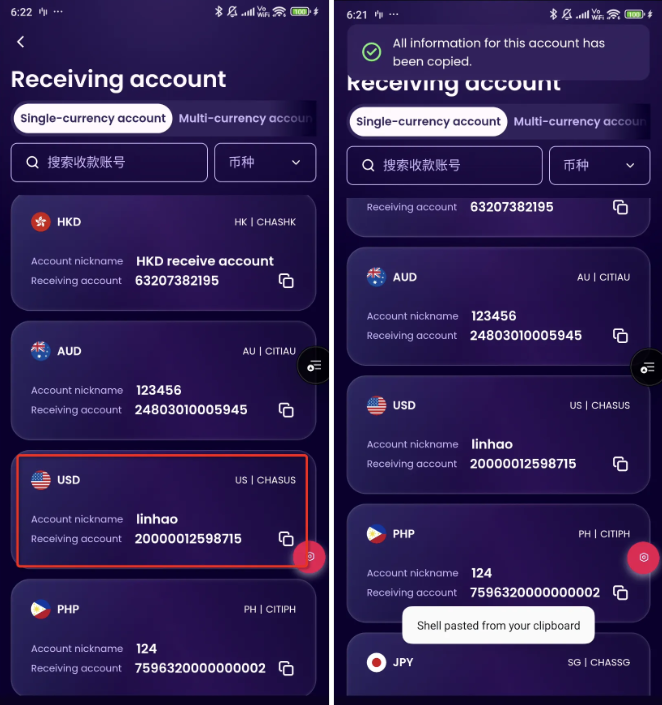
Step 3 – View Receiving Account Details
- Click on any receiving account to view the account details.
- Users can copy a single detail or copy all the details.
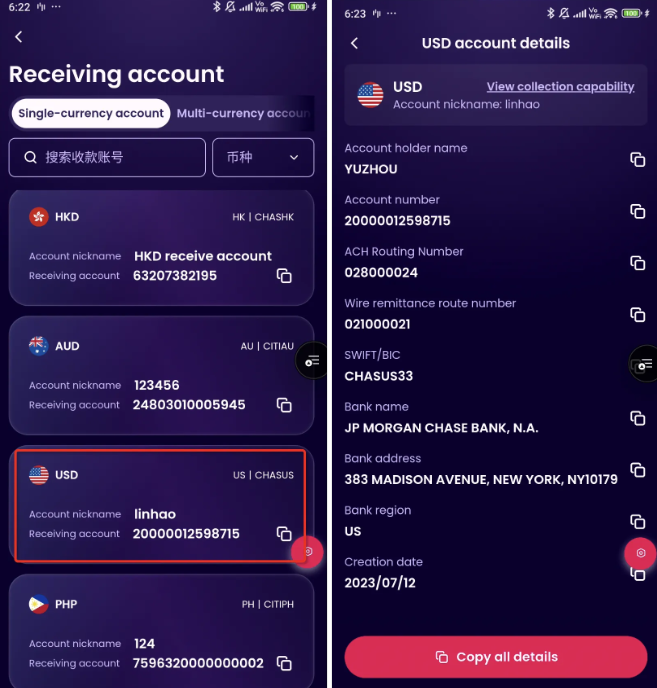
Step 4 – View collection capability
- Click “View collection capability” in the payment details to check the following details:
- Supported currencies for receiving
- Supported settlement networks
- Supported funding sources
- Important notes for related accounts

Where can I receive funds from?
If you originally signed up for a World Account via the WorldFirst website, then you will be able to receive funds from any pre-approved third parties via the app
Please note: If certain third party funds have been declined via website, the same restrictions will apply to your accounts via the app
If you have signed up for a World Account via the app, you will be able to receive funds from your own account/marketplace/third parties base on your WorldFirst account level.
How do I verify third party funds in?
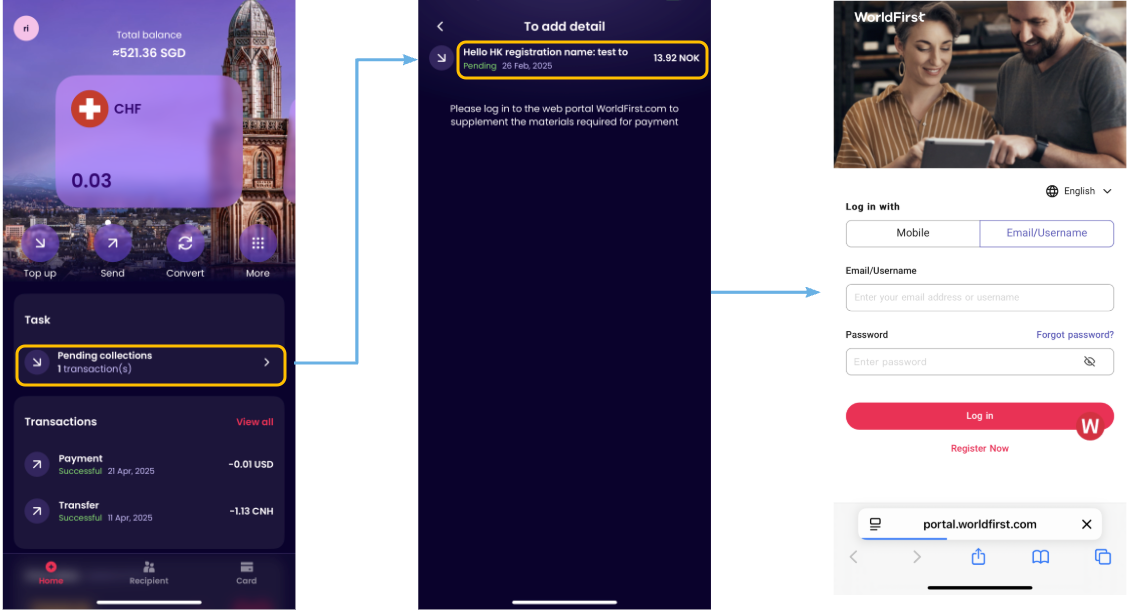
If there are collections requiring document submission, the homepage to-do list will show the tasks. However, the document submission process cannot be completed on App and must be completed on a PC or mobile browser on the WorldFirst website.
Top up
How can I top up my account?
Supported methods include debit card or bank transfer. You can top up your account by following these steps:
1. Top up via debit card (Note: This method is only for SG and is subjected to approval. Only same name cards are supported):
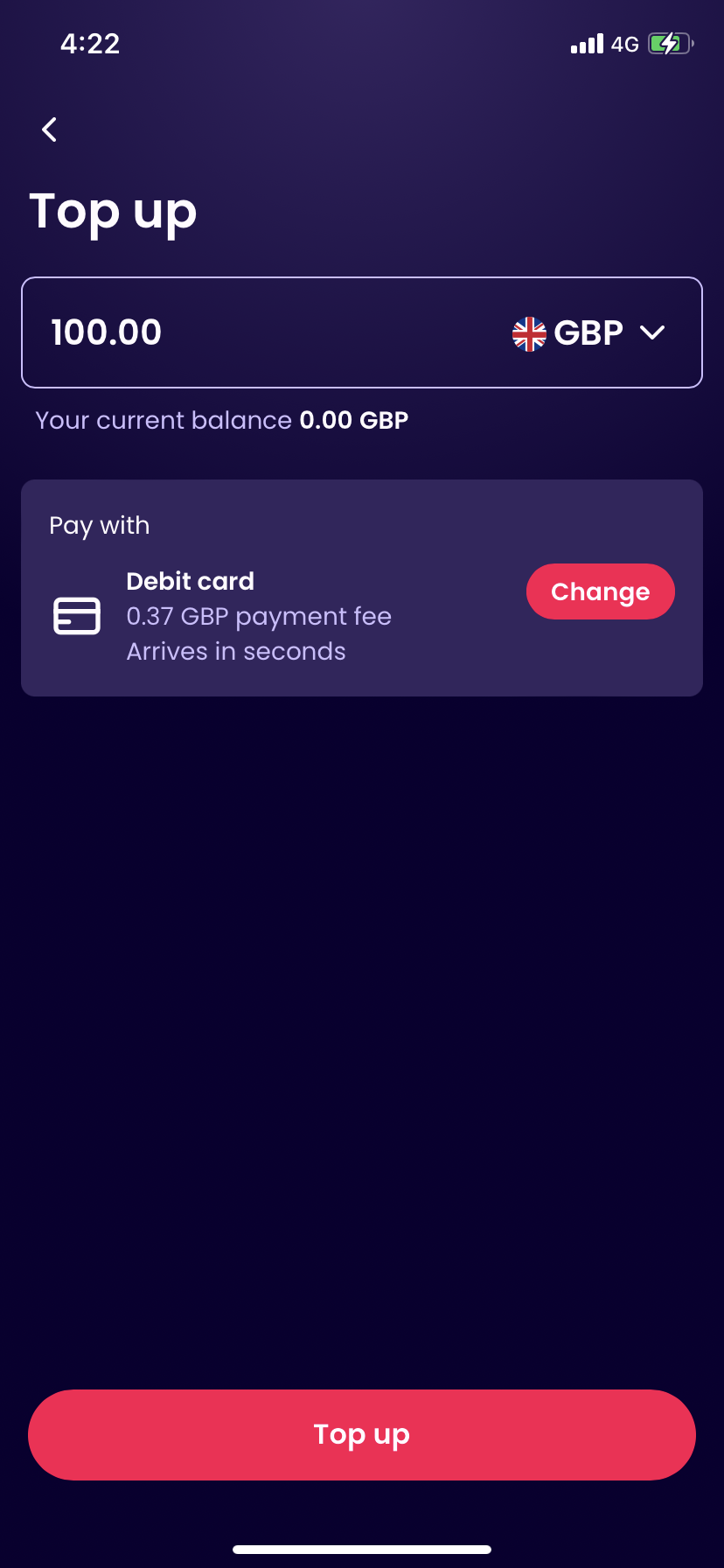
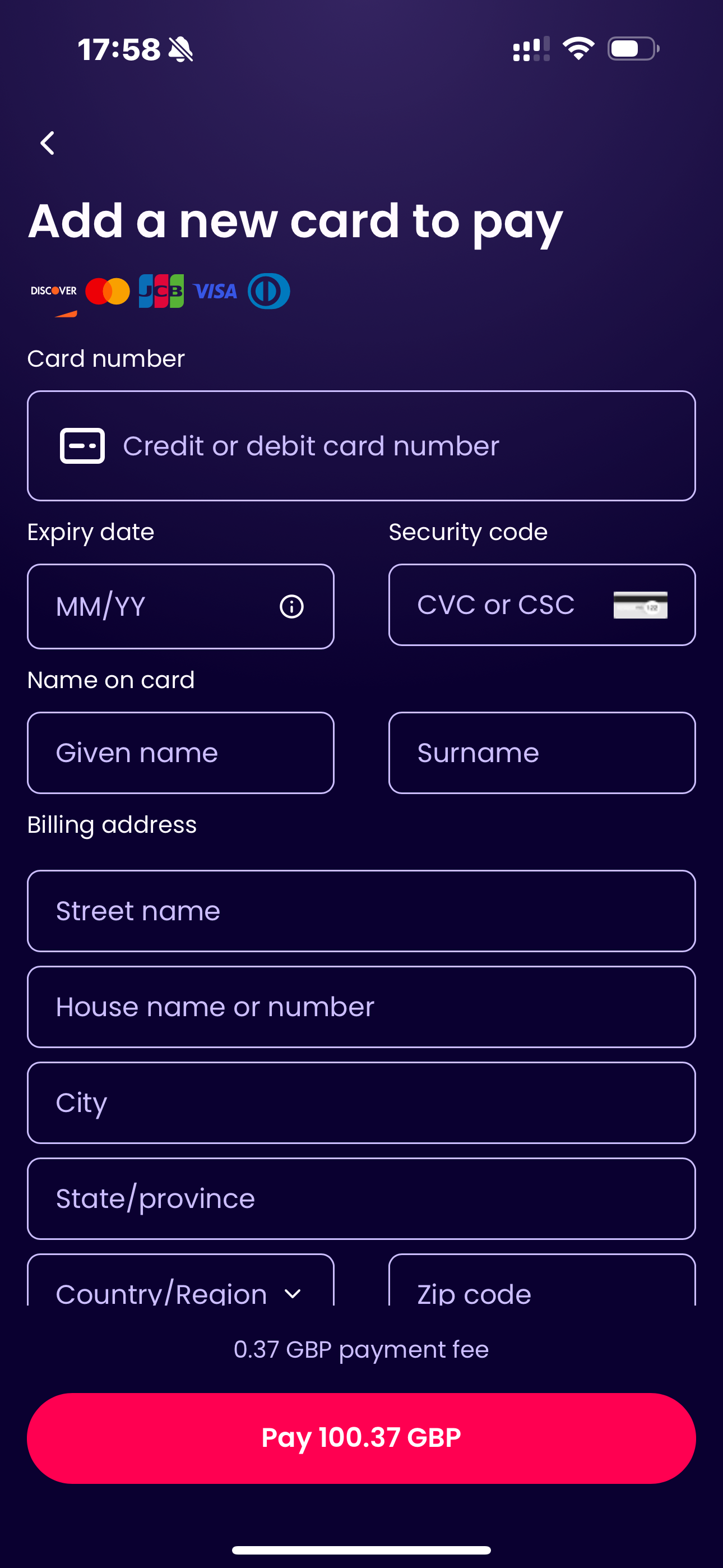
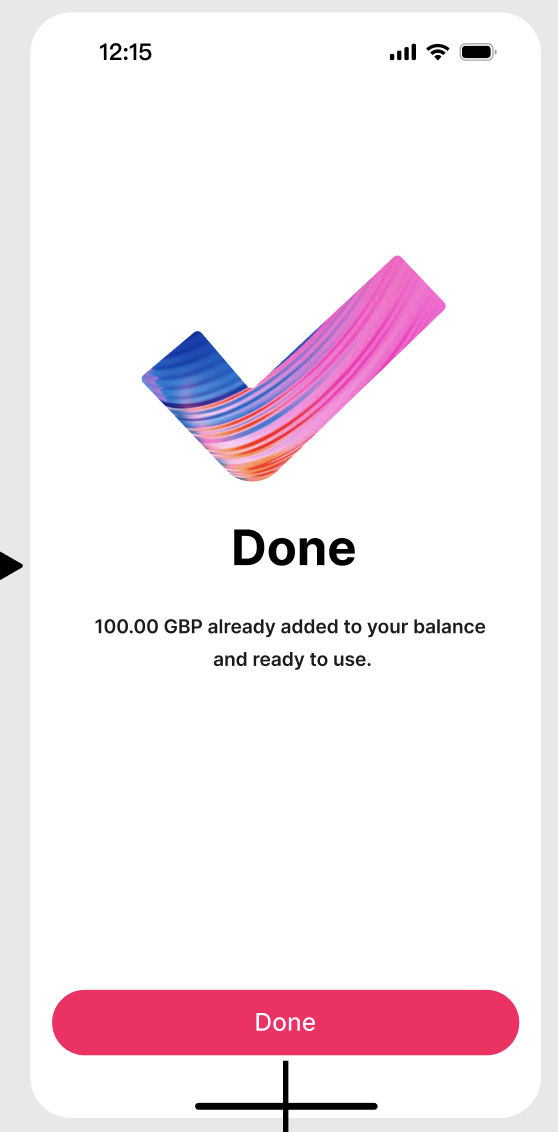
- Go to Home Page > Tap on ‘Top up’ > Fill in top up balance > Choose currency > Choose debit card > Add a new card to pay > Complete verification > Receive Results
- Processing time:arrives in seconds
| Home Page | Top up Page | Add a new card to pay | Complete verification | Done |
|---|---|---|---|---|
|
 |
 |
 |
 |
2. Top up via bank transfer:
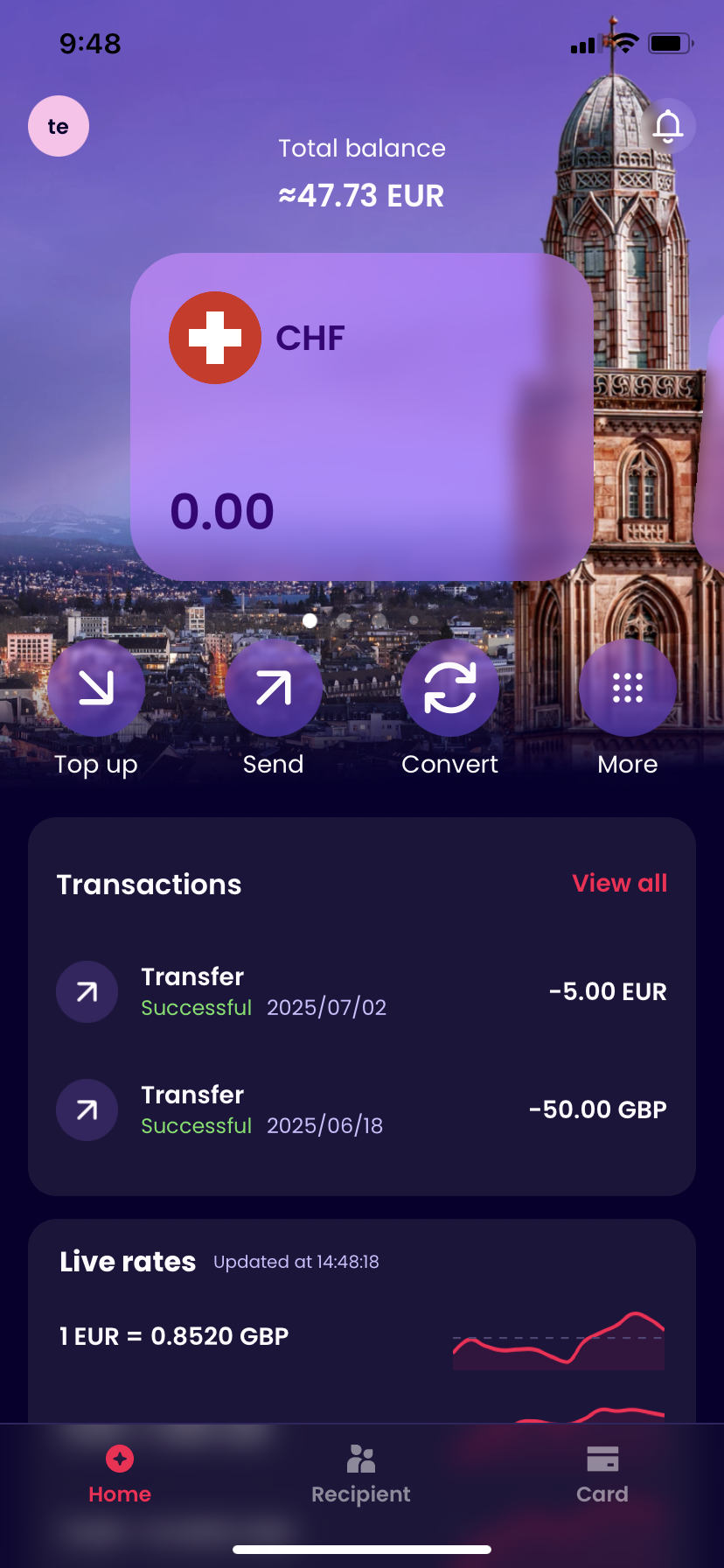
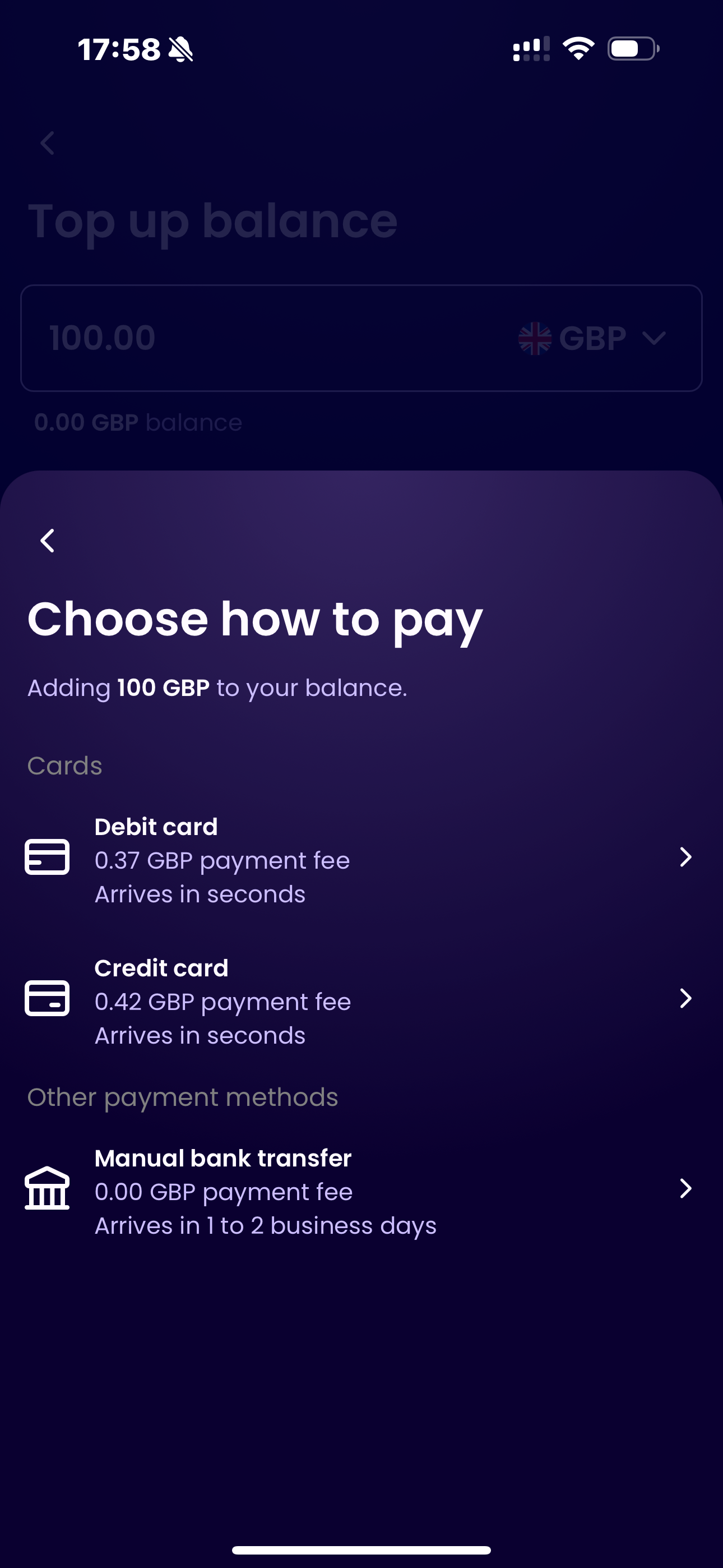
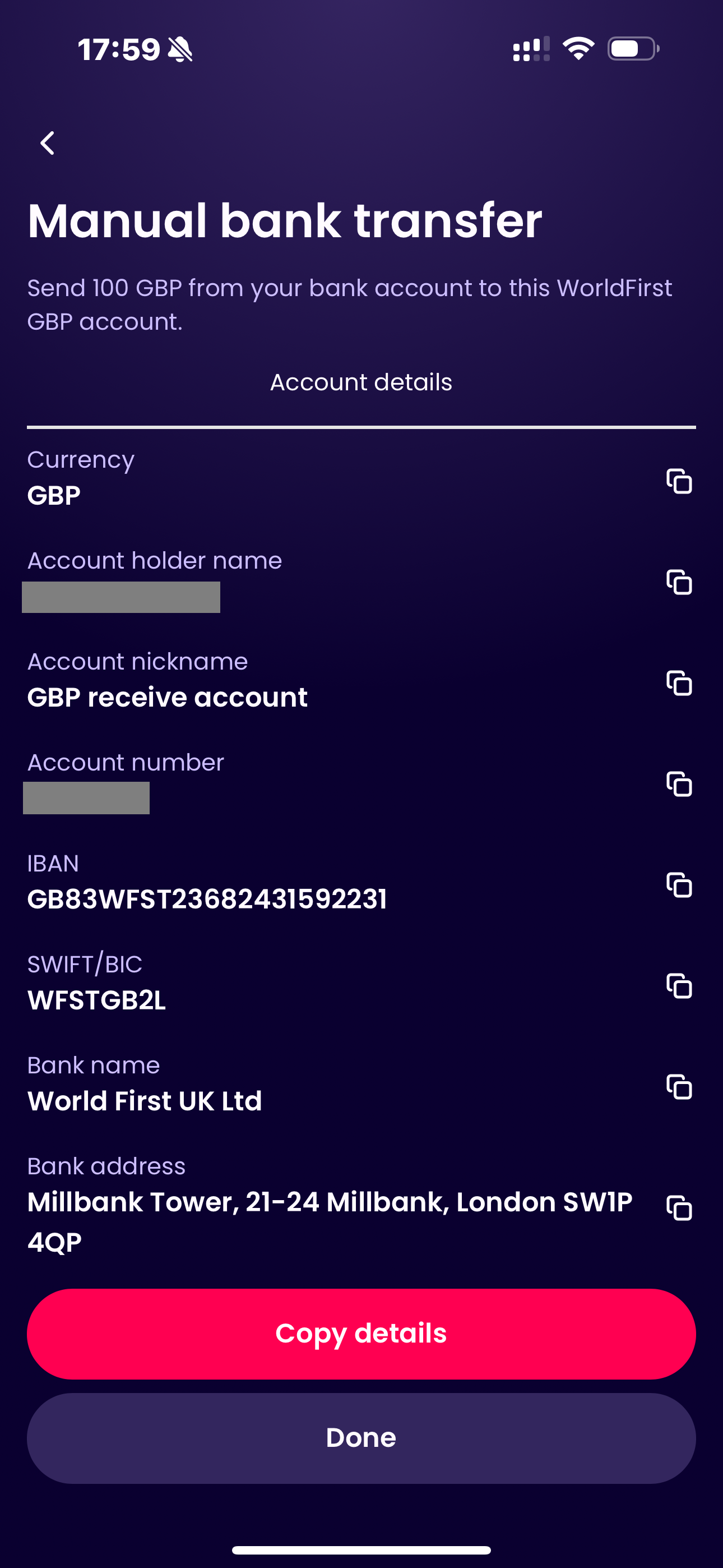
- Go to HomePage > Tap on ‘Top up’ > Fill in top up balance > Choose currency > Choose bank transfer > Copy the WorldFirst Virtual Account information > Transfer money from other bank accounts to this account
- Processing time:1-2 business days
for copy details: Users need to copy the WF VA information and then transfer money from other bank accounts to this account.
| Home page-Top up | fill in top up balance | choose bank transfer | copy details |
|---|---|---|---|
 |
|
 |
 |
How do I find my account details to make a bank transfer?
You find these details by tapping on ‘Top Up’ in the middle of your screen (if you do not see it, click on ‘More’ button), choosing the currency you would like to top up, and selecting ‘Manual Bank Transfer’ as your top up method.
| Home page-Top up | fill in top up balance | choose bank transfer | copy details |
|---|---|---|---|
|
|
|
|
FX
How do I check real-time exchange rates in the WorldFirst app?
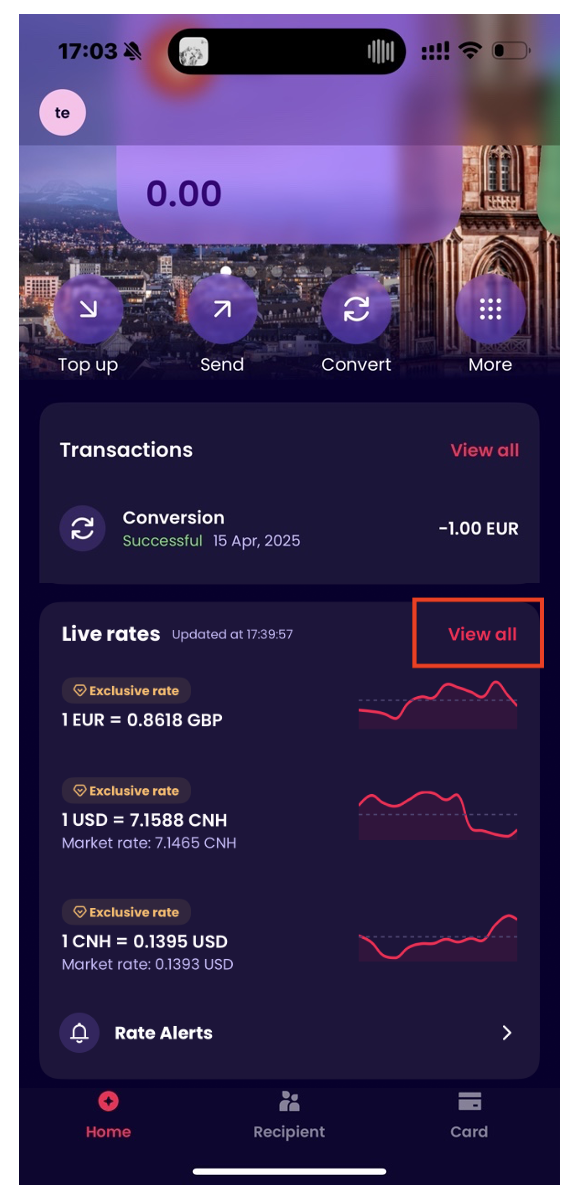
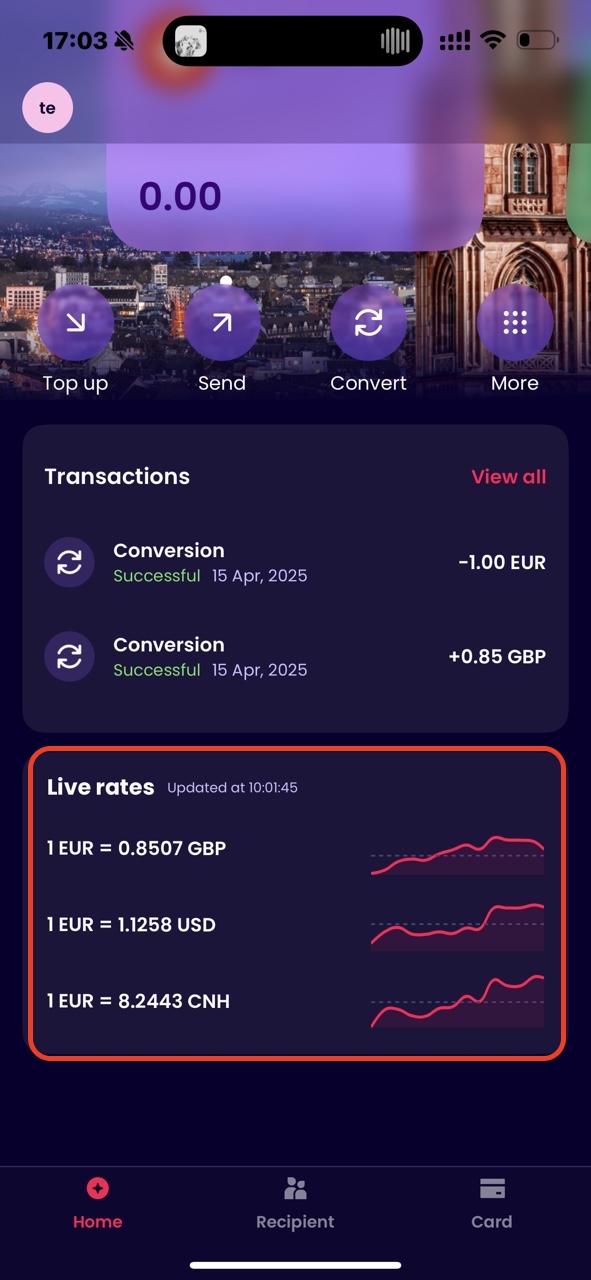
1. Entry points:Homepage-Live rates
- Homepage display :
- Displays live exchange rates for three currency pairs.
- Features a trend chart for the selected pairs.
- Display rules:
- Three currency pairs are displayed by default according to the user’s region.
- Users can customize and select their preferred currency pairs.
2. Exchange Rate Detail Page
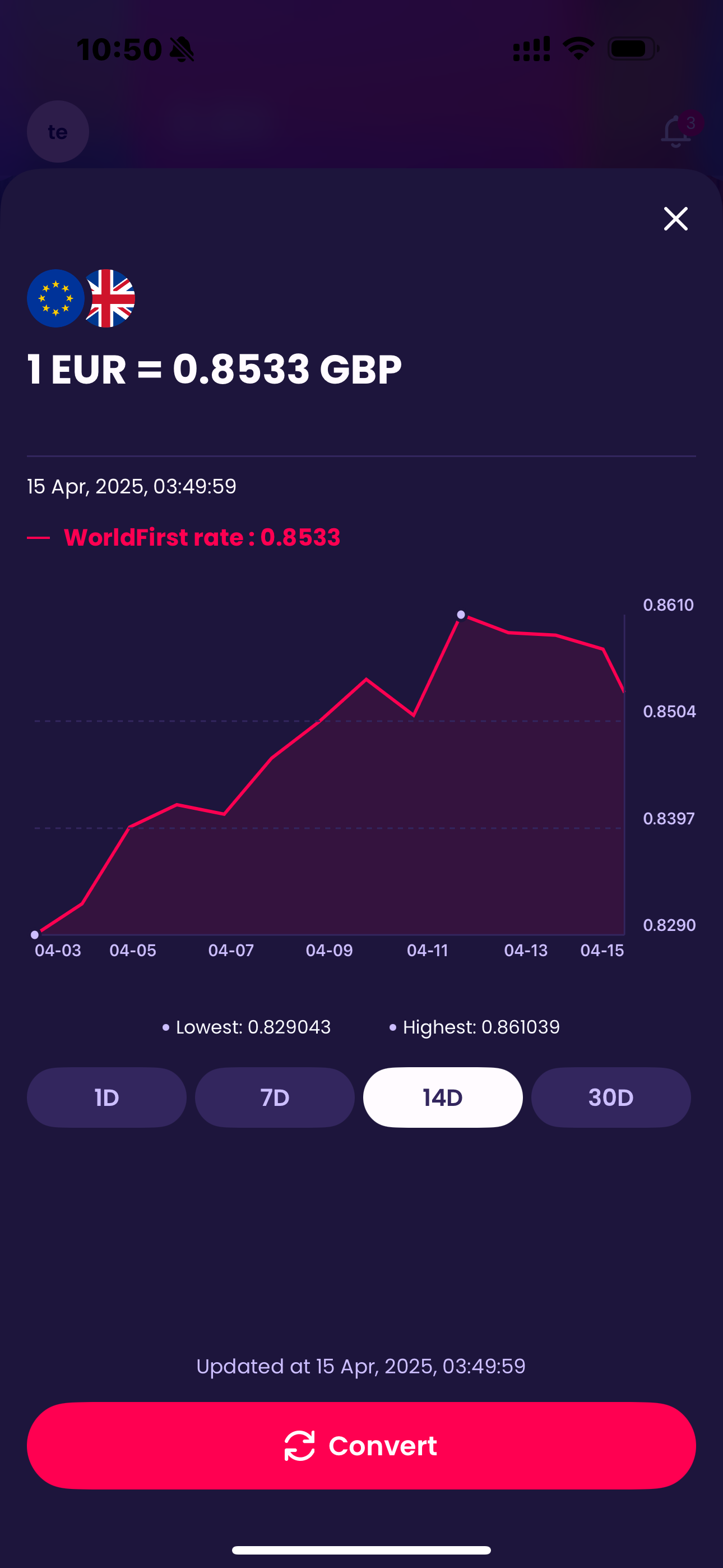
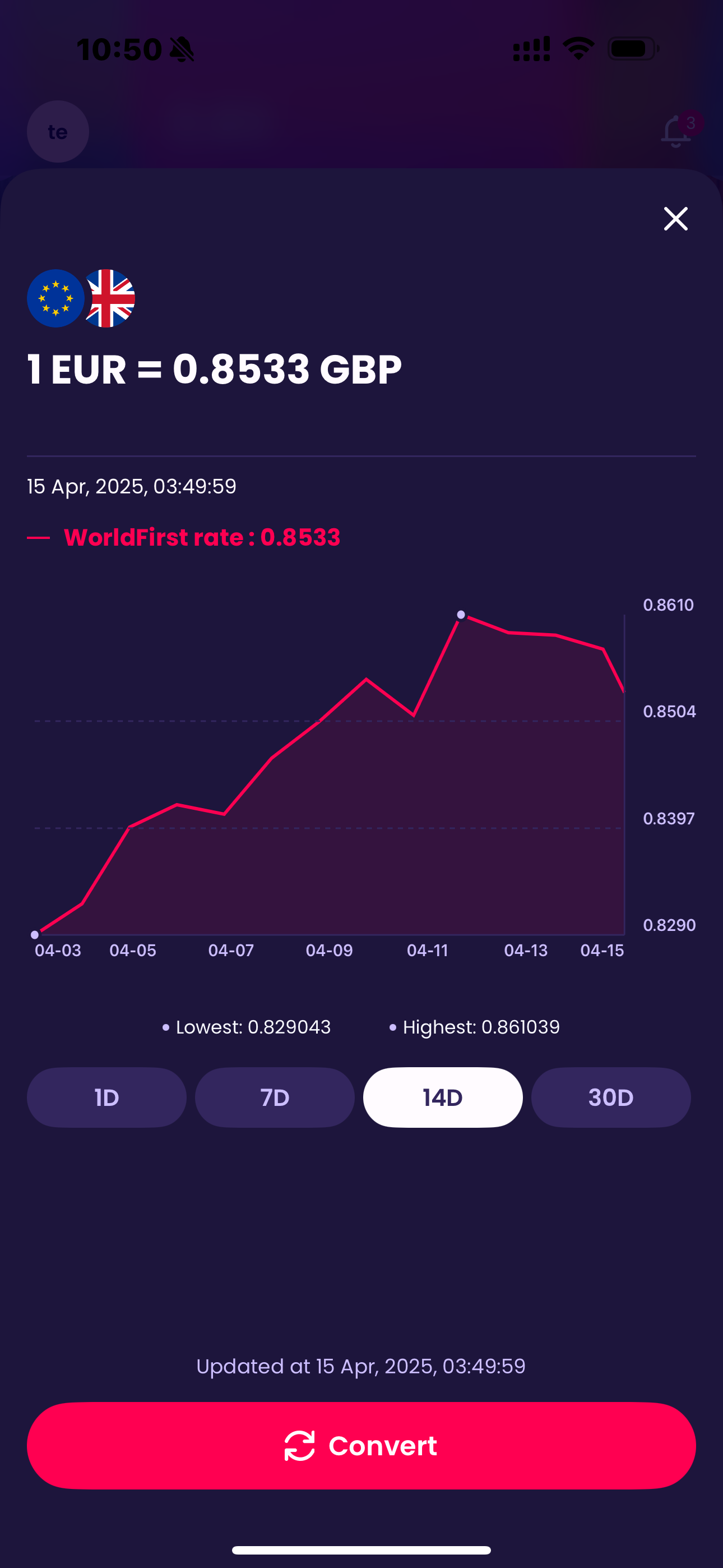
- To explore the historical trend of a currency pair, click its trend line. You will be taken to a detail page where you can view the exchange rate.
- By default, the past 14 days are displayed, and you can change the timeframe to 1, 7, 14, or 30 days.
3. Exchange Rate List page
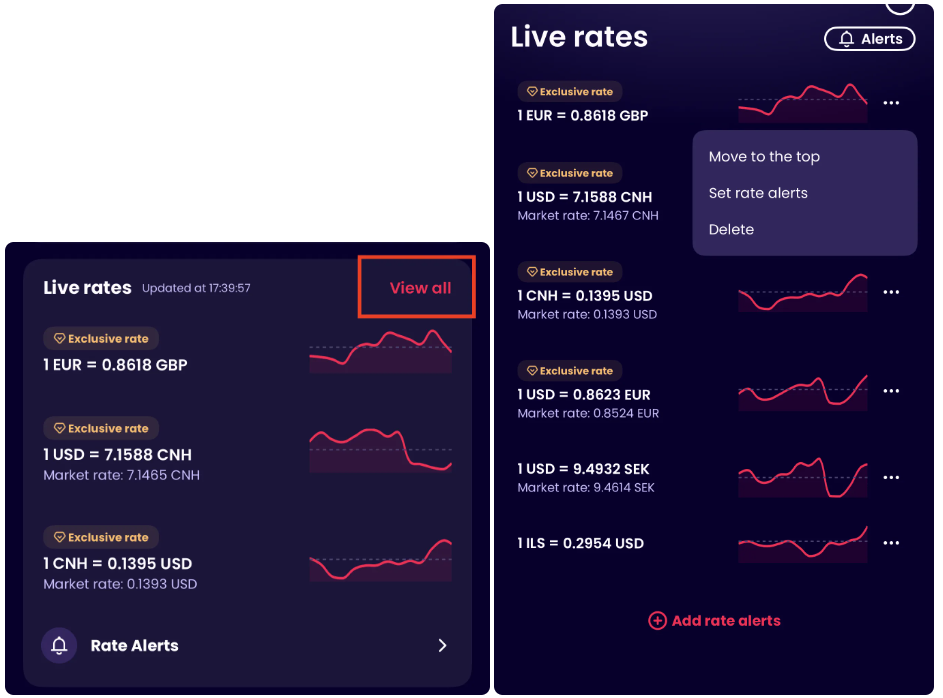
- Click [View all] to go to the Exchange Rate List page.
- A maximum of 8 currency pairs can be added.
4. Customize Currency Pairs and Their Order
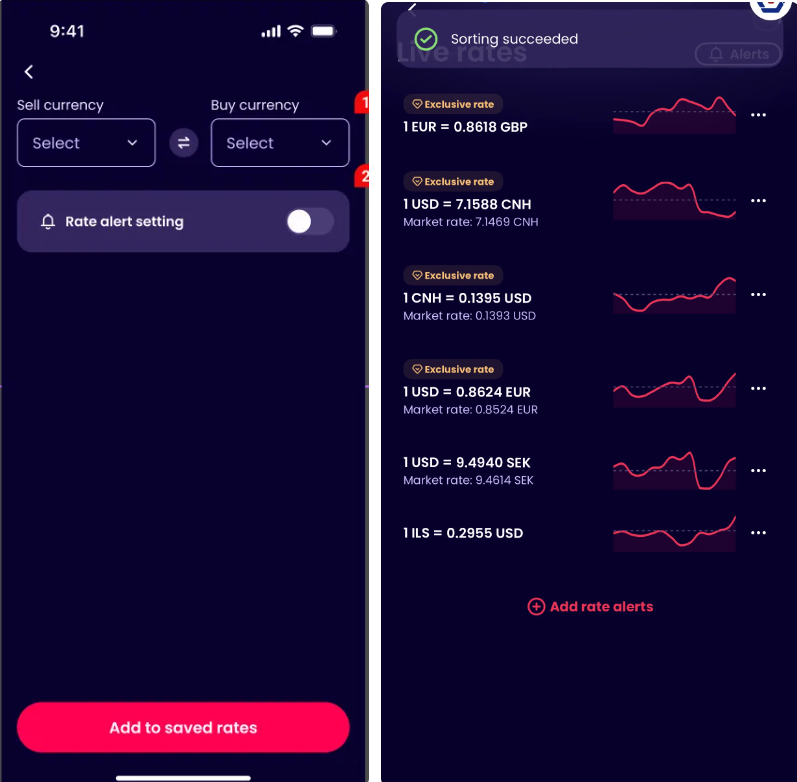
- Users can add, reorder, and delete currency pairs.
- Long press to drag and adjust the order of currency pairs. The first three pairs will be displayed on the app homepage.
*Editing records are synchronized bidirectionally between the APP and PC. Updates made on the APP will be reflected on the PC, and edits made on the PC will sync to the APP.
Can I view historical exchange rate trends (e.g., 1/7/30 days) in the app?
Yes, follow these steps:
- On the homepage, tap the trend line chart of any currency pair;
- The detail page will show historical exchange rates for the past 14 days by default;
- Use the dropdown menu to select a timeframe (1/7/14/30 days) for the trend analysis;
| Homepage-Convert/Live rate | Live rate chart |
|---|---|
 |
 |
Can I set up rate alerts in the app?
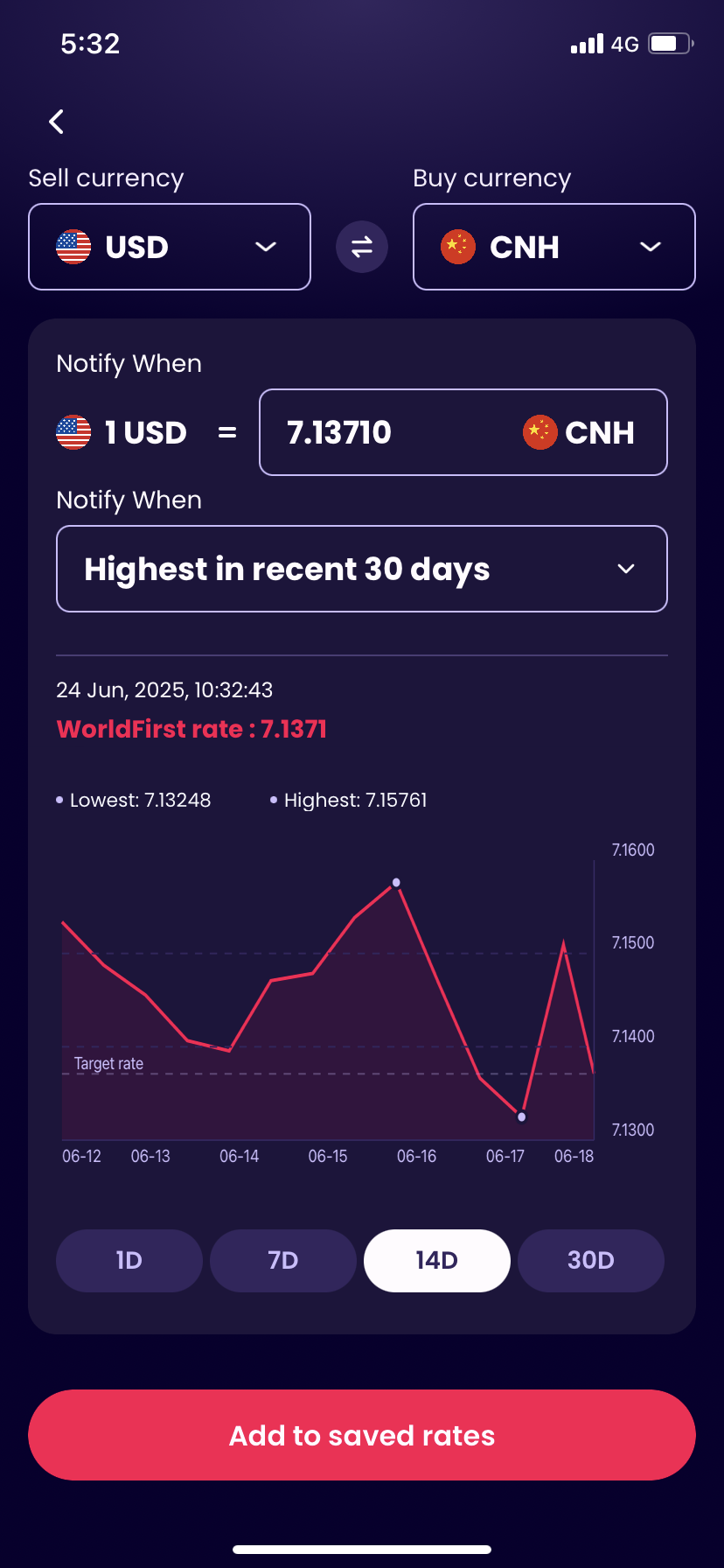
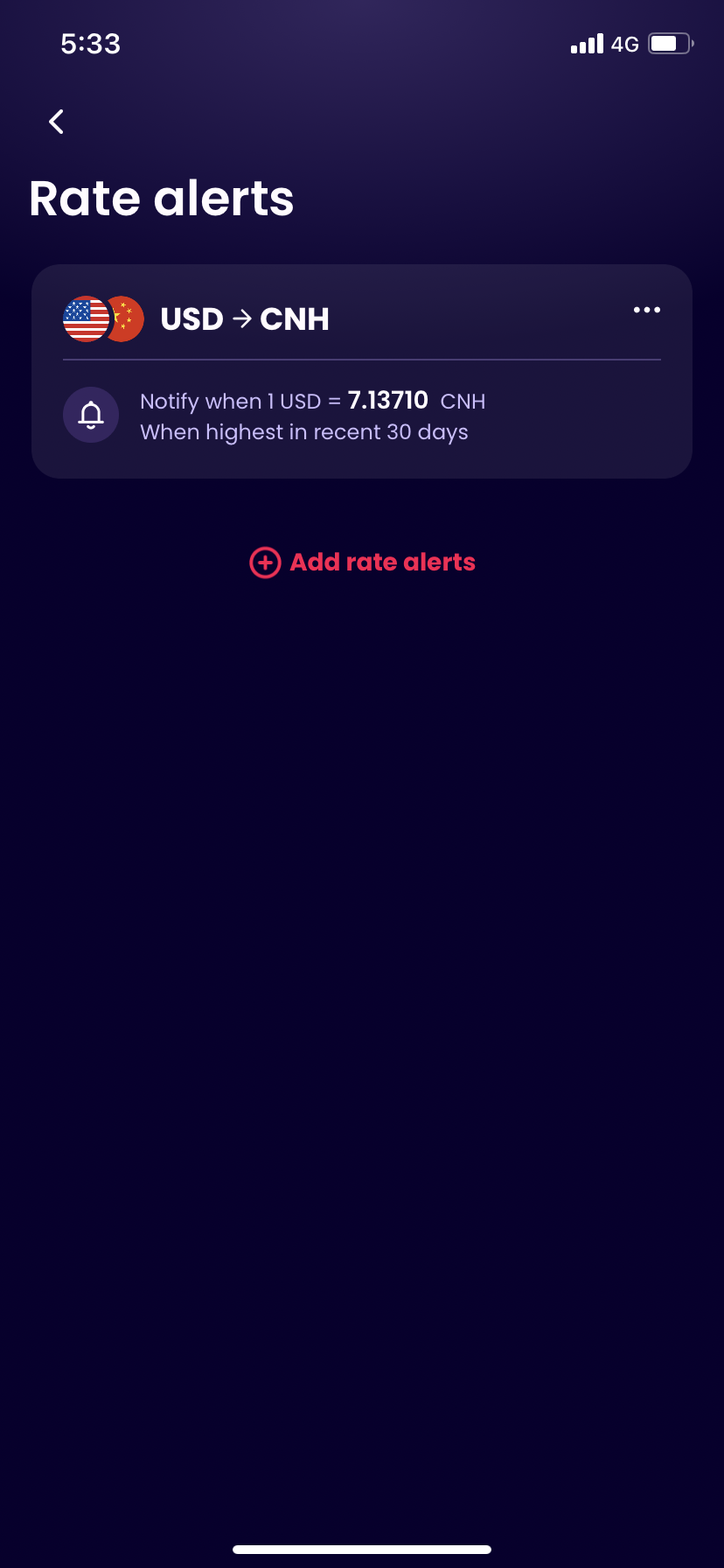
Yes,you can set up rate alerts to monitor the live rates:
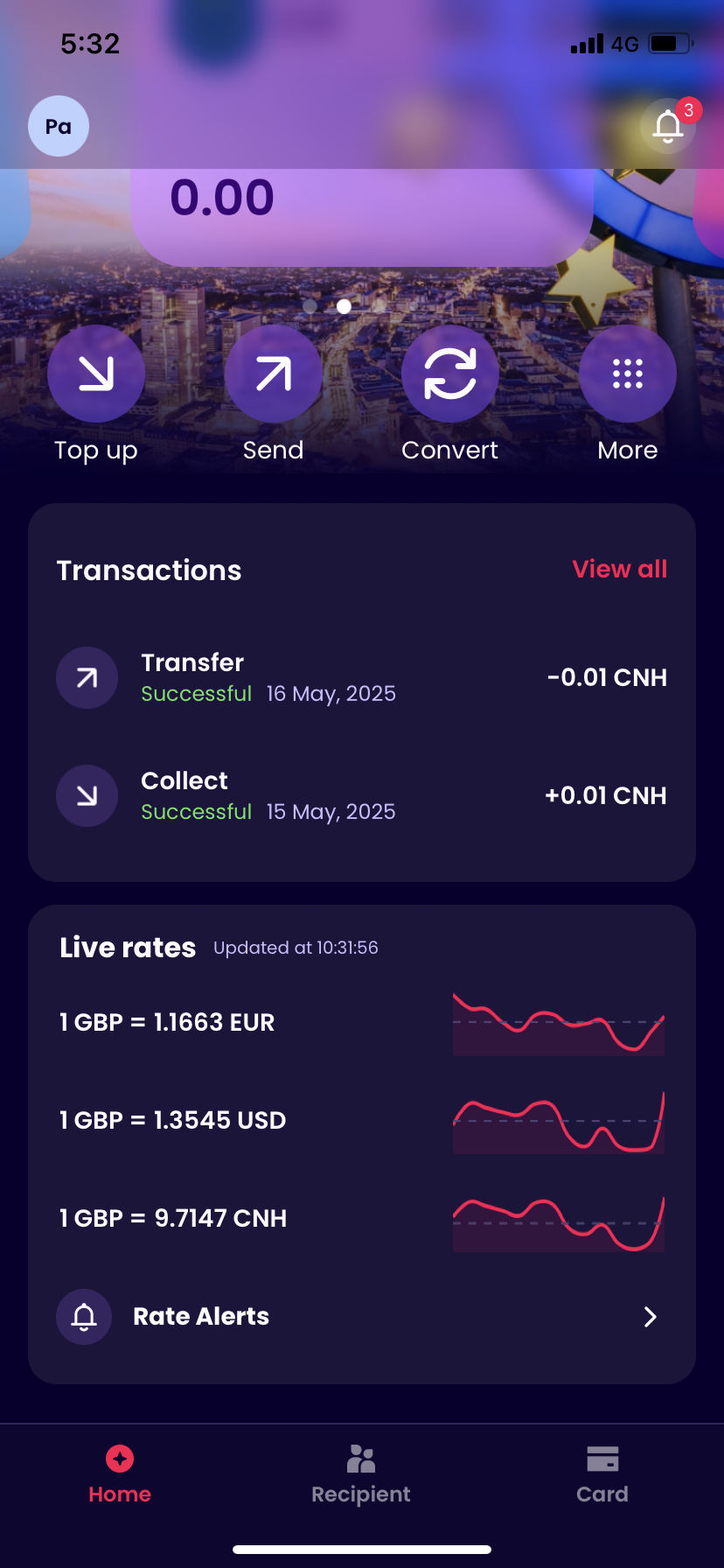
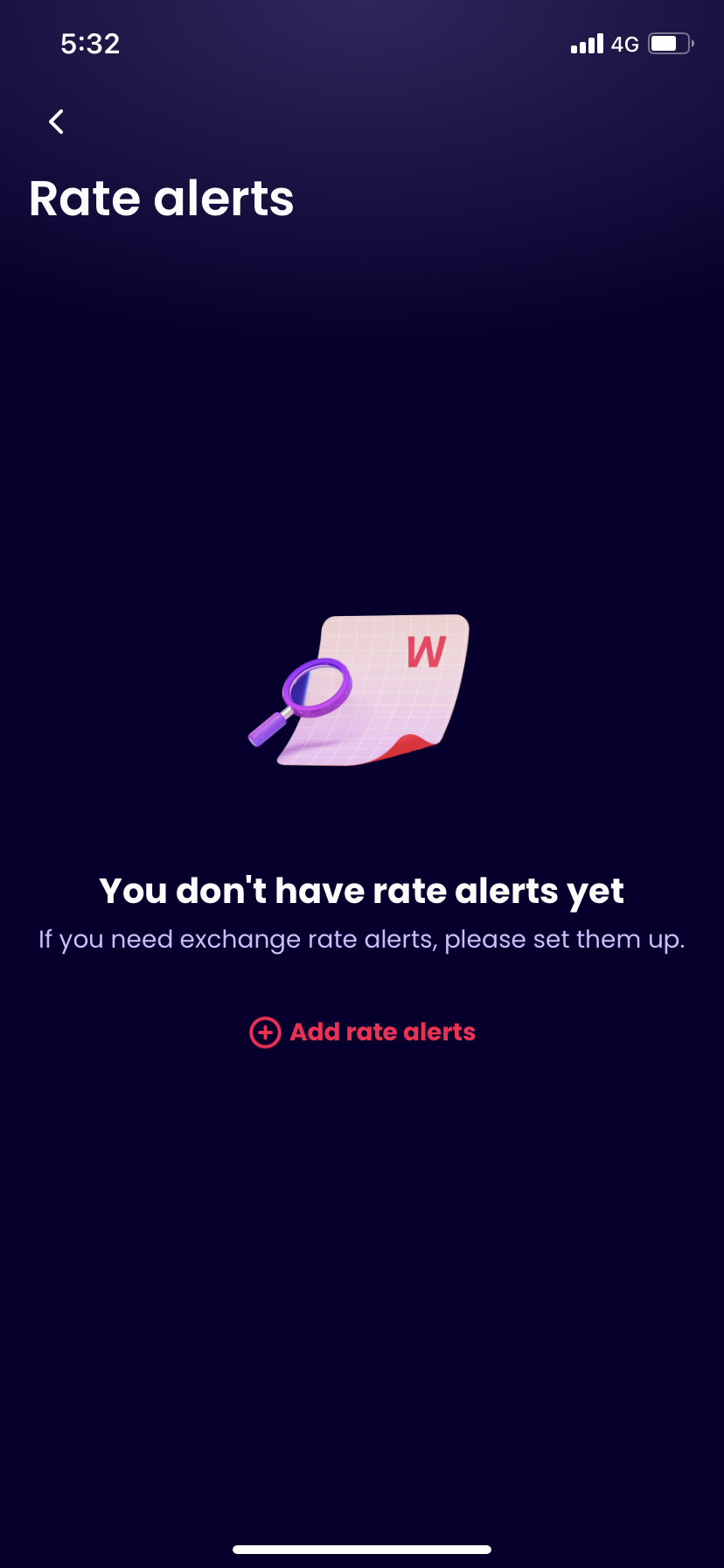
- On the homepage, navigate to Live Rates and tap “Rate Alerts” at the bottom.
- Select “Add Rate Alert”, then choose your desired currency pair, enter your target rate;
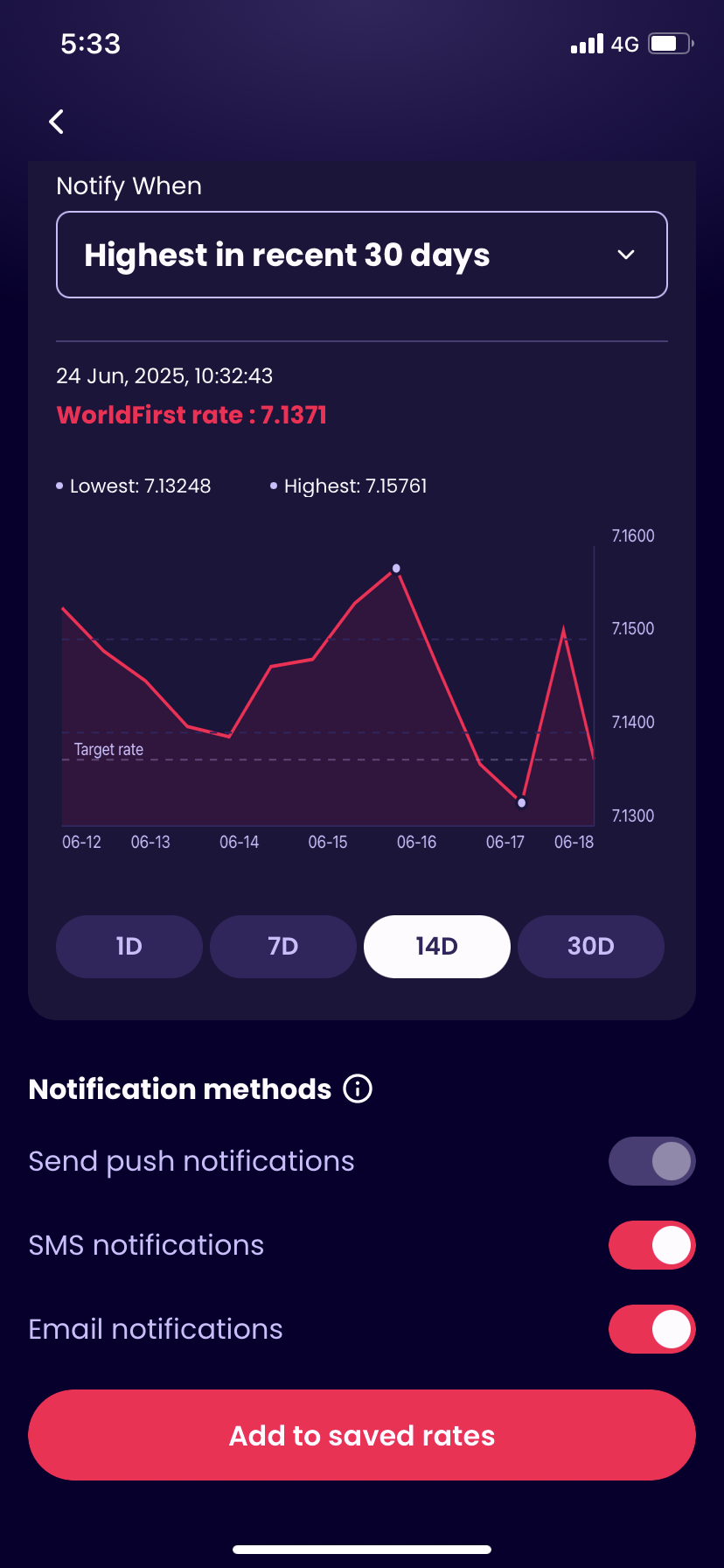
- Select Notification methods, then tap on ‘Add to saved rates’, once the market rates reaches this level, you’ll receive an instant notification.
When you enter your target rate, choose your desired currency pair, enter your target rate, or choose the highest rate in recent 7/14/30 days;
When you select notification methods, choose Notifications methods: Push notifications are enabled by default, and you can choose whether to enable SMS notifications and email notifications.
| Home Page-Live rates | Rate alerts | Enter Your Target Rate | Select Notification methods | Done |
|---|---|---|---|---|
 |
 |
 |
 |
 |
Can I book a forward contract?
You cannot currently book a forward contract on the app. To do this you will need to log into your account via the WorldFirst website.
Can I convert my balance into a different currency?
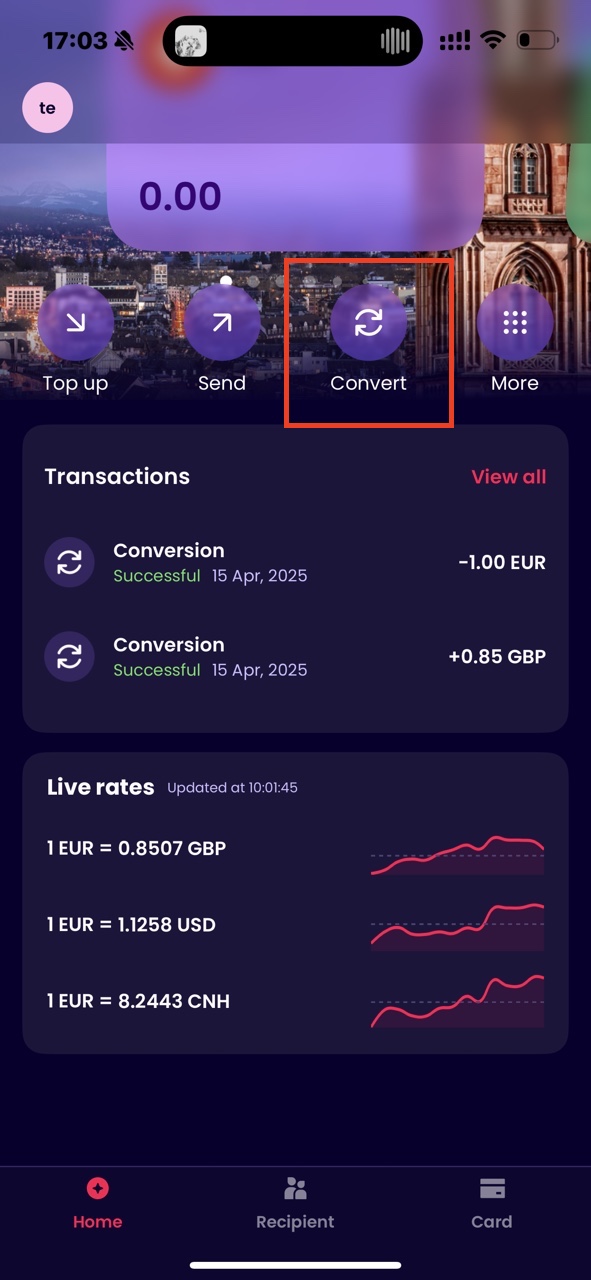
You can convert your balances on the app currently by following these steps:
- Go to homepage, and tap on ‘Convert’ botton;
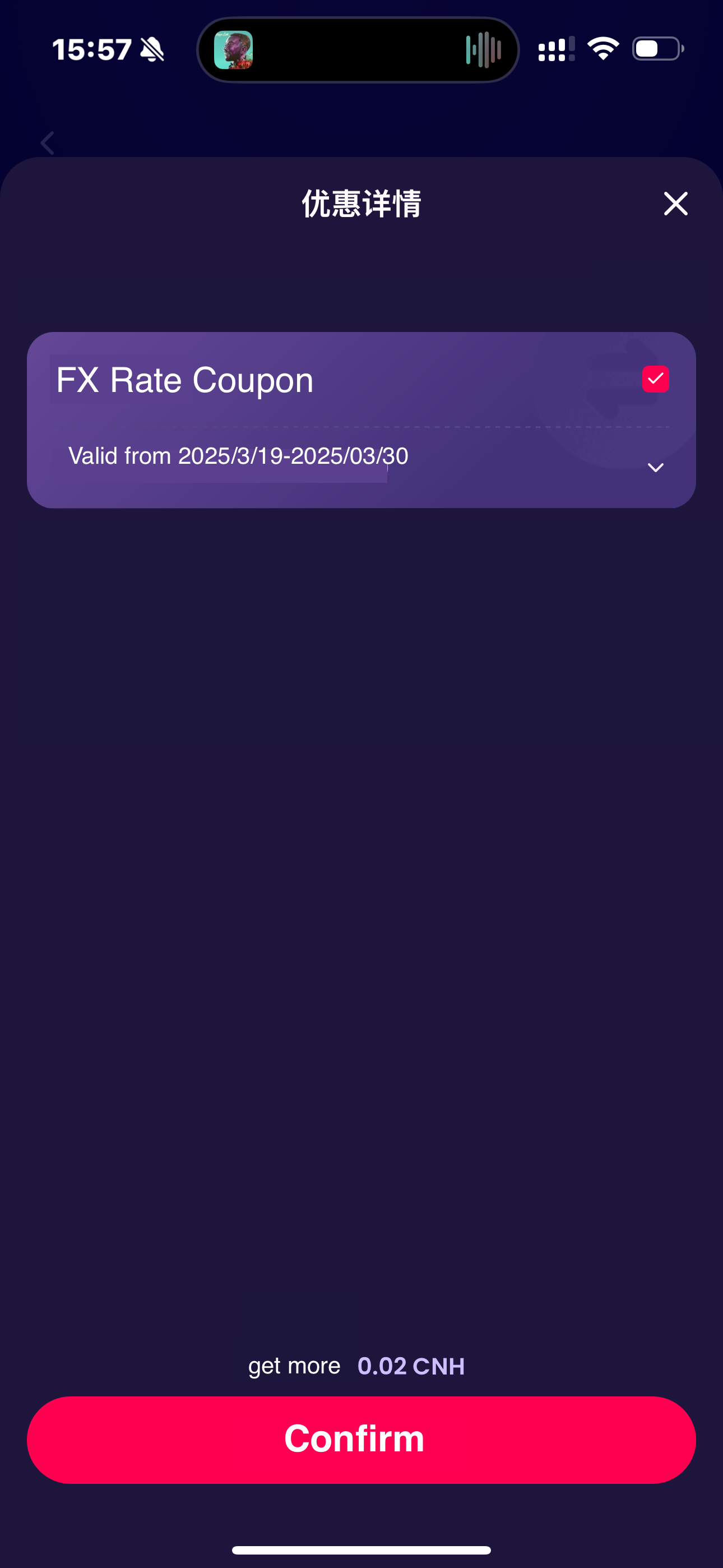
- Enter exchange amount, choose the buy and sell currencies, then you will see the current exchange rate and the exchanged amount; ( If you have FX coupons or exclusive rates, our system will automatically select the best coupons/rates, you can change or cancal the coupon; )
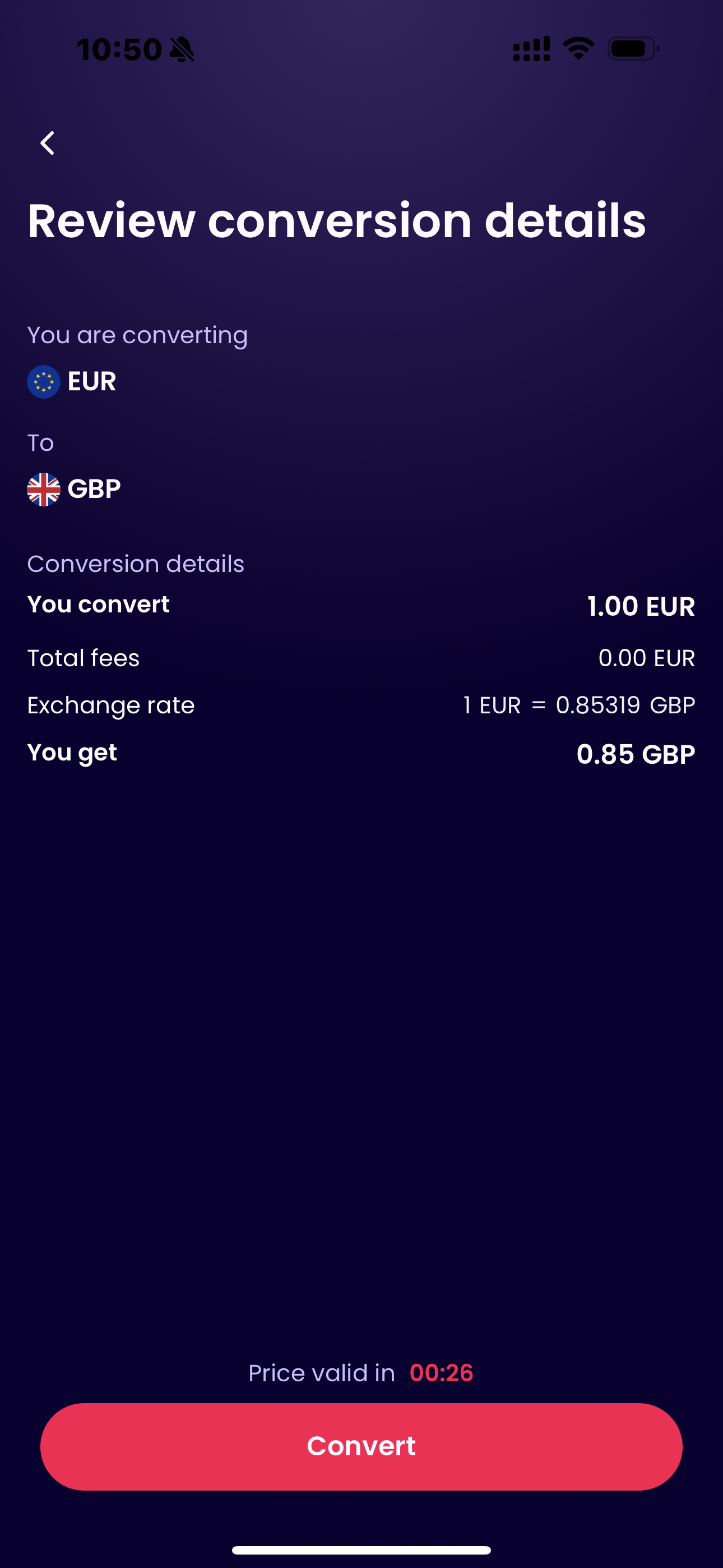
- Review conversion details: including transaction currency, amount, exchange rate and coupon; The exchange rate is refreshed every 30 seconds;
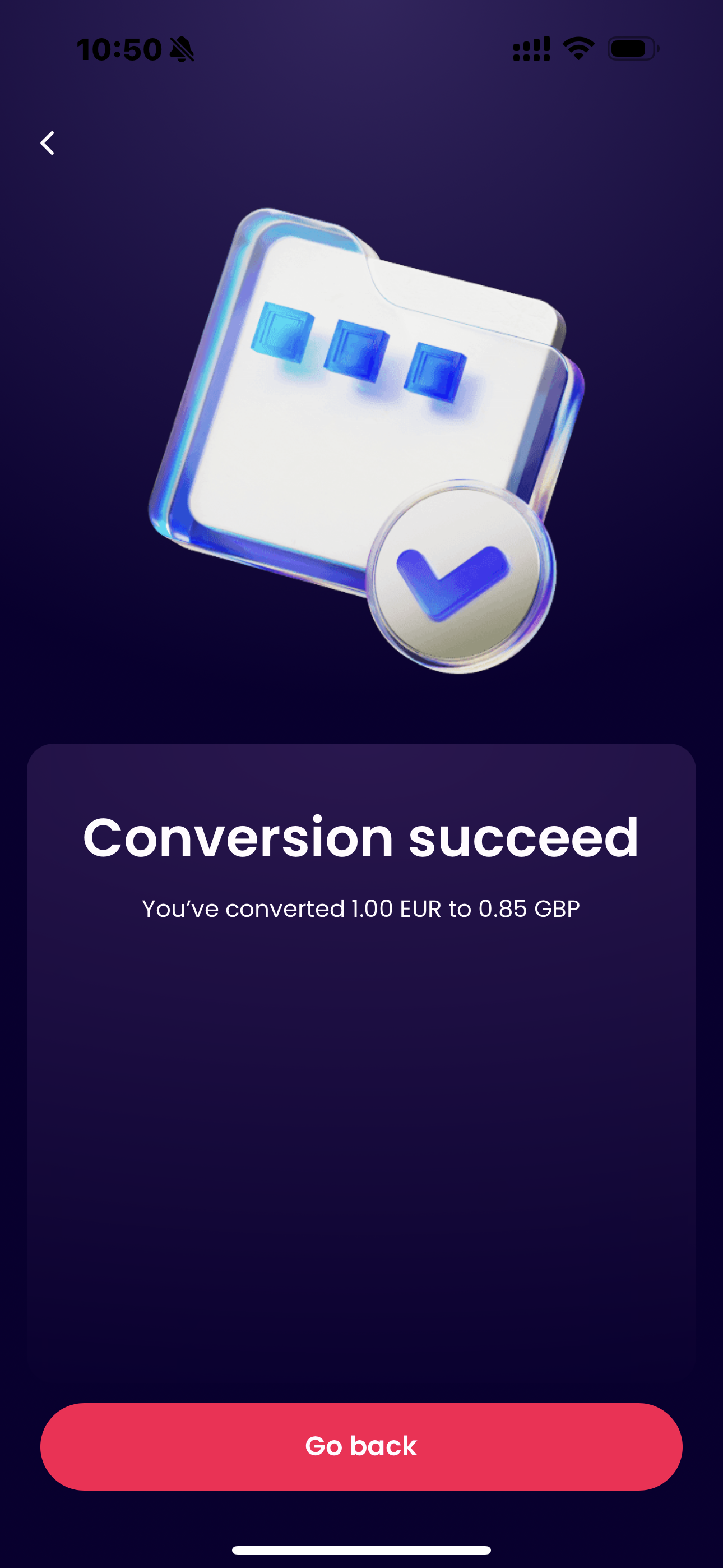
- Conversion succeed
| Homepage-Convert/Live rate | convert | coupon | review conversion details | conversion succeed |
|---|---|---|---|---|
 |
 |
 |
 |
 |
Why do i see two transaction records for my conversion?
Transactions: After the conversion is completed, the system will automatically creates two bill records for the sold currency and the bought currency.
Transaction details-sell: The bill details page displays information such as exchange currency, fee, FX rate,discount details, transaction time,, etc.
| homepage-balance account | transactions | transaction details-sell | transaction details-buy | |
|---|---|---|---|---|
|
|
|
|
|
How do I add rate alert?
When you enter your target rate, choose your desired currency pair, enter your target rate, or choose the highest rate in recent 7/14/30 days;
When you select notification methods, choose Notifications methods: Push notifications are enabled by default, and you can choose whether to enable SMS notifications and email notifications.
| Home Page-Live rates | Rate alerts | Enter Your Target Rate | Select Notification methods | Done |
|---|---|---|---|---|
|
|
|
|
|
Multi User
Can all the users on my account use the app?
No, currently only the primary user on the account is able to log into the account on the app. Sub-user access is currently unavailable on the app.
Can I approve payments set up by my team on the app?
No, you cannot currently approve payments set up by your team on the app. You will need to log into your account on the WorldFirst website to do this.
Can I view and manage the users on my account?
No, you cannot view or manage the users on your account on the app. You will need to log into your account on the WorldFirst website to do this.
Can I add a user to my account on the app?
You cannot currently add a user to your account via the app, you will need to do this via the WorldFirst website.
This New user will not be able to login to the app for the time being.
Statements
Can I view my account statement on the app?
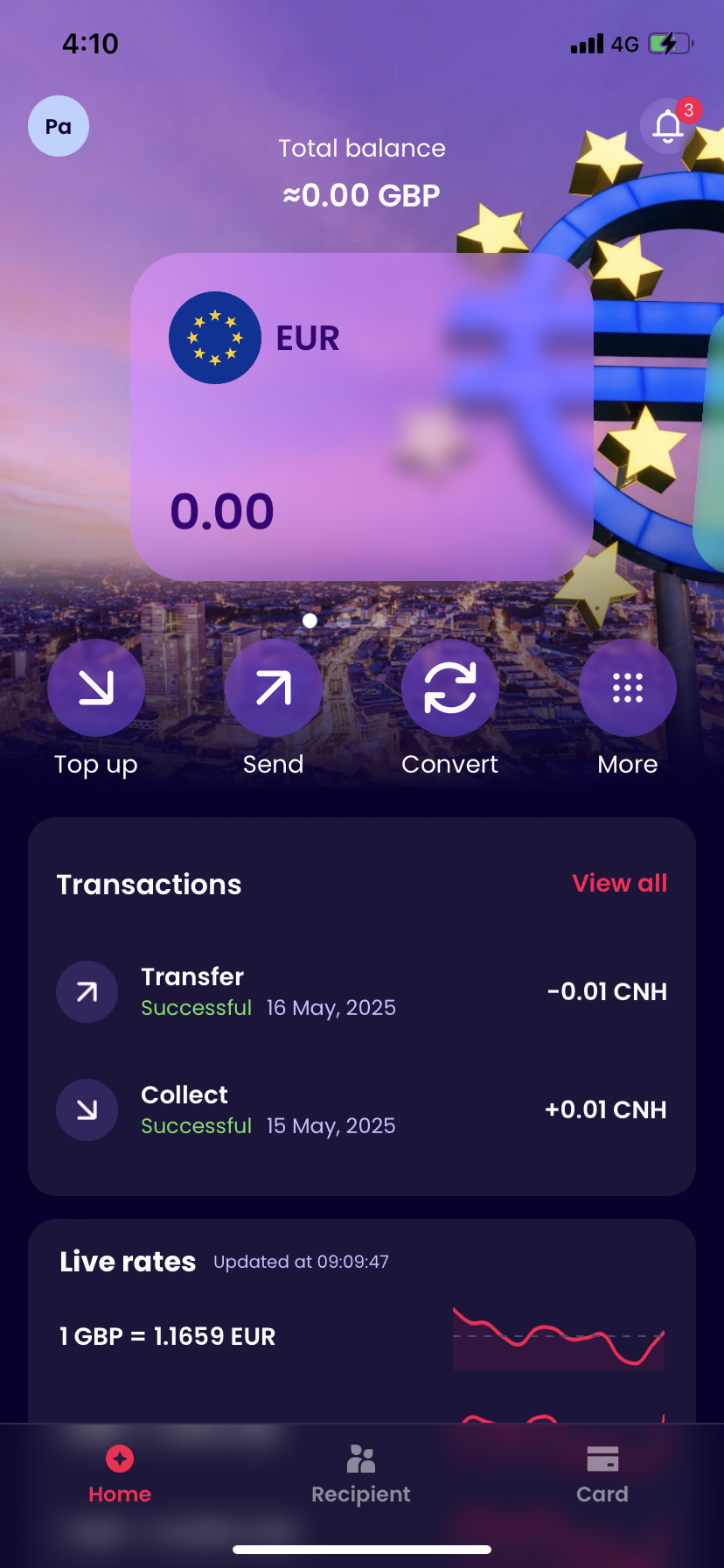
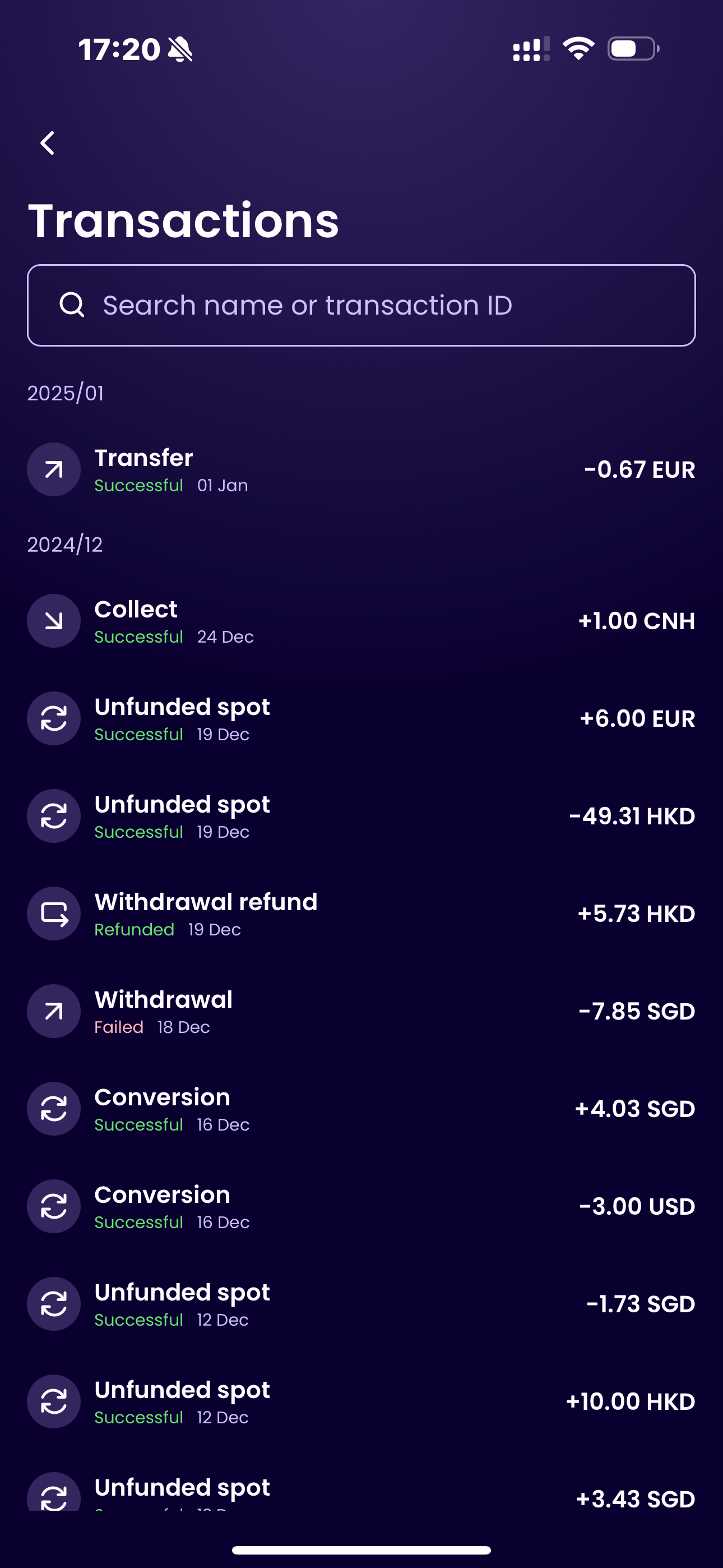
- View Transaction History
- Go to the “Transactions” section on the app homepage.
- Tap to view all your transactions, which can be searched by payee name or transaction ID;
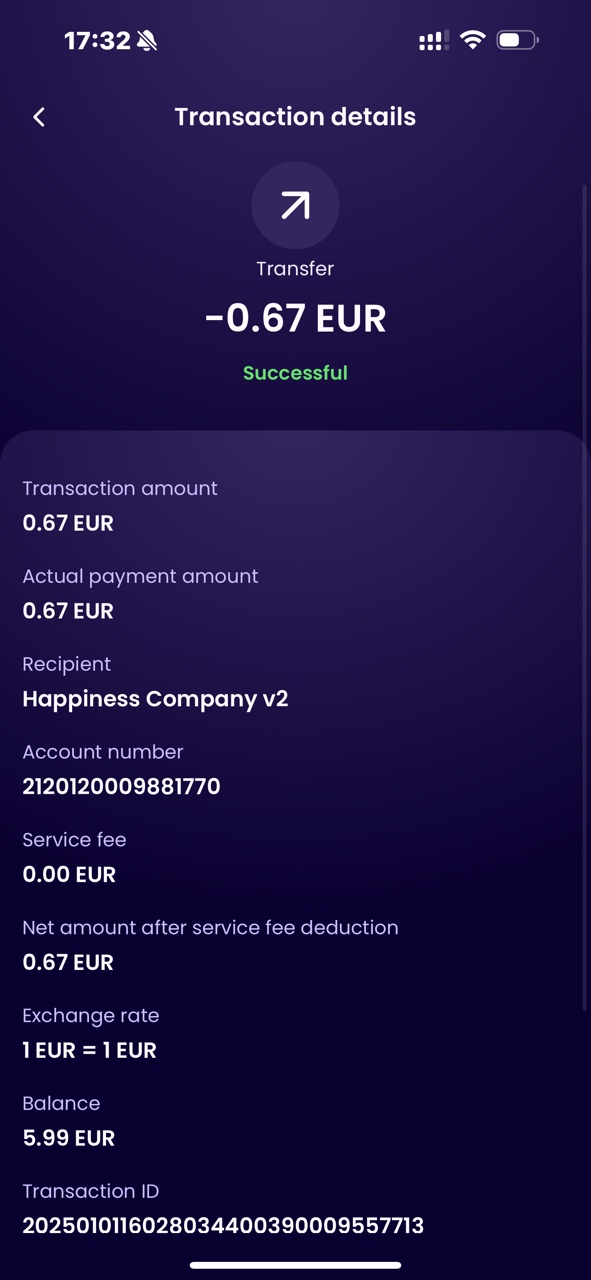
- Check Transaction Details
- Tap a transaction to see its full details, including service fee, exchange rate and recipents;
- Access Full Account Statements
- To download or view complete monthly/quarterly statements (e.g., with account summaries and tax records), log in to your account on the WorldFirst website;
| View Transactions | View All | Transactions Details |
|---|---|---|
 |
 |
 |
Can I download my account statement on the app?
You cannot download your account statements from the WorldFirst app. You will need to login to your account on the WorldFirst website to do this.
Settings
Can I edit my personal or company information on the app?
You cannot edit any personal information or company information on the app, you can only view this information by going to the homepage, and tap on the profile icon in the top-left corner. To edit your information will need to contact our customer support team.
Can I change my password on the app?
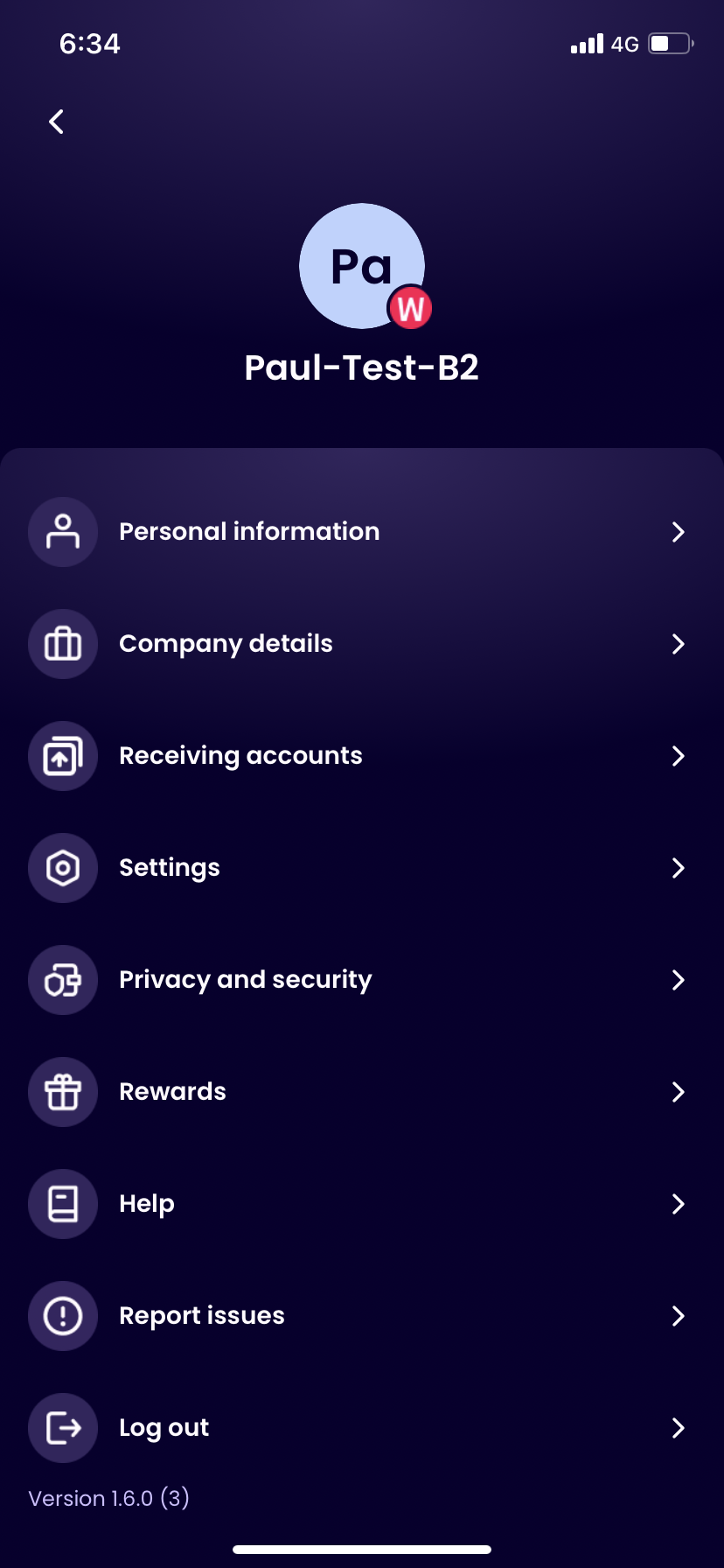
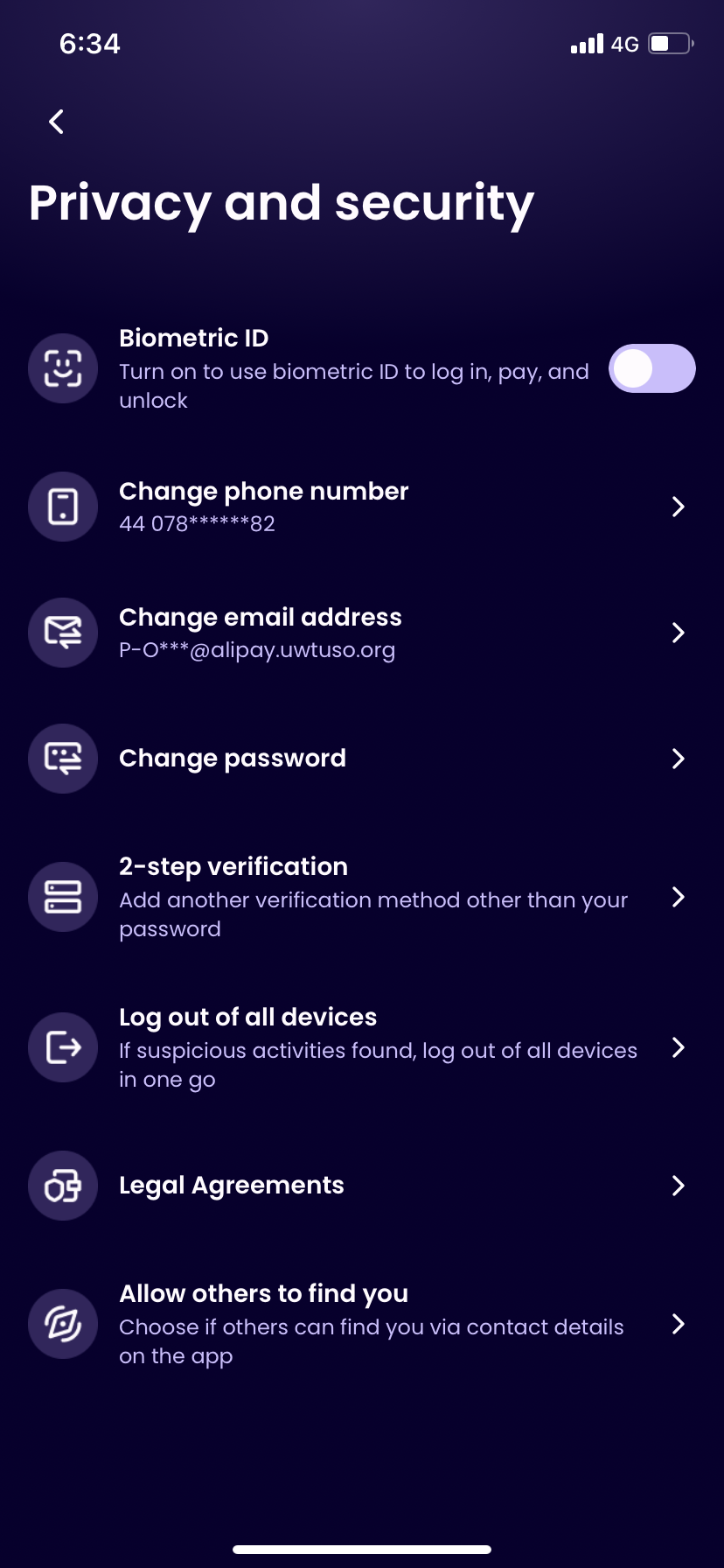
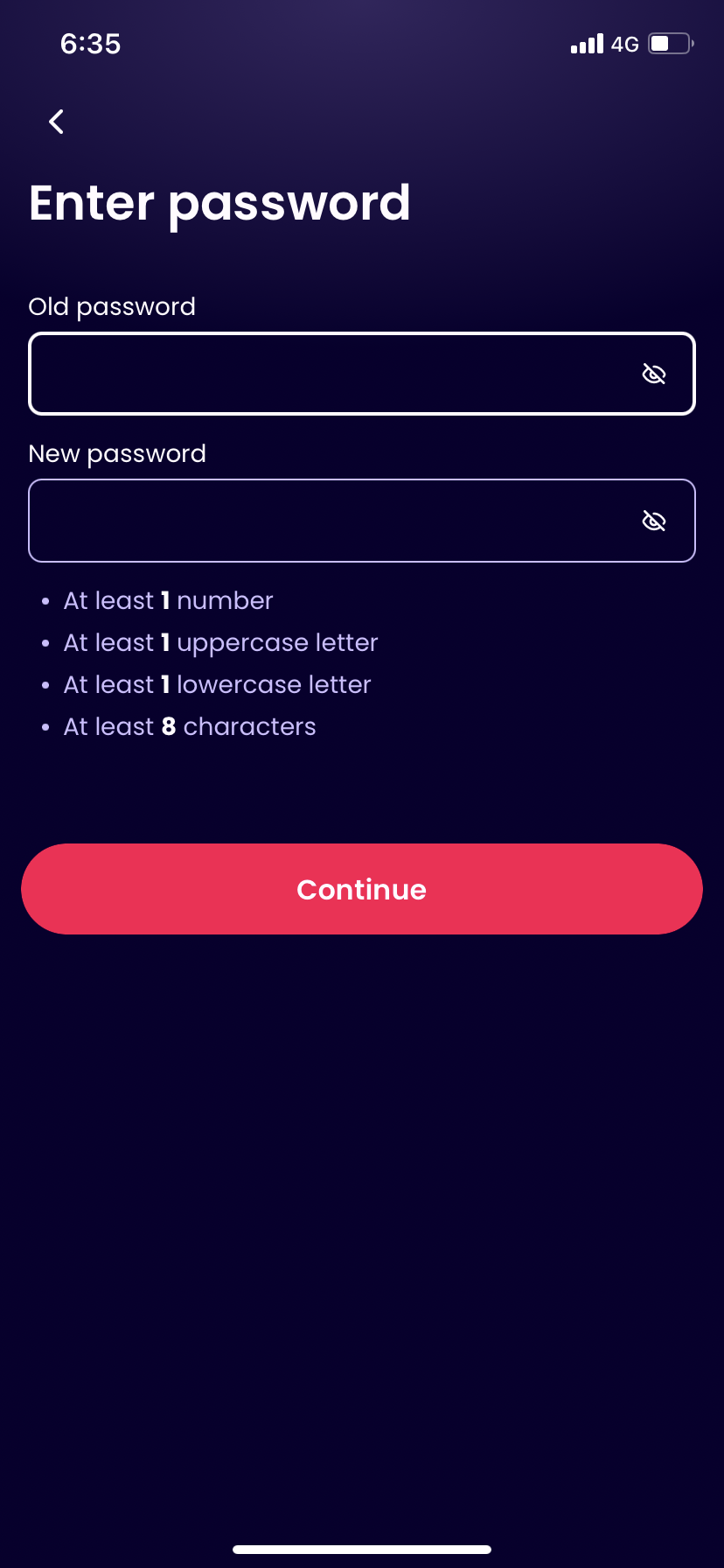
Yes, you can go to the homepage, tap on the profile icon in the top-left corner, choose ‘Privacy and Security’ section, then choose change password, enter old password and new password.
| Home Page (Profile icon is in the top-left corner.) |
Profile Page | Privacy and security | Change Password |
|---|---|---|---|
|
 |
 |
 |
How do I get in touch with a WorldFirst agent?
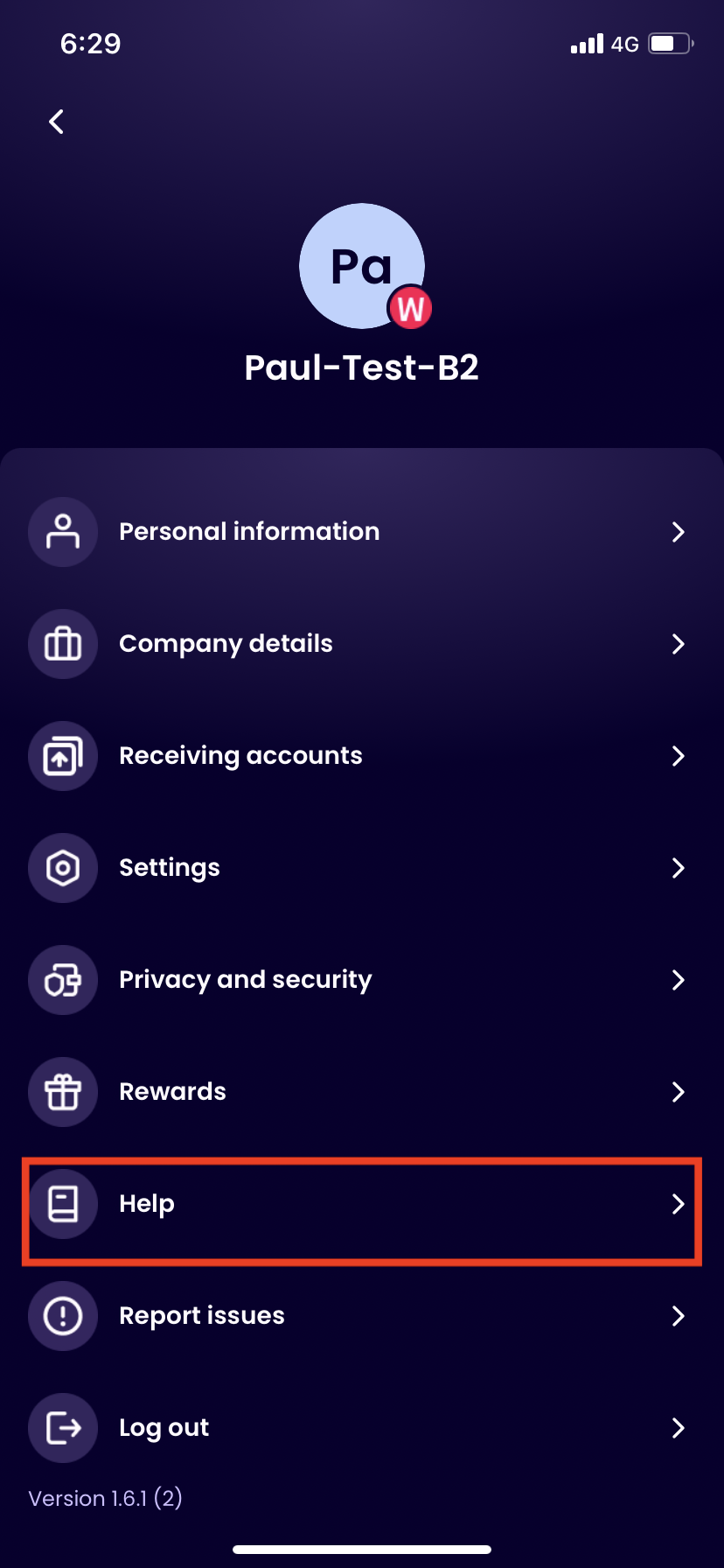
If you require any help, tap on the account icon in the top left of your screen, and click on ‘help’ to start a chat
| Homepage-Profile icon | Profile Page | Get help |
|---|---|---|
 |
 |
 |
How do I set up push notifications in the WorldFirst app?
To receive push notifications, ensure both your mobile device’s notification settings and the app’s notification permissions are enabled.
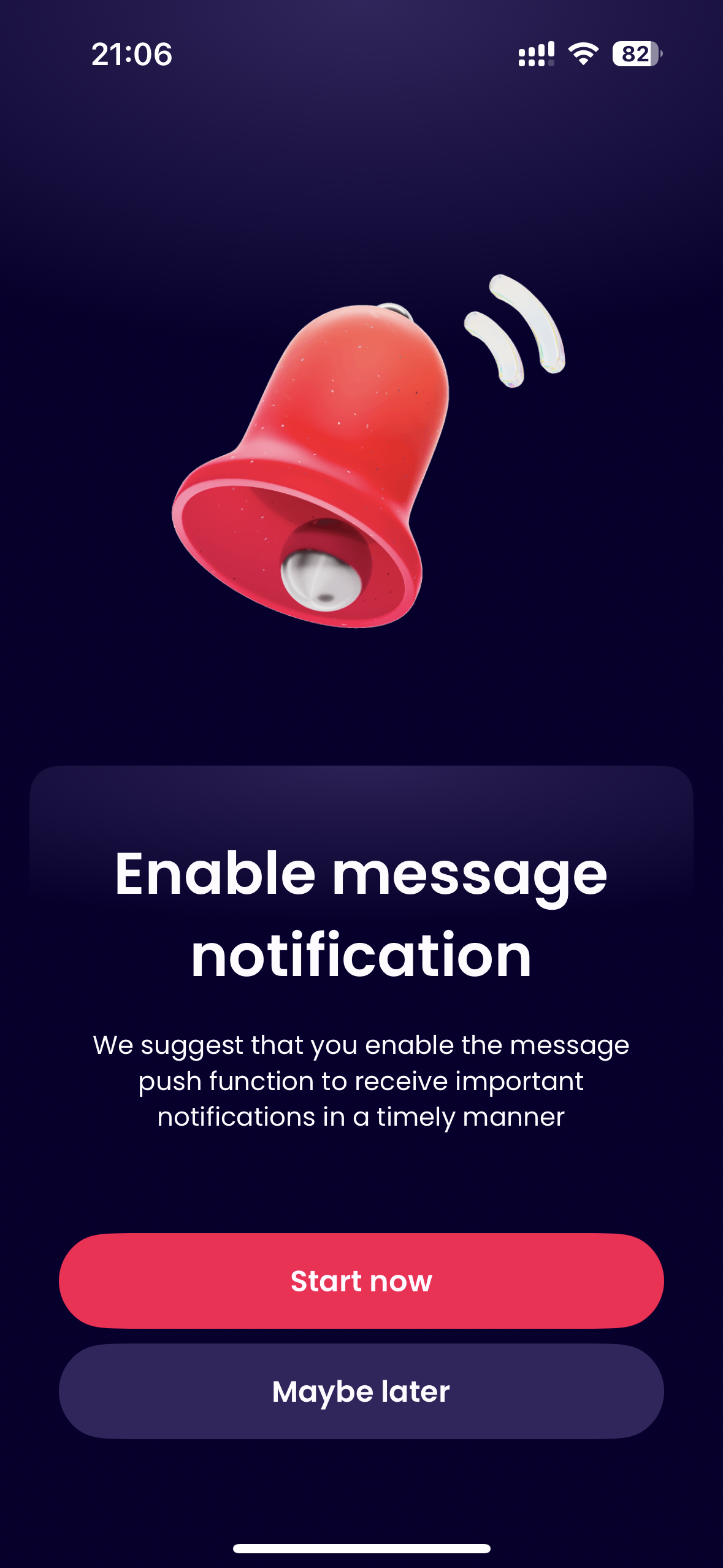
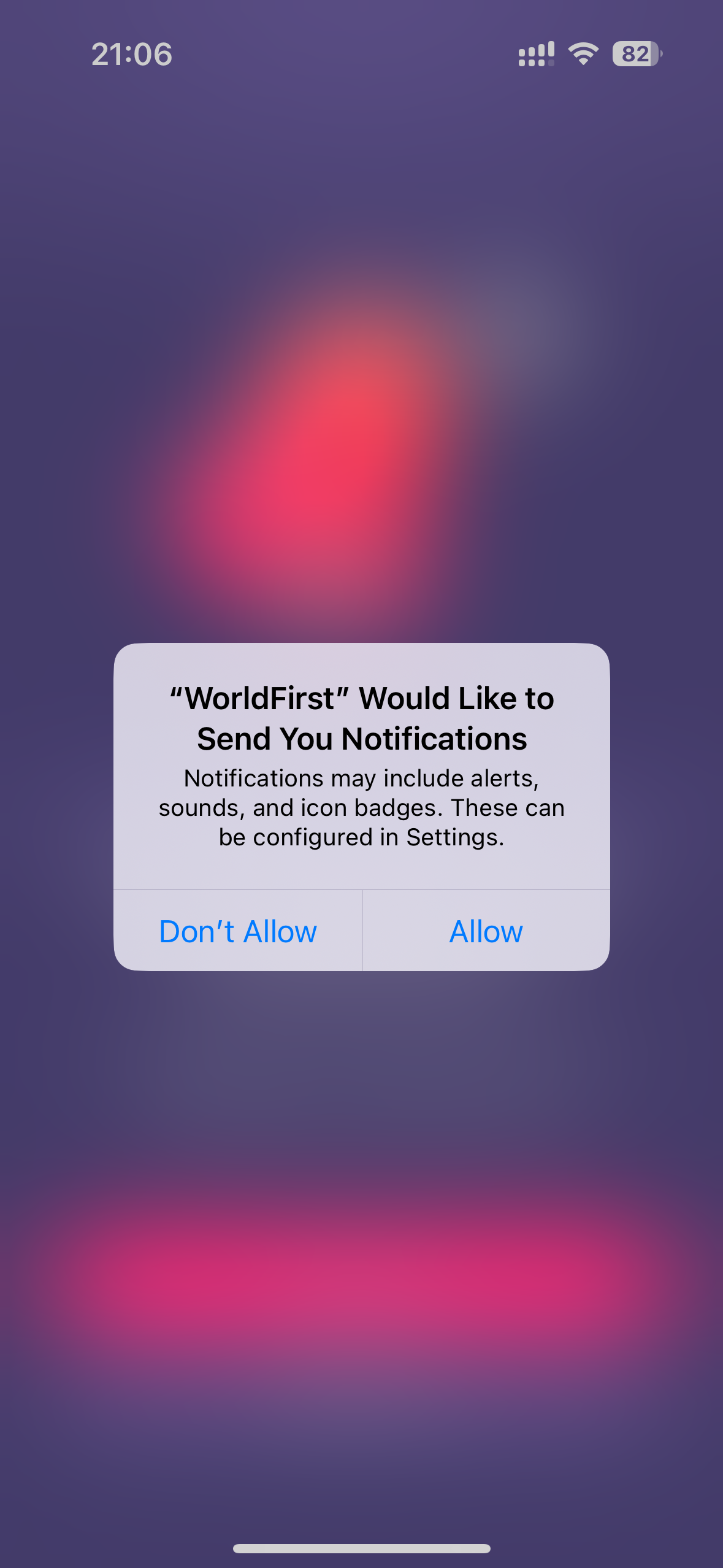
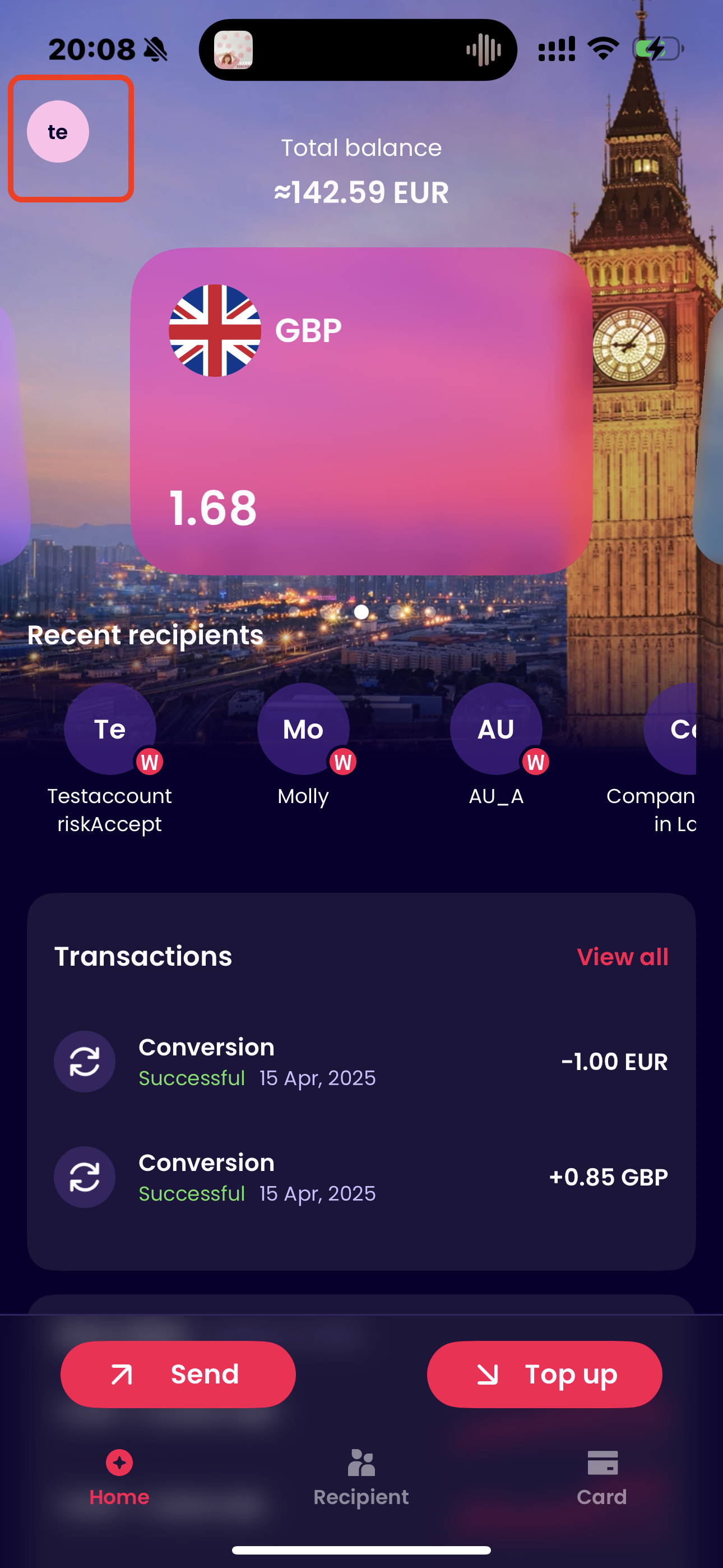
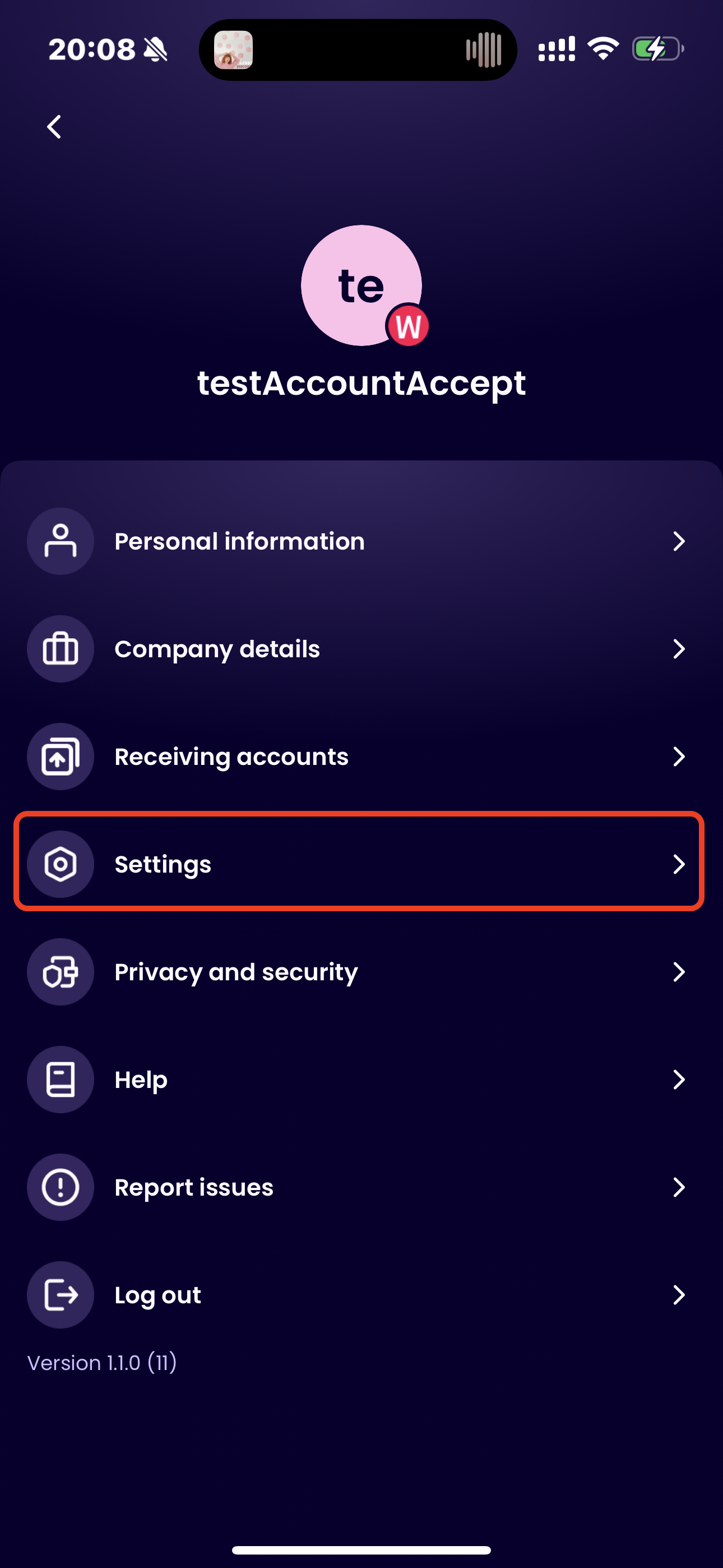
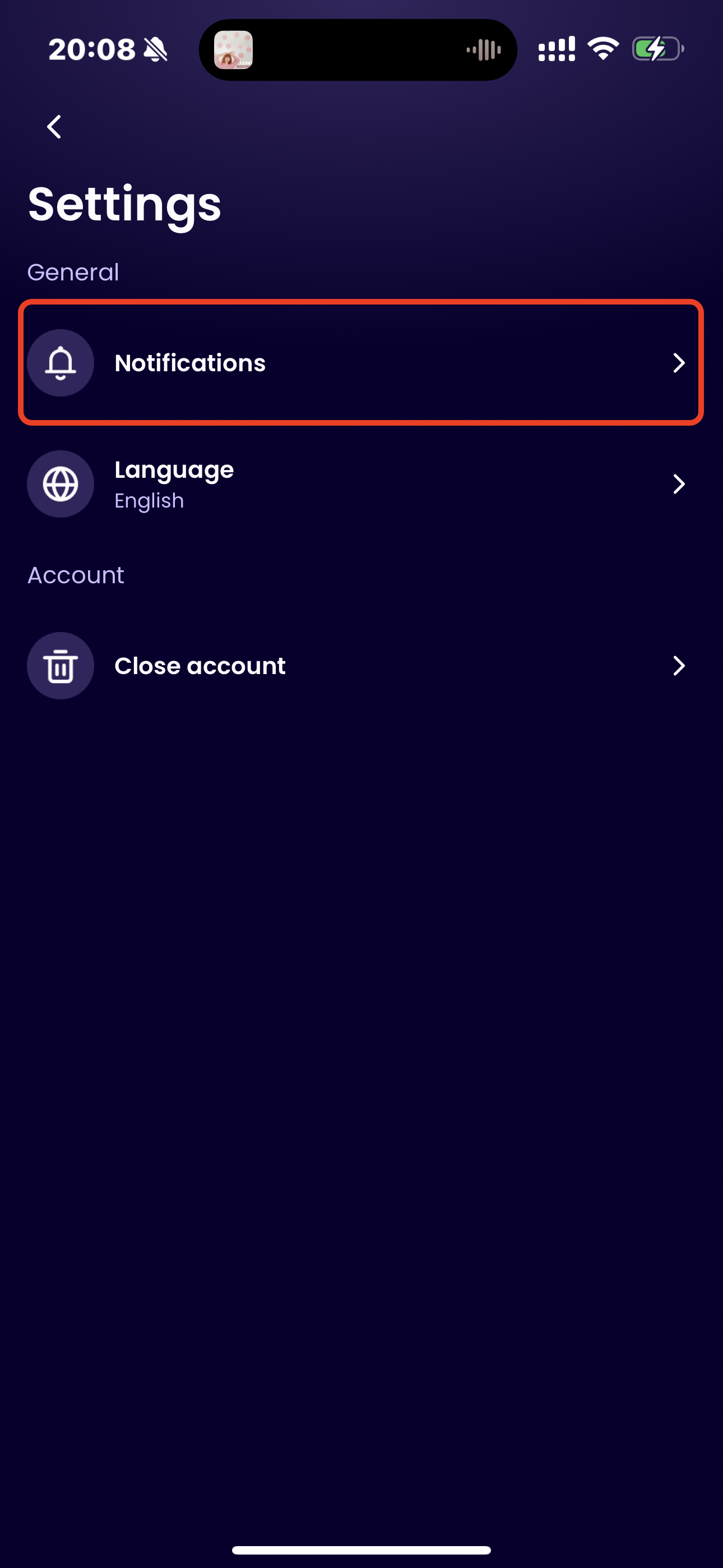
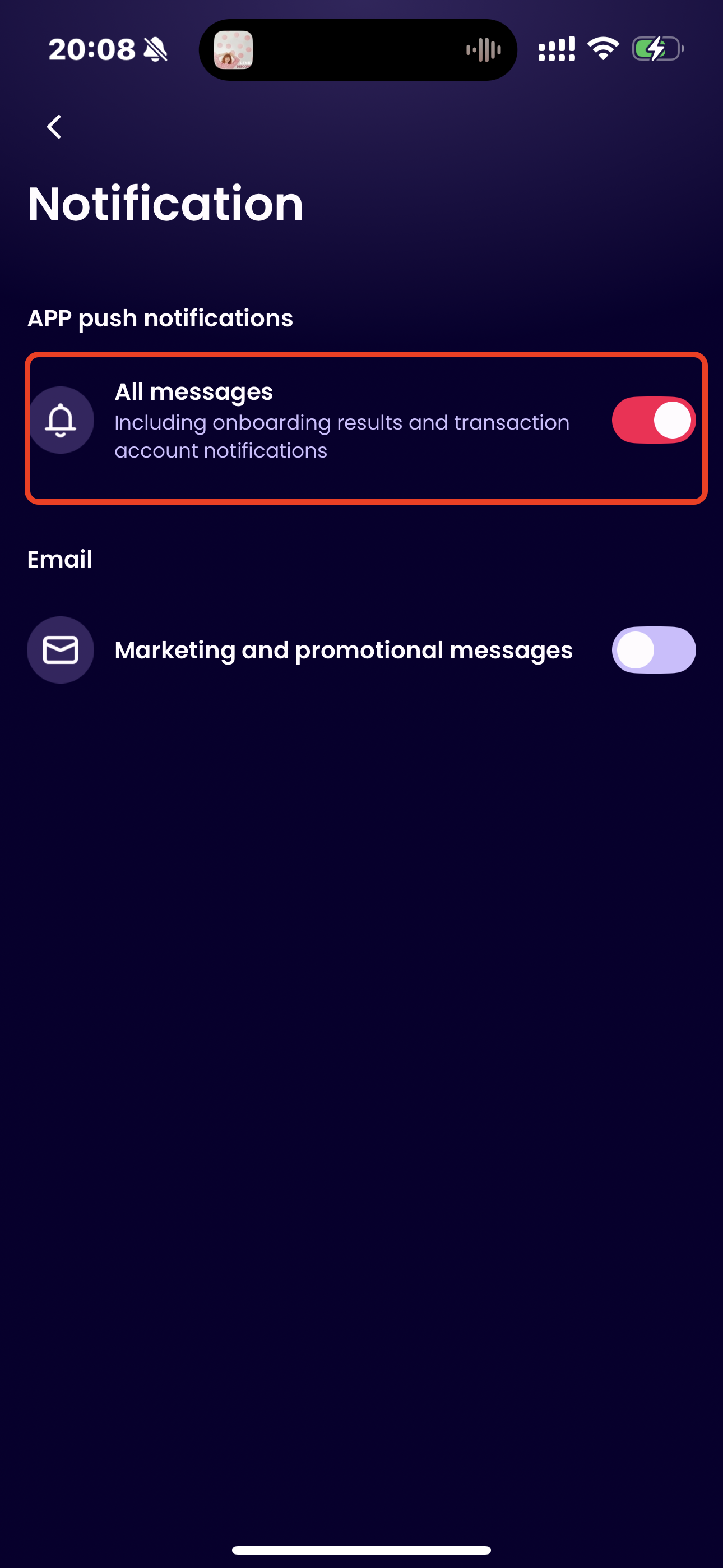
- App’s notification permissions: Upon logging in to the app, a pop-up reminder will appear on the homepage. Click “Start Now” and allow WorldFirst to send you notifications. If the pop-up does not appear, go to the homepage, tap the profile icon in the top-left corner, then select Settings > Notifications > Enable App Push Notifications.
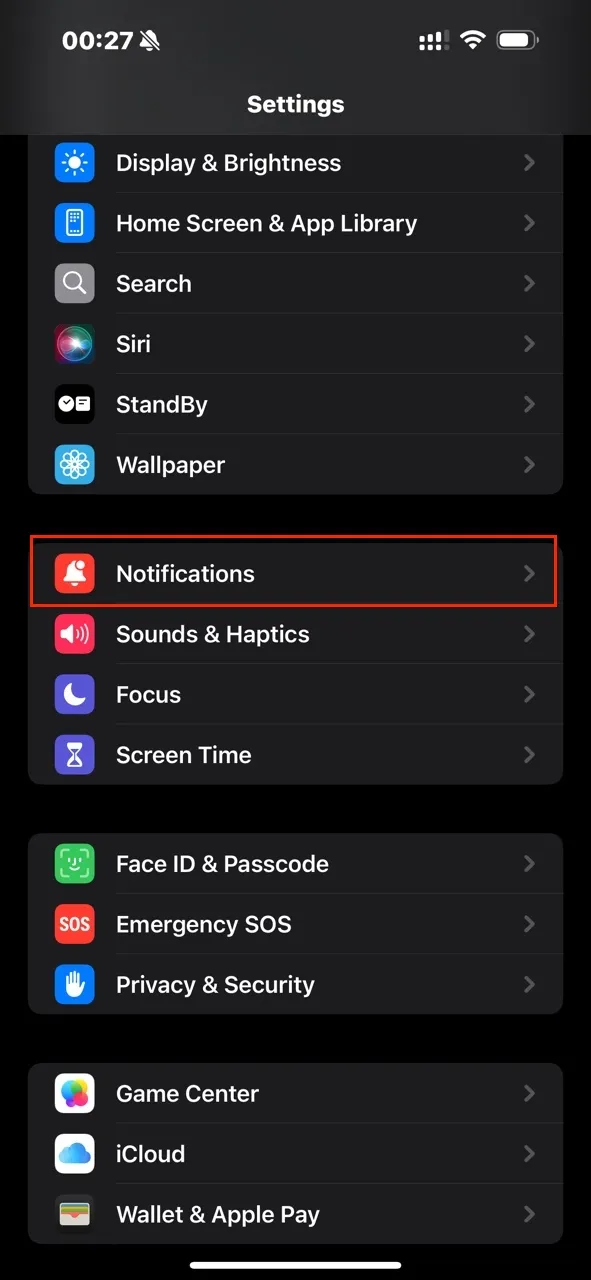
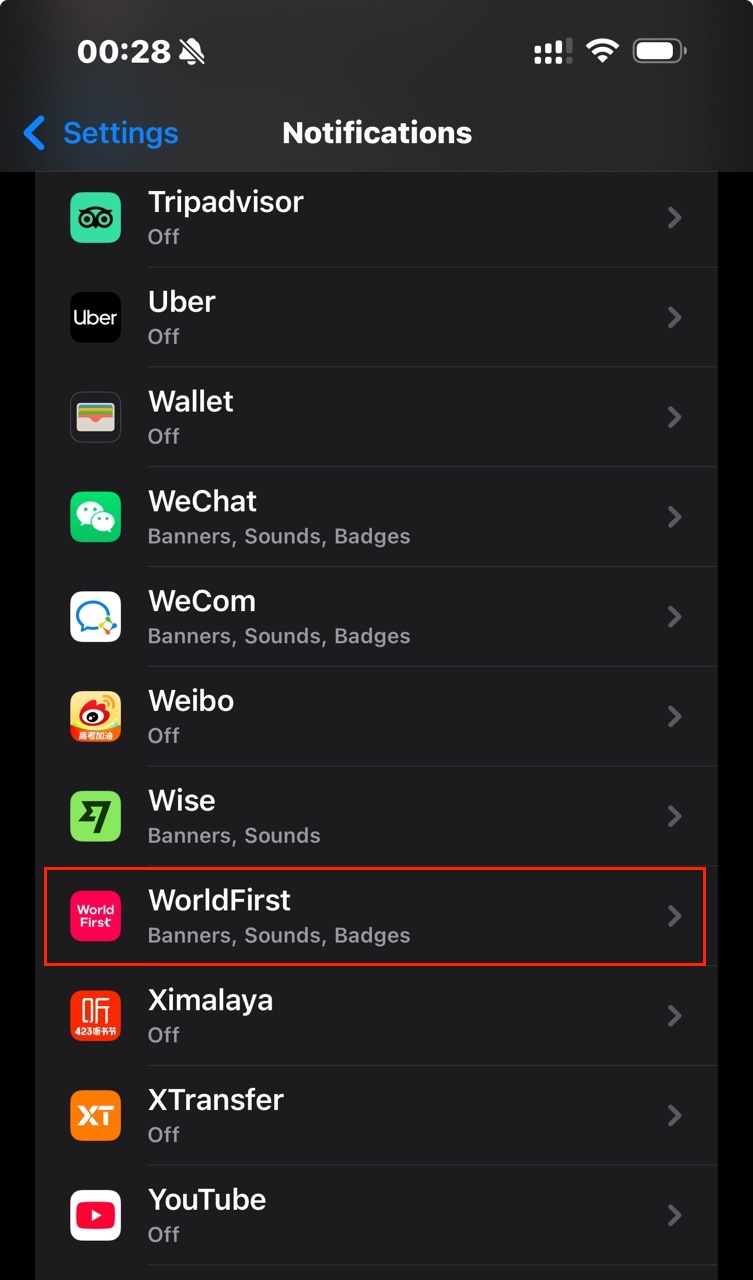
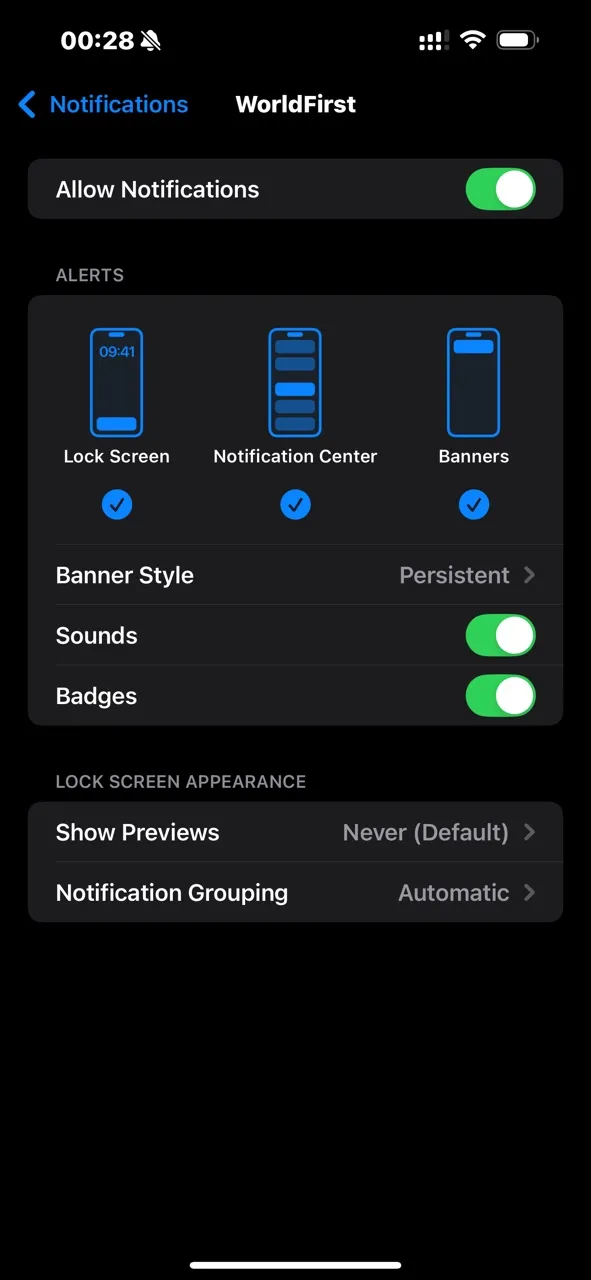
- Mobile device’s notification permissions: Open the Settings app → Tap Notifications → Select WorldFirst → Turn on the Allow Notifications toggle.
App’s notification permissions:
- When login the app,a pop-up reminder will shown on homepage,click “Start Now” and allow WF to send you notifications.
- the pop-up does not appear, go to the homepage, tap the profile icon in the top-left corner, then select Settings > Notifications > Enable App Push Notifications.
| Login-turn on push | Homepage | Settings | Notifications | All messages-open | |
|---|---|---|---|---|---|
 |
 |
 |
 |
 |
 |
- Mobile device’s notification permissions:
| Phone-settings-notifications | WorldFirst app | Turn on |
|---|---|---|
 |
 |
 |
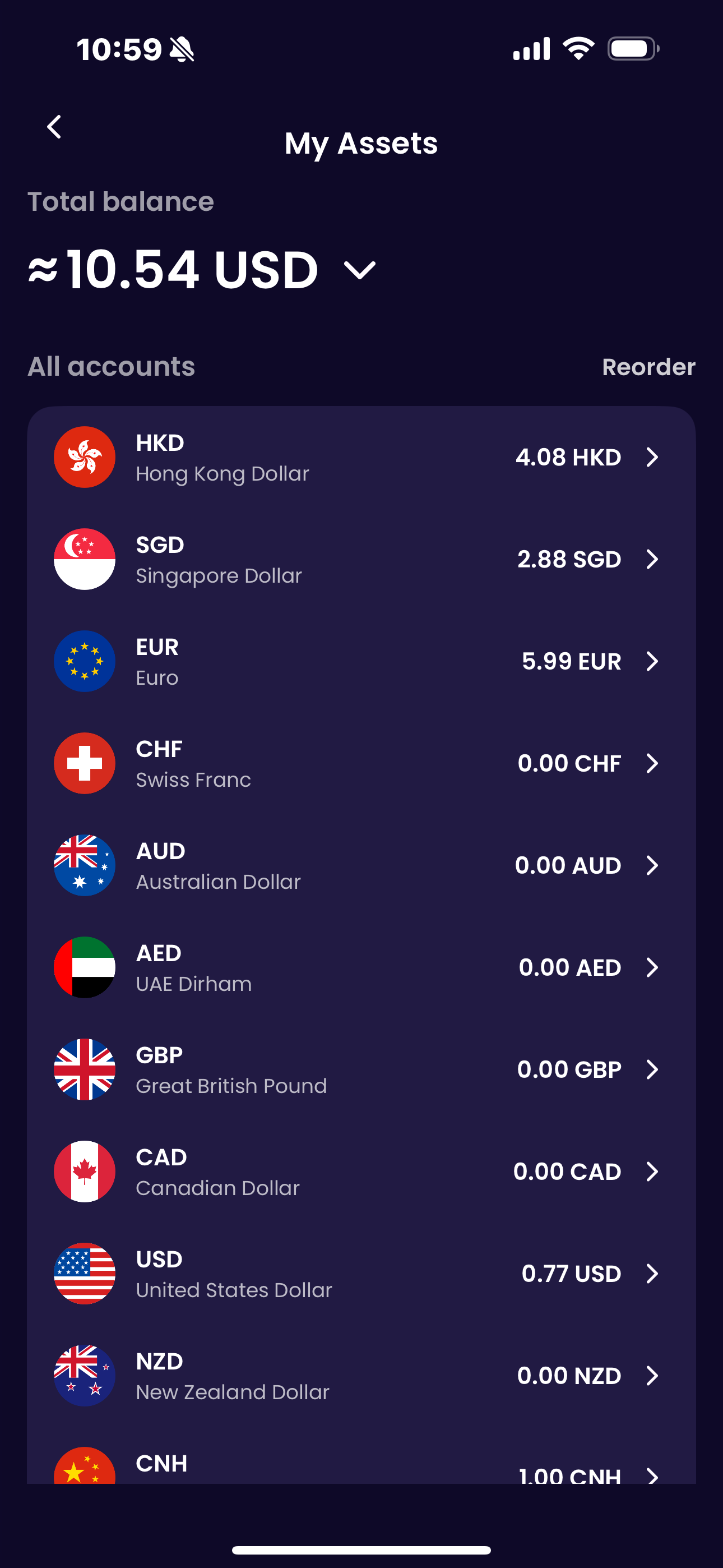
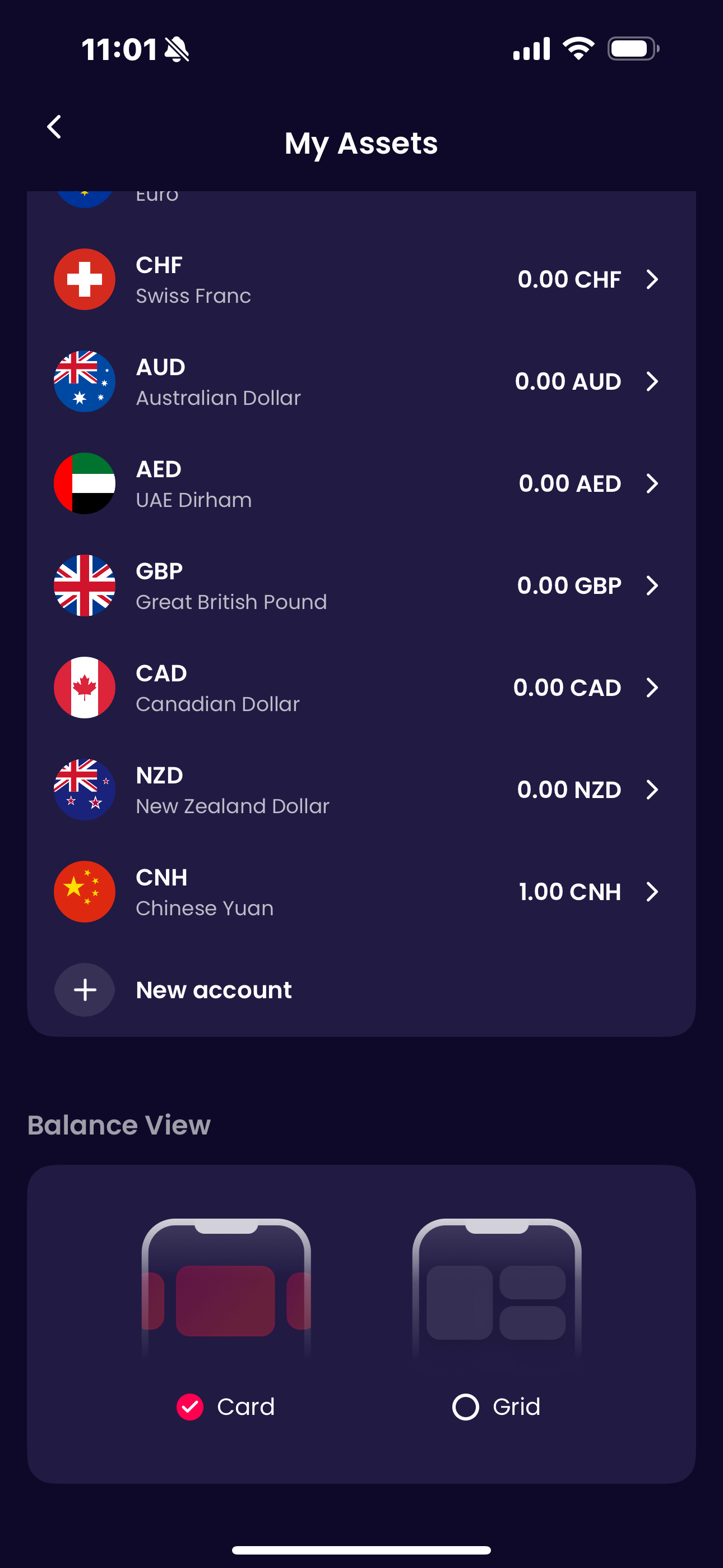
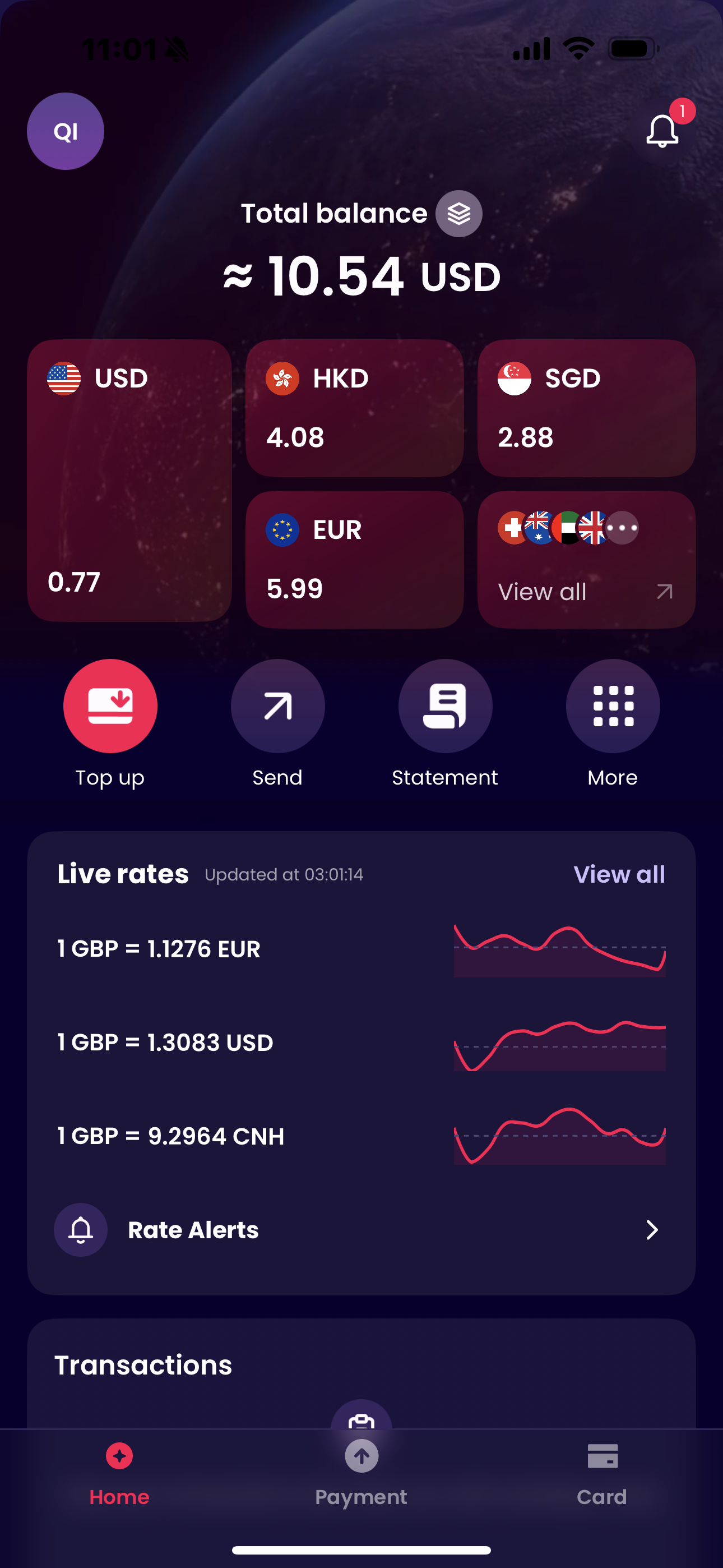
How to change balance display?
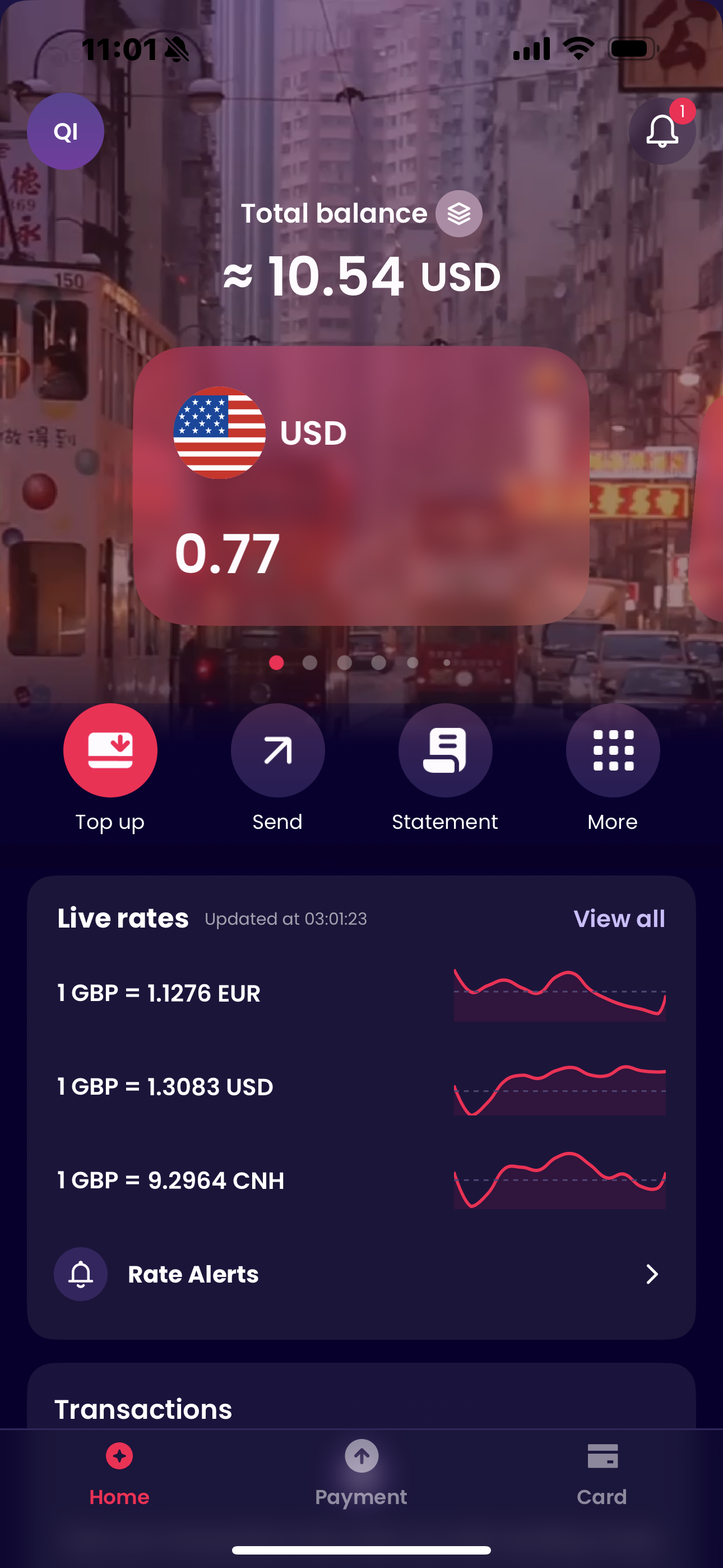
Tap the icon on the homepage, users can customize the order of their balance accounts, scroll down, and select preferred balance style.
| Homepage | Customizable Order | Setting Balance View | Customizable Total Balance Display |
|---|---|---|---|
 |
 |
 |
 |
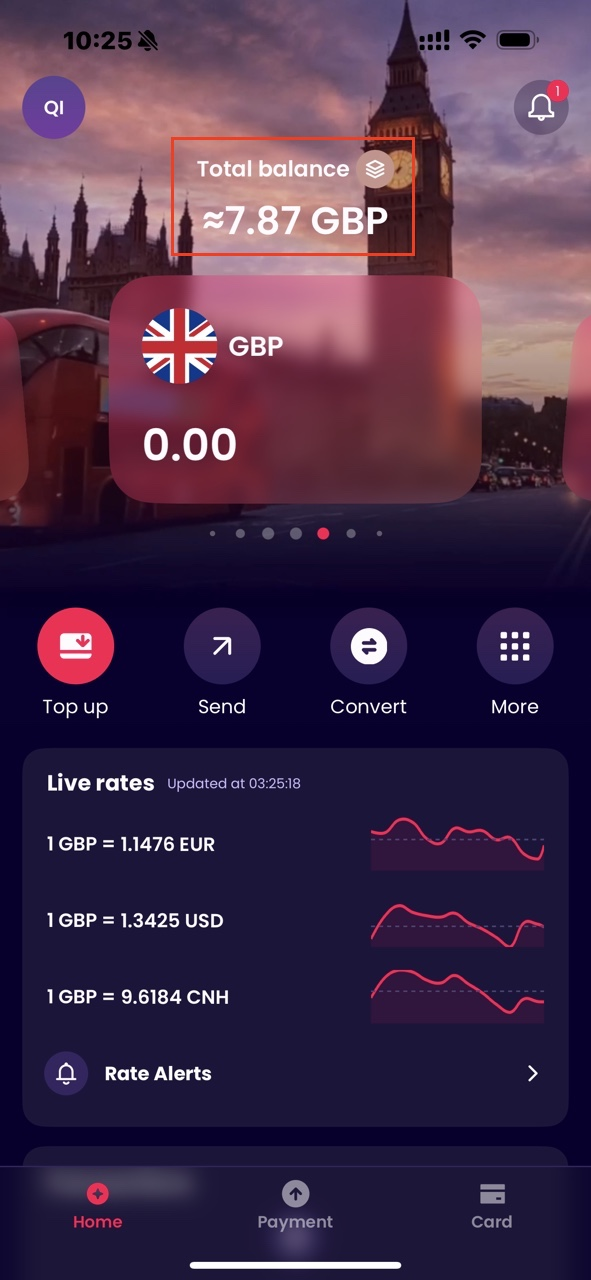
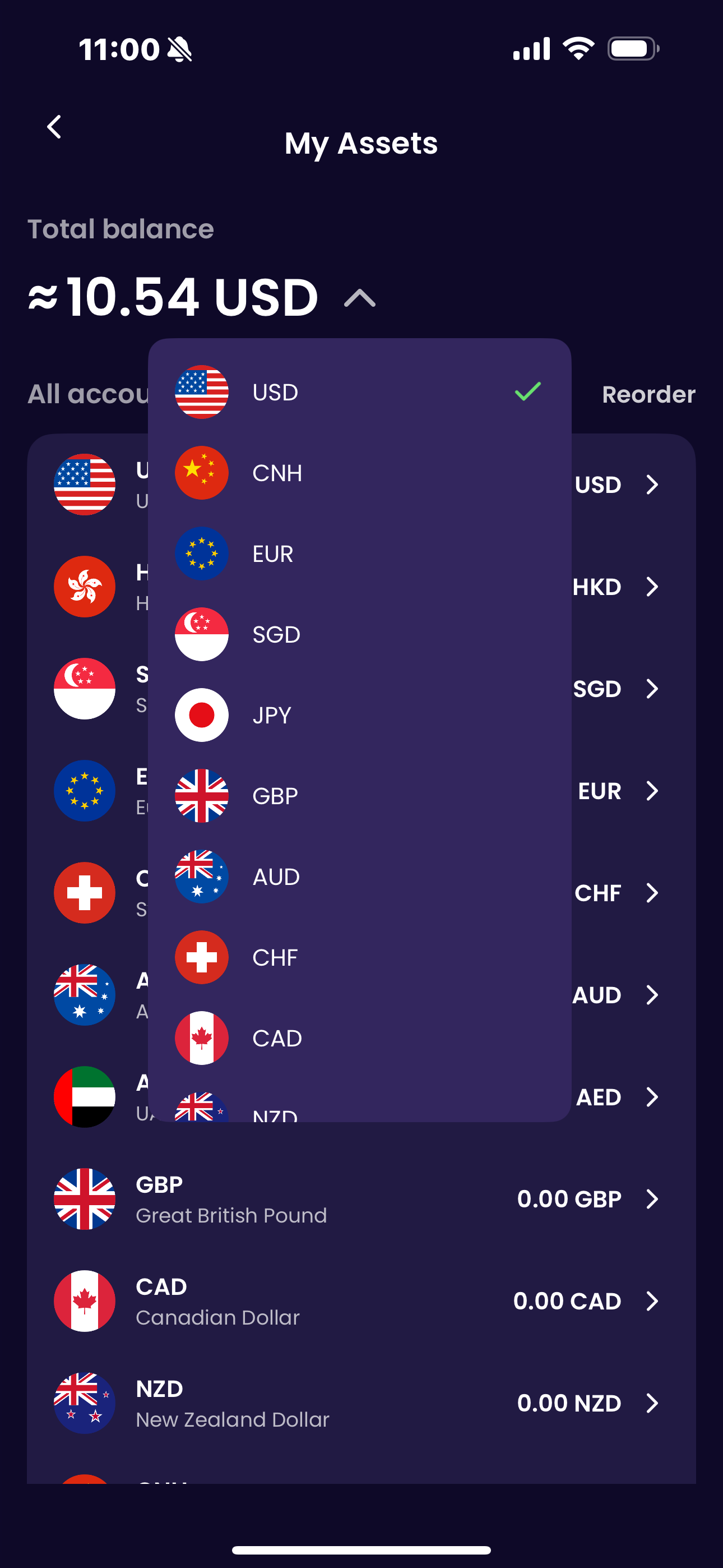
Can I switch the base currency for their total balance?
Yes, click to view the balance account list,users can switch the base currency for their total balance.
| Check total balance | Currency Switching |
|---|---|
 |
 |
World Card
How to activate a World Card?
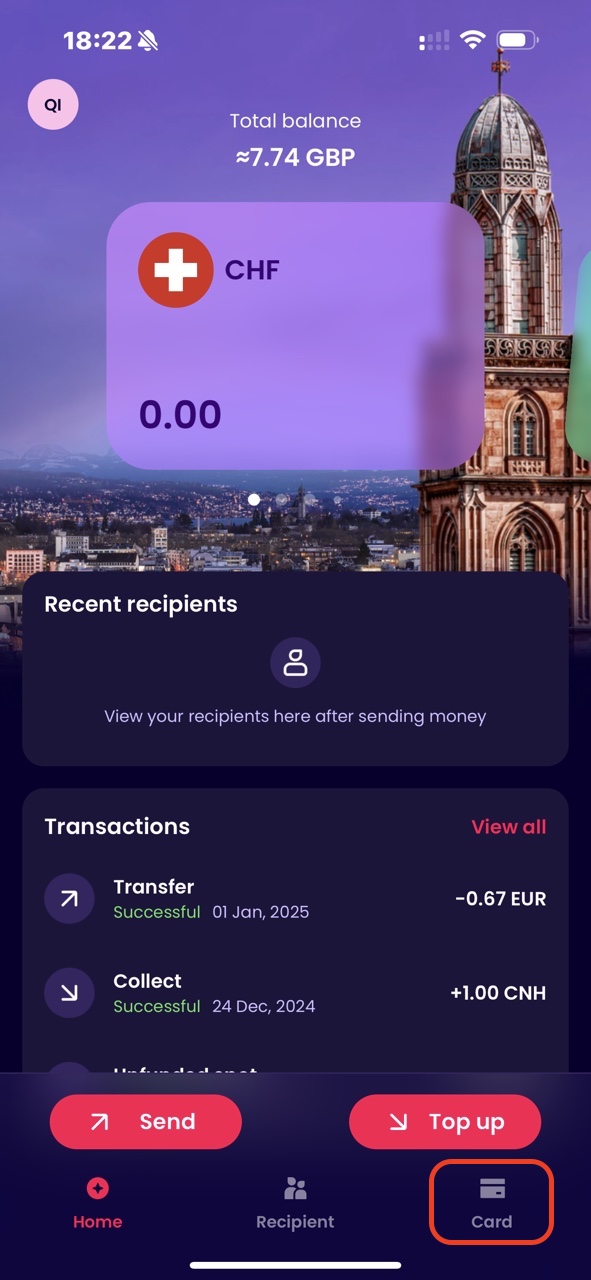
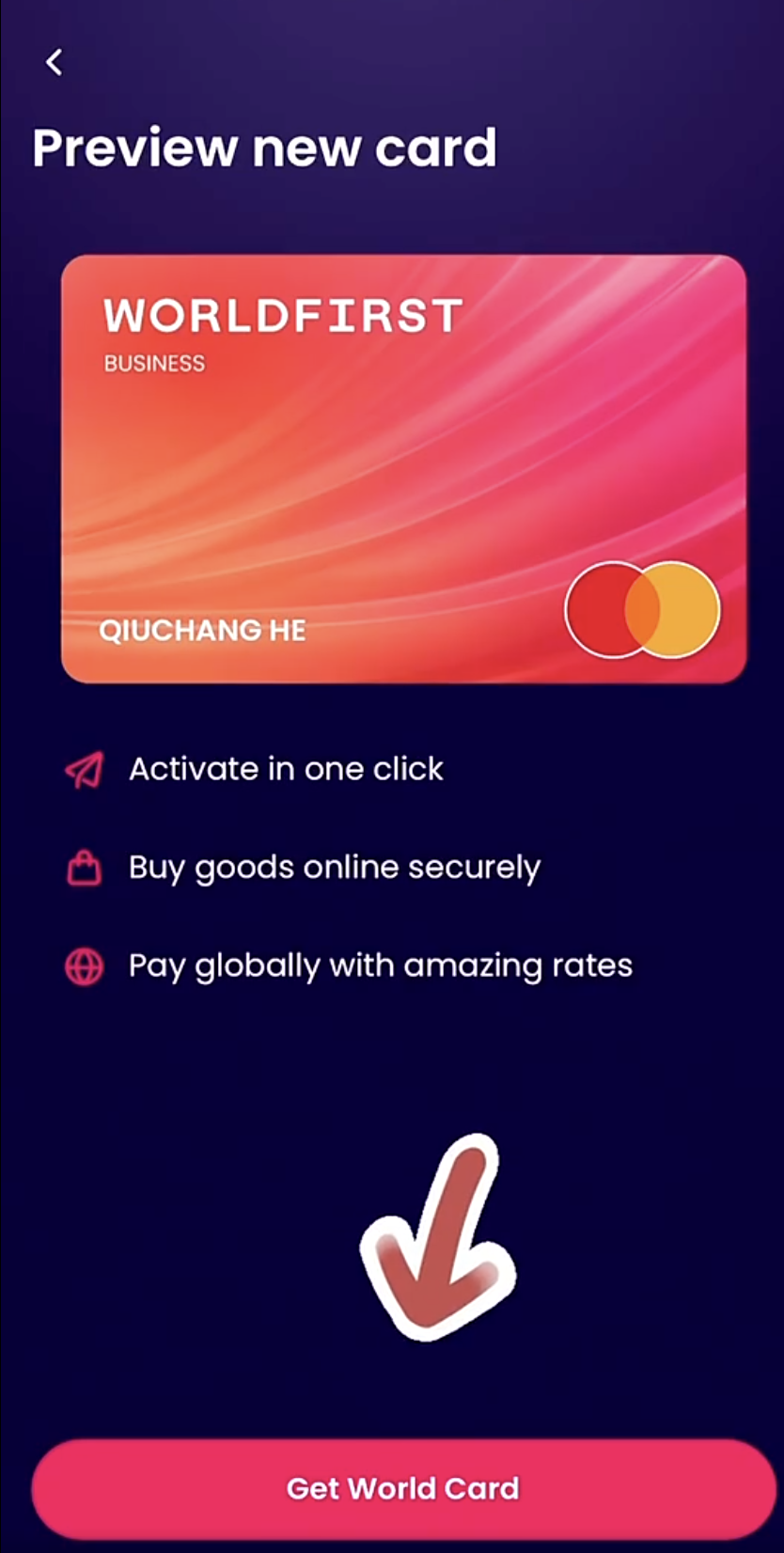
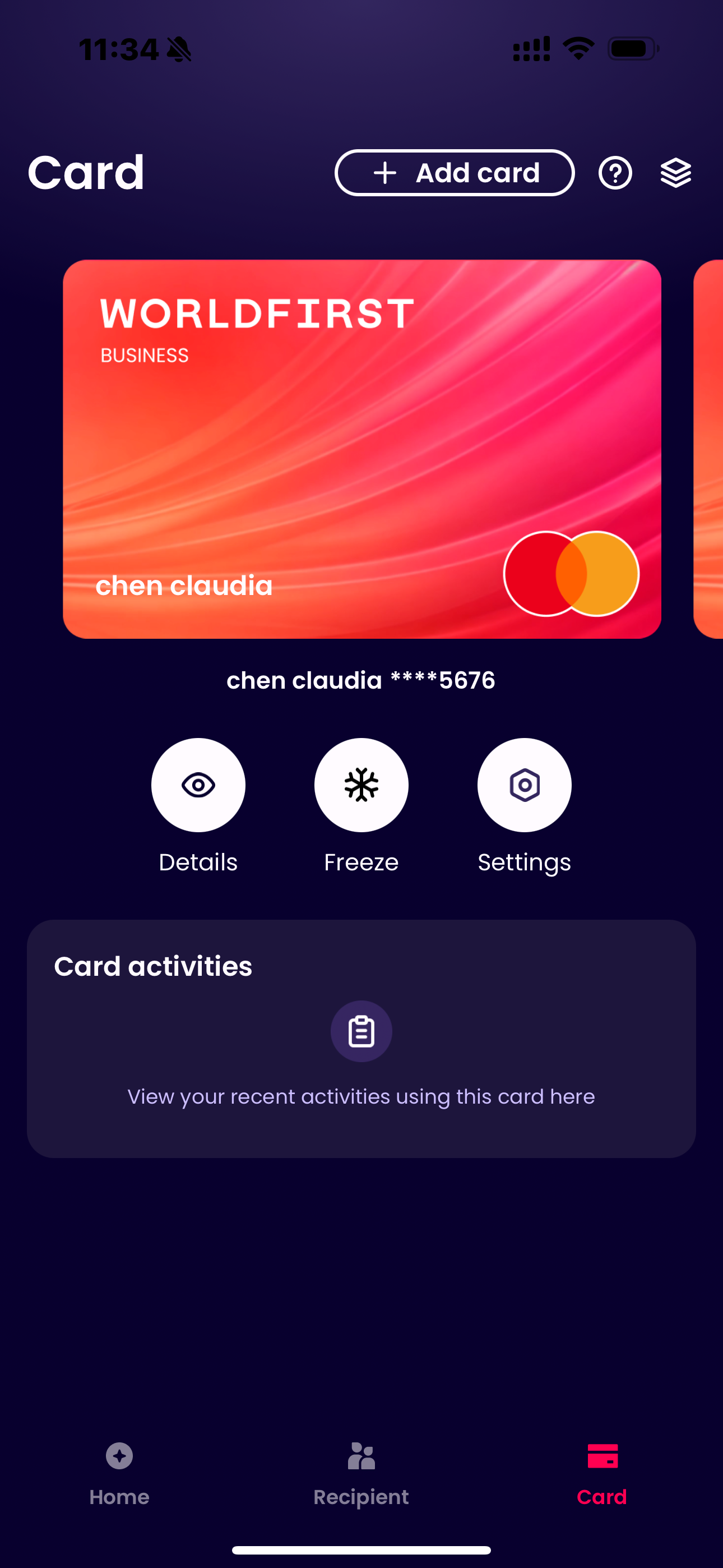
If you have registered and completed onboarding, log in to the WorldFirst APP, go to Homepage > Card, click to Agree to the Terms, then tap “Get World Card” to activate it instantly.
| Card Page (In the below-right corner) |
Get World Card | Ready for use |
|---|---|---|
 |
 |
 |
How do I pay with my World Card?
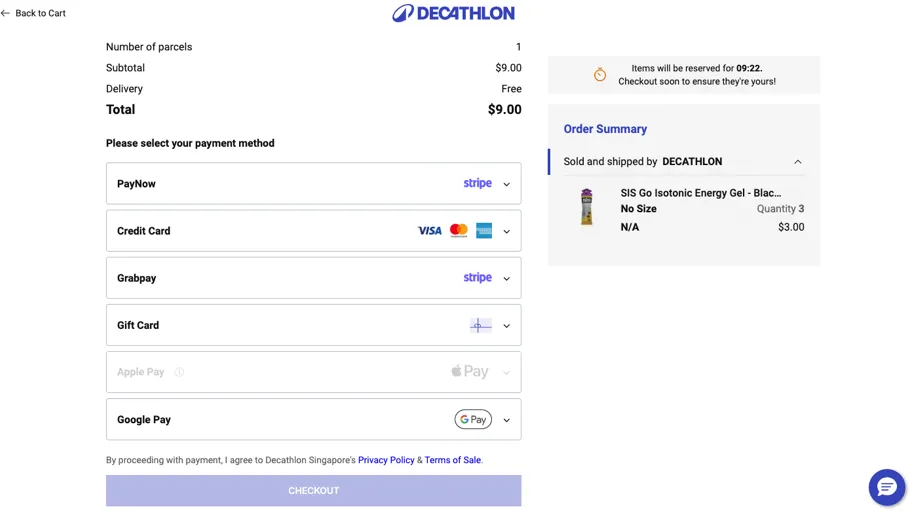
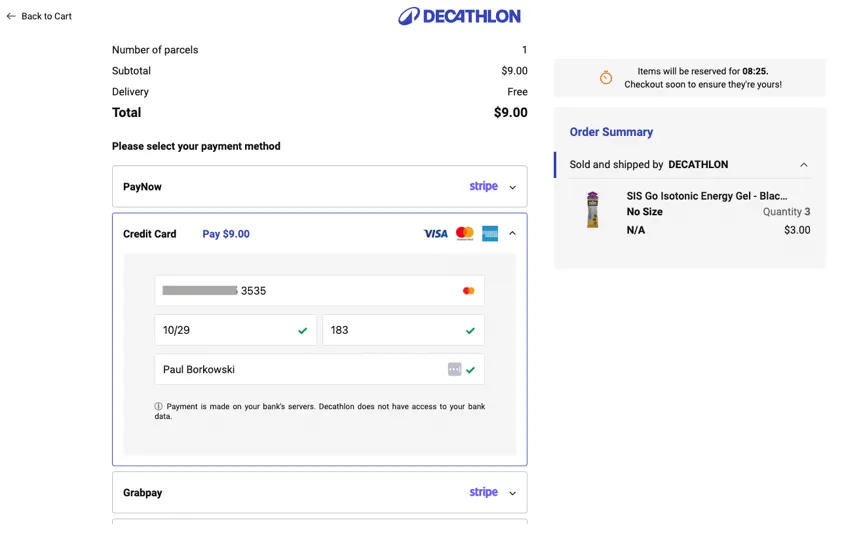
On the checkout page of the business you wish to purchase from, you can directly enter World Card details to use. To view the Card Details, go to Card Tab, select the target card, and click “Details”. After identity verification, you can view the Card Number, Expiry Date, and CVC (Card Verification Code).
- The statuses displayed for your transations would imply the following:
- Pending
- Card payment has been authorised by Merchant
- Funds will show as deducted from World Account balance but have not yet been settled back to the Merchant
- Successful
- Card payment has been authorised and settled with the Merchant
- Declined
- Card payment authorisation has been declined by the Merchant
- Refunded
- Settled card payment has been refunded by the Merchant
- Cancelled
- Authorised card payment has been refunded by the Merchant
How to view my World card details (card number, expiry date, limits)?
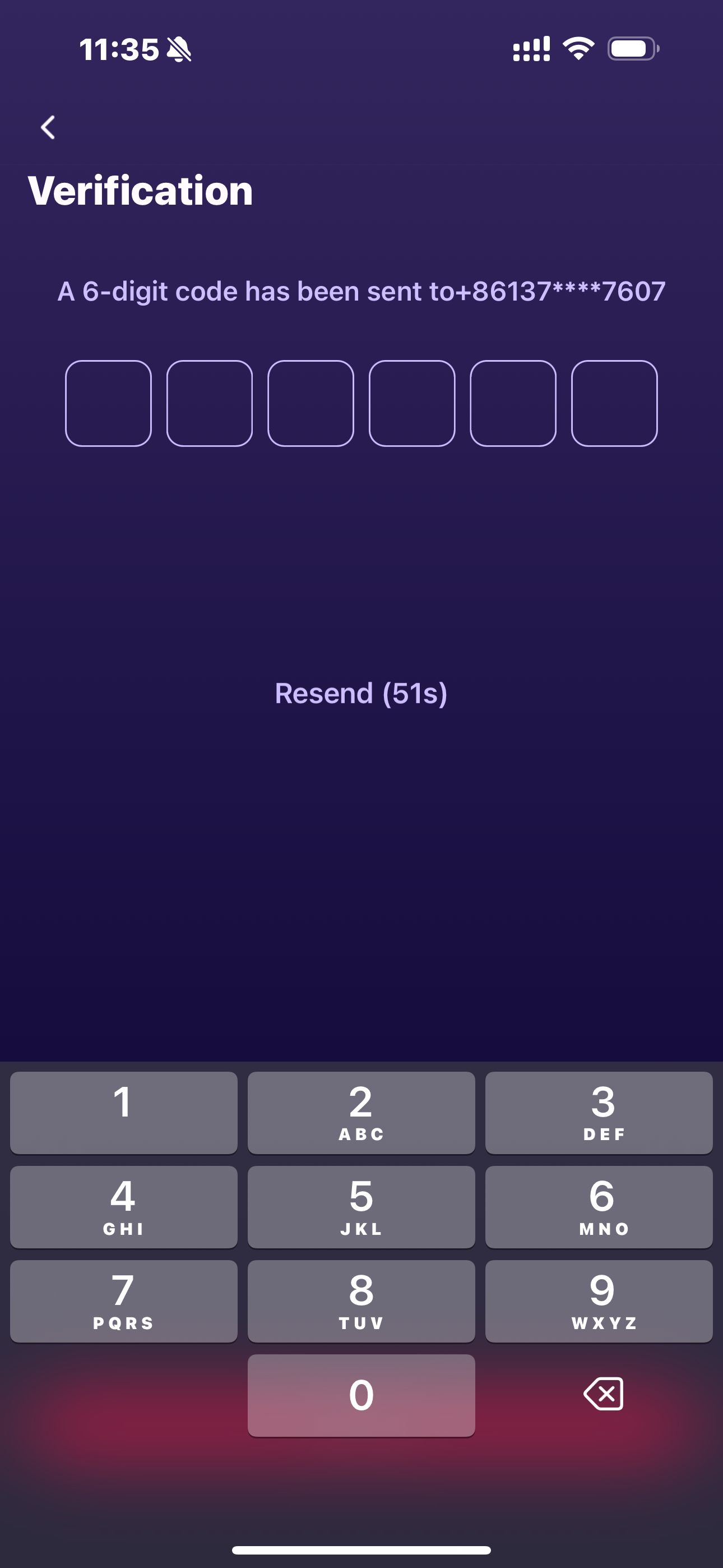
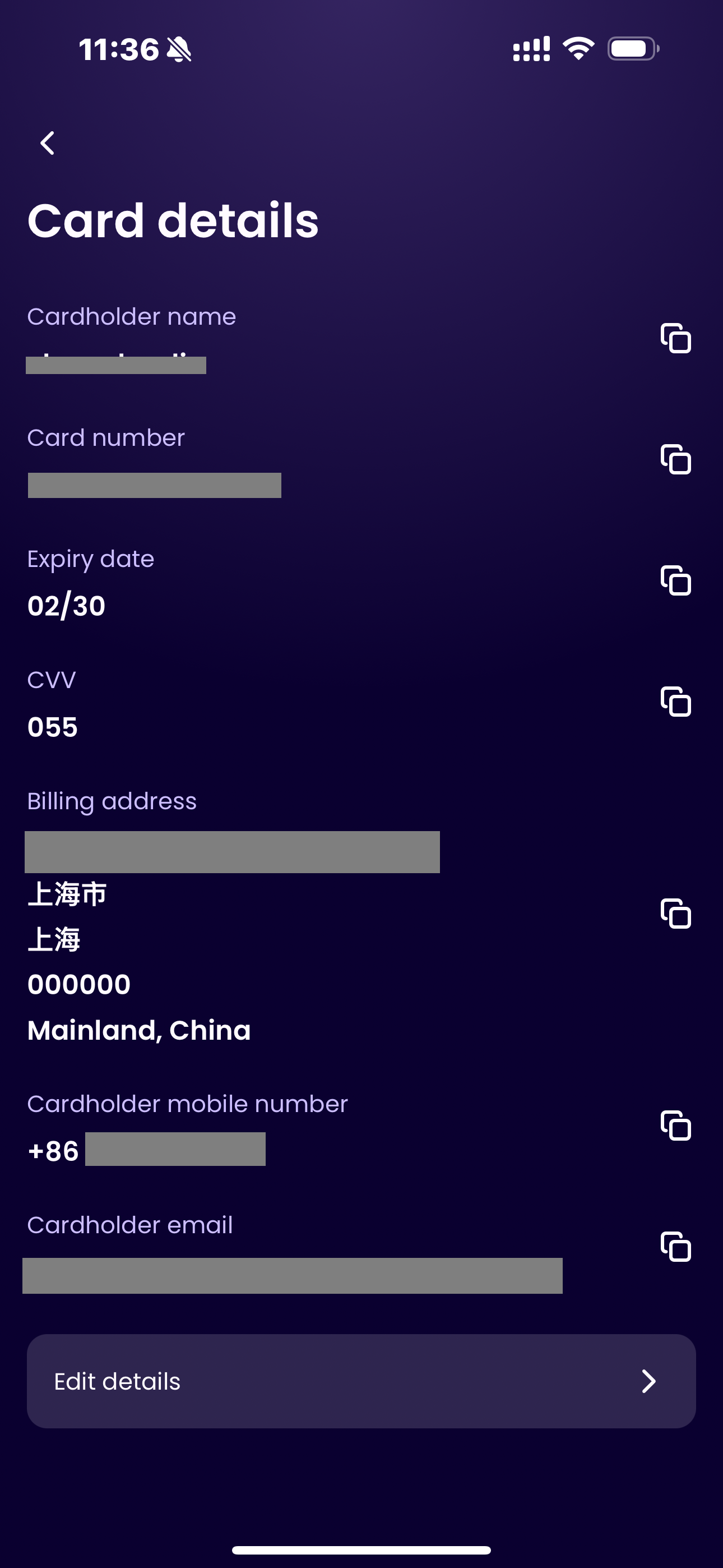
- Go to Card Tab, select the target card, and click “Details”. After identity verification, you can view the Card Number, Expiry Date, and CVC (Card Verification Code).
- Click “Settings”, you can check transaction limits.
After the verification,users can view the card details and copy the card information here,then they can use it for online spending.
| Card Page (In the below-right corner) |
verification | card details |
|---|---|---|
|
 |
 |
Can I modify my World card limits?
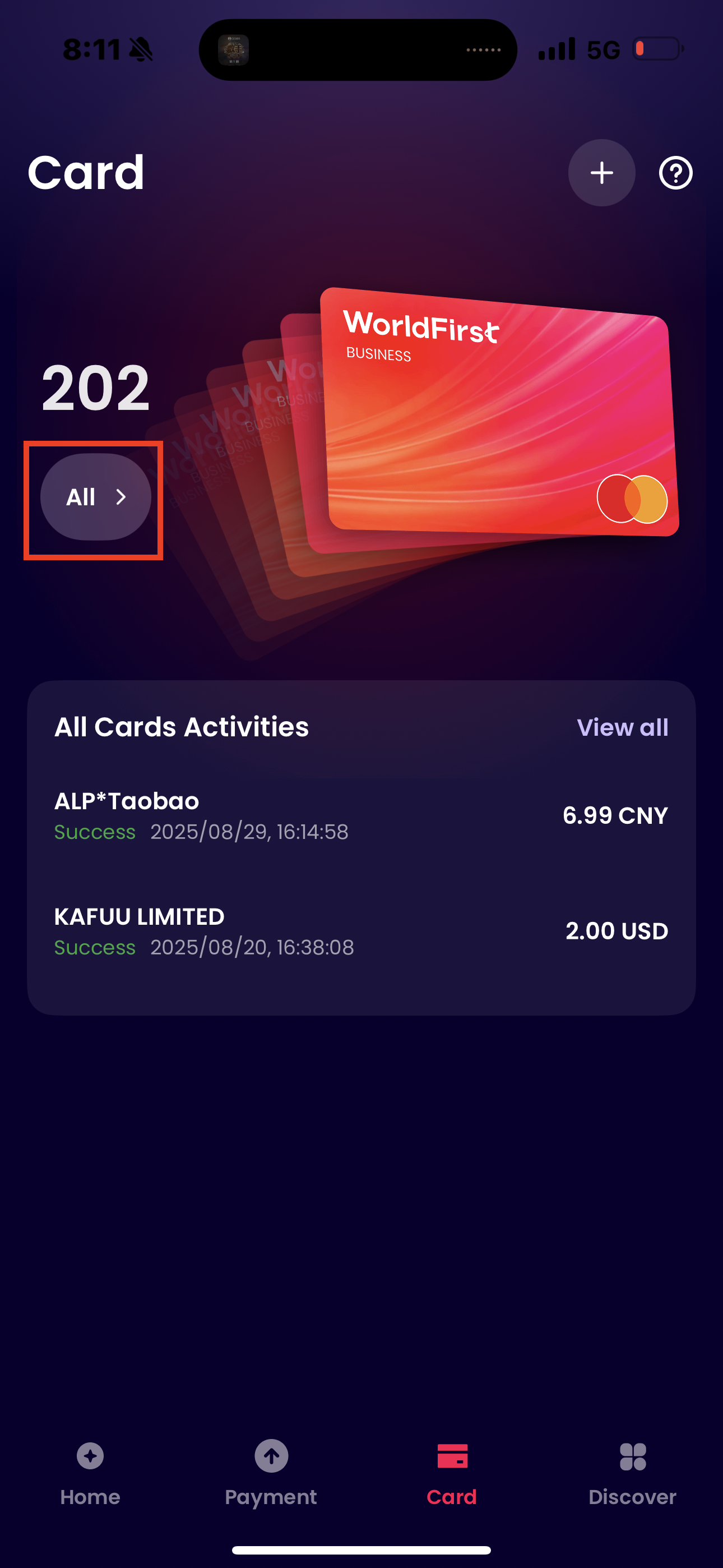
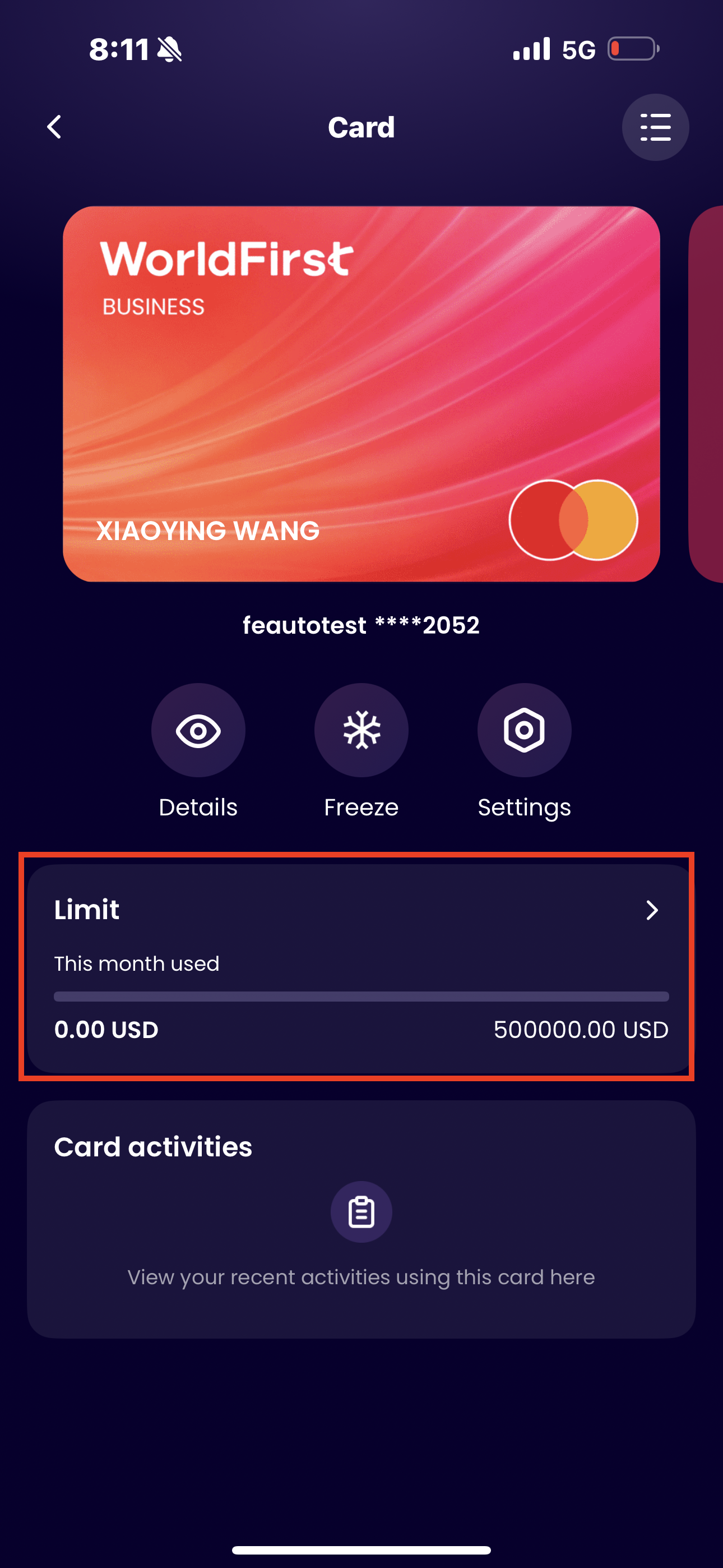
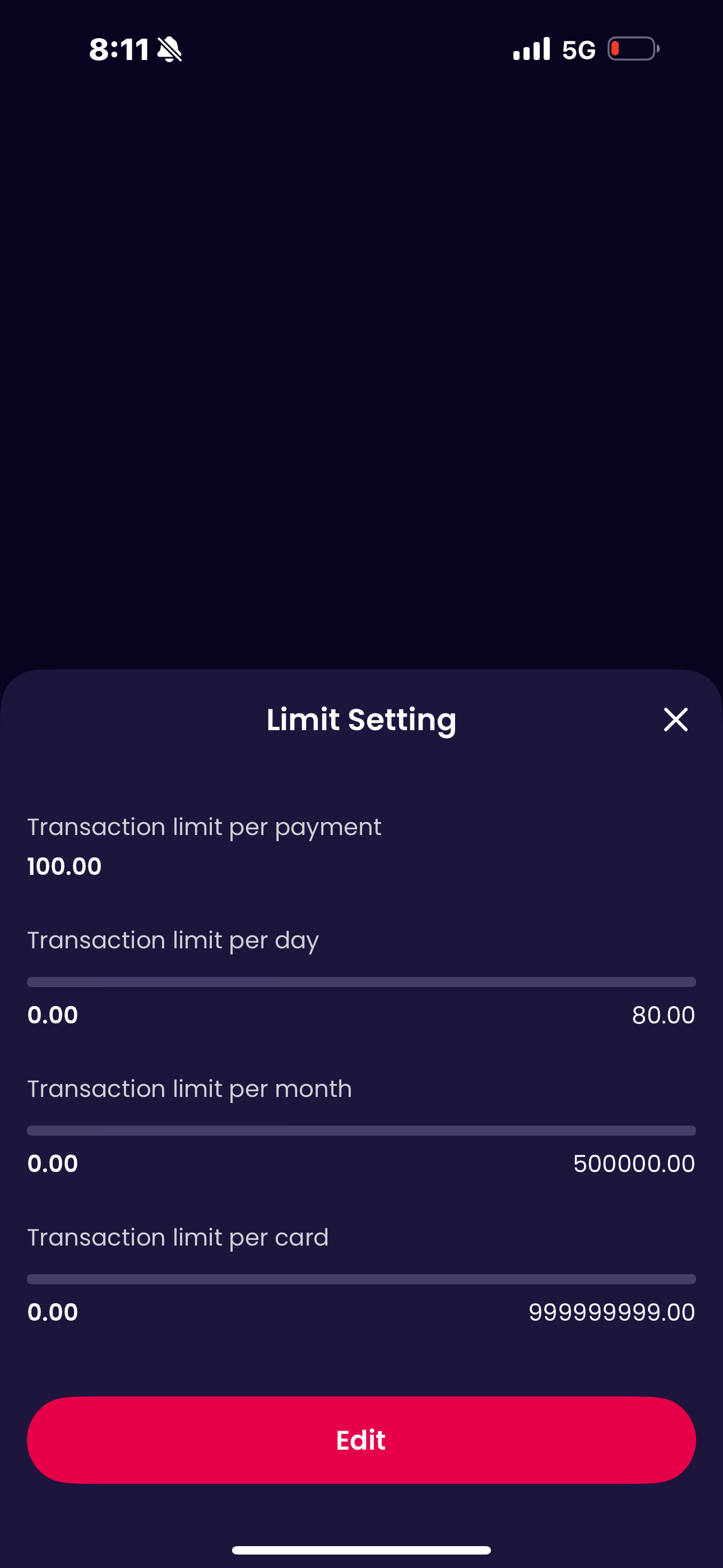
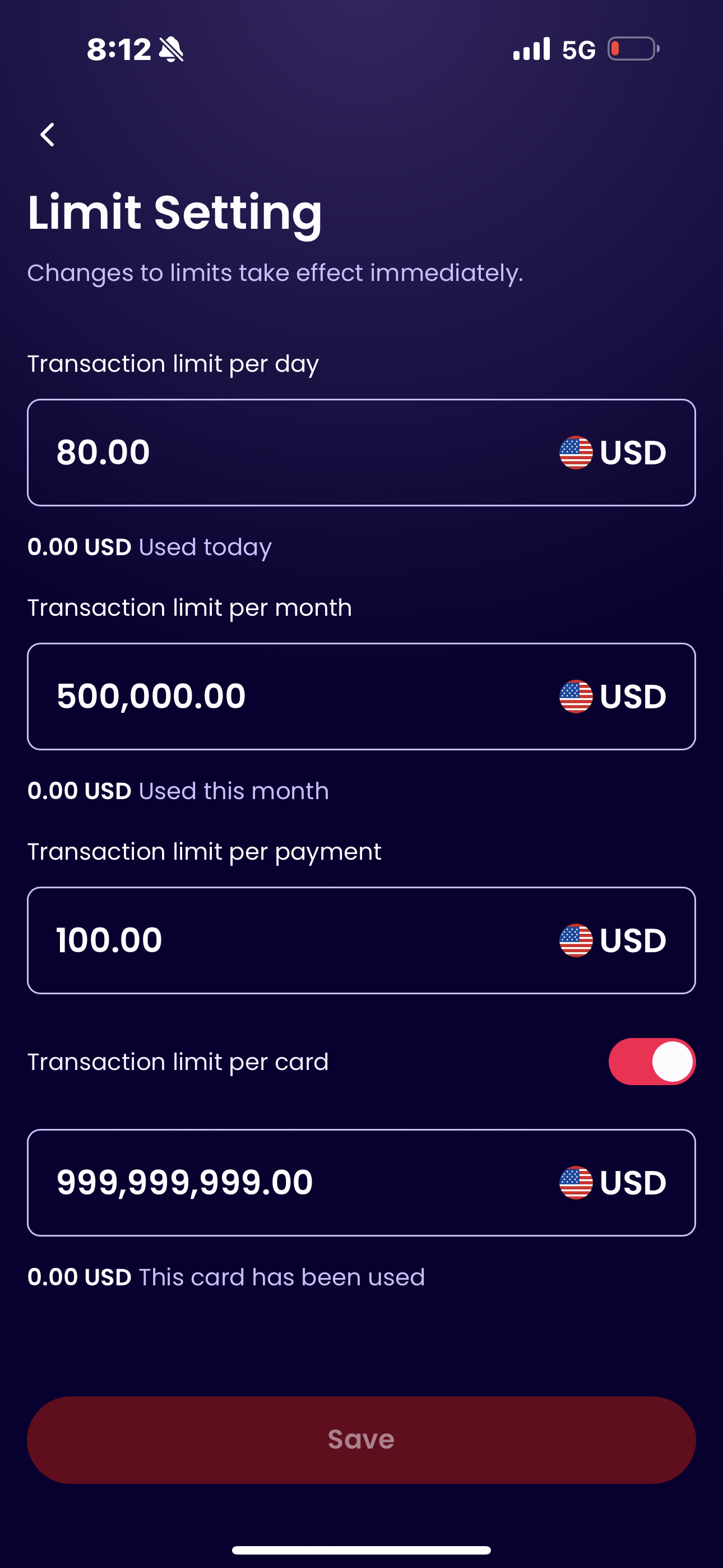
Yes, tap “All” to view all cards, and view monthly spending and quota, click it and then you can edit it.
| Homepage-Card-All | View crad limit-monthly | View limits by day/month/card | Edit card limit |
|---|---|---|---|
 |
 |
 |
 |
Can I reorder the cards in my list?
Manual sorting is not currently supported. Cards are displayed in reverse chronological order of activation.
How to temporarily freeze my World Card? What functions are affected?
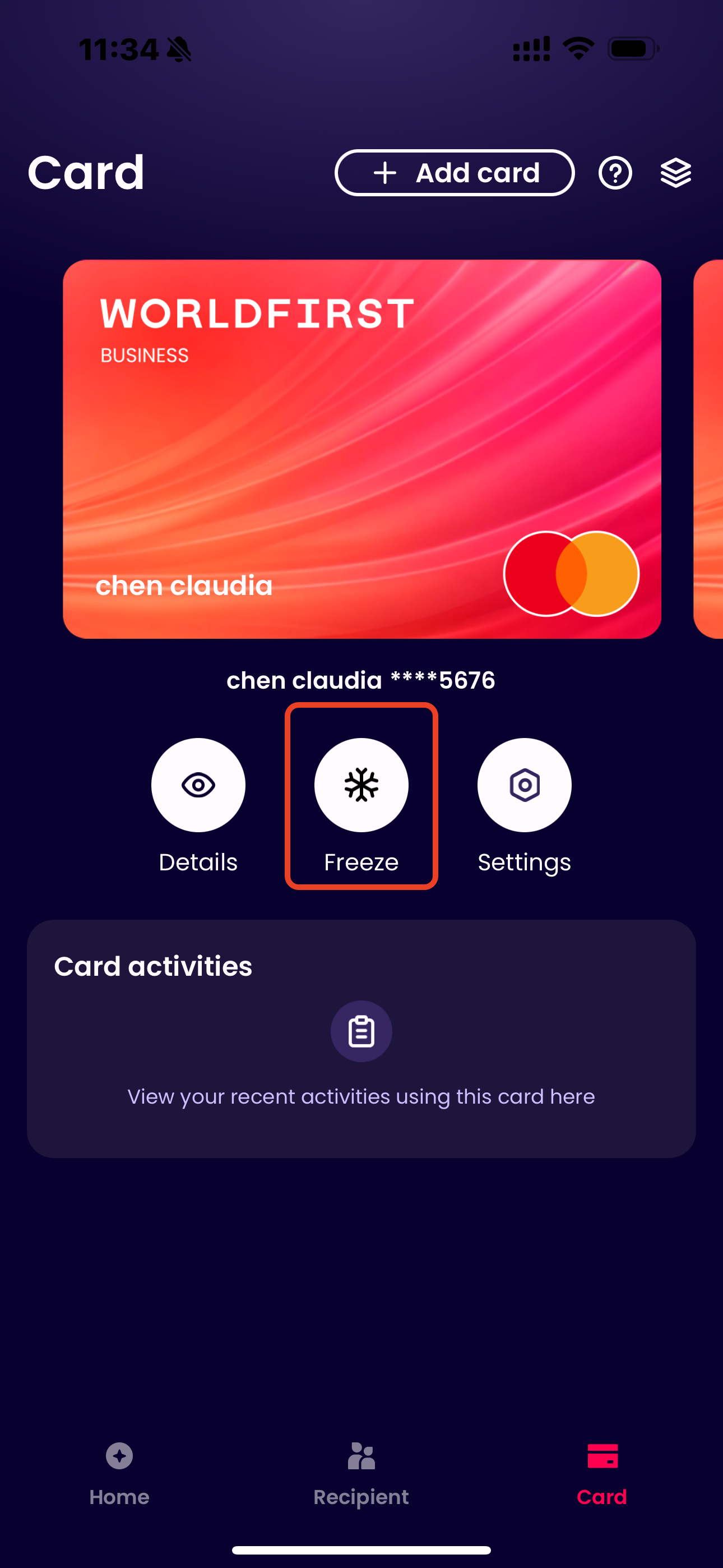
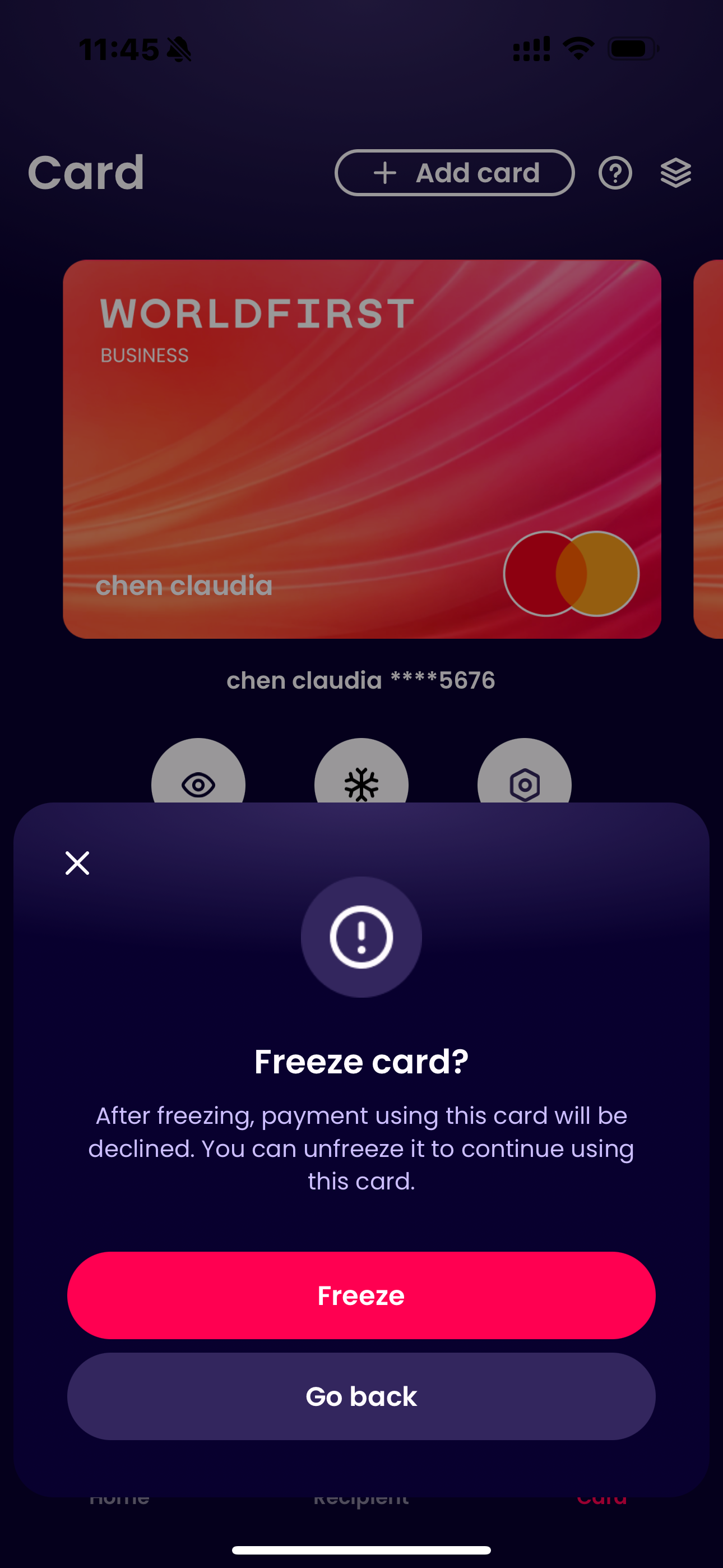
Go to Homepage > Card, select the target card, and click “Freeze”. Once frozen, The card cannot be used for payments or transfers.
| Homepage-card | freeze card |
|---|---|
 |
 |
How soon can I use my card again after unfreezing?
Unfreezing takes effect immediately. The card can be used for payments right away.
How to check World Card transaction records?
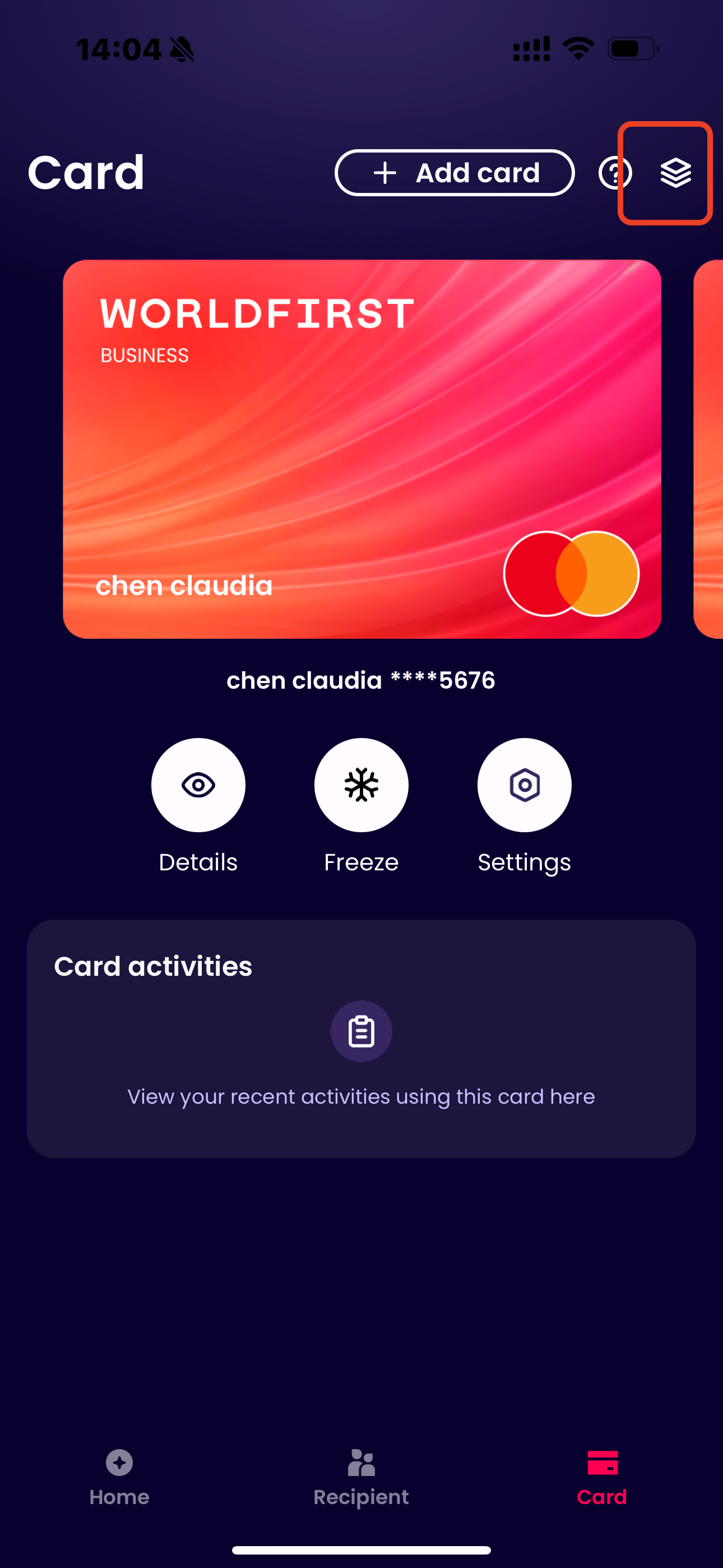
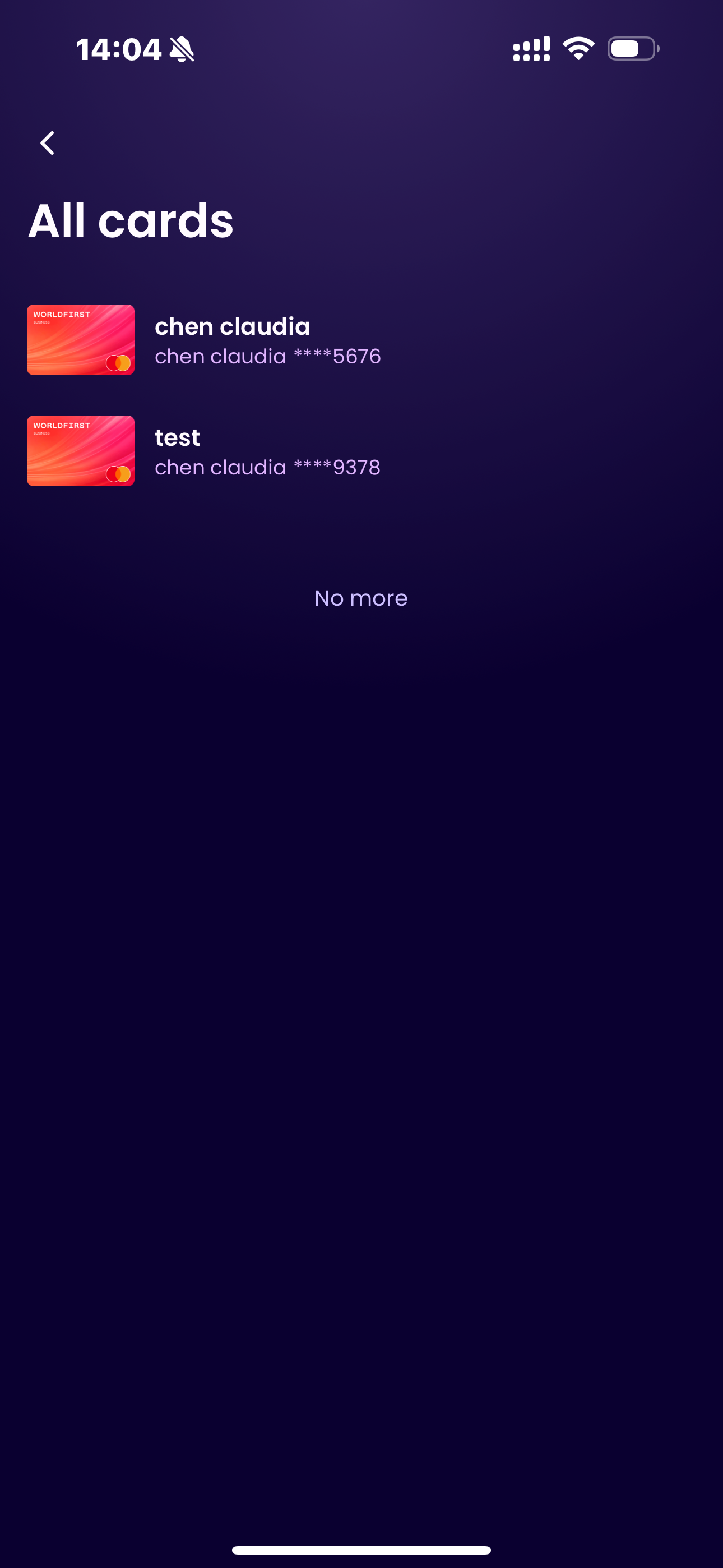
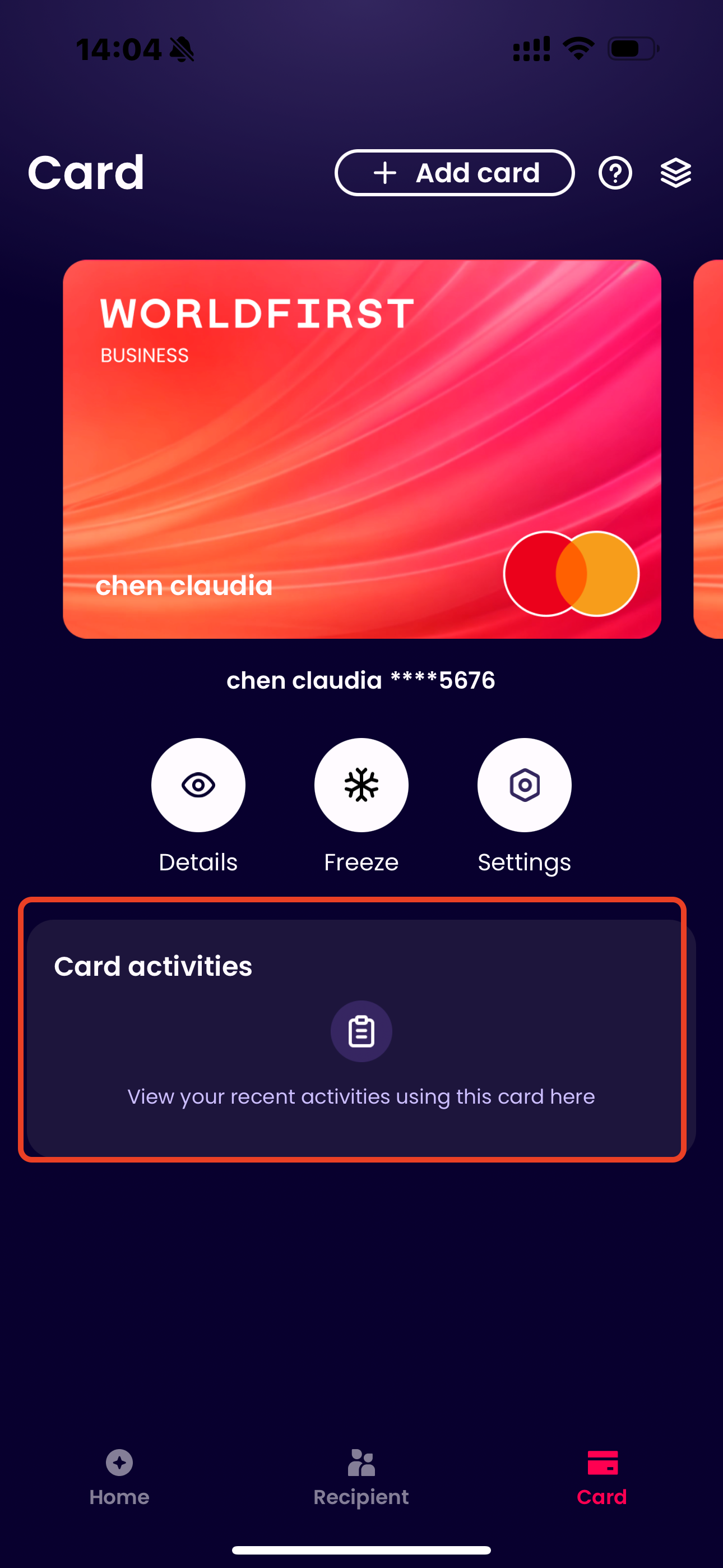
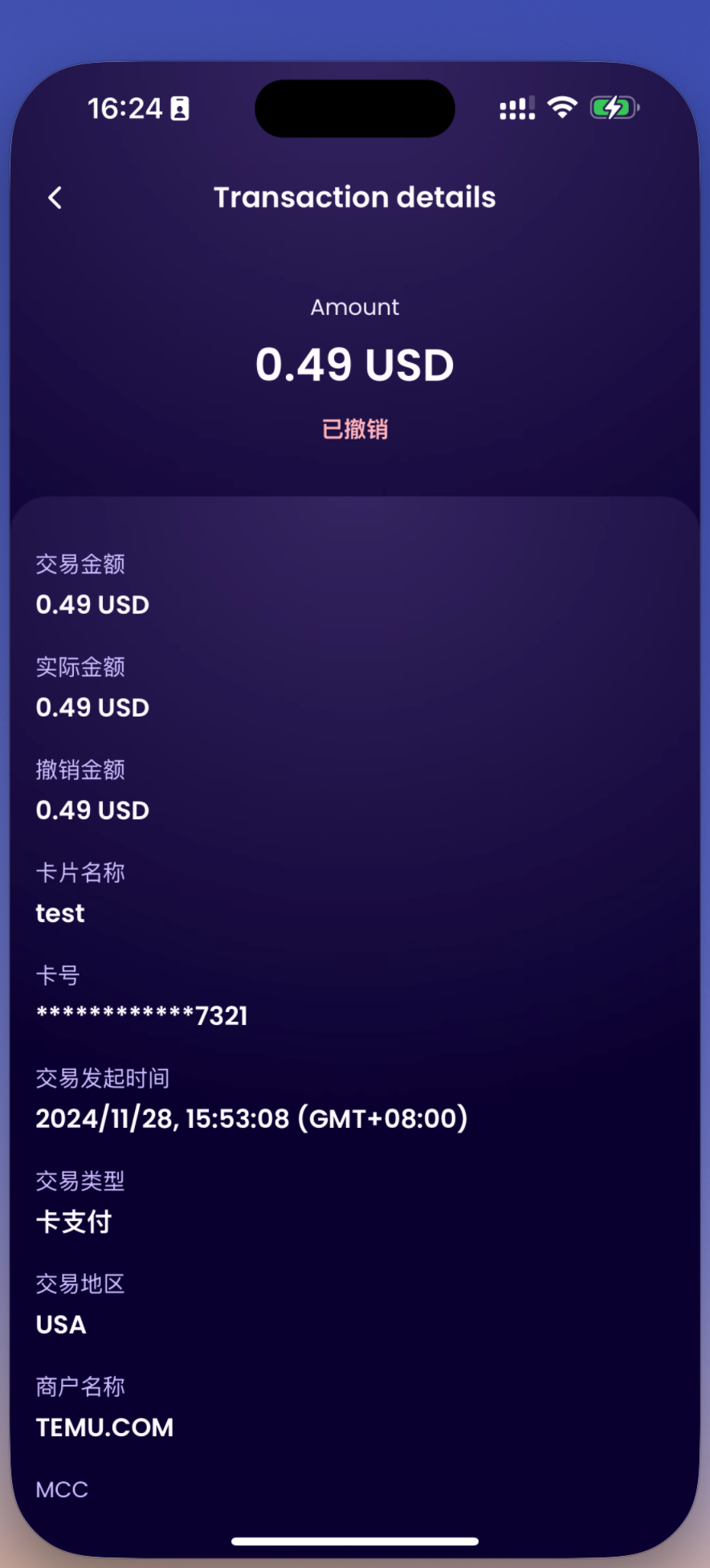
Go to the Homepage > Card module to view your Card Activities.
| Homepage-card | card list | card activities | transaction details |
|---|---|---|---|
 |
 |
 |
 |