







































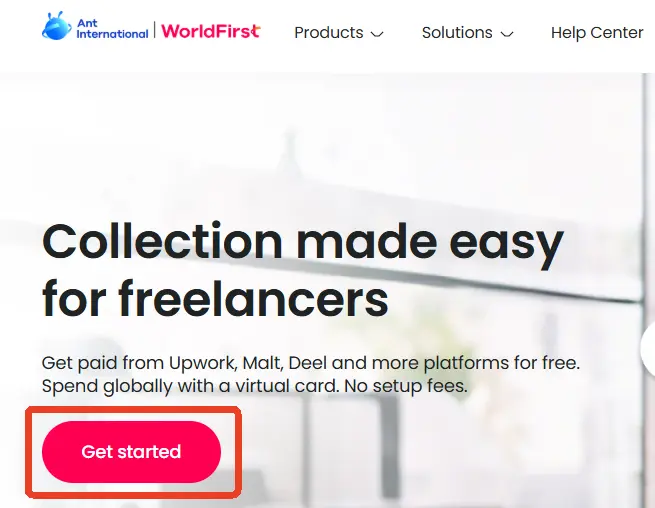
| Step 1
- Click ‘Get started’
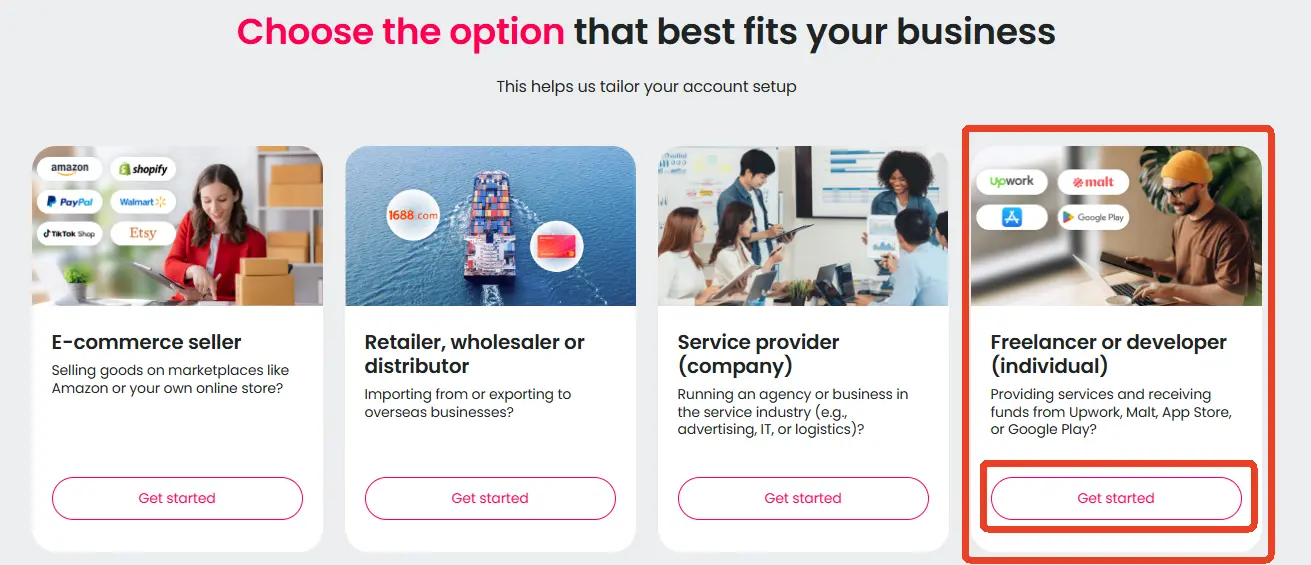
| Step 2
- Click ‘Get started’
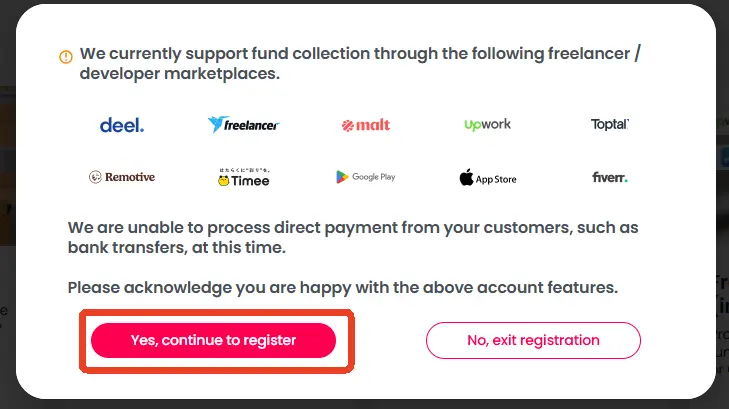
| Step 3
A Pop-up will appear notifying you to acknowledge about the supported freelancer/ developer platforms, as well as the inability to process direct payment from your customers (third party collection), click on ‘Yes, continue to register’.
| Step 4
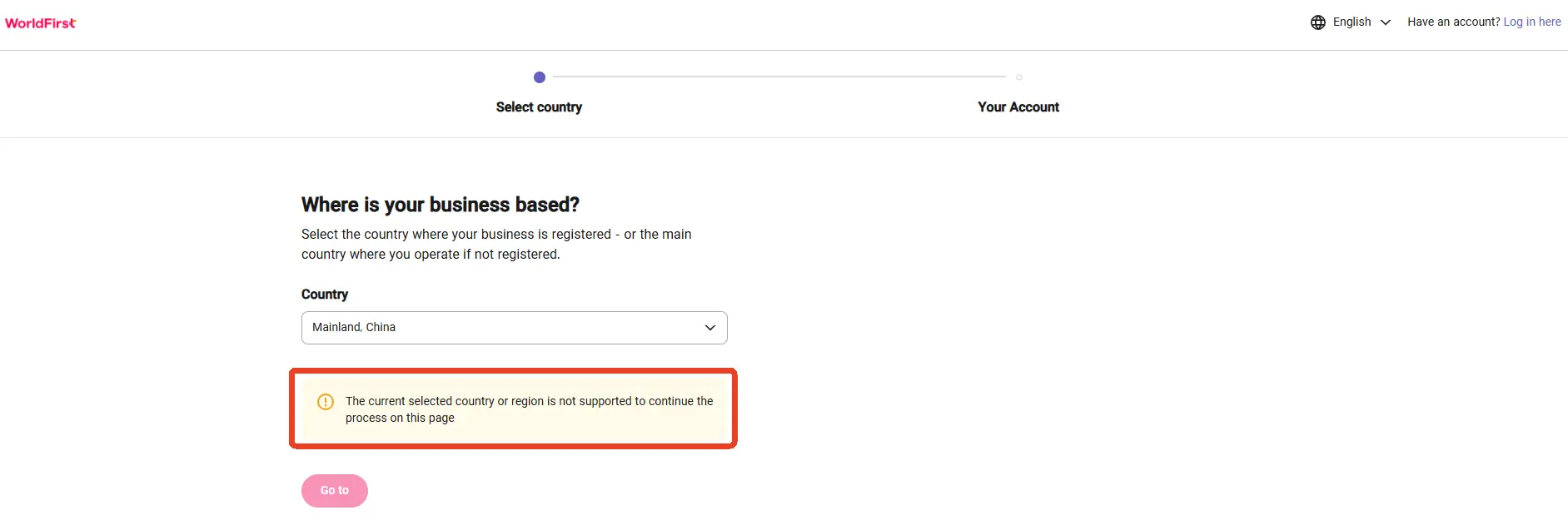
Select the country where your business is registered – or the main country where you operate if not registered.
Once done, click ‘Continue’.
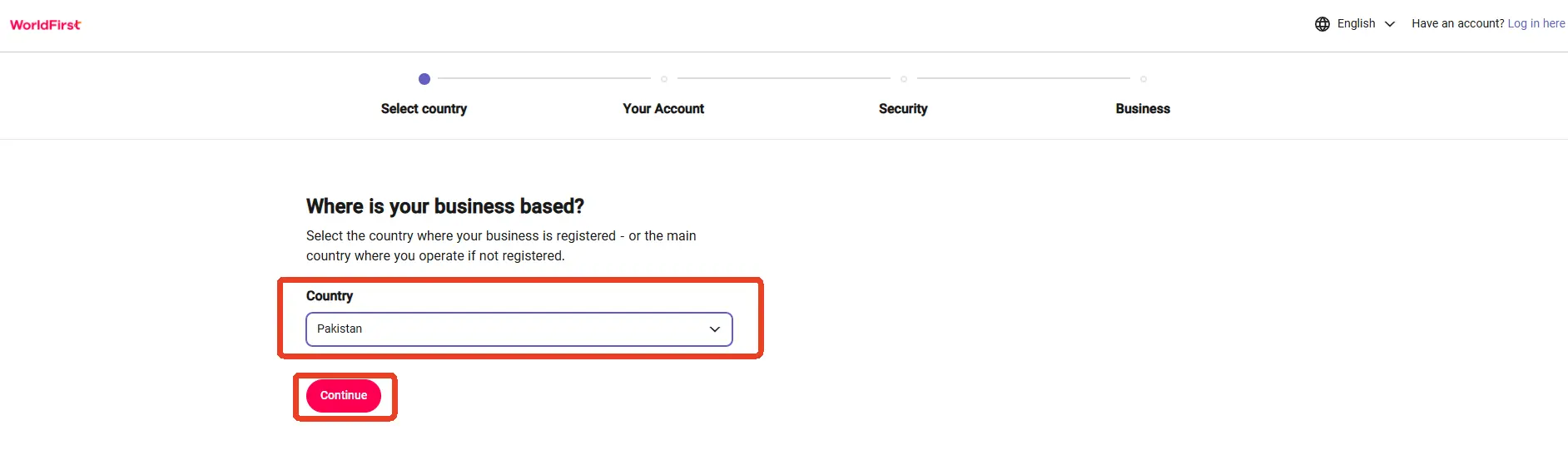
There will be a pop-up to remind you to confirm your company’s registered location. Click ‘Confirm’.
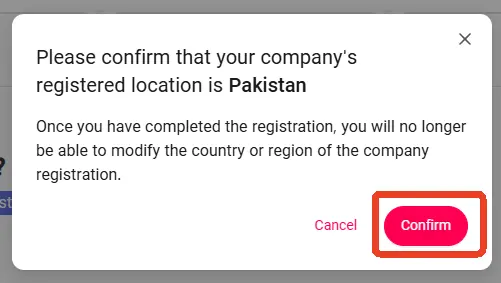
If the country selected is not supported, there will be a prompt stating “The current selected country or region is not supported to continue the process on this page”.
| Step 5
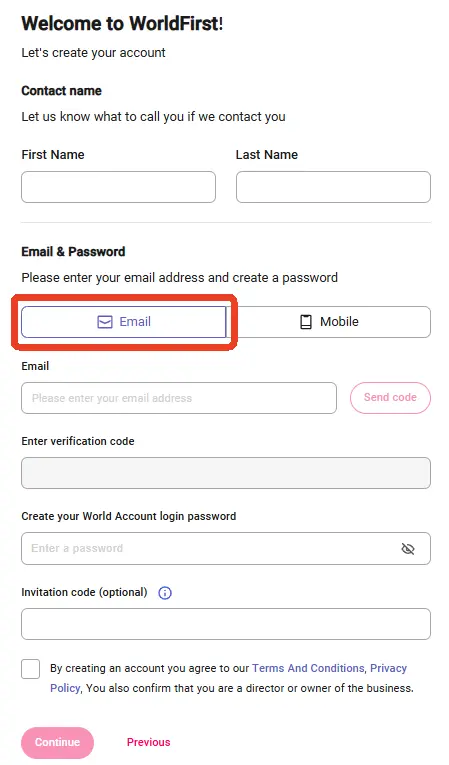
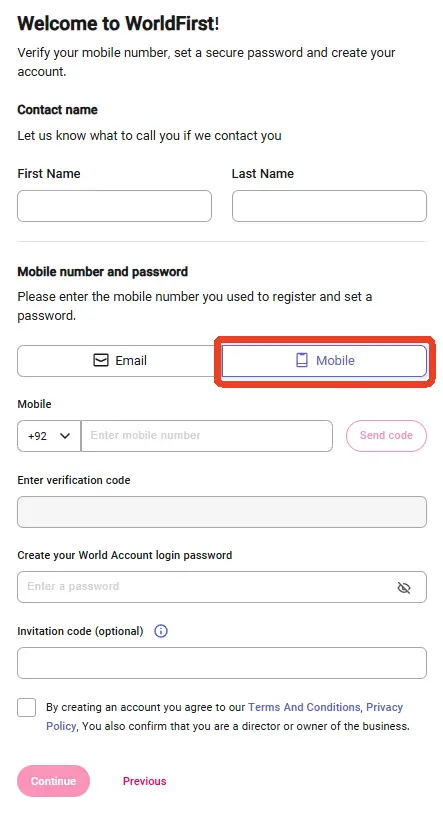
Email register
Fill up the details below:
- First Name
- Last Name
- World Account login password
- Invitation Code (optional)
Mobile phone register
Fill up the details below:
- First Name
- Last Name
- Mobile Number
- World Account login password
- Invitation Code (optional)
| Step 6
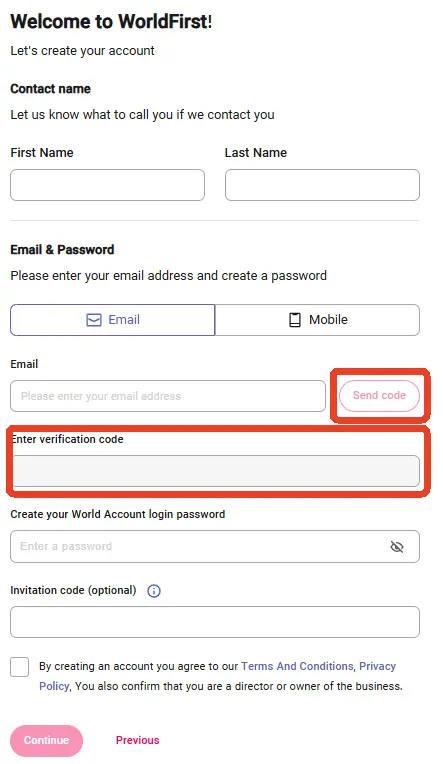
- Email register
Click ‘Send code’. Enter the verification code that was sent to your registered email.
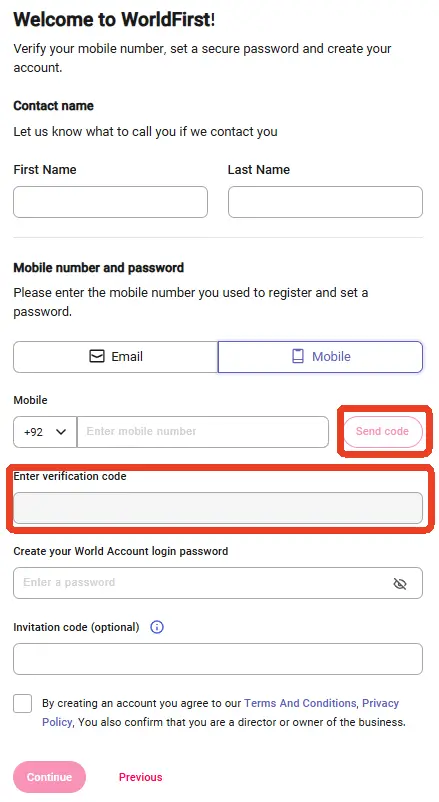
- Mobile phone register
Click ‘Send code’. Enter the verification code that was sent to your registered mobile number.
| Step 7
Select your freelancer type:
- Individual (Registered sole trader)
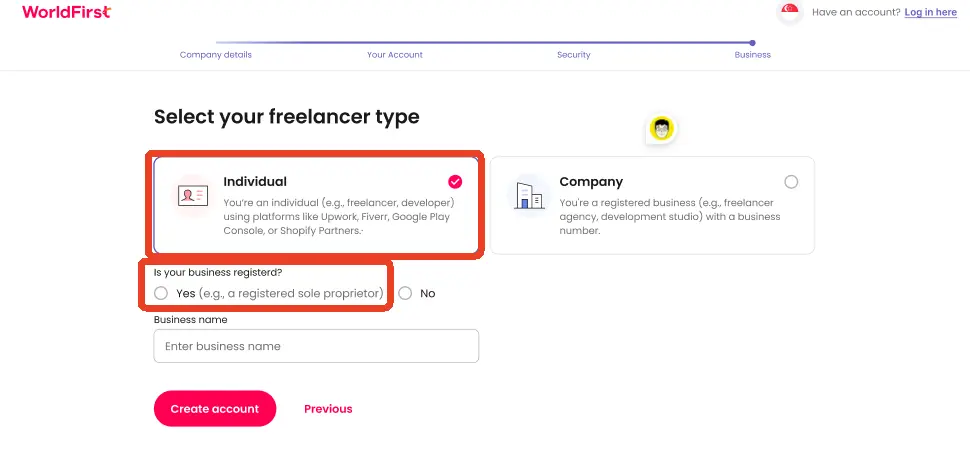
- Individual (Unregistered sole trader)
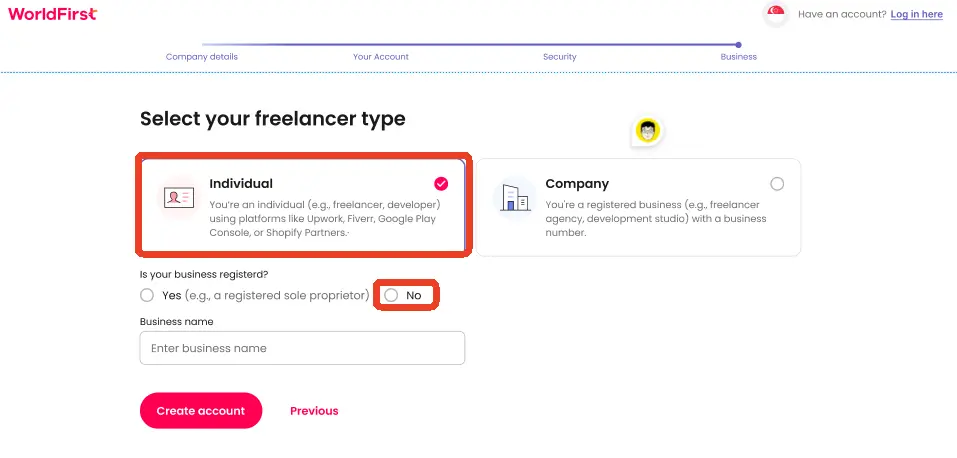
- Company
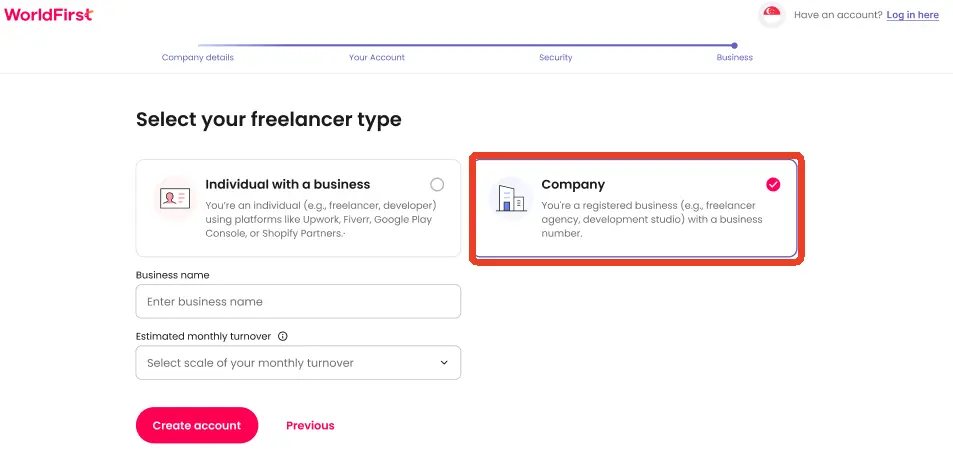
and then fill up your Business name. Once done, click ‘Create account’.
| Step 8a Individual Unregistered sole trader
Individual (Unregistered sole trader)
- Choose the industry that best describes your business
- Enter the public profile link of your Freelancer/ Developer platform (e.g. Upwork, Fiverr)
- Upload the screenshot of your Freelancer / Developer platform profile page (kindly ensure that the profile page website URL link is visible)
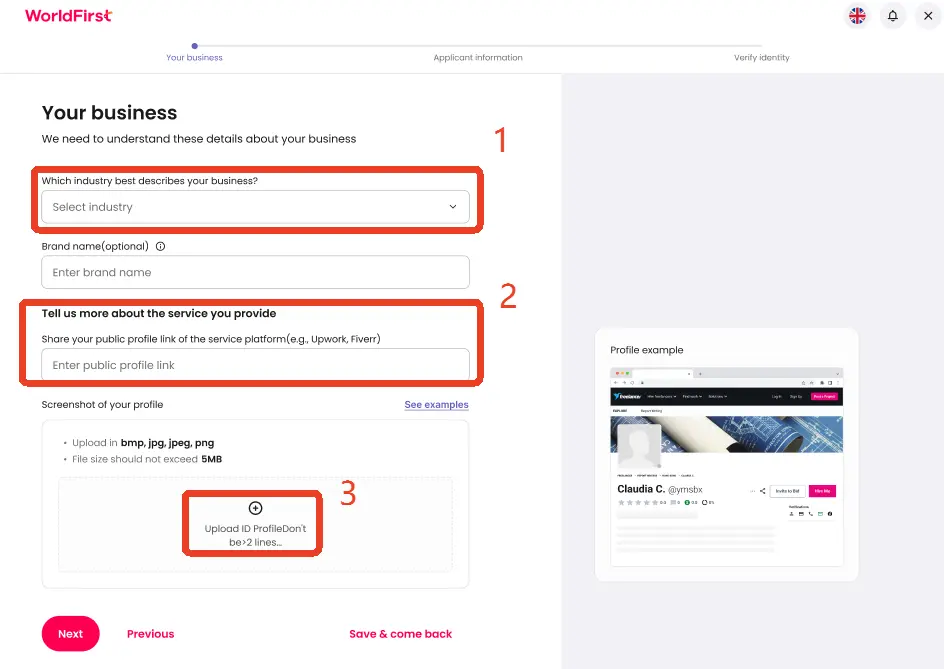
Brand name is an optional field. Once done, click ‘Next’.
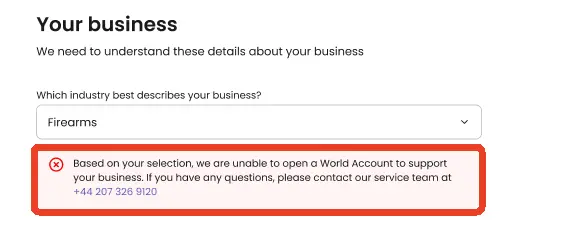
If the industry selected is not allowed, there will be a prompt preventing you to proceed.
| Step 8b Individual Registered sole trader
Individual (Registered sole trader)
1. Enter your business registration number
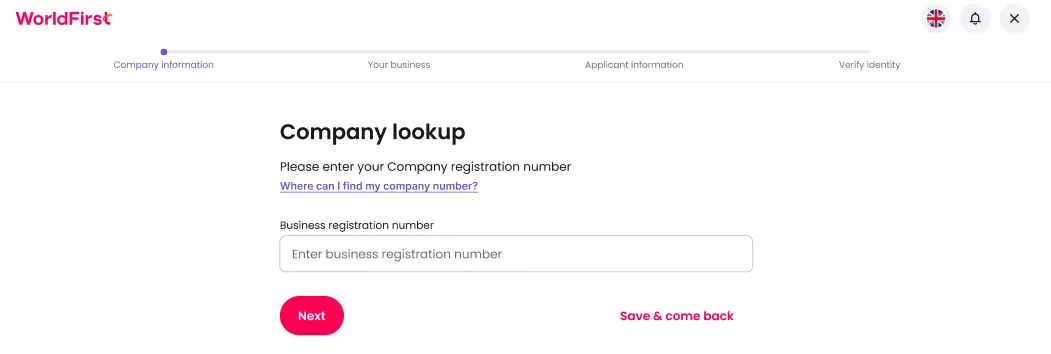
2. If the business registration number is valid, then all the corresponding fields will be autofilled, else you would have to manually fill up by yourself
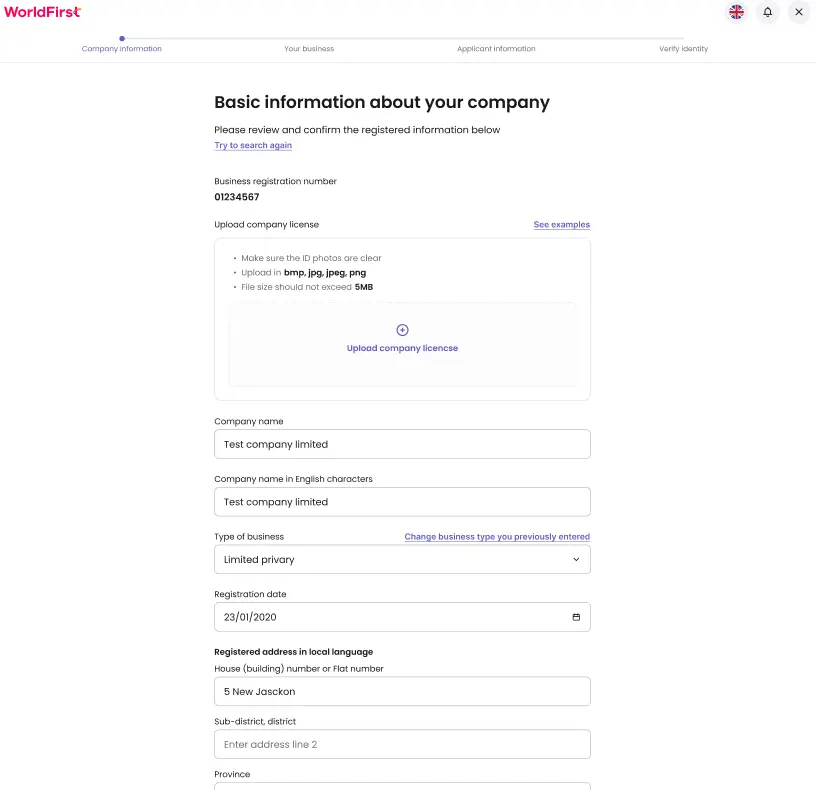
3. Trading address
- If your trading address is the same as your registered address, then you may choose ‘Same as your registered name and address‘ and then click ‘Next’
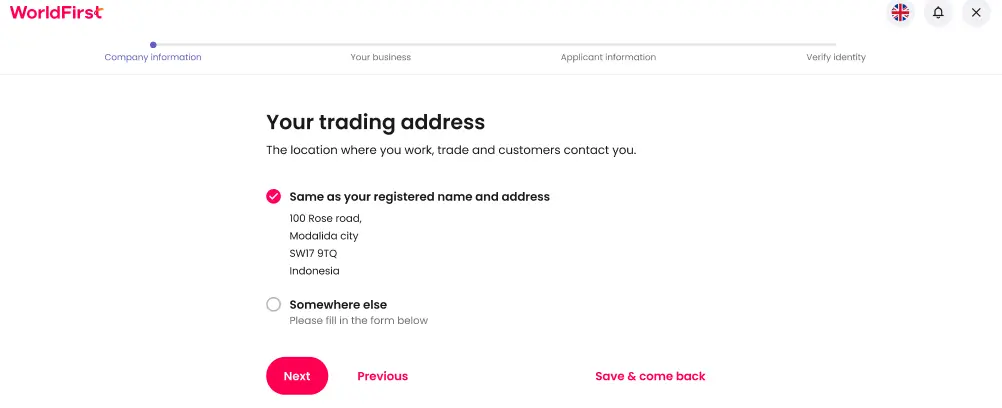
- If your trading address is different from your registered address, then you may choose ‘Somewhere else’ and then proceed to fill up the details. Once done, click ‘Next’.
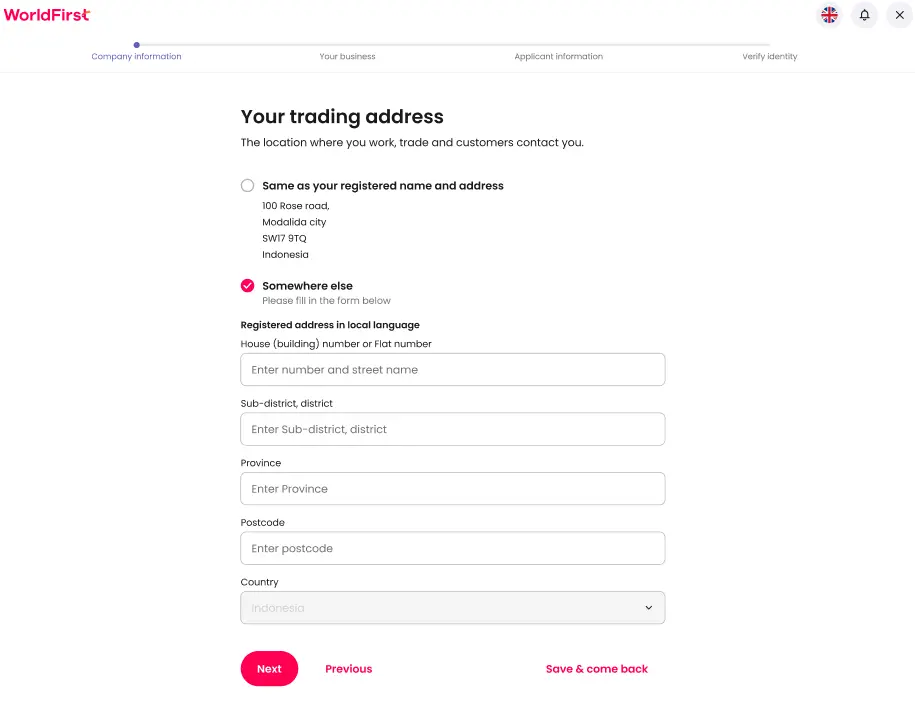
4. Choose the industry that best describes your business
5. Enter the public profile link of your Freelancer/ Developer platform (e.g. Upwork, Fiverr)
6. Upload the screenshot of your Freelancer / Developer platform profile page (kindly ensure that the profile page website URL link is visible)
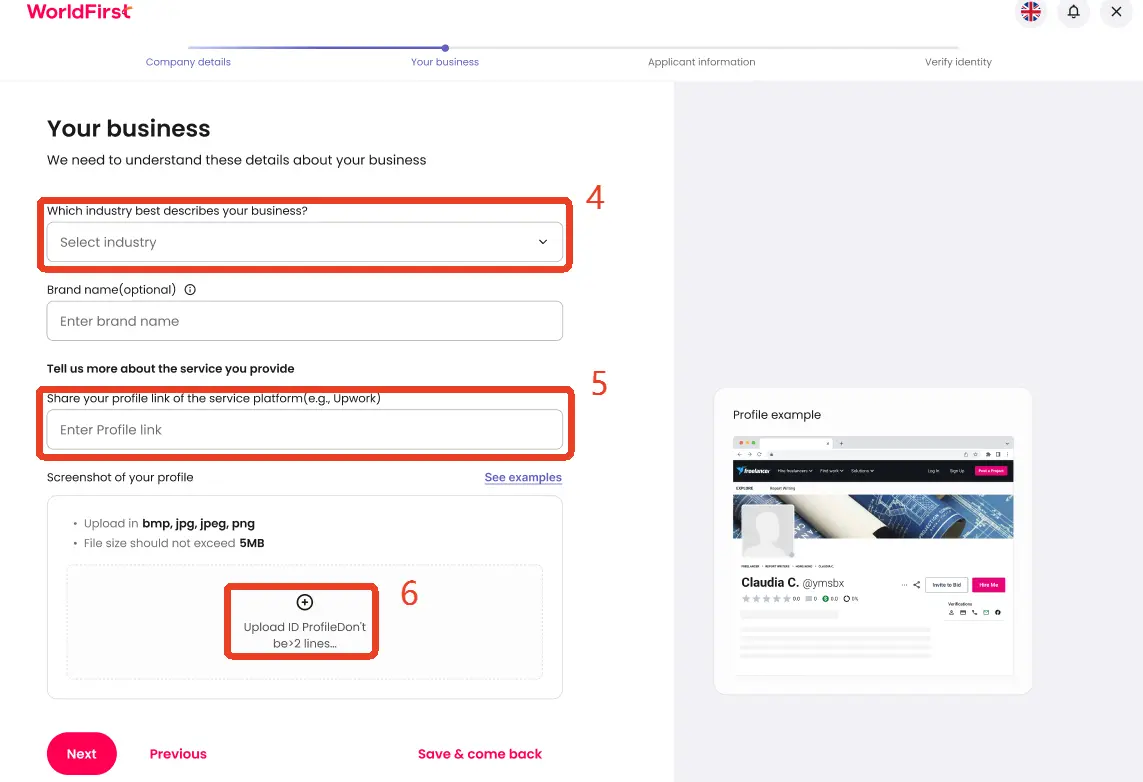
Brand name is an optional field. Once done, click ‘Next’.
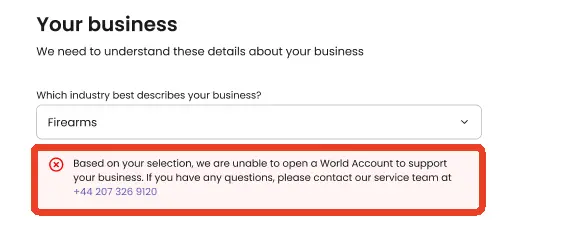
If the industry selected is not allowed, there will be a prompt preventing you to proceed.
| Step 8c Company
Company
1. Enter your business registration number
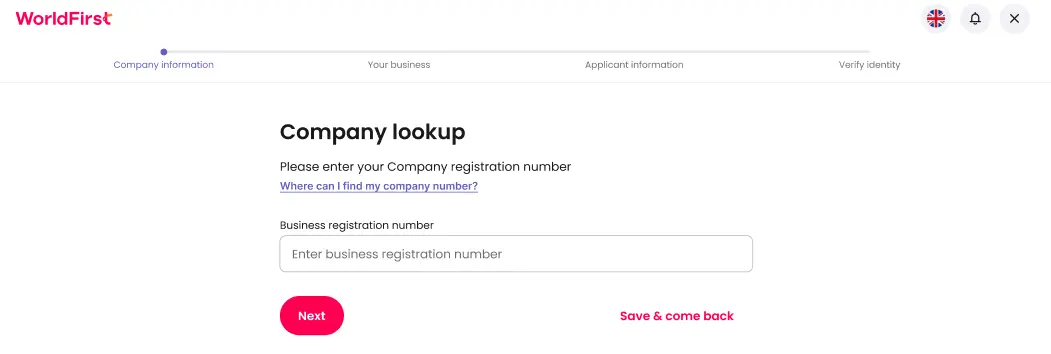
2. If the business registration number is valid, then all the corresponding fields will be autofilled, else you would have to manually fill up by yourself
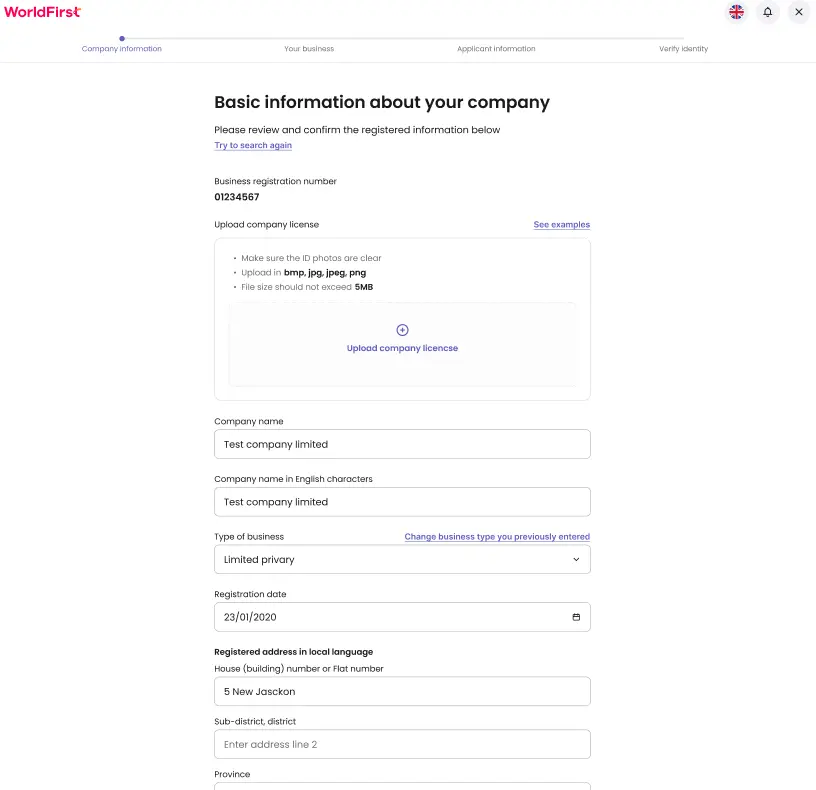
3. Trading address
- If your trading address is the same as your registered address, then you may choose ‘Same as your registered name and address‘ and then click ‘Next’
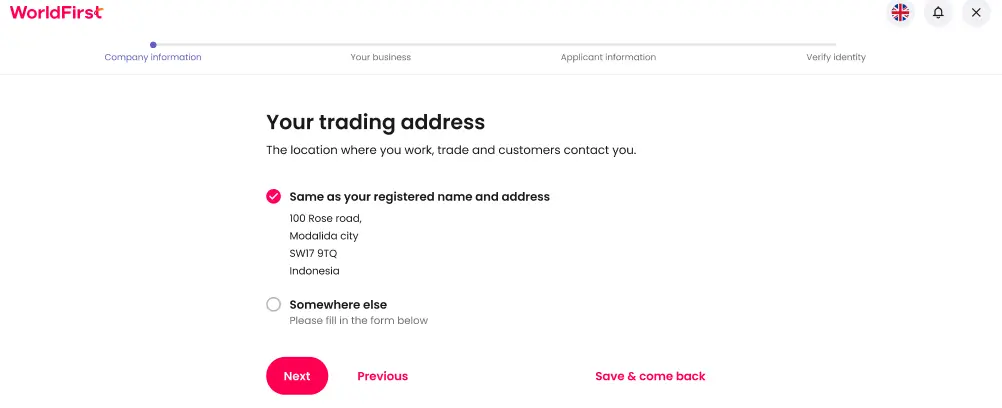
- If your trading address is different from your registered address, then you may choose ‘Somewhere else’ and then proceed to fill up the details. Once done, click ‘Next’.
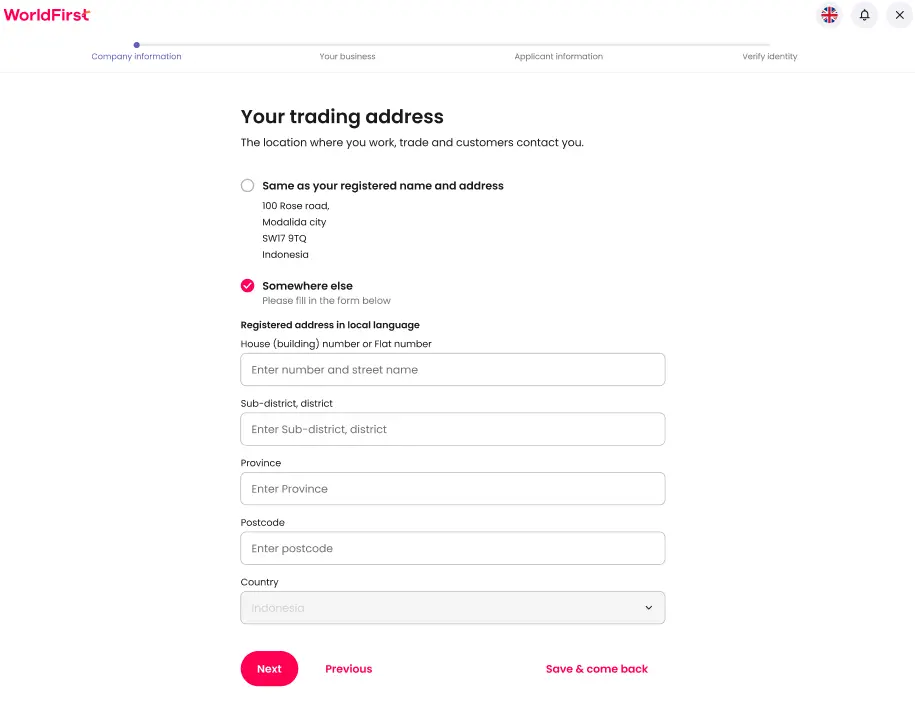
4. Choose the industry that best describes your business
5. Enter the public profile link of your Freelancer/ Developer platform (e.g. Upwork, Fiverr)
6. Upload the screenshot of your Freelancer / Developer platform profile page (kindly ensure that the profile page website URL link is visible)
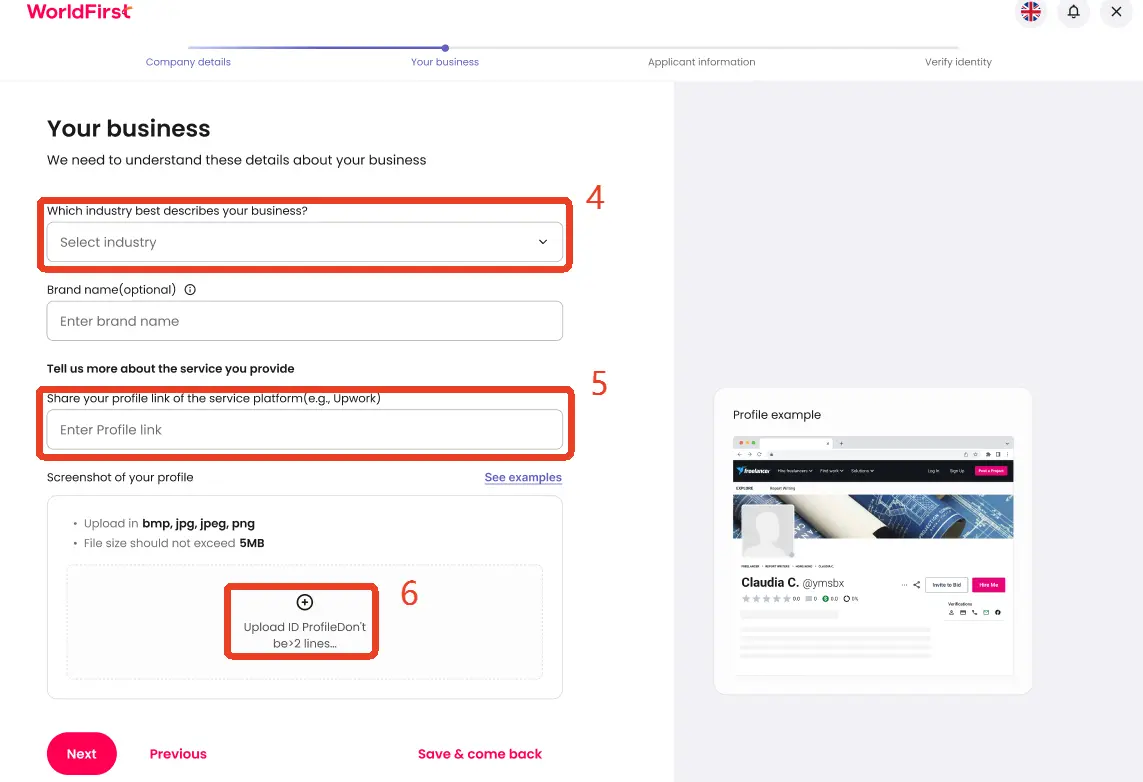
Brand name is an optional field. Once done, click ‘Next’.
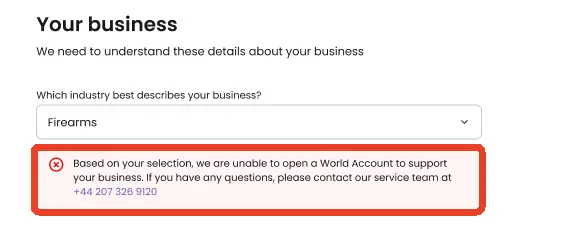
If the industry selected is not allowed, there will be a prompt preventing you to proceed.
| Step 9
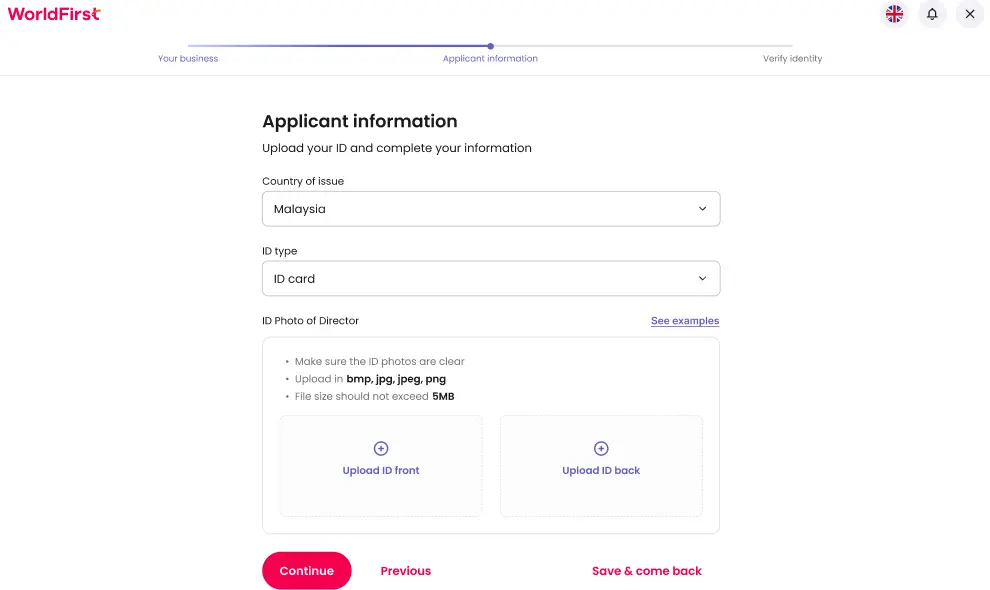
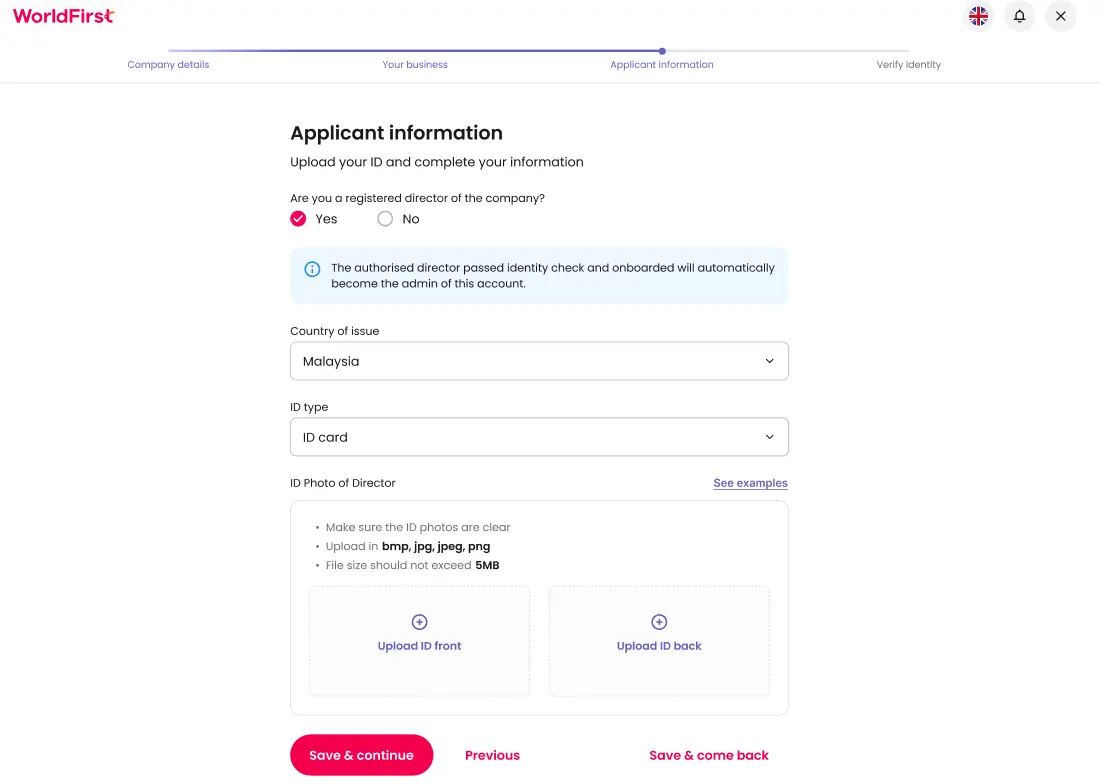
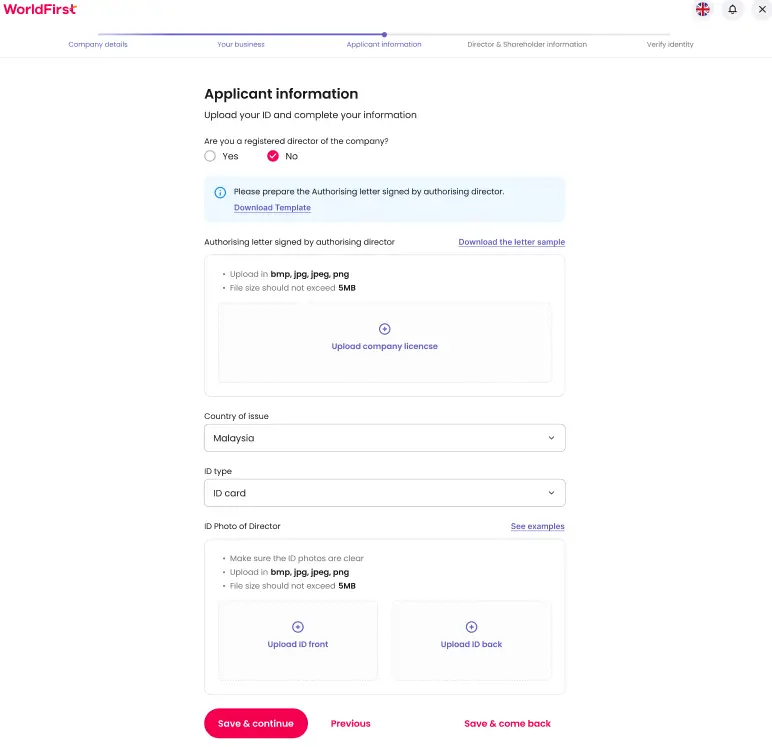
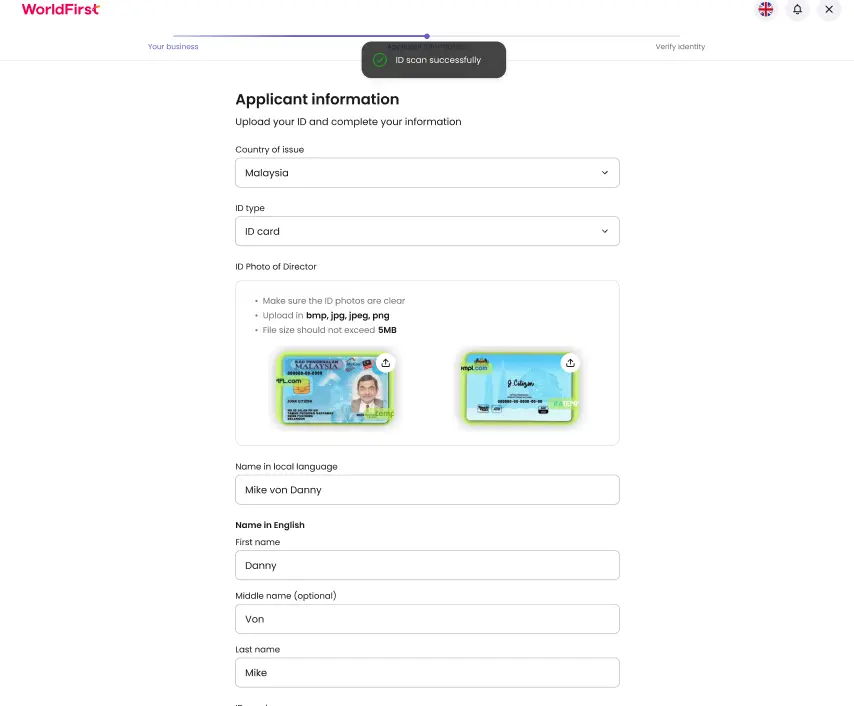
Fill up the Applicant information, once you upload your ID the details should be autofilled, else you would have to manually fill up by yourself.
| Step 10
[FOR COMPANY ONLY] Director and Shareholder Information
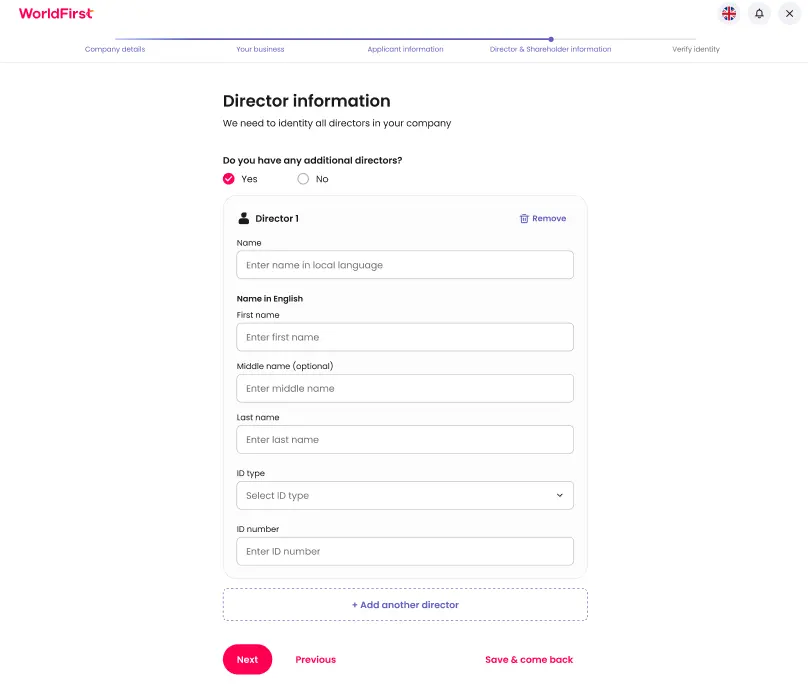
- If there’s additional director(s):
- Do you have any additional directors: Select ‘Yes’ and proceed to fill up the details of the director(s)
- Once done, click ‘Next’.
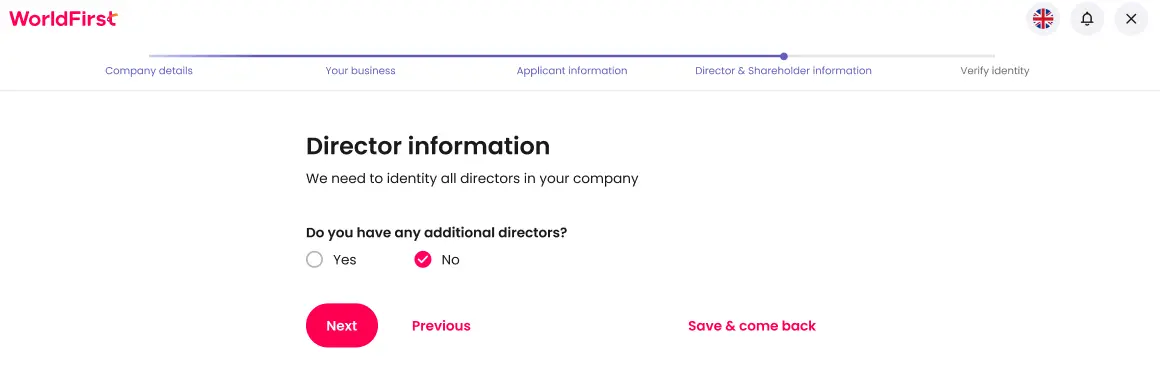
- If there’s NO additional director:
- Do you have any additional directors: Select ‘No’
- Once done, click ‘Next’.
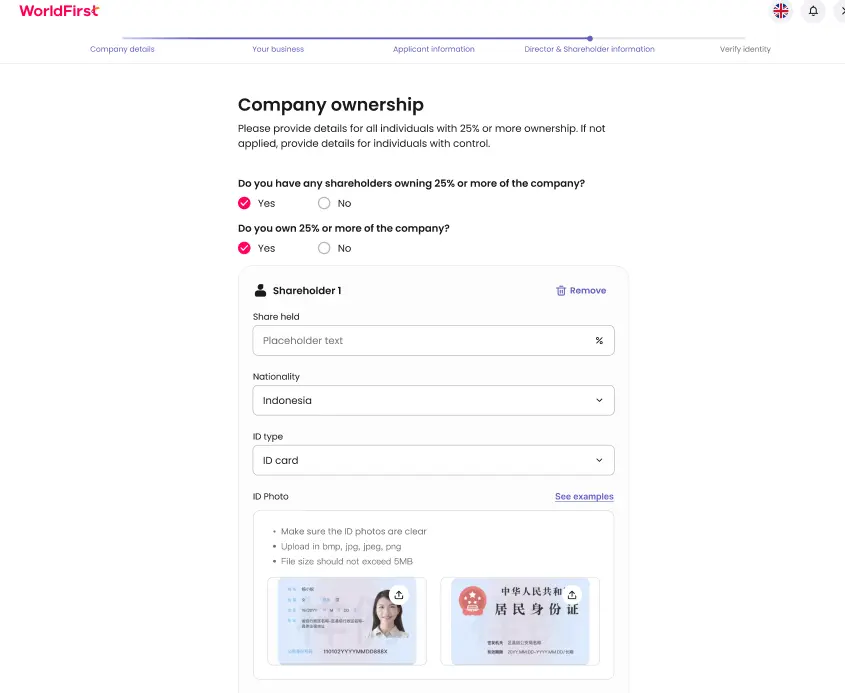
- If there’s UBO (including the applicant)
- Do you have any shareholders owning 25% or more of the company: Select ‘Yes’
- Do you own 25% or more of the company: Select ‘Yes’
- Proceed to fill up the details of the shareholder
- Once done, click ‘Next’.
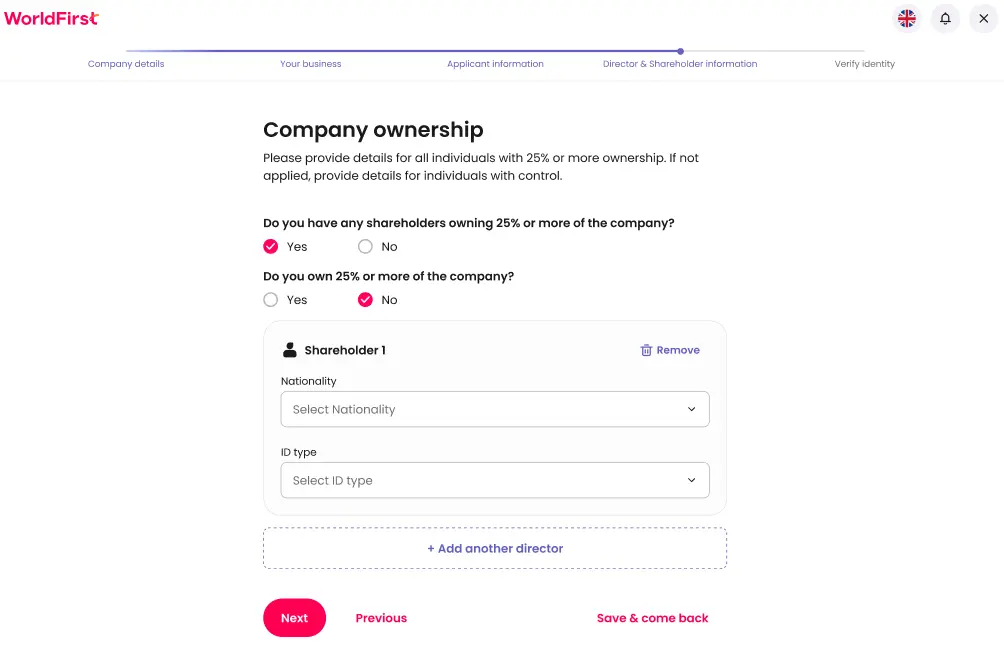
- If there’s UBO (not including the applicant)
- Do you have any shareholders owning 25% or more of the company: Select ‘Yes’
- Do you own 25% or more of the company: Select ‘No’
- Proceed to fill up the details of the shareholder
- Once done, click ‘Next’.
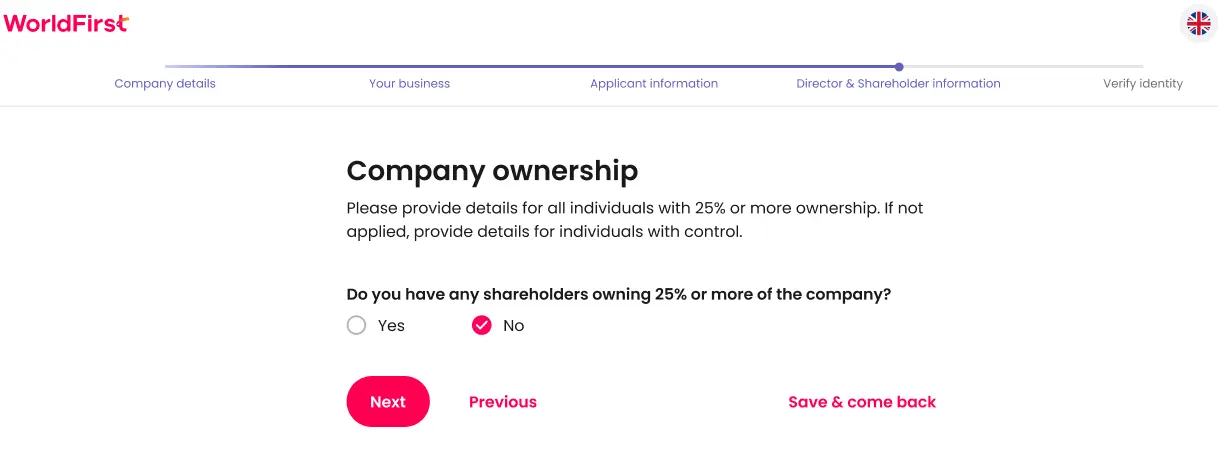
- If there’s no UBO
- Do you have any shareholders owning 25% or more of the company: Select ‘No’
- Once done, click ‘Next’.
| Step 11
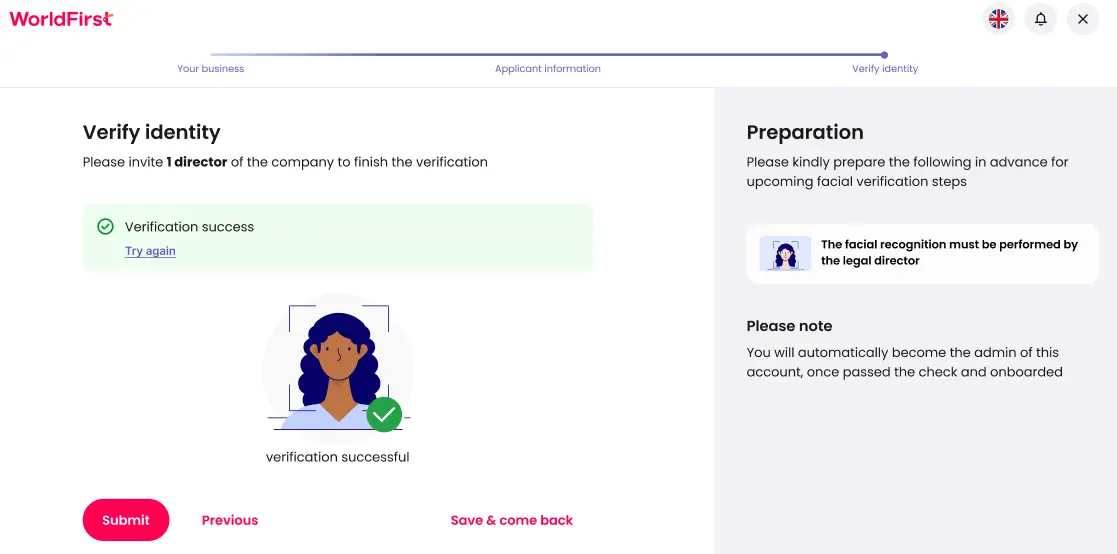
- Please complete the identity verification (facial verification). Once done, click ‘Submit’.
| Step 12
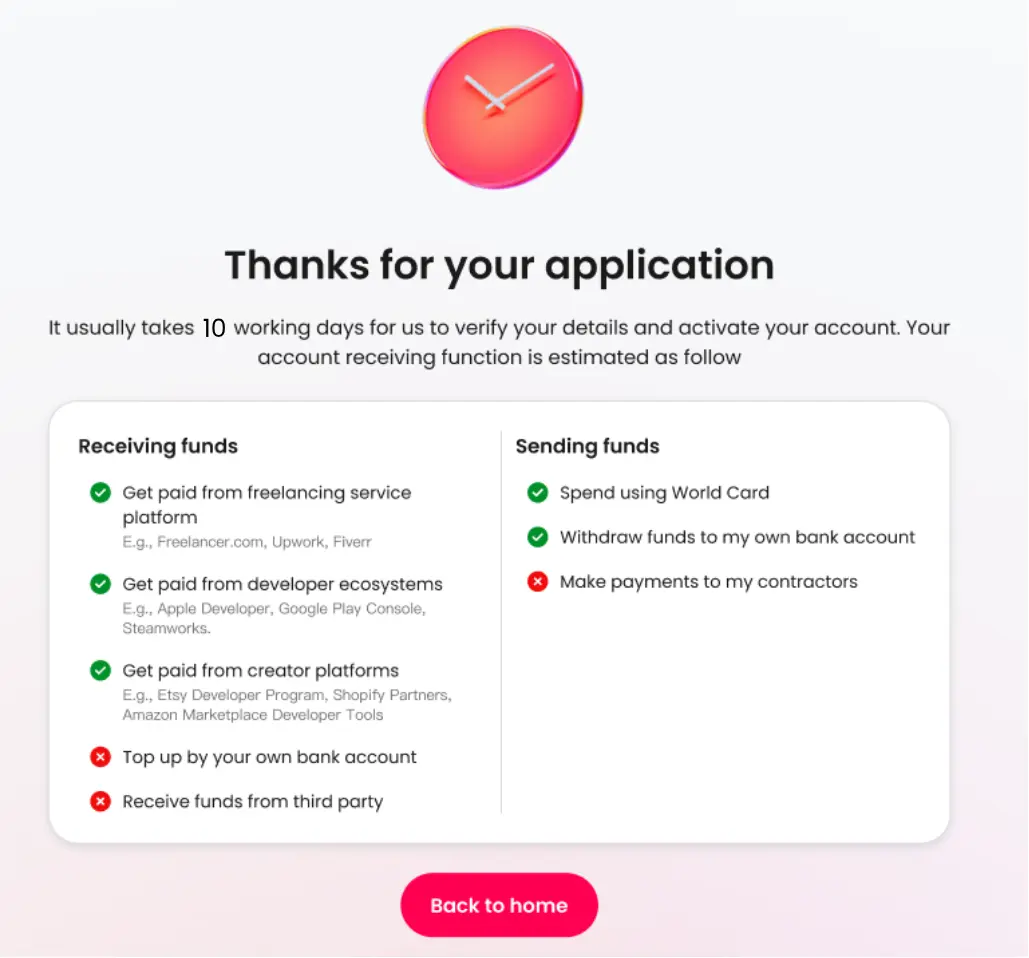
- There will be a confirmation page. Click on ‘Back to home’.