Business

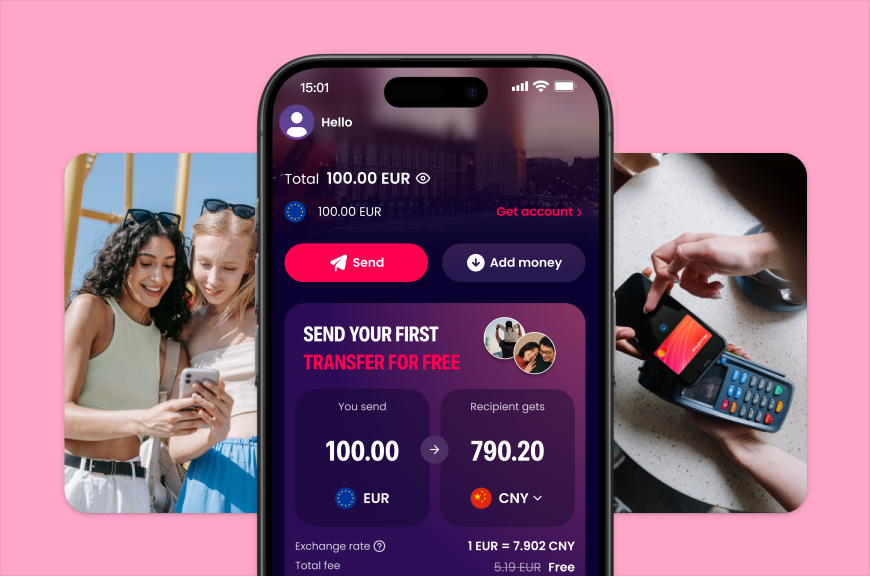
Multi-currency accounts, competitive FX, and global transfers — Everything you need to pay and get paid internationally
World account
Products
Solutions for
Pricing
Resources
Enterprise

Built for faster payments, smarter liquidity, and robust compliance-all powered by our next-gen API toolkit and Al-native architecture.
WorldFirst for Enterprise
Industry solutions
Resources
About us
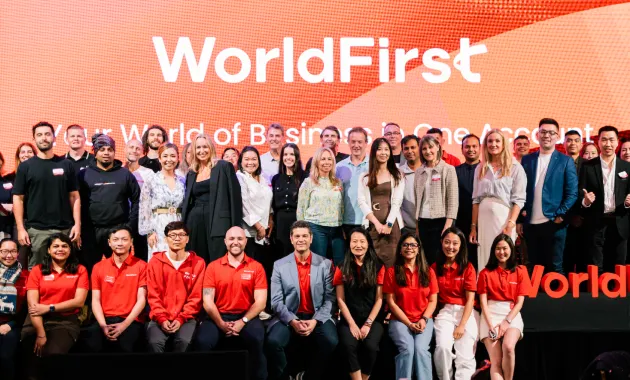
Named a Top Global Fintech Company by CNBC & Statista, we’ve supported 1.5M+ businesses since 2004.
Who we are
About WorldFirst
Resources
Europe

United Kingdom
English
Nederland
Nederlands

Türkiye
Türkiye
Poland
Poland

Deutschland
Deutsch
English

France
Français

Europe
English
Asia

Singapore
English

대한민국
한국어
English

Thailand
ภาษาไทย
English

South Asia

中国
简体中文
繁体中文
English
Việt Nam
Tiếng Việt
English

Indonesia
English
English

日本
日本語
English

Malaysia
English
Philippines
English
English
Oceania

Australia
English

New Zealand
English
Americas
México
Español

United States
This country is supported by WorldFirst affiliates, Zyla

América Latina
Africa

Africa

More international regions

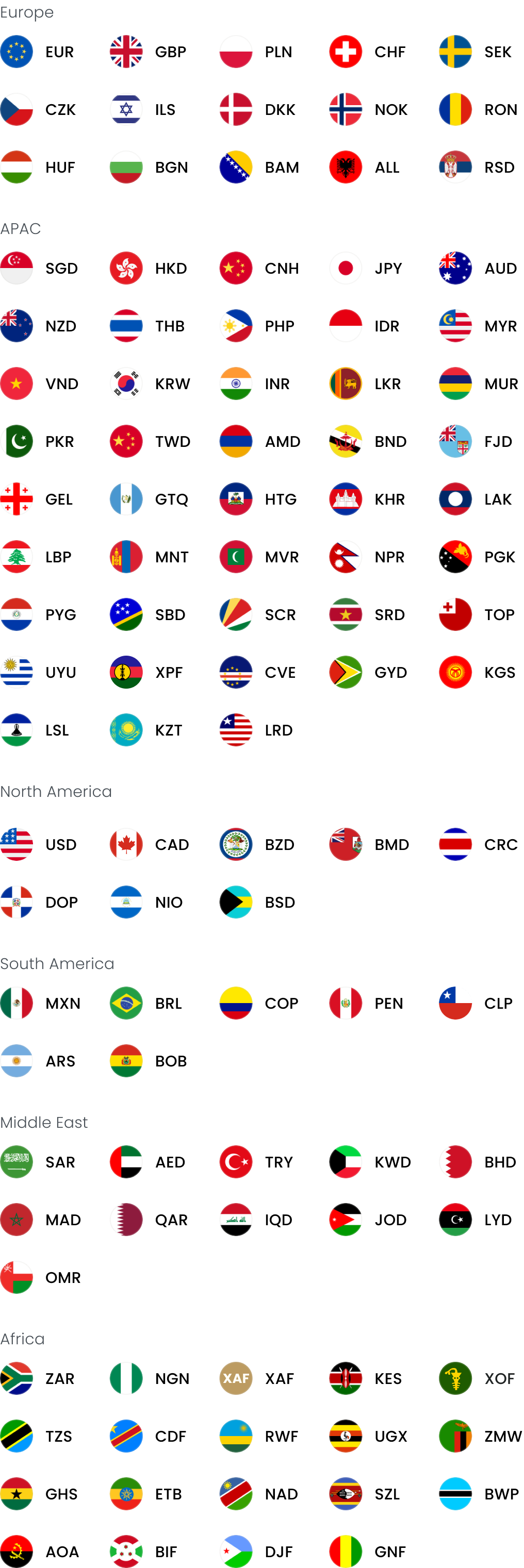
We provide coverage in South Asia and Middle East: servicing 210+ countries and territories.

Products
Solutions for
Resources
Pricing
Business
Multi-currency accounts, competitive FX, and global transfers — Everything you need to pay and get paid internationally
About WorldFirst
Resources
About us
Named a Top Global Fintech Company by CNBC & Statista, we’ve supported 1.5M+ businesses since 2004.
Industry Solutions
Resources
Enterprise
Built for faster payments, smarter liquidity, and robust compliance-all powered by our next-gen API toolkit and Al-native architecture.